

Connect Your Bublup to Zapier
- Login to Zapier.
- Select “App Connections” from the left-hand menu.
- Click “Create connection”.
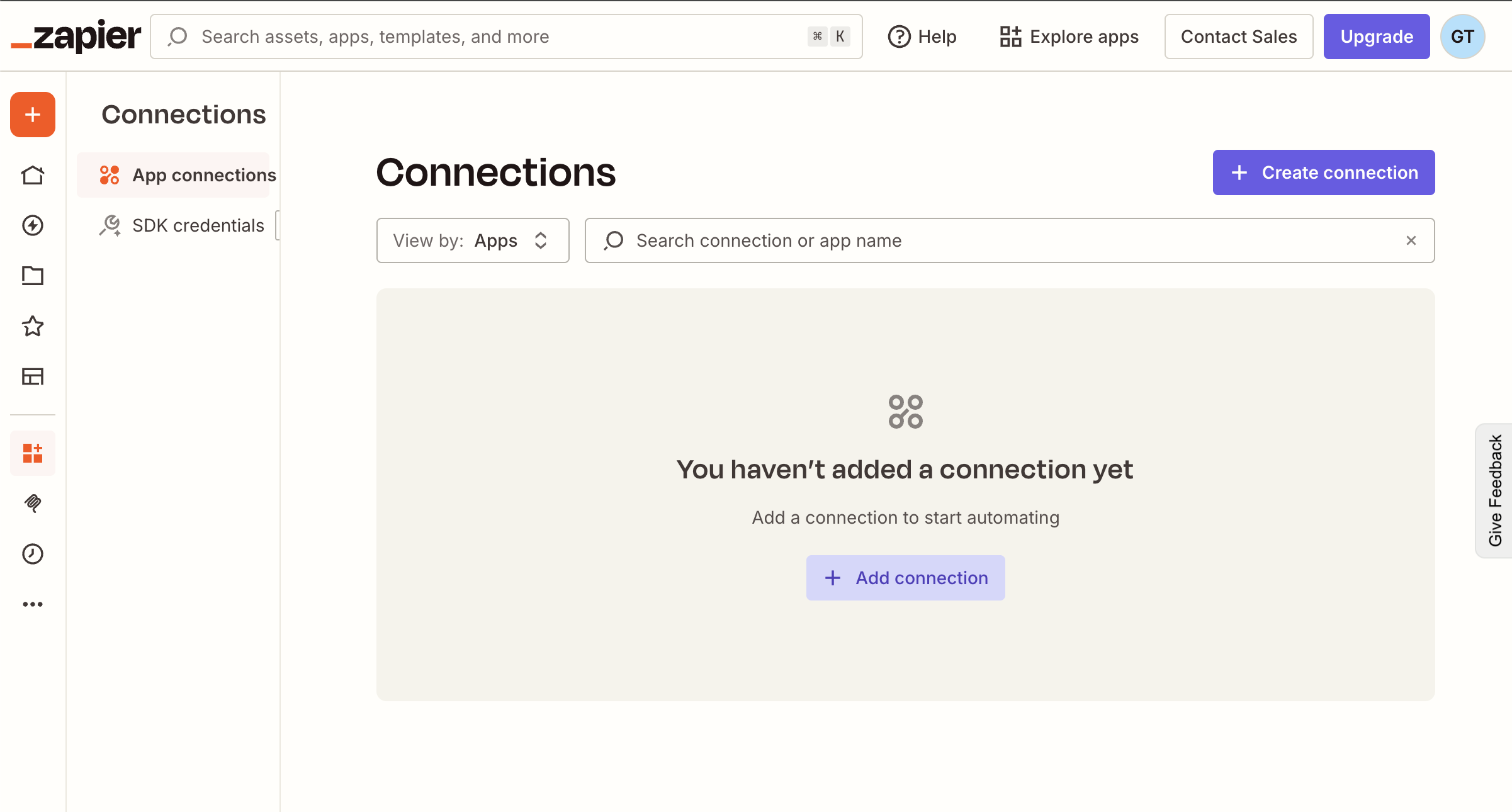
- Search for “bublup” and select the latest version.
- You will be prompted to login with your Bublup email and password.
Once successfully connected, you will see Bublup under your Connections list with a “Connected” status. Currently in Zapier, you have the ability to create or update Bublup items (notes and links), add Community members, and create Org Members,
Add or Update Items in Bublup
Add or update note and link items within a Bublup space inside your Organization or Community.
Step 1: Prepare Your Google Sheet
Before you jump into Zapier, create a new Google Sheet. The first row should contain the headers for the data you want to collect. For items importing, your headers might be:
- Title
- Description
- URL
- Address
- City
- State
- Country
- External ID
Note: If a URL is included, the item will be imported as a link; otherwise it will be imported as a note. For note items, the only required field is a description. If location fields are included, the item will be saved with location information attached.
Pro Tip: Create clear and specific headers. Don’t change them after you set up your Zap, as Zapier uses these headers to know where to put the data. Changing a header will break your Zap!
Step 2: Create a New Zap and Set Up the Trigger
- Log into your Zapier account and click the “Create Zap” button.
- Choose the Trigger App: Search for and select “Google Sheets.”
- Select the Trigger Event: choose “New or Updated Spreadsheet Row.”
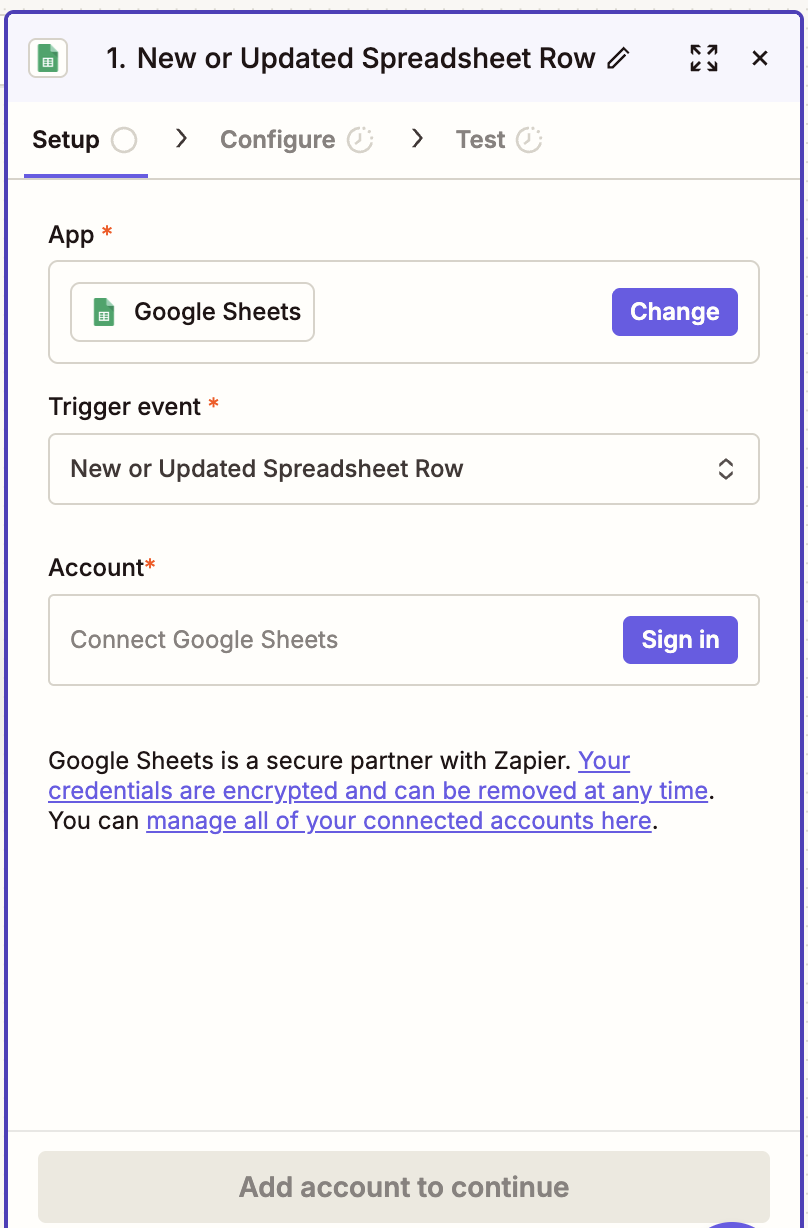
(This tells Zapier to start the workflow whenever a row is added or updated in the sheet.) - Connect Your Account: Zapier will prompt you to connect your Google account if you haven’t already. Follow the on-screen instructions to grant access.
- Select Your spreadsheet and worksheet (tab) you would like to connect.
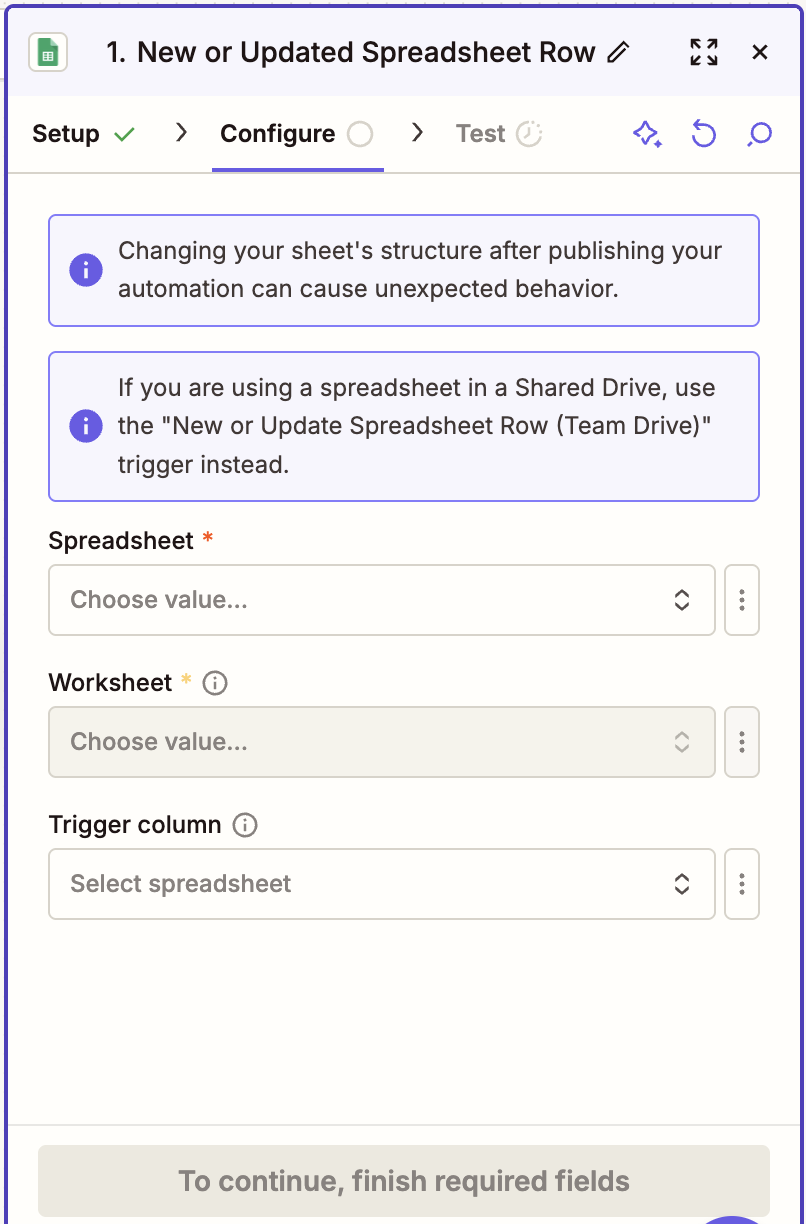
- Select the trigger column from the available sheet columns.
For note items, we recommend using the “description” column. For link items, we recommend using the URL column. If your sheet has a combination of item types, go with whatever column will be non-empty in every valid row. - Test the Trigger: Zapier will attempt to fetch the records from the google sheet to use as sample data. Once you see the sample data pulled in successfully, you can move on to the action.
Step 3: Set Up the Bublup Action
Now you’ll tell Zapier what to do with the data from Google Sheets.
- Choose the Action App: Search for and select “bublup”.
- Select the Action Event: Select “Create/Update a Bublup Item.“
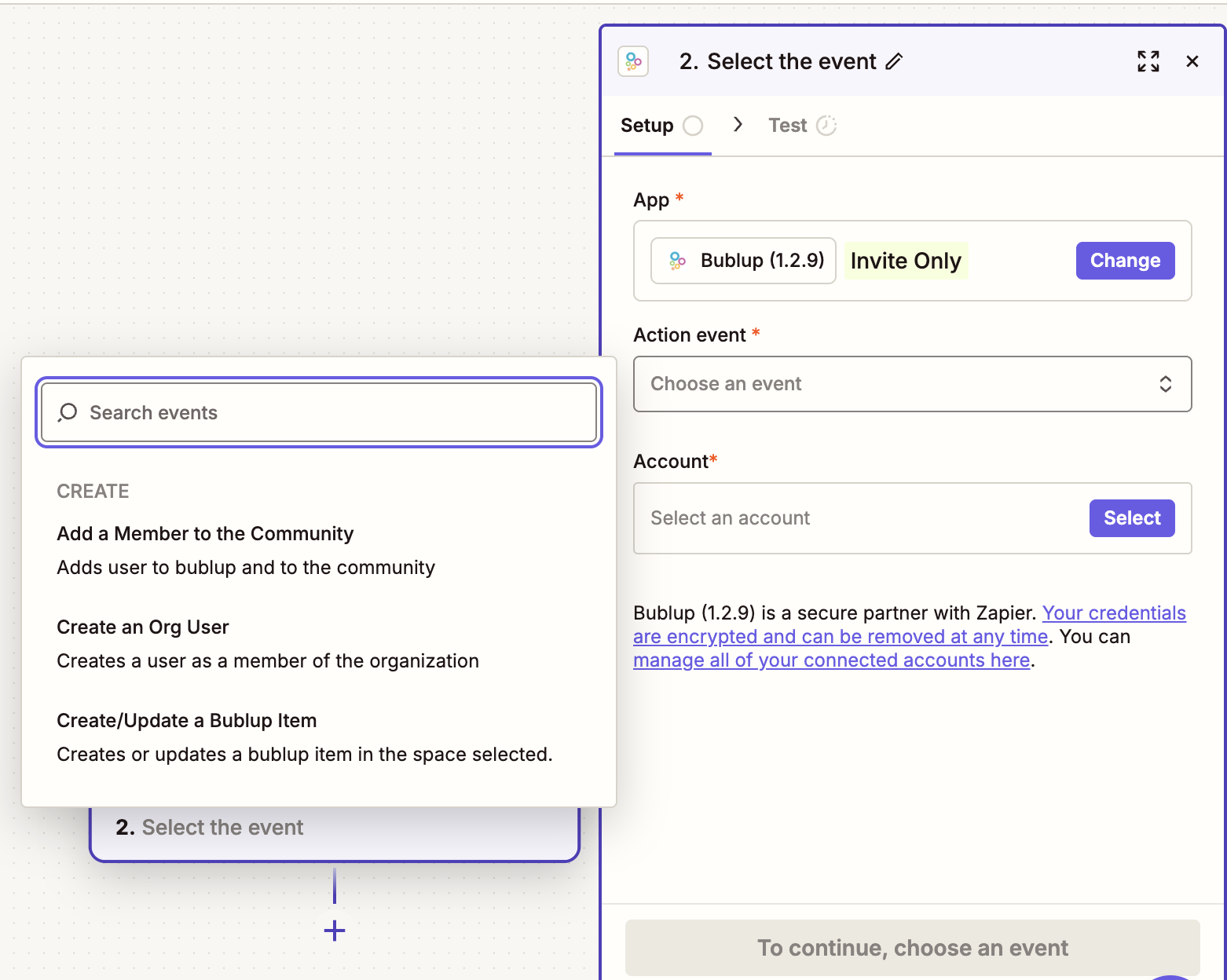
- Connect Your Bublup Account by signing in. Then click “continue”.
- Under “Enter Space Name to Find…”, enter the name of your space where you wish to upload items. Then click on “Select Space” and find the correct space (based on the name you entered).
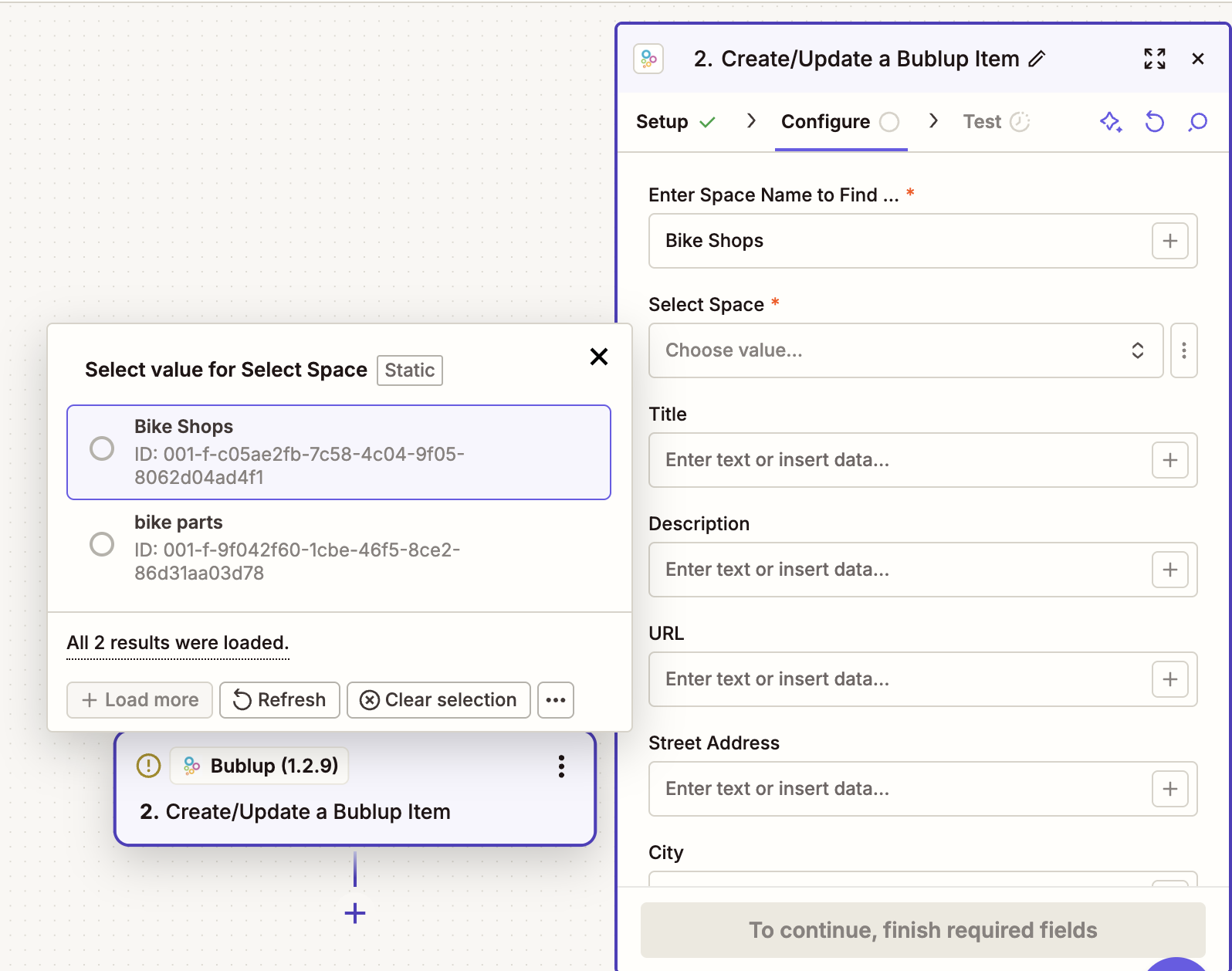
- Map Your Data Fields: Map each of the Bublup fields to their corresponding columns from your Google Sheet.
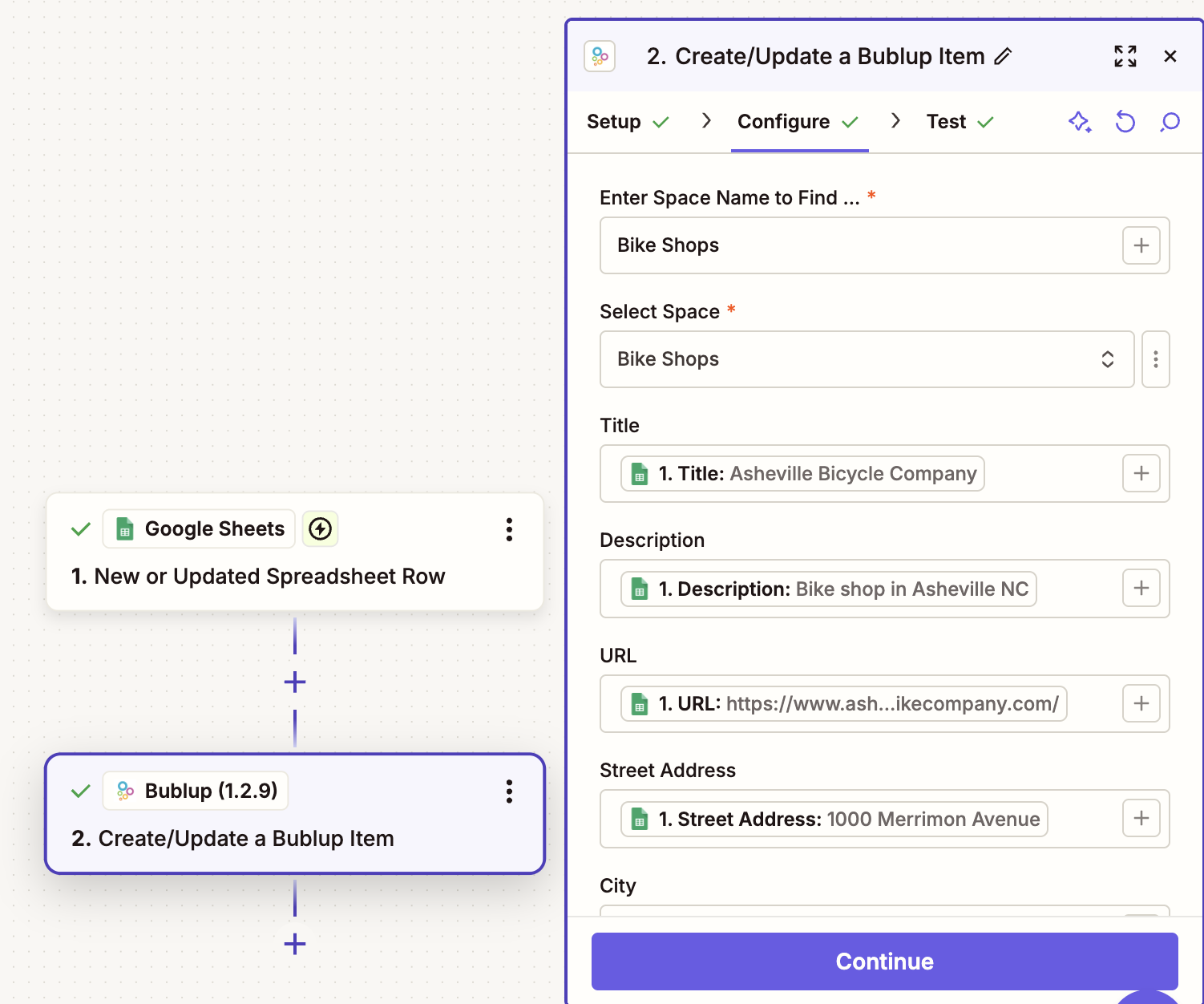
- Test the Action: After mapping all your fields, click “Test & Continue.”
- If the test data looks correct, your final step is to click “Publish Zap“.
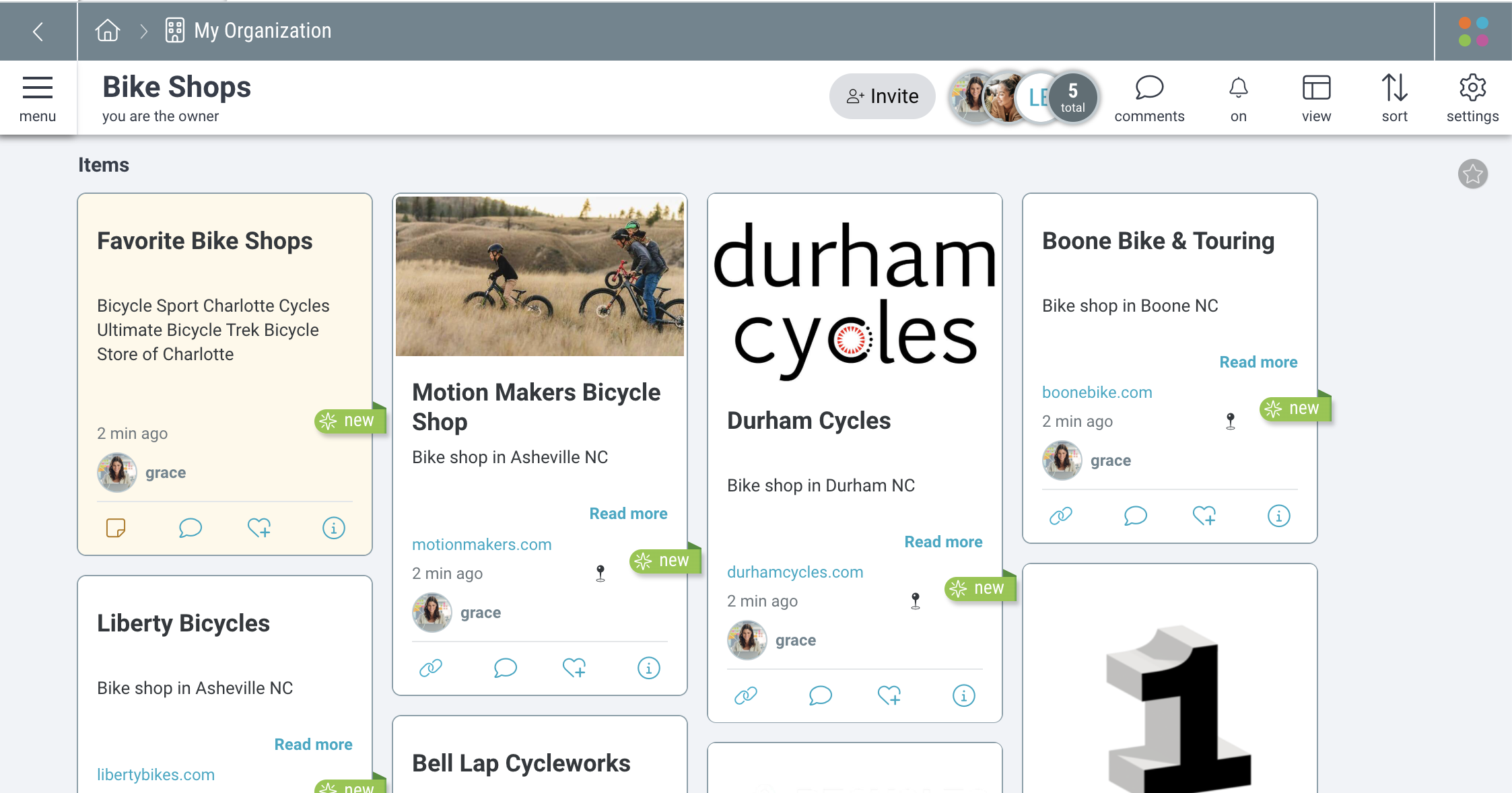
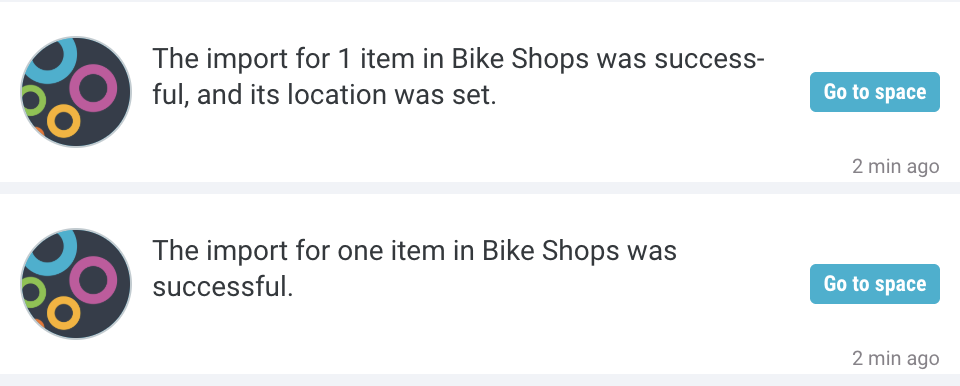
That’s it! Your automation is now live and will run in the background 24/7 whenever the google sheet is updated and you will receive a notification when an item is successfully imported.
Pro Tip: Updating existing items
Use the “External ID” field to assign unique IDs to an item. This will allow you to update an existing item via the Zapier integration instead of creating a new one.