

Create online forums to discuss topics of interest! Setup private spaces dedicated to conversations by posting questions, answers and responses. Utilize analytics features to empower your community and make data-driven decisions.
Some basics about Forums in Bublup:
-
- Enterprise plans include unlimited forums with unlimited members.
- Business plans include 1 forum with unlimited members.
- Pro plans include 1 forum with up to 500 members.
Creating Forums
Only space owners (or admins) can create new Forums.
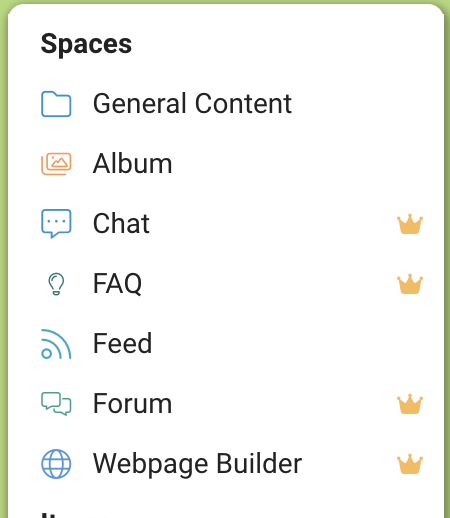
- From your top-level Home (or within a space), tap the + Menu and select “Forum”.
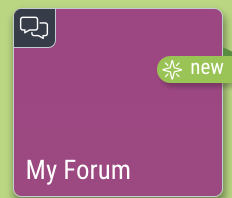
- Name your Forum and select a cover image. Forums will have this icon in the upper-left hand corner.
- Use the “Share” button to invite members to your Forum.
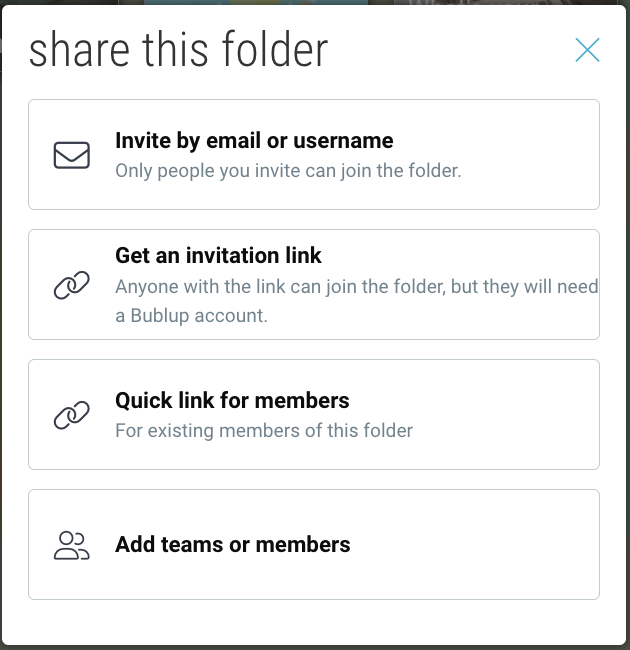
By default, forums within an existing shared space will inherit that space’s membership. Click here to learn more about inviting and managing space members.
Member Permissions:
- Only owners or admins (in shared spaces) can create forums.
- All members can create new posts, as well as comment and react to existing posts.
- Attachment upload size limitations depend on each user’s individual plan.
- A post can only be edited by its original author.
- Admins can “lock” a post to disable new comments and reactions.
- Admins can tag a post. All members can search for tags by using the “#” symbol in the Bublup search tool.
- If a post has no comments, the author can delete it. Once there are comments, only the space owner or admin can delete it.
Creating Posts within a Forum
Inside a Forum, tap on “Start a post…” or use the + button to create a new post. Give your post a title and write your thoughts. You can also optionally include an attachment or add a cover image. Tap “post” in the upper-right corner to publish.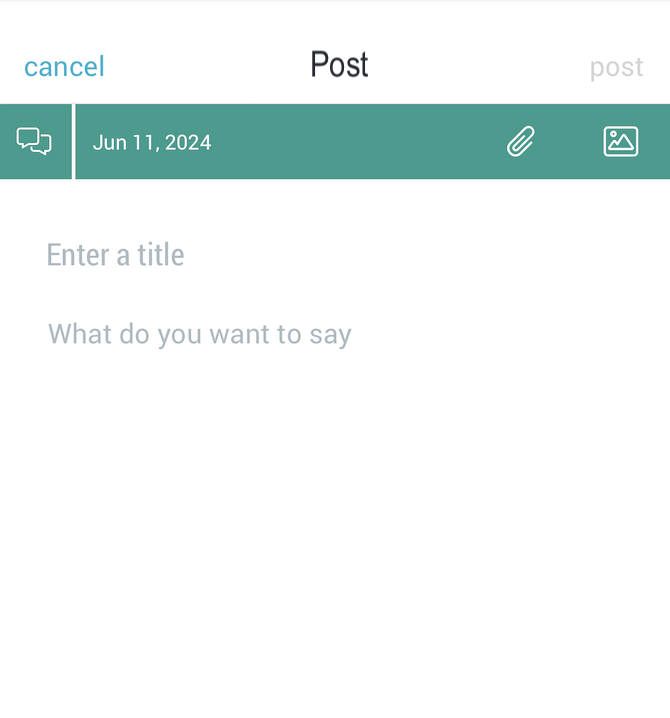
Track how many views, comments and reactions your post receives. Use the 3-dot menu to edit your post.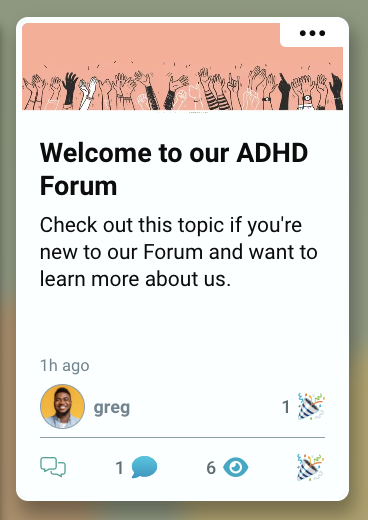
Interacting in Forums
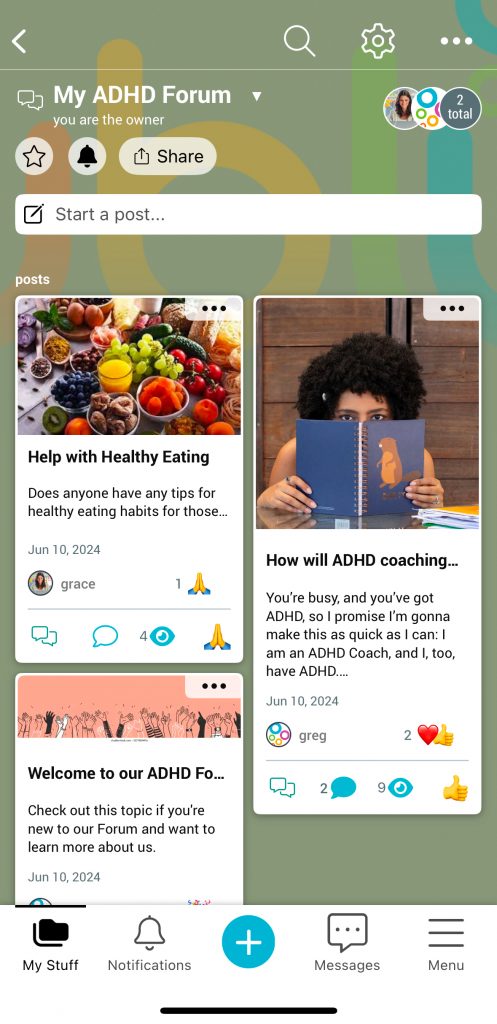
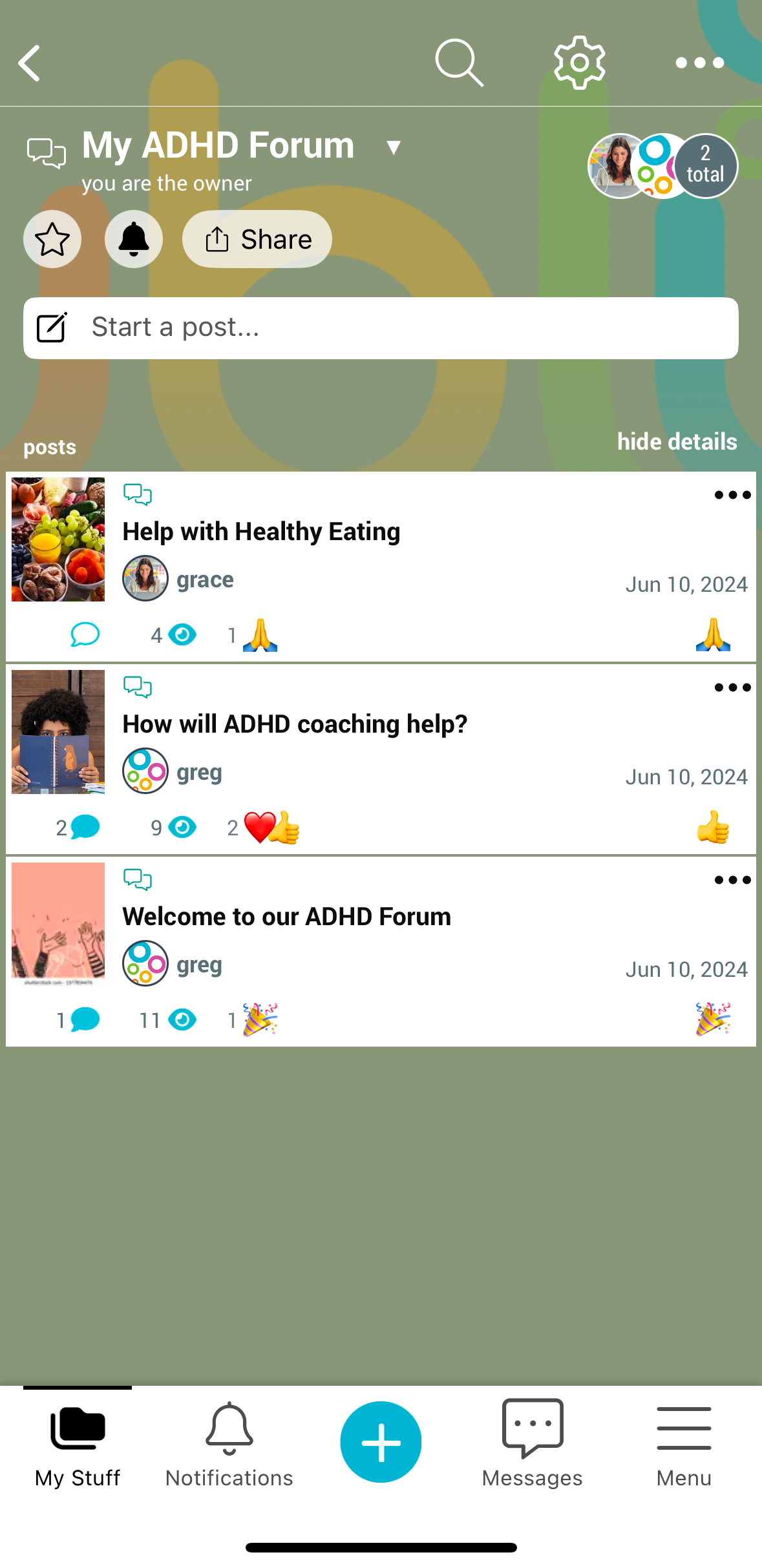
Browse all posts within a forum. Switch between tile or list view and different sort orders.
Tap on a post to open it. View and react to existing comments and attachments, or add your own.
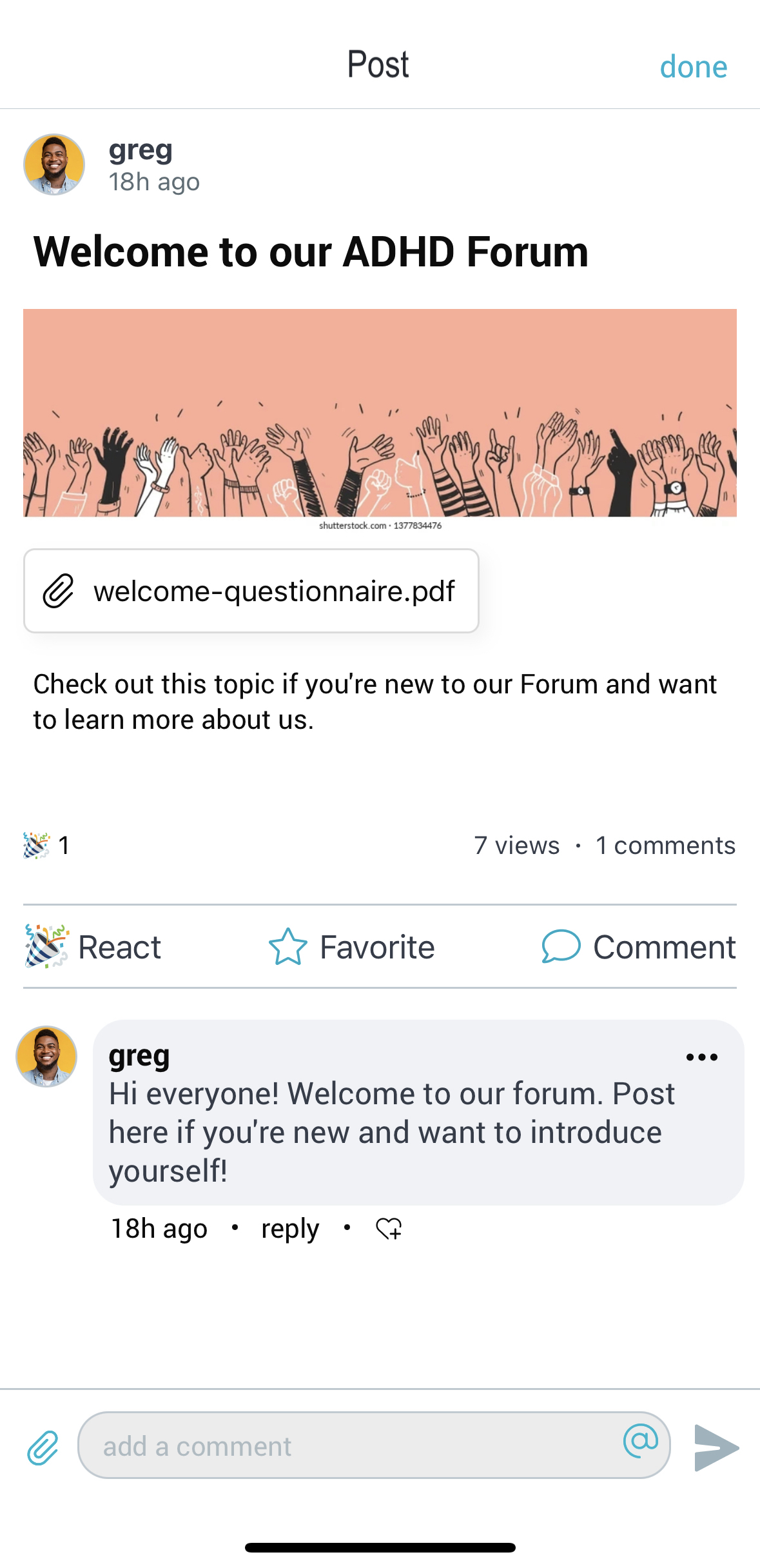
Use the @ symbol to tag users in your comments. Use the paperclip symbol to include attachements of your own.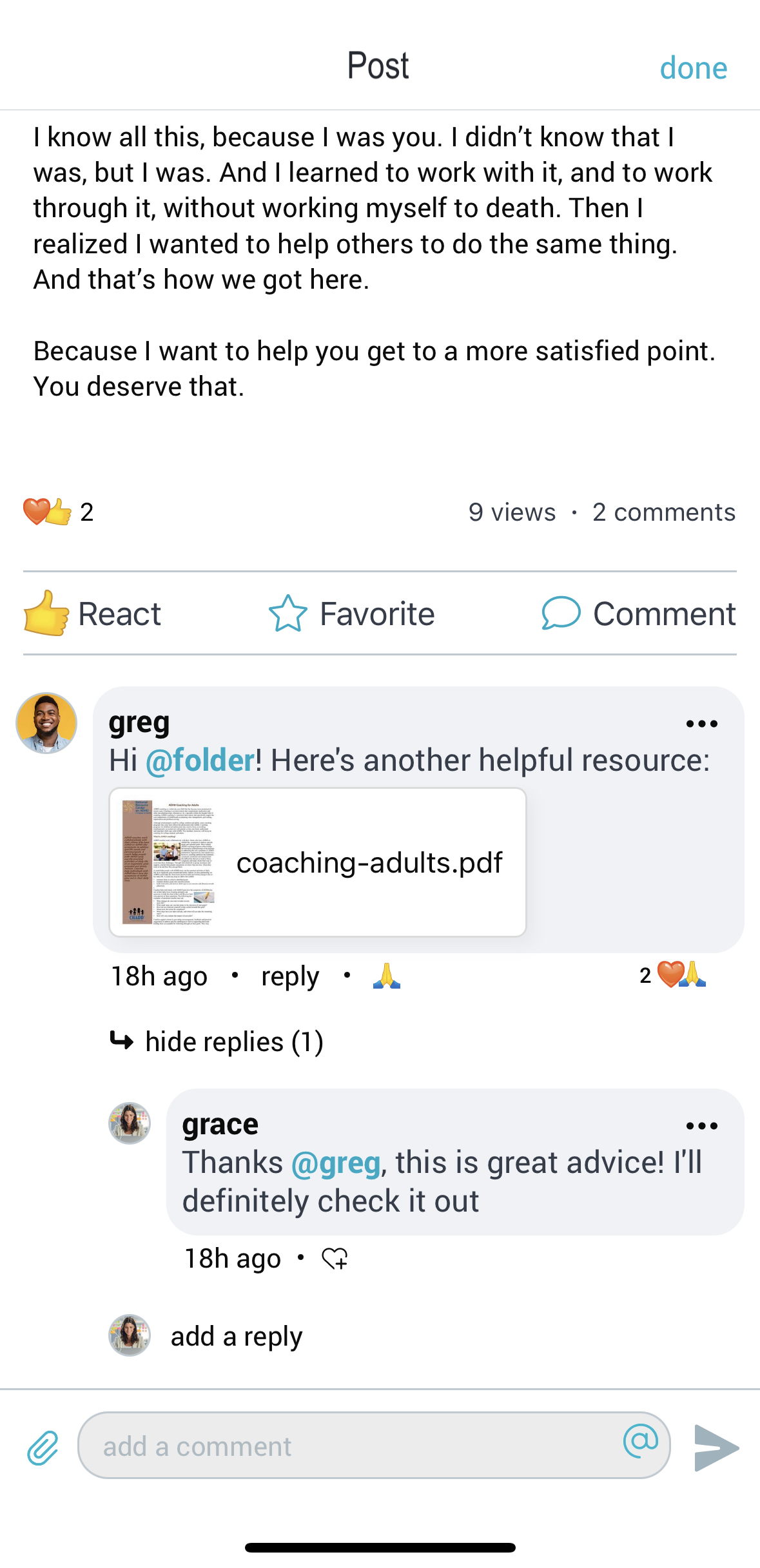
Locking a Post:
An admin can “lock” a post to disable new comments and reactions. To do so, open the post and go to the lock icon in the upper right-hand corner. Then tap “proceed”.
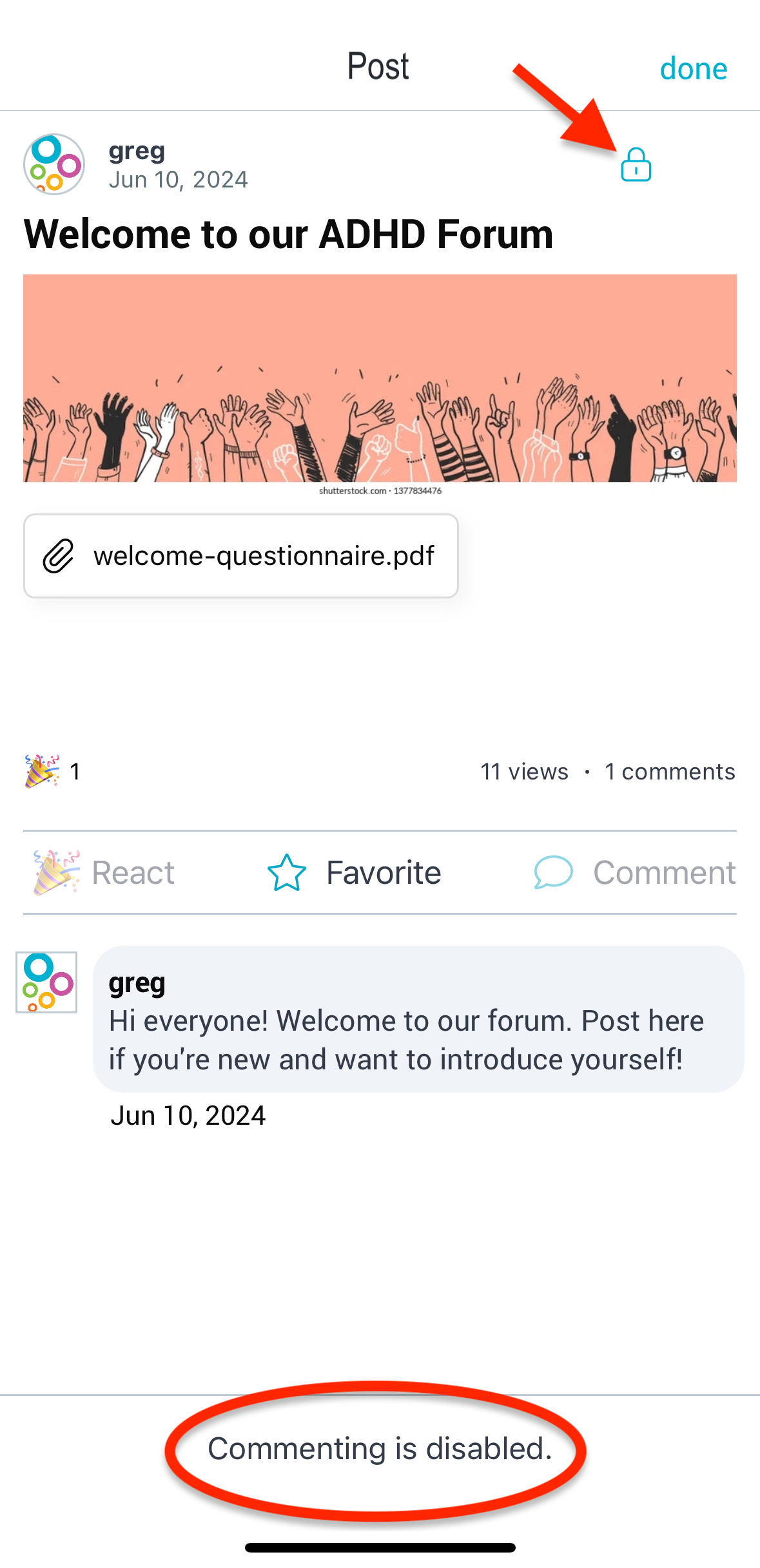
Once a post is locked, members will not be able to add new comments or reactions. Existing comments and reactions will still be visible. To unlock the post, simply tap on the lock again to re-enable commenting and reacting.
Forum Analytics
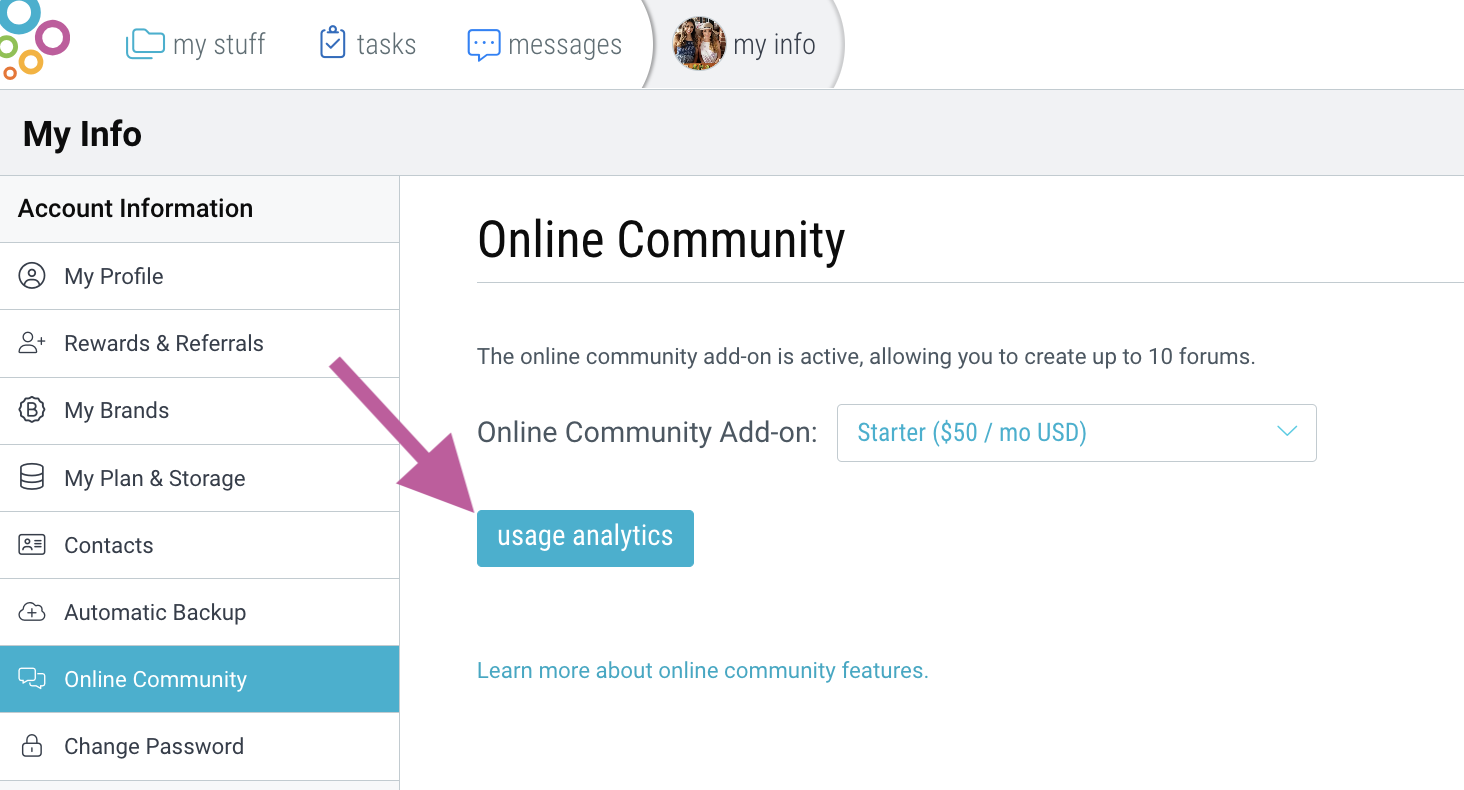
On desktop, go to My Info > “Forums” and click “usage analytics”.
View your most popular topics, active users, and community engagement (page views, comments created, posts created, device type).
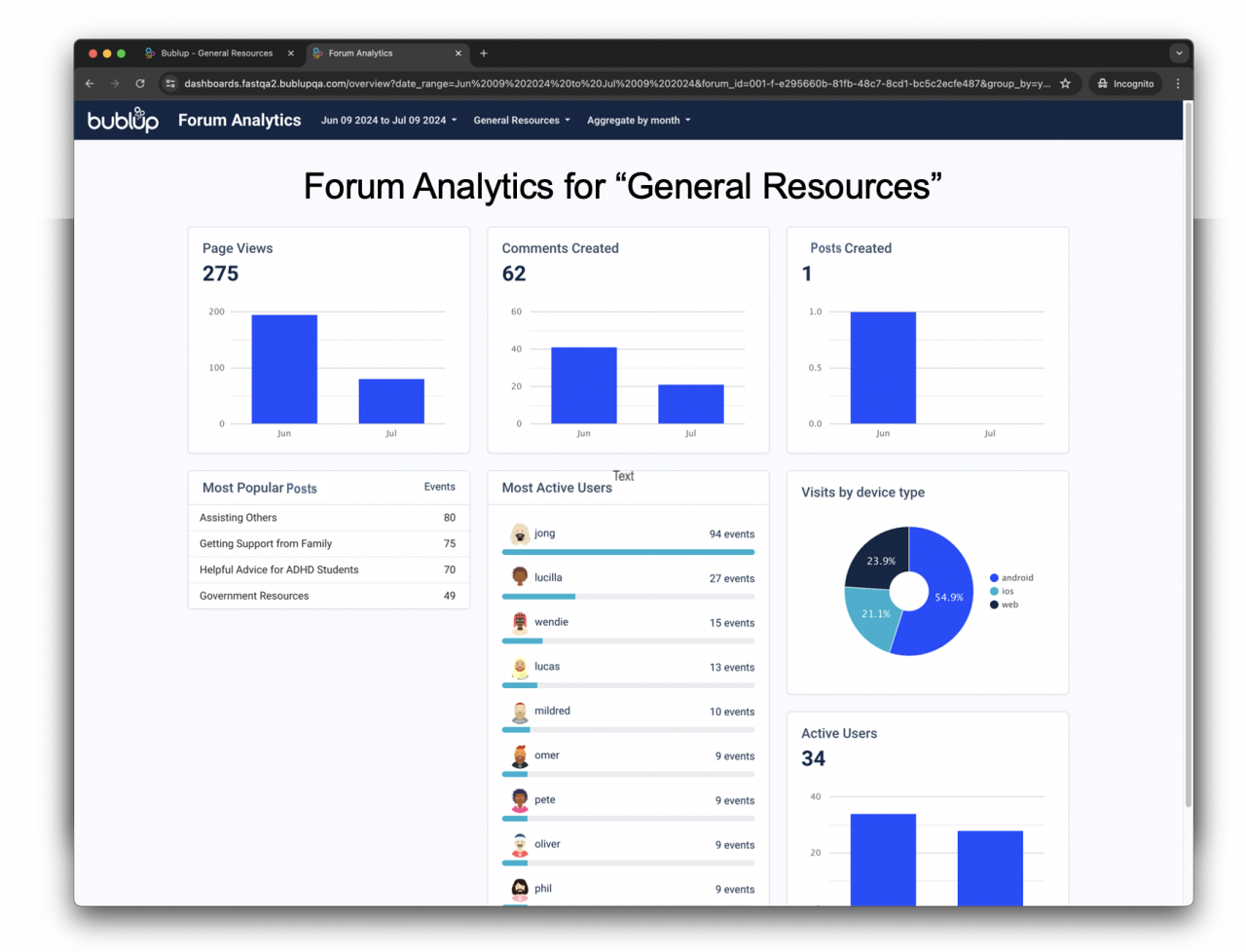
Select which forums to view, the date range, and the aggregate method (day, week, month).
Create online forums to discuss topics of interest! Setup private spaces dedicated to conversations by posting questions, answers and responses. Utilize analytics features to empower your community and make data-driven decisions.
Some basics about Forums in Bublup:
-
- Enterprise plans include unlimited forums with unlimited members.
- Business plans include 1 forum with unlimited members.
- Pro plans include 1 forum with up to 500 members.
Creating Forums
Only space owners (or admins) can create new Forums.
- From your top-level Home (or within a space), tap the + Menu and select “Forum”.
- Name your Forum and select a cover image. Forums will have this icon in the upper-left hand corner.
- Use the “Share” button to invite members to your Forum.
By default, forums within an existing shared space will inherit that space’s membership. Click here to learn more about inviting and managing space members.
Member Permissions:
- Only owners or admins (in shared spaces) can create forums.
- All members can create new posts, as well as comment and react to existing posts.
- Attachment upload size limitations depend on each user’s individual plan.
- A post can only be edited by its original author.
- Admins can “lock” a post to disable new comments and reactions.
- Admins can tag a post. All members can search for tags by using the “#” symbol in the Bublup search tool.
- If a post has no comments, the author can delete it. Once there are comments, only the space owner or admin can delete it.
Creating Posts within a Forum
Inside a Forum, tap on “Start a post…” or use the + button to create a new post. Give your post a title and write your thoughts. You can also optionally include an attachment or add a cover image. Tap “post” in the upper-right corner to publish.
Track how many views, comments and reactions your post receives. Use the 3-dot menu to edit your post.
Interacting in Forums
Browse all posts within a forum. Switch between tile or list view and different sort orders.
Tap on a post to open it. View and react to existing comments and attachments, or add your own.
Use the @ symbol to tag users in your comments. Use the paperclip symbol to include attachements of your own.
Locking a Post:
An admin can “lock” a post to disable new comments and reactions. To do so, open the post and go to the lock icon in the upper right-hand corner. Then tap “proceed”.
Once a post is locked, members will not be able to add new comments or reactions. Existing comments and reactions will still be visible. To unlock the post, simply tap on the lock again to re-enable commenting and reacting.
Forum Analytics
On desktop, go to My Info > “Forums” and click “usage analytics”.
View your most popular topics, active users, and community engagement (page views, comments created, posts created, device type).
Select which forums to view, the date range, and the aggregate method (day, week, month).