
Create chat spaces to engage with other Bublup users.
Some basics about Chat spaces:
-
- Enterprise plans include unlimited forums with unlimited members.
- Business plans include 1 forum with unlimited members.
- Pro plans include 1 forum with up to 500 members.
Creating a Chat Space
1. Select “Chat” from the + menu and give it a name.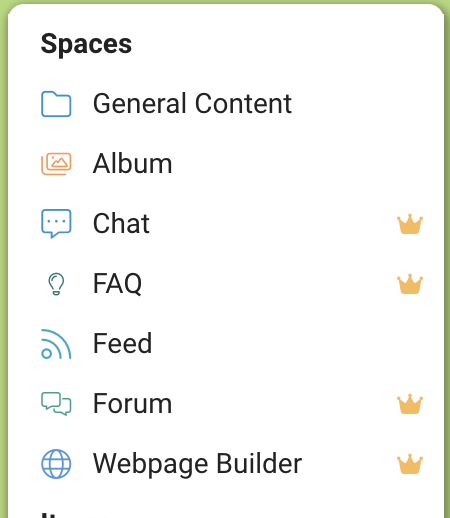
Your chat space will appear with this icon in the upper-left corner.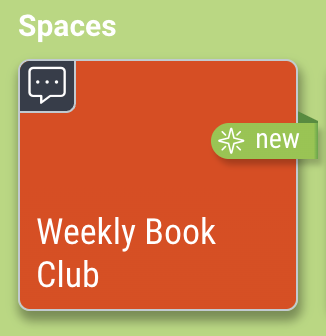
2. Navigate into your chat space, tap “invite”, and select the invitation method.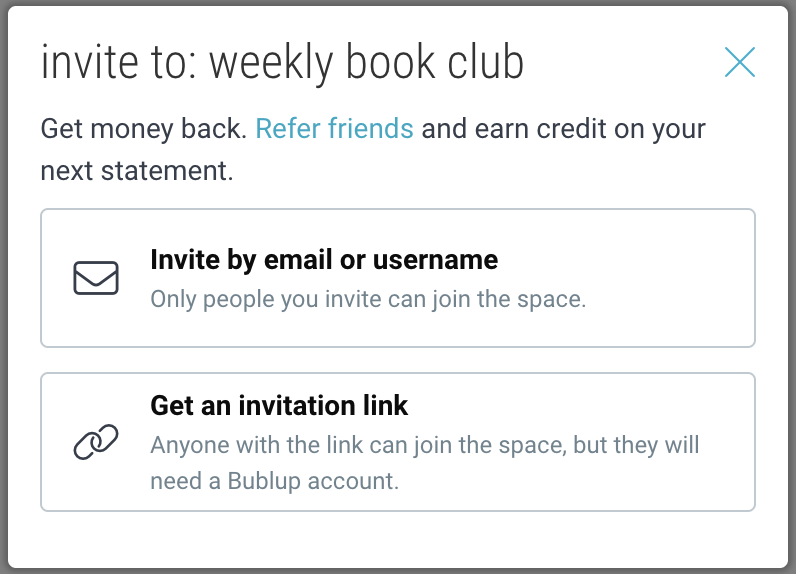
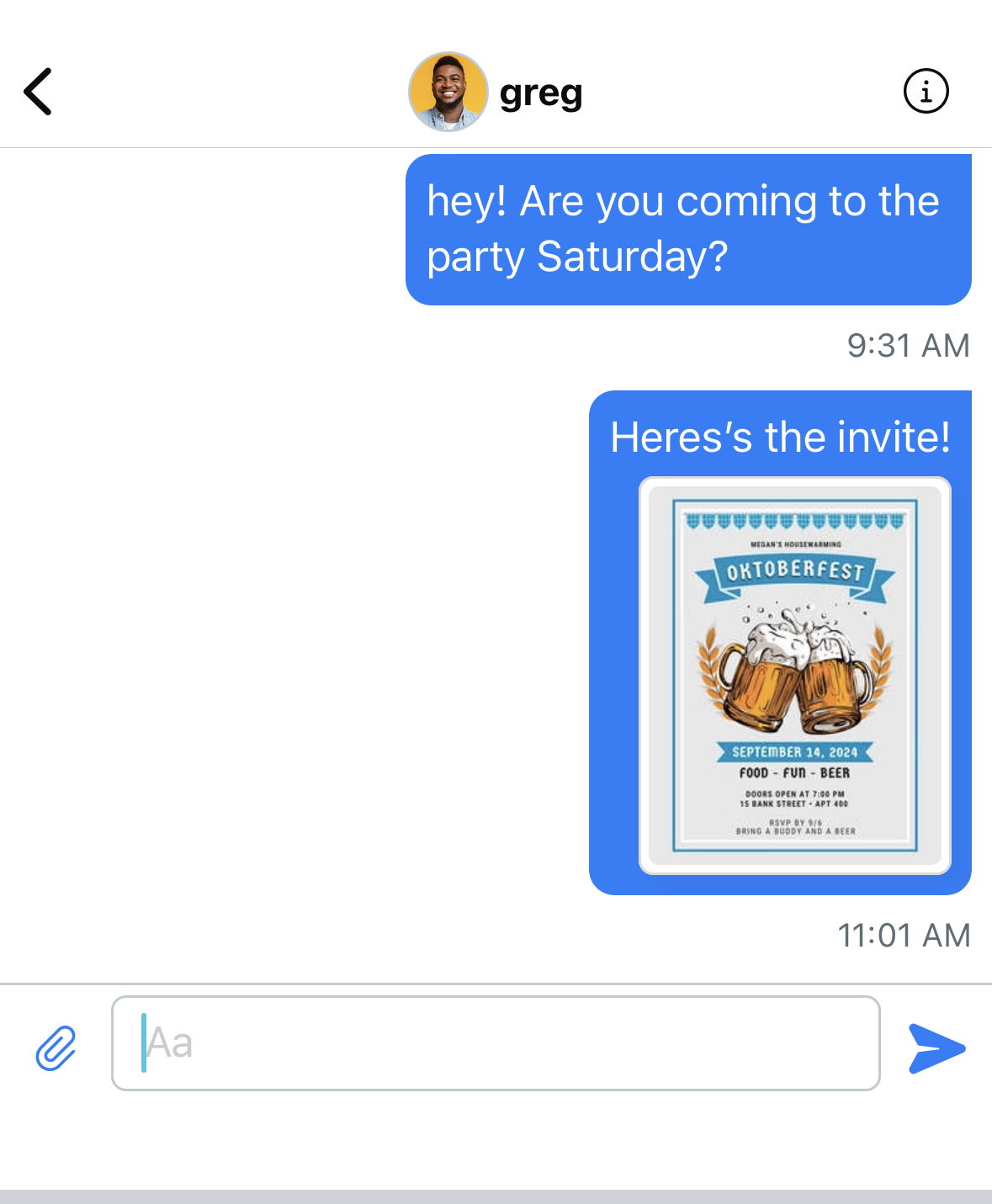
3. Type a message to the group and tap the send arrow.

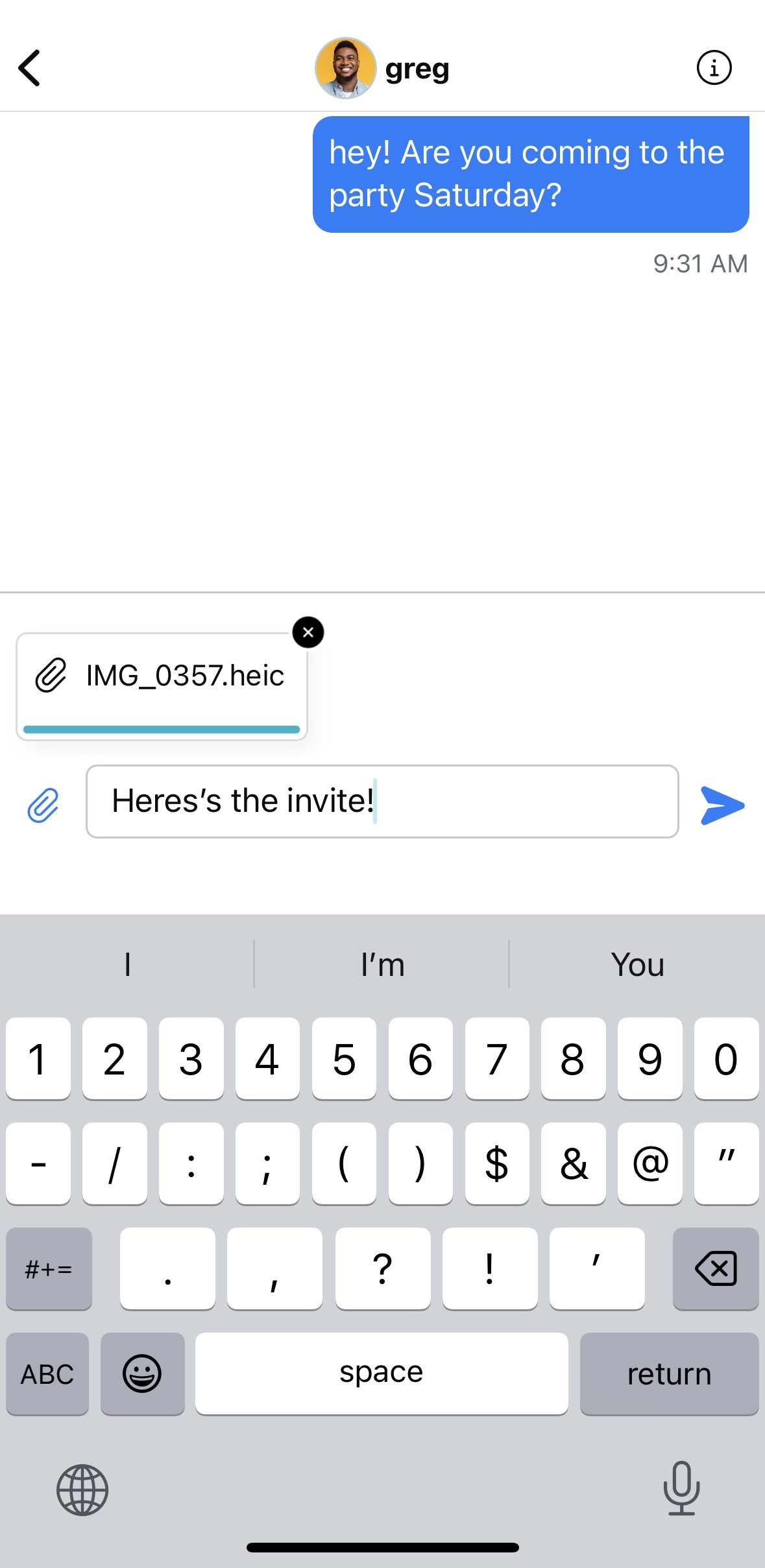
4. To add attachments to your messages, tap the attachment button. (Note: your upload size limit will depend on your plan.)
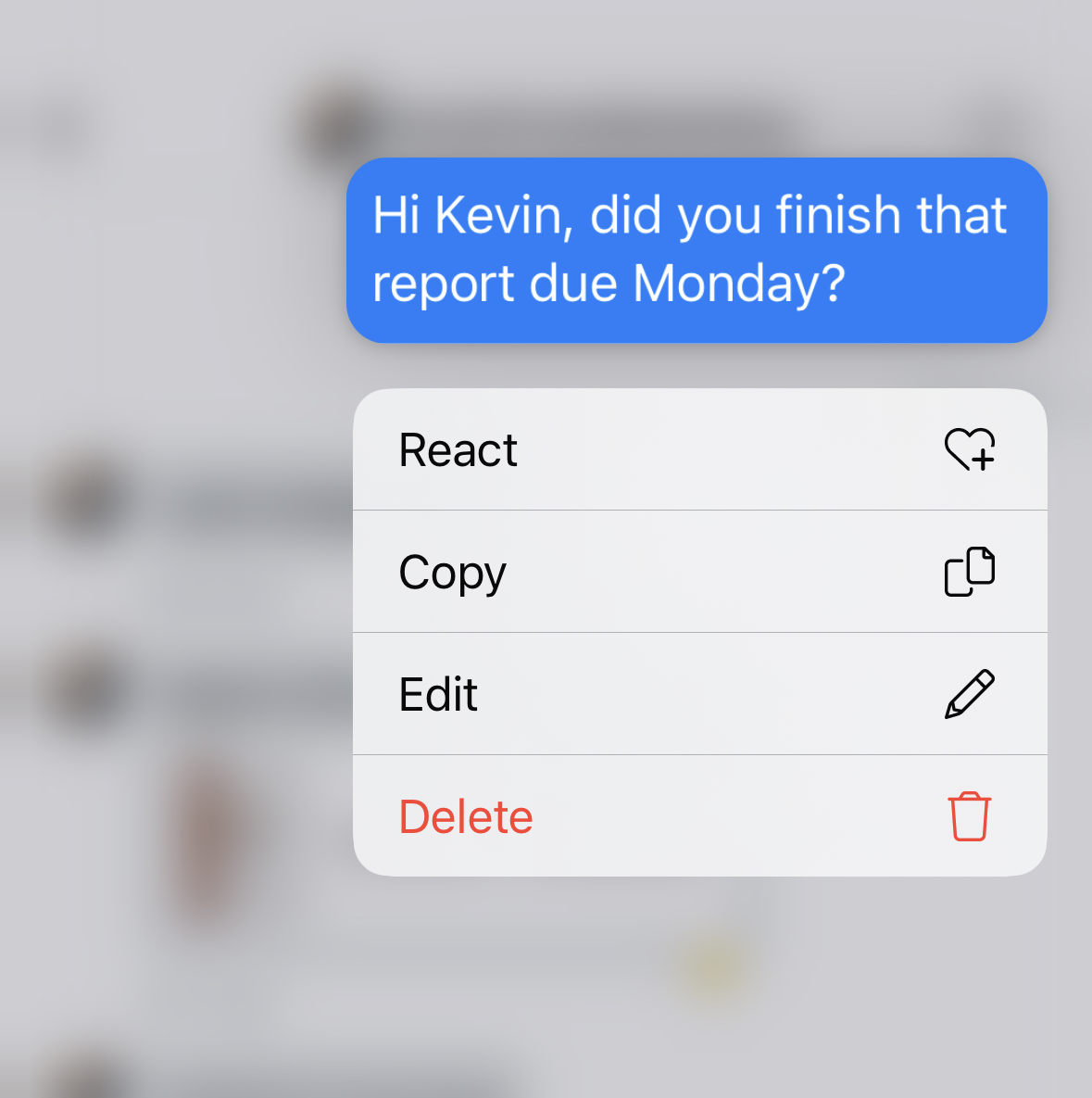
5. Long-press on one of your messages to edit or delete it.
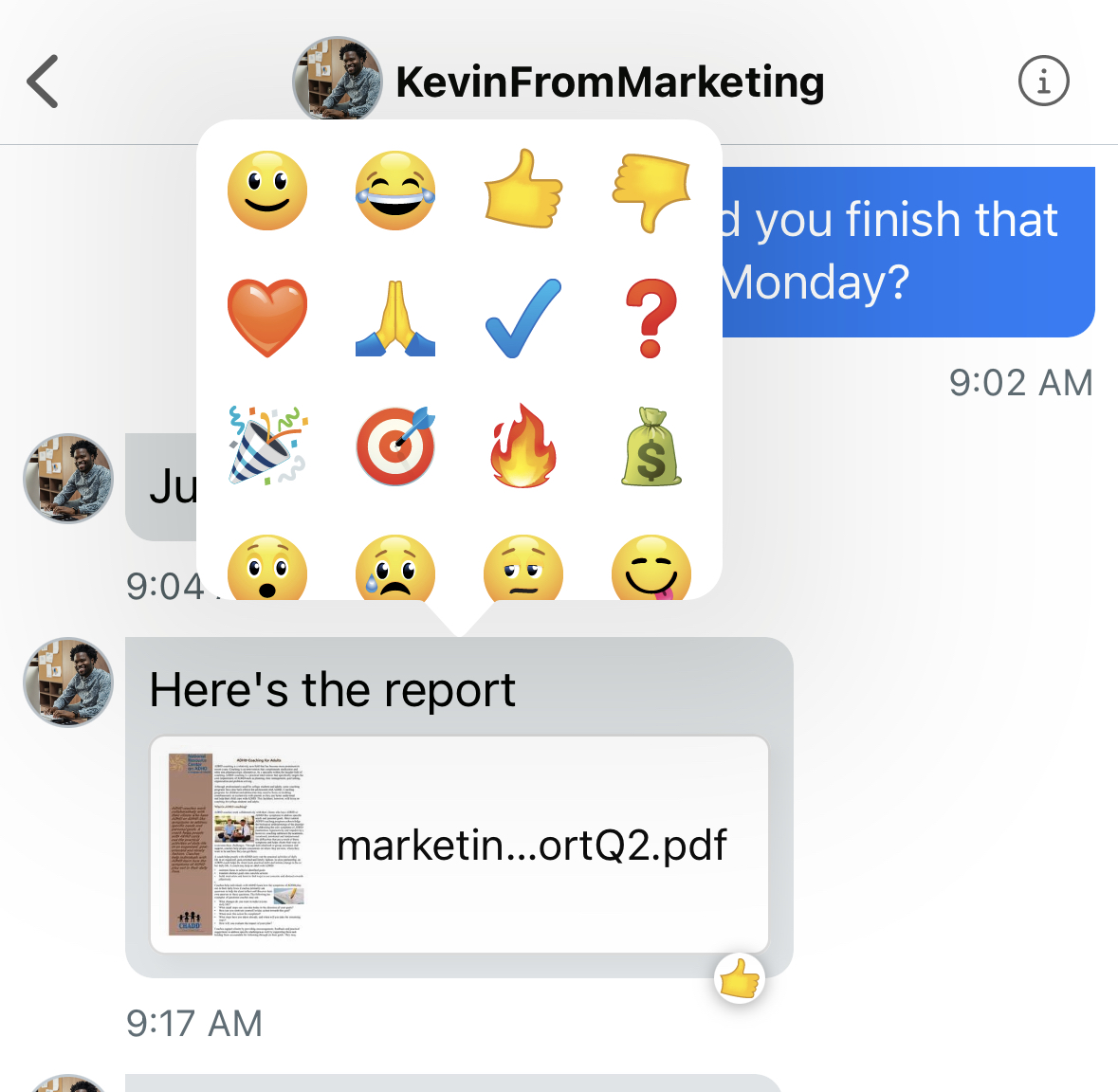
6. Long-press on another user’s message to add a reaction.
7. Click “reply” to quote someone in your reply to them.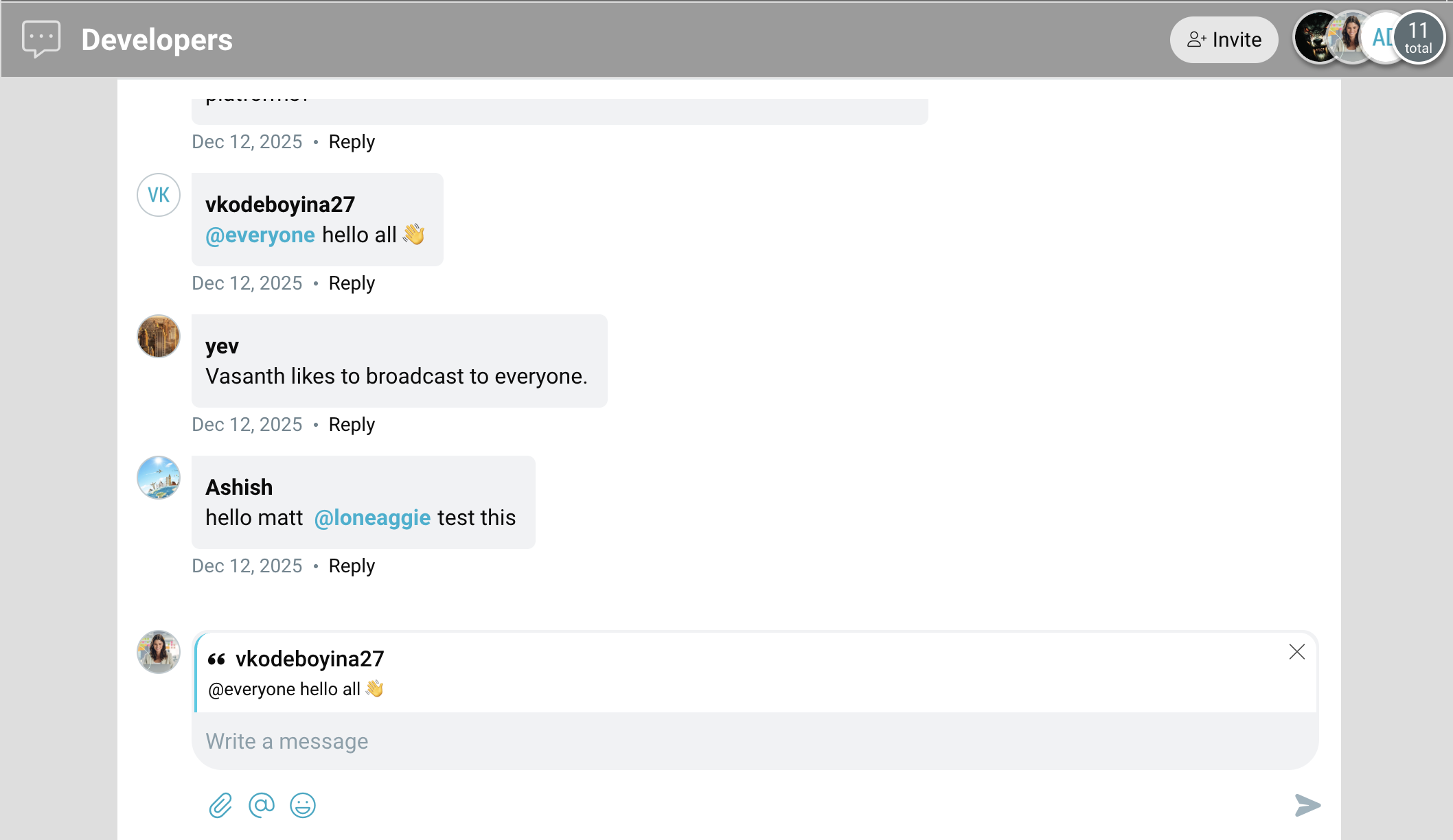
7. When you have new messages, you will see a blue dot next to the user conversation and in the navigation bar. You will also receive a push notification.


Viewing all of your group chats
Go to the “Messages” tab in the navigation bar and switch to the “Chats” tab. Here you will see all of your group chats in one place.
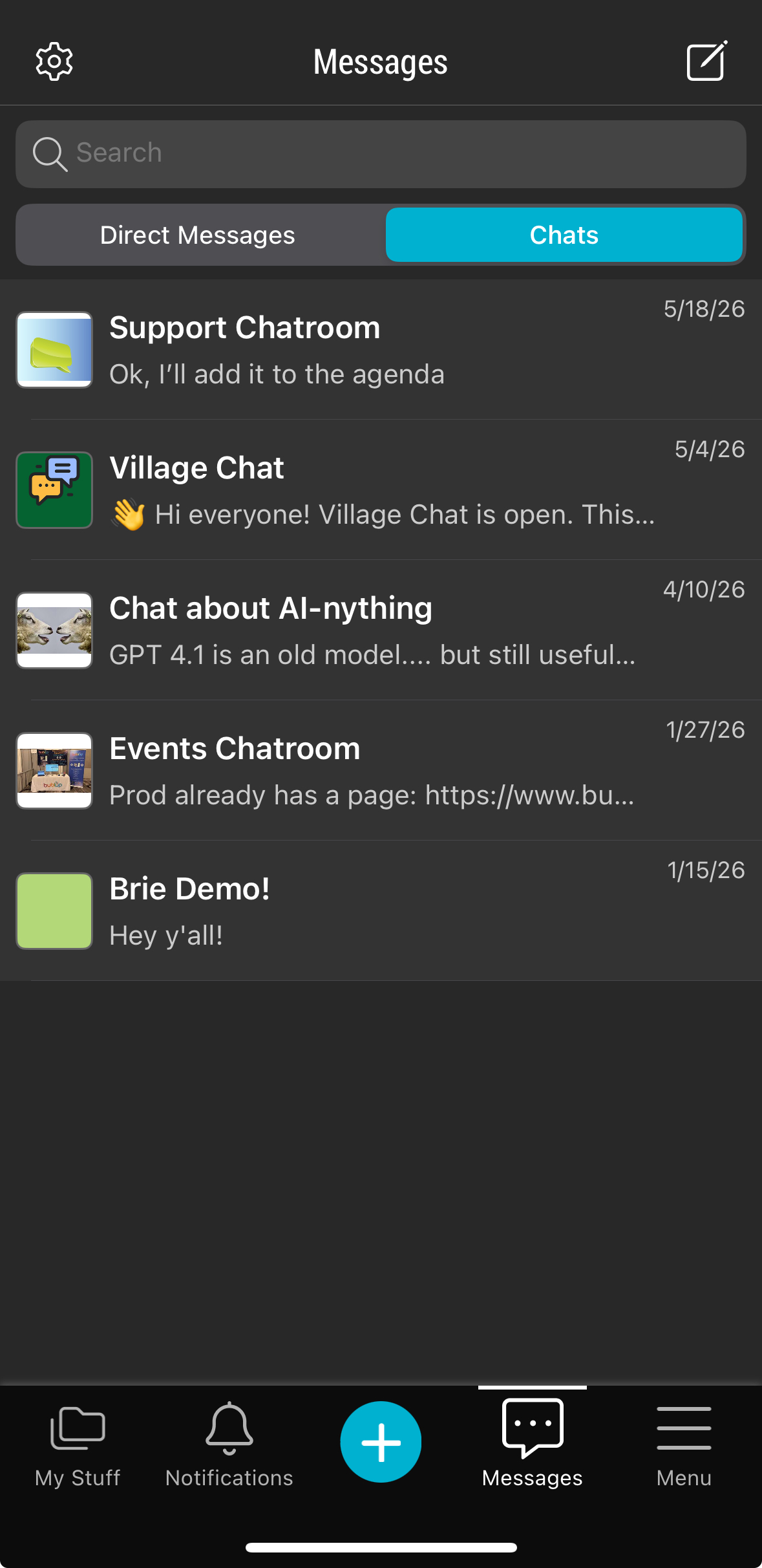
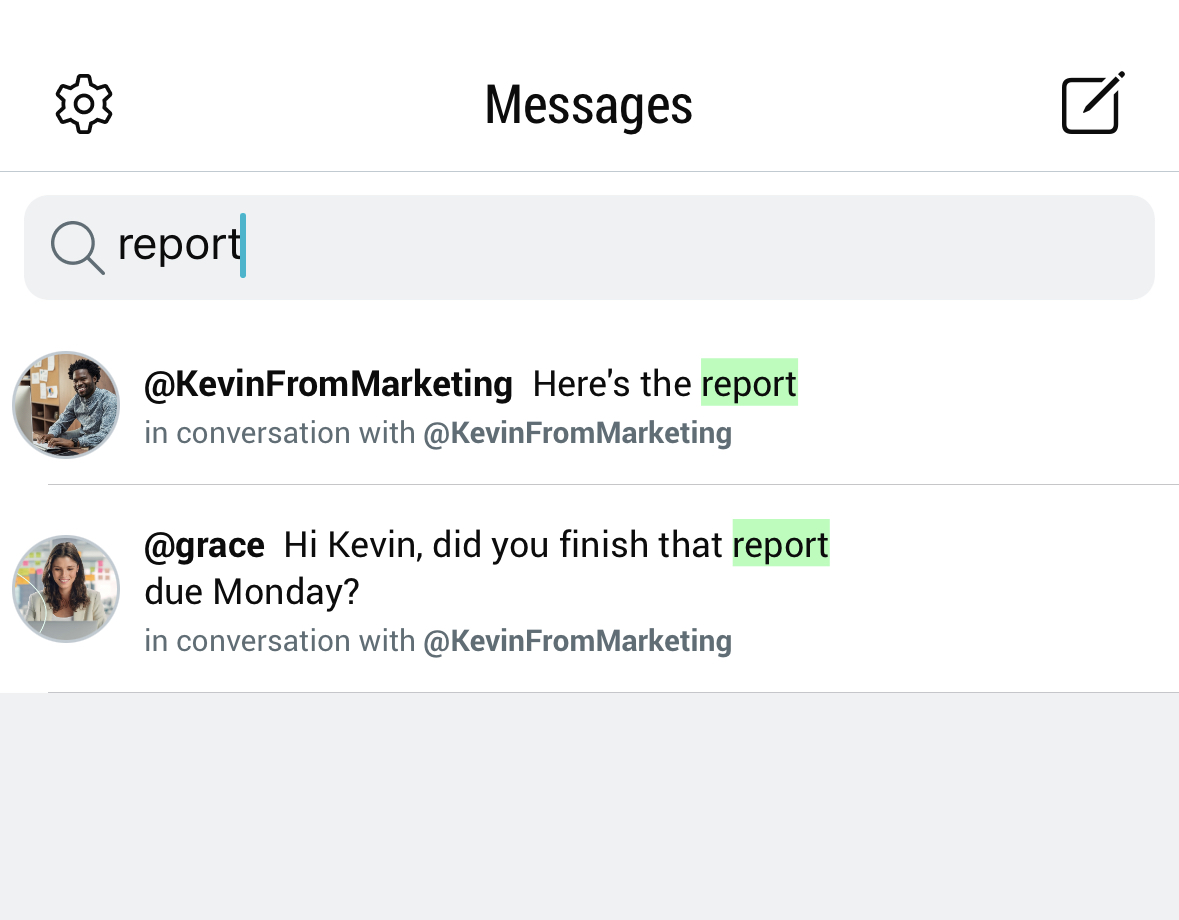
Search
Click the search bar to search on keywords.
Privacy & Settings
To mute or delete a conversation, swipe left.
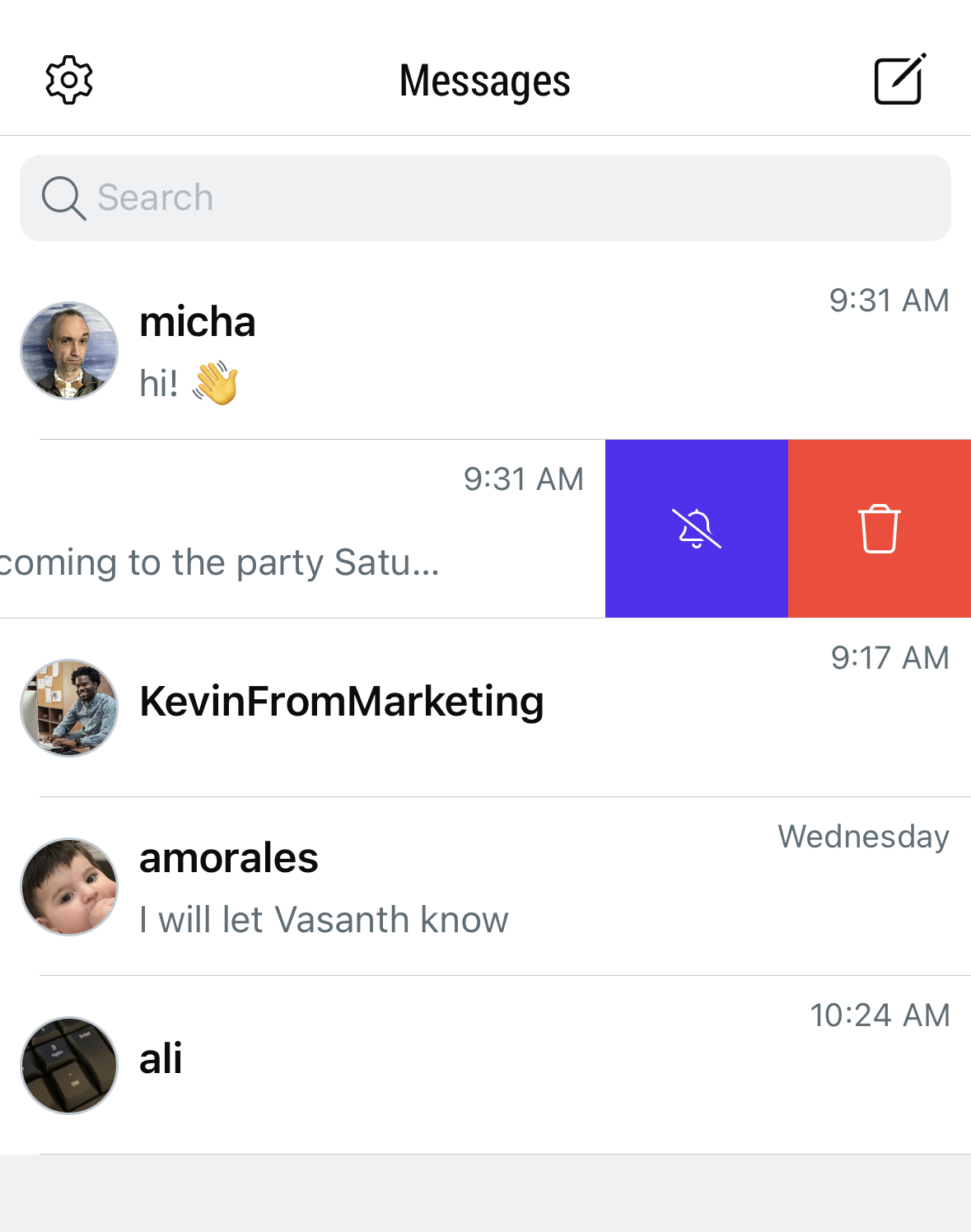
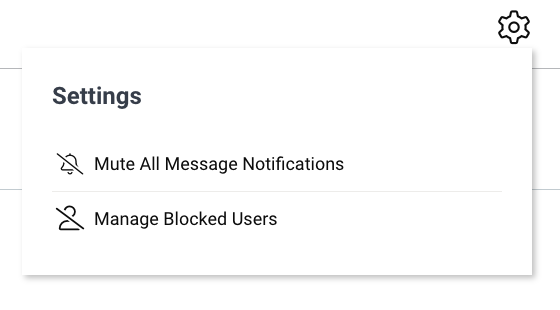
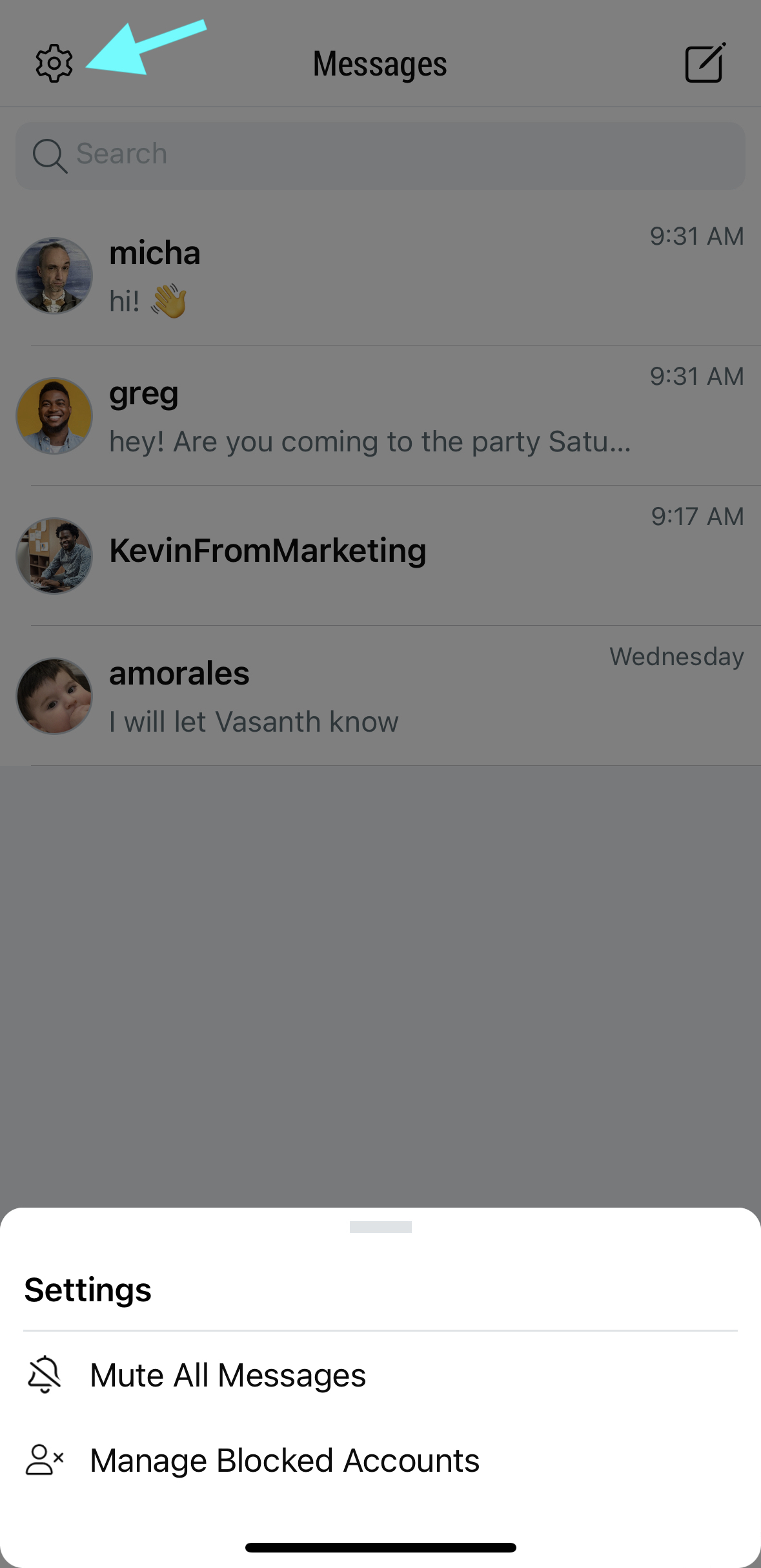
Tap the gear icon to access your overall settings, such as managing blocked accounts.
Create chat spaces to engage with other Bublup users.
Some basics about Chat spaces:
-
- Enterprise plans include unlimited forums with unlimited members.
- Business plans include 1 forum with unlimited members.
- Pro plans include 1 forum with up to 500 members.
Creating a Chat Space
1. Select “Chat” from the + menu and give it a name.
Your chat space will appear with this icon in the upper-left corner.
2. Navigate into your chat spac, tap “invite”, and select the invitation method.
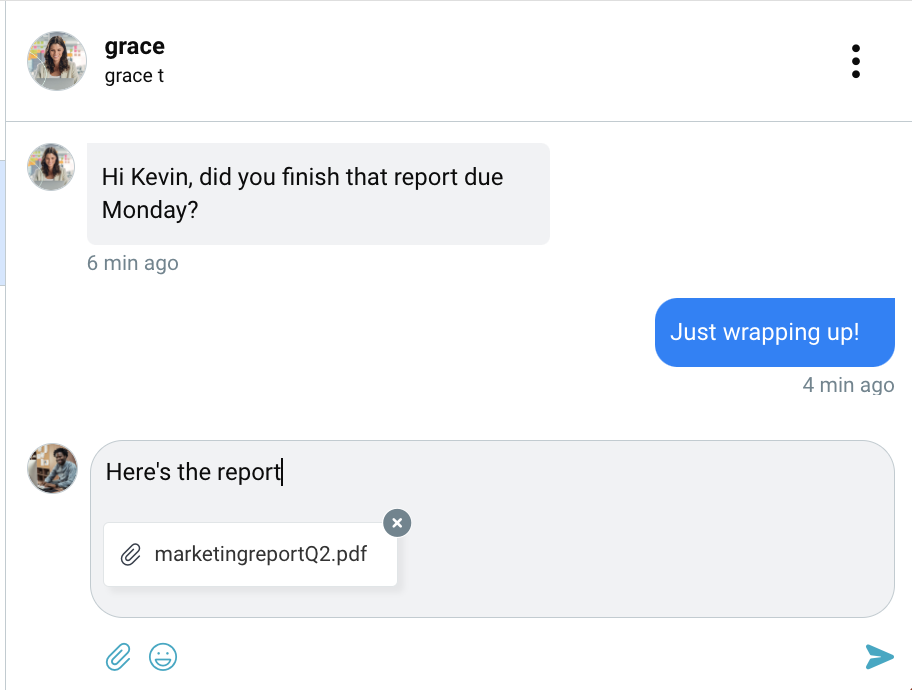
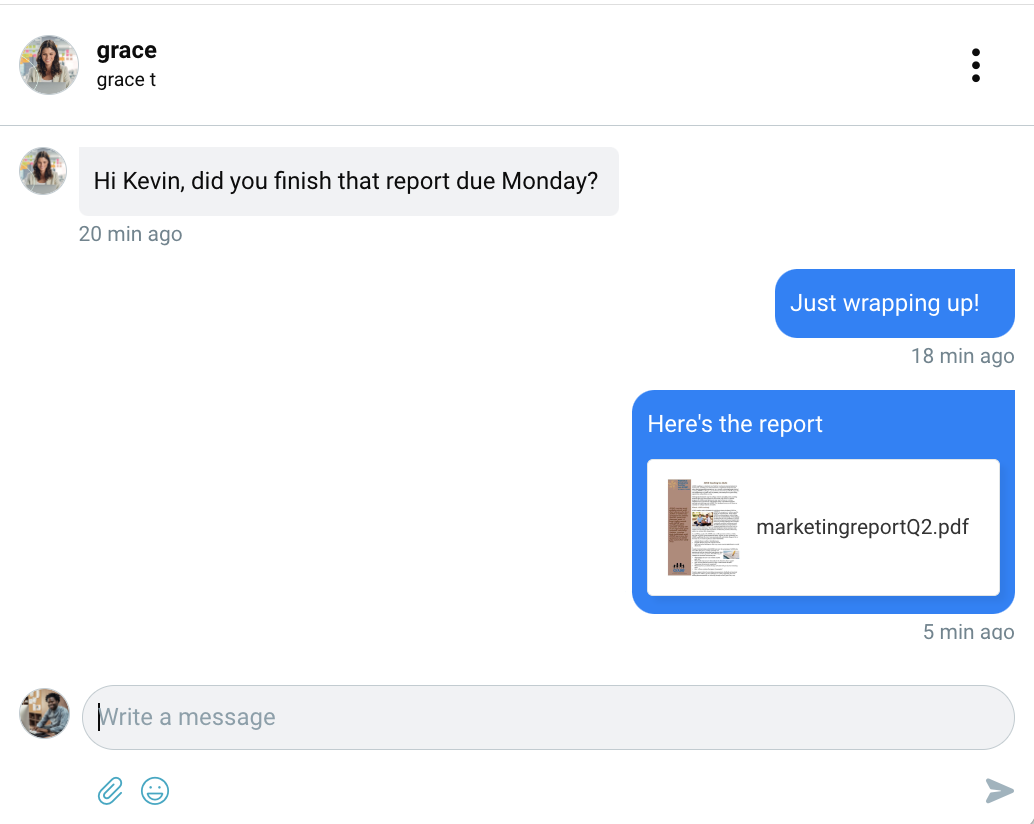
3. Type a message and click the send arrow.
4. To add attachments to your messages, click the attachment button. (Note: your upload size limit will depend on your plan.)
5. To edit or delete one of your messages, hover over the message and click the 3-dot menu.
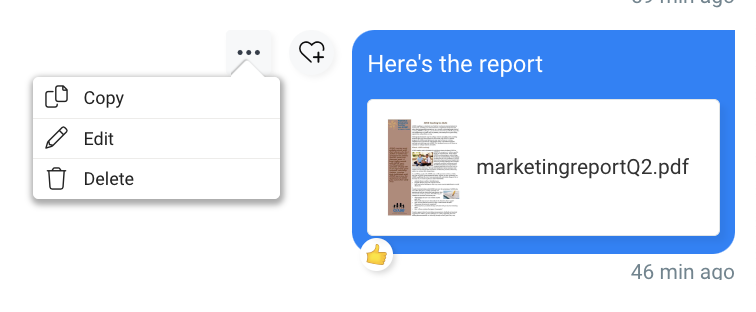
6. Hover over a message to add a reaction.
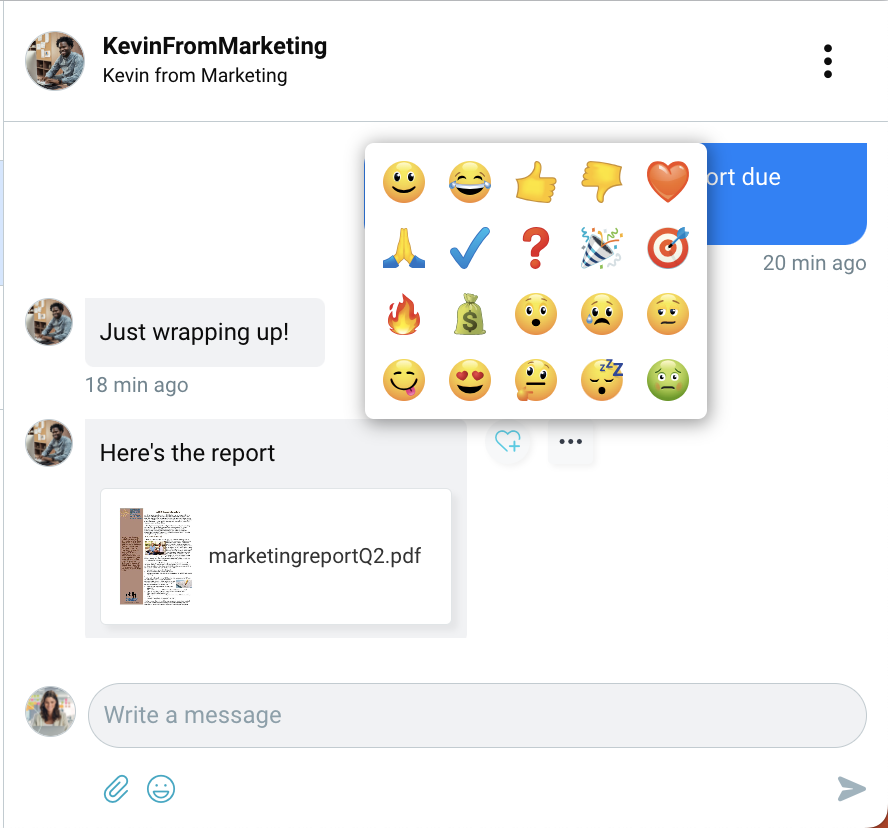
7. Click “reply” to quote someone in your reply to them.
8. When you have new messages, you will see a blue dot next to the user conversation and in the navigation bar.

Viewing all of your group chats
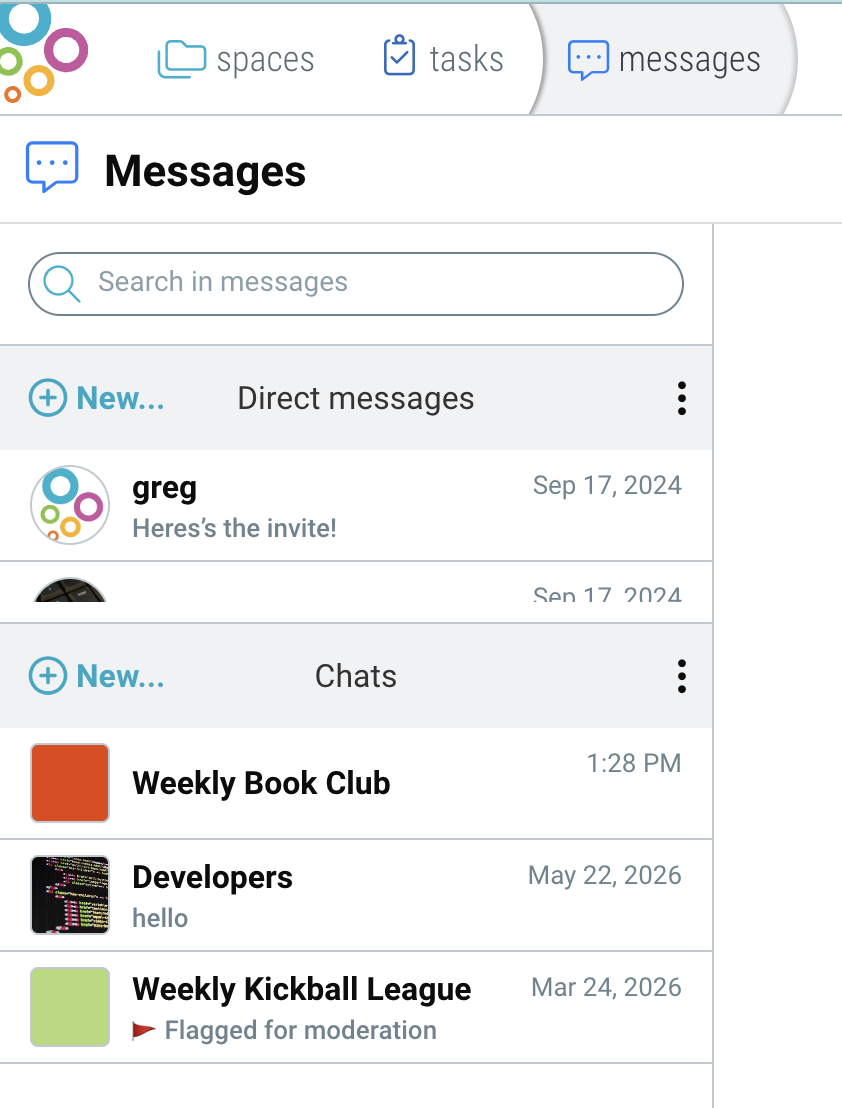
Click on the “messages” tab in the top navigation bar and navigate to the “Chats” section.
Search
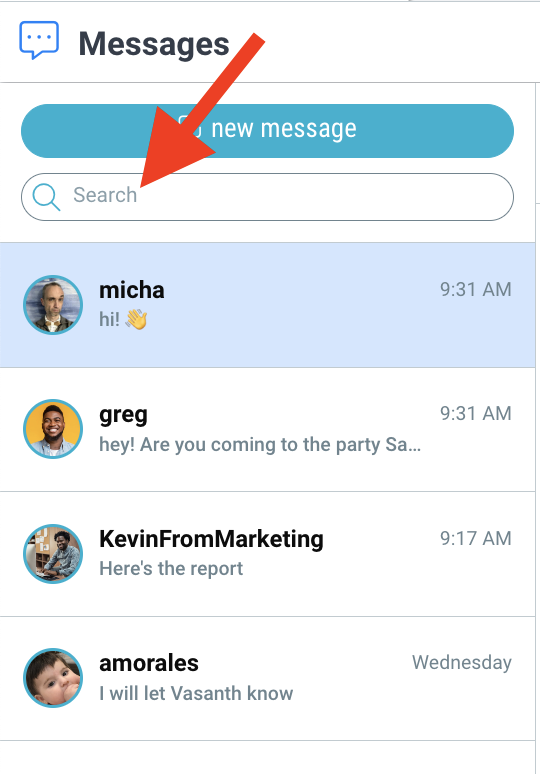
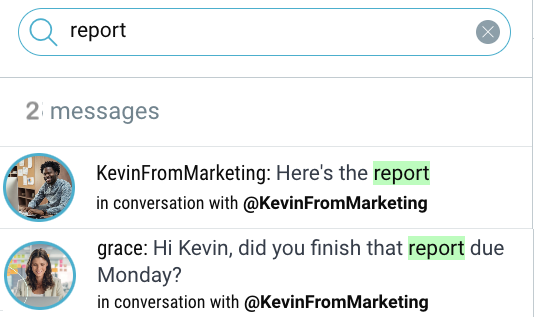
Click the search bar to search for specific messages.
Privacy & Settings
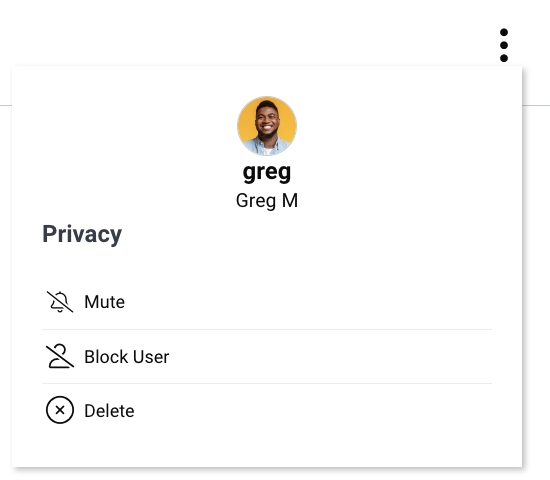
Open a conversation and click the 3-dot menu at the top to perform actions such as mute, block, or delete coversation.
Click the gear icon to access your messaging settings.