

Set items or spaces to be viewable offline on your mobile device.
To set content as viewable offline:
Tap on the 3-dot menu of a space or item, and select “Add to Offline Viewer on this device”.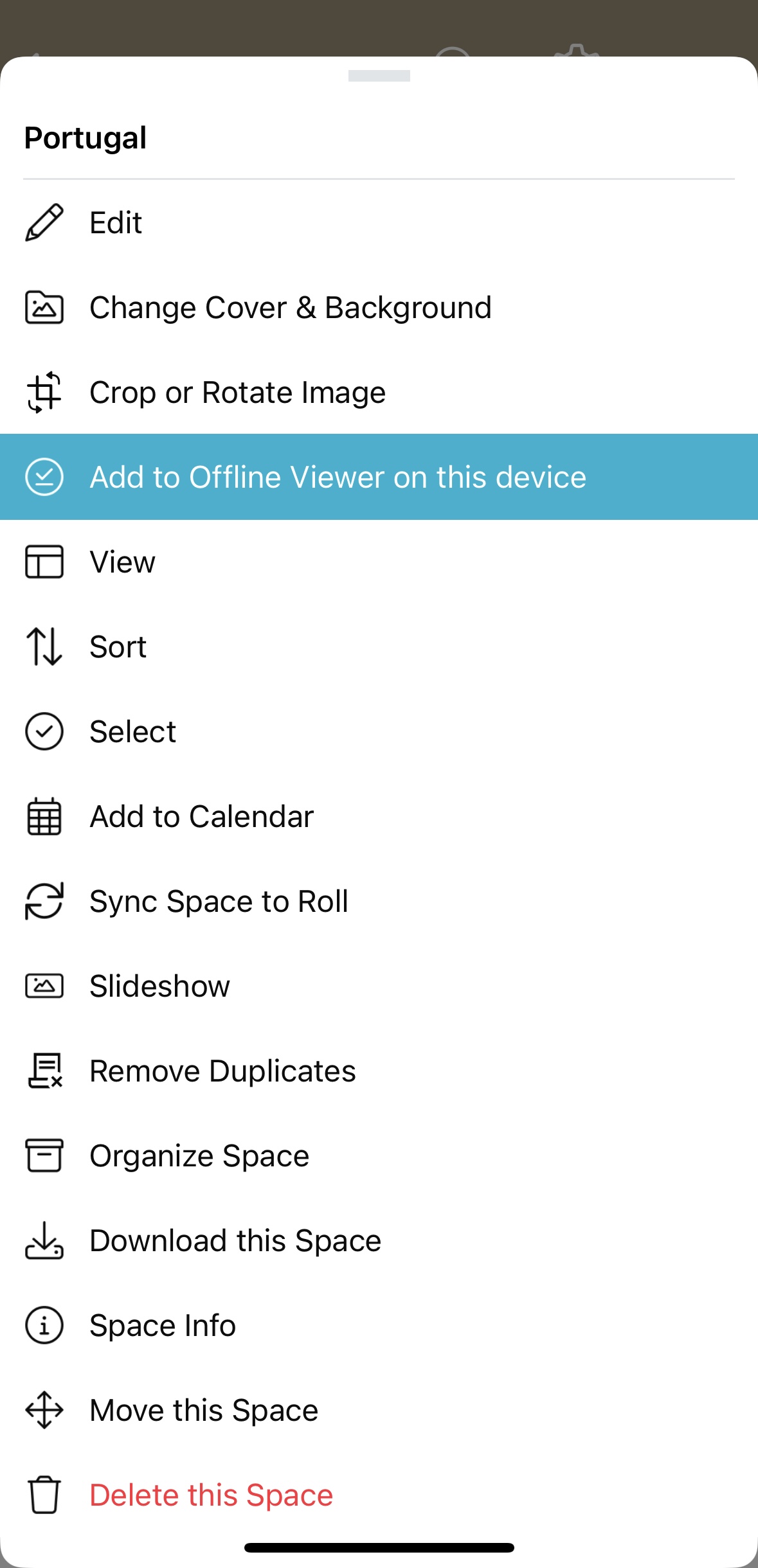
As the item or space is in the process of being converted for offline viewing, it will have a blue icon with arrows.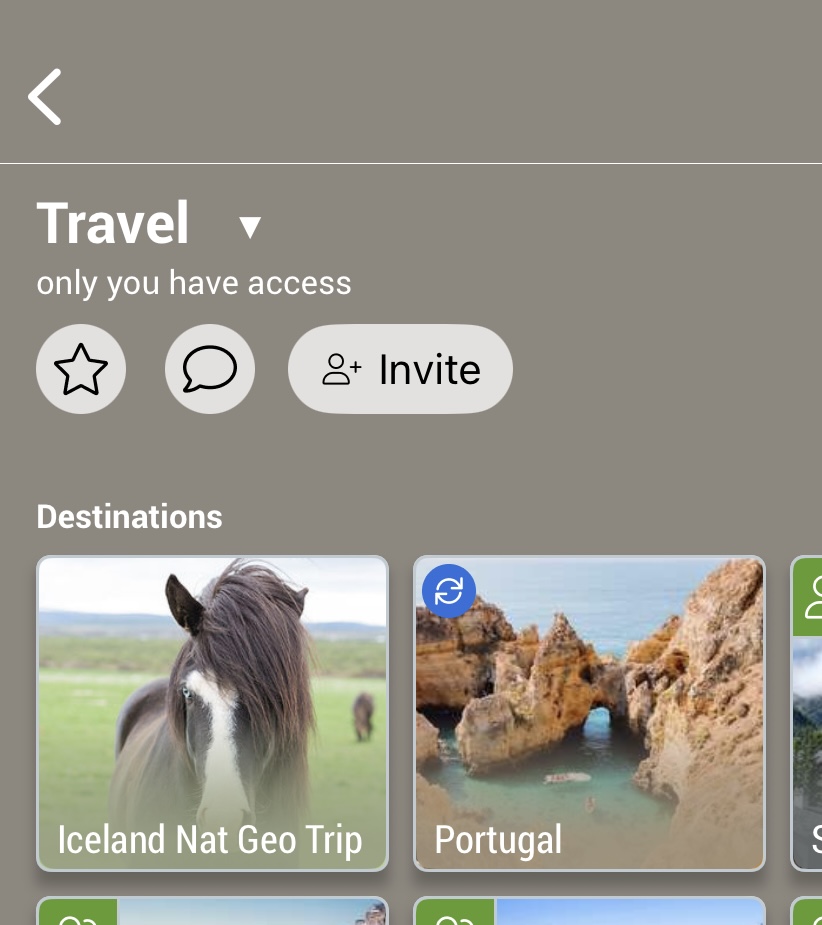
Once it is complete, the space and items marked for offline viewing will show a green check mark in the upper-left corner.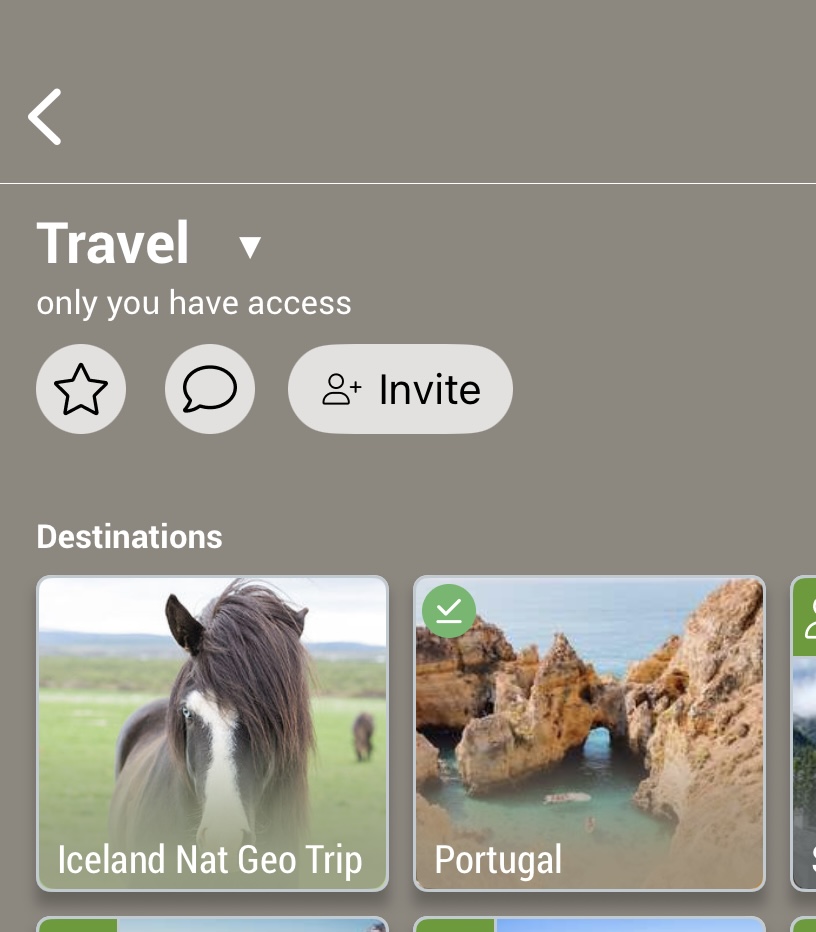
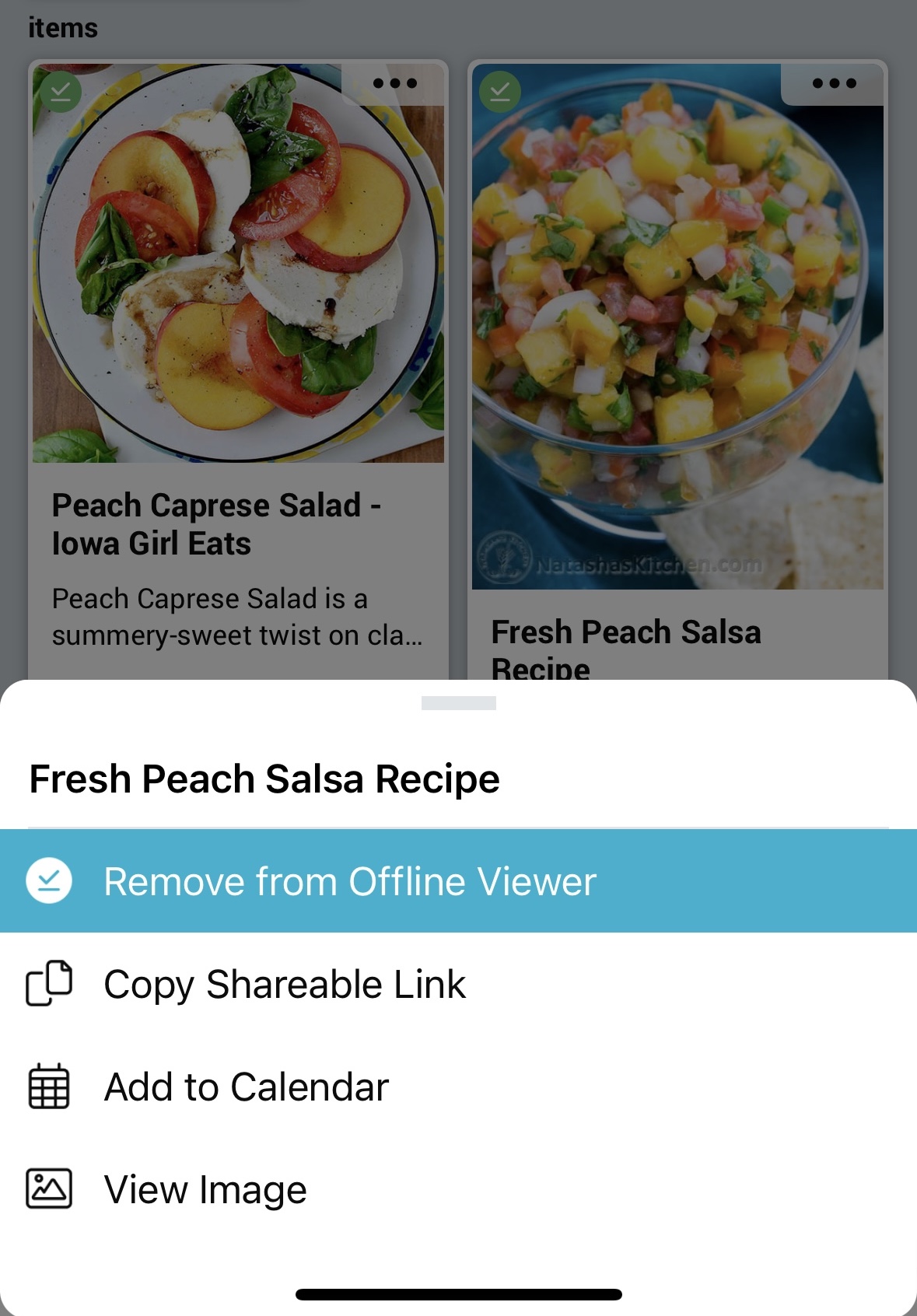
To remove a space or item from offline view, click on the three-dot menu and select “Remove from Offline Viewer”.
Note: Offline mode is on a per-device basis. If you use multiple mobile devices, you will need to set content as viewable offline on each of your devices.
Viewing offline content:
Tap on the (☰) menu in bottom right of the navigation bar, then select “Offline Viewer”.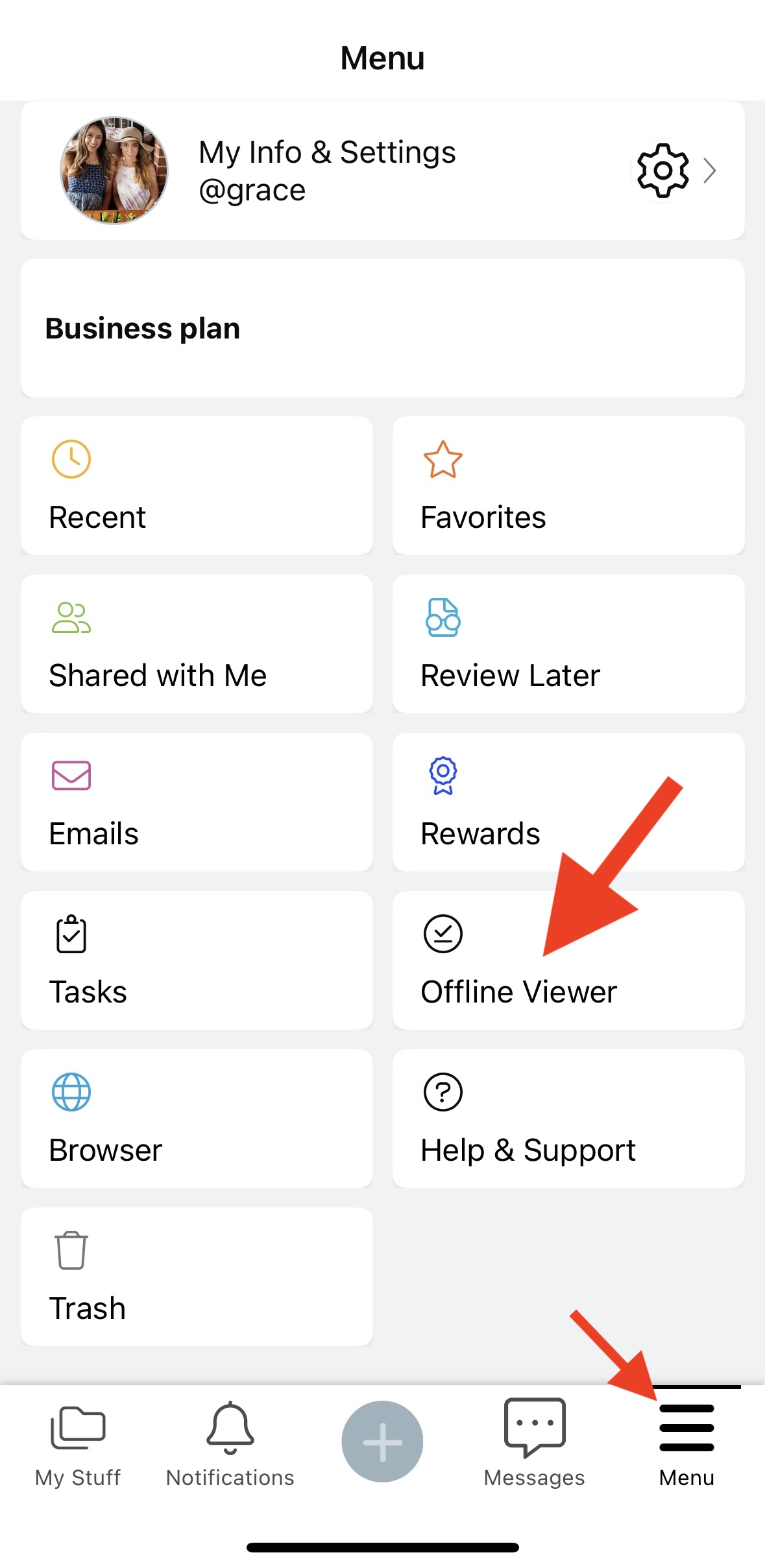
Here you will be able to view all the spaces and items set to view offline.
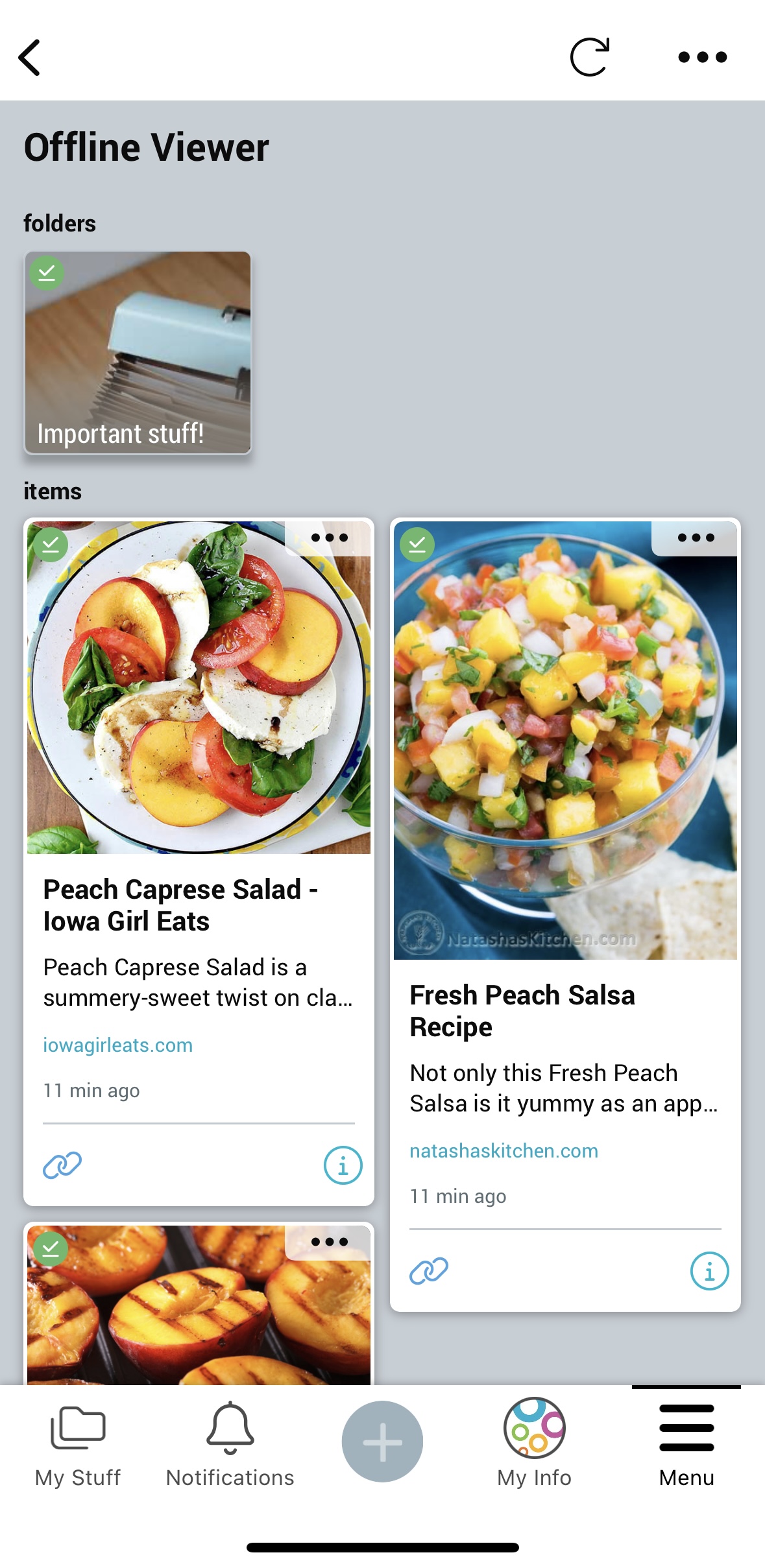
You will be able to access these in the app even when your device has no Wi-Fi or cellular signal.
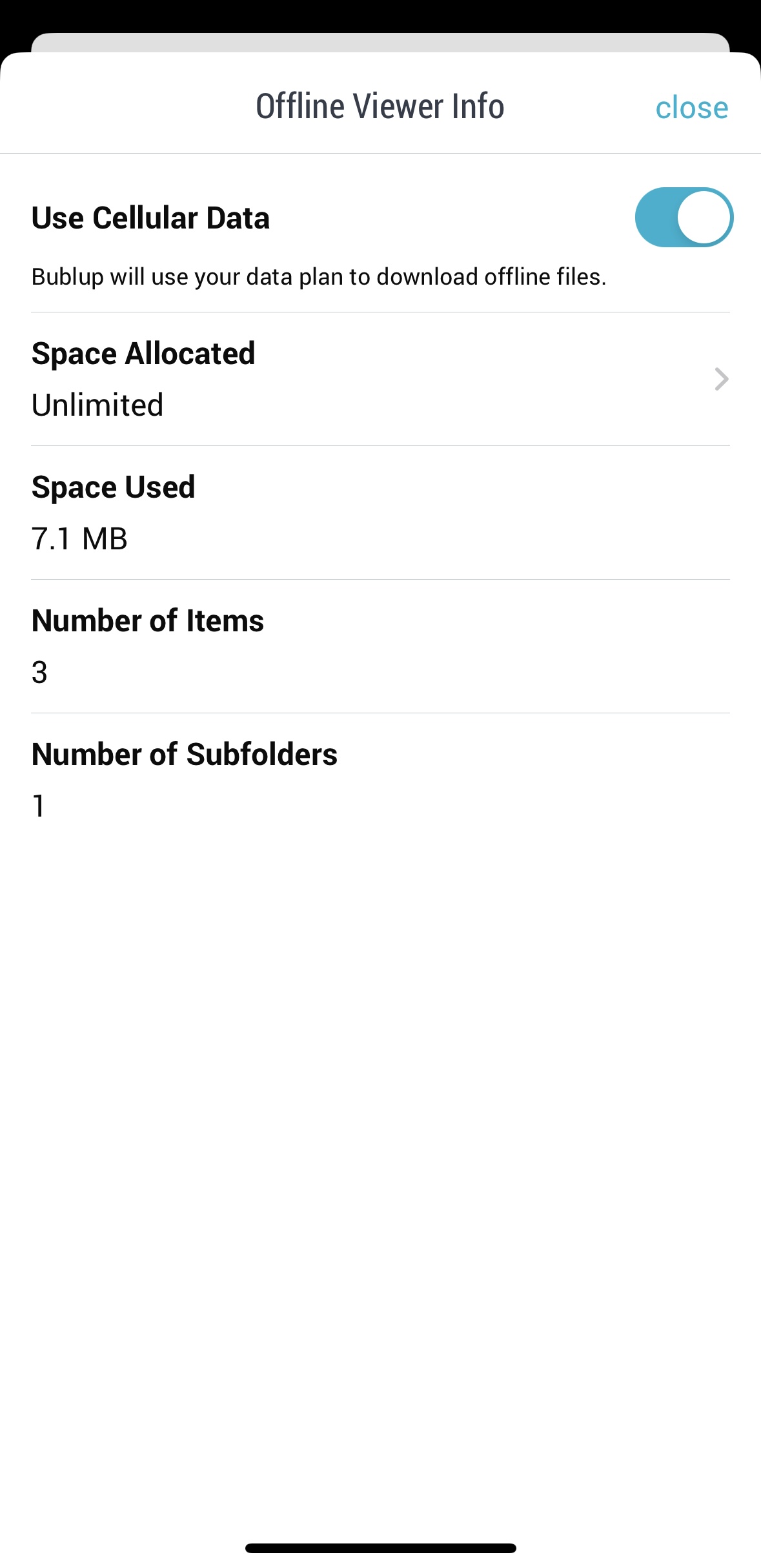
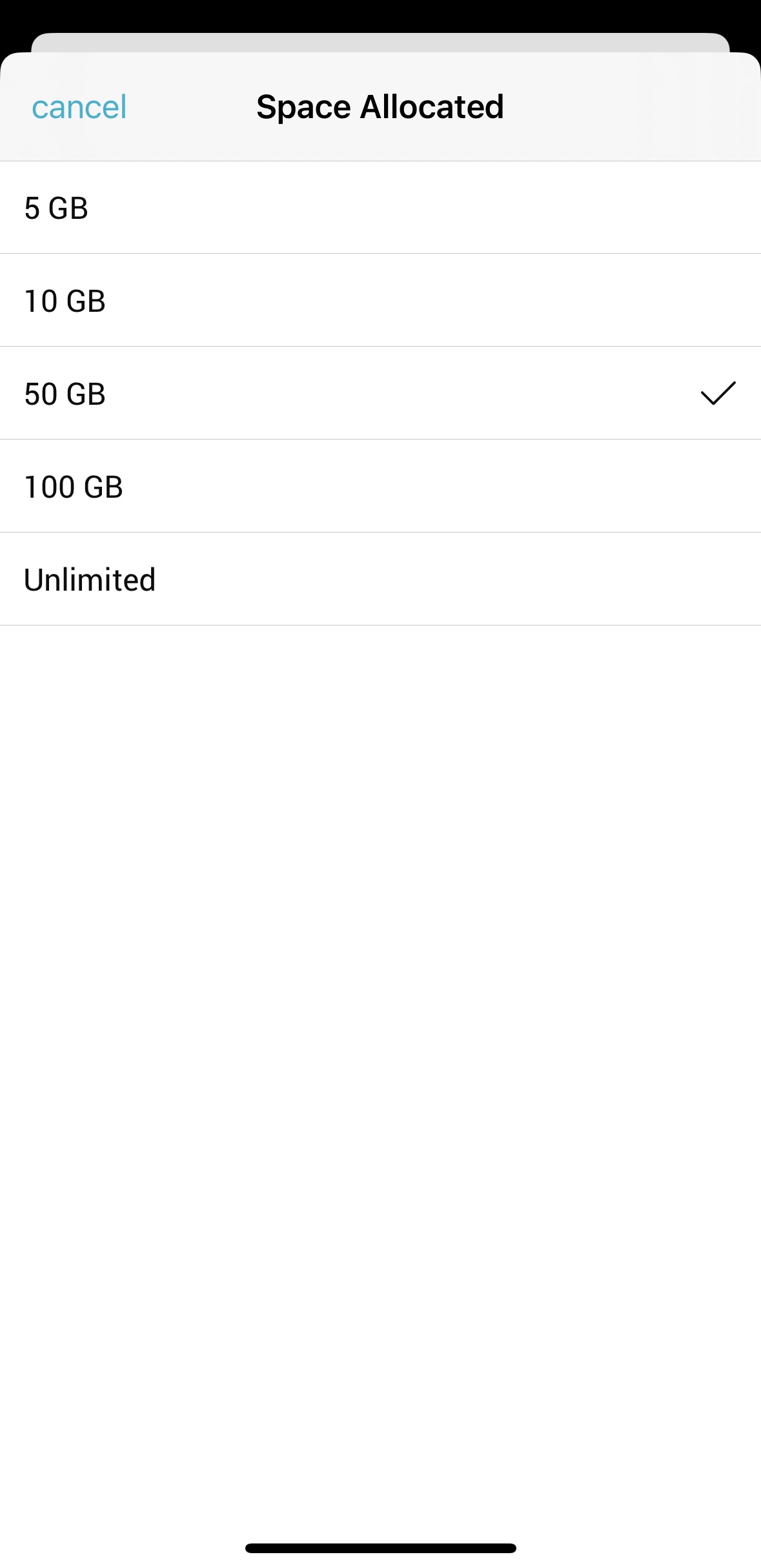
Click on the three-dot menu and select “Offline Viewer Settings” to adjust settings such as cellular data use and local storage limits.
Note: Offline mode is for viewing only. You will not be able to edit your content in offline mode.