

Create a space (i.e. folder):
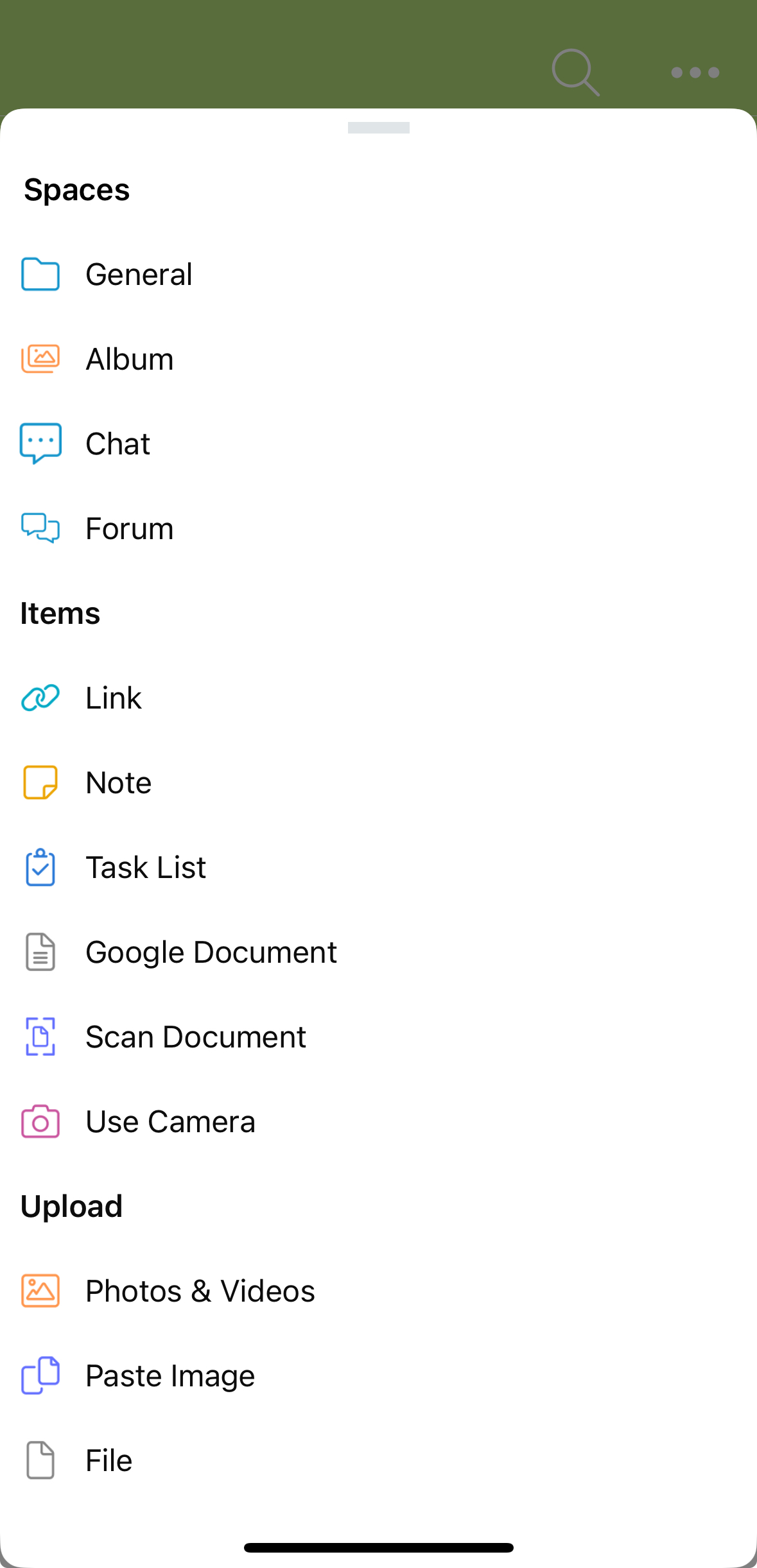
1. To create a space or sub-space, tap on the blue “+” button.

2. Select “General” for a generic space, or choose a more tailored space. Learn more about different types of spaces here.
3. A dialog box will appear with “Unnamed Space” highlighted. Name your space, and then hit “save”.
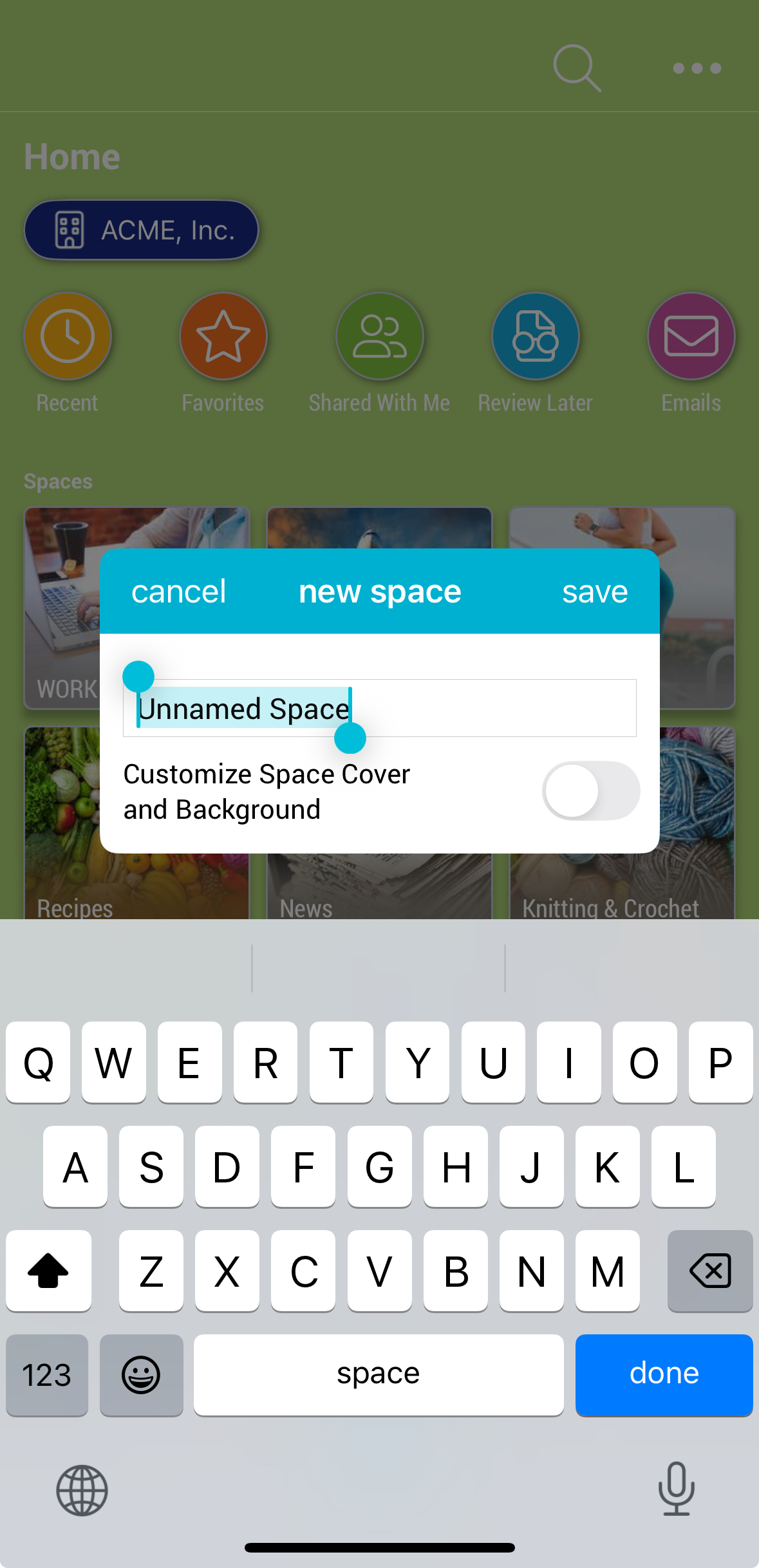
You can choose to customize the cover of your new space as you create it. Just toggle the “Customize Space Cover and Background” option to “on”.
Space Info:
The space info button includes the space’s location, creation date, creator, the space image, the total number of items in the space, a convenient “quick link” to the space, and a “calculate storage” button.
To view space info:
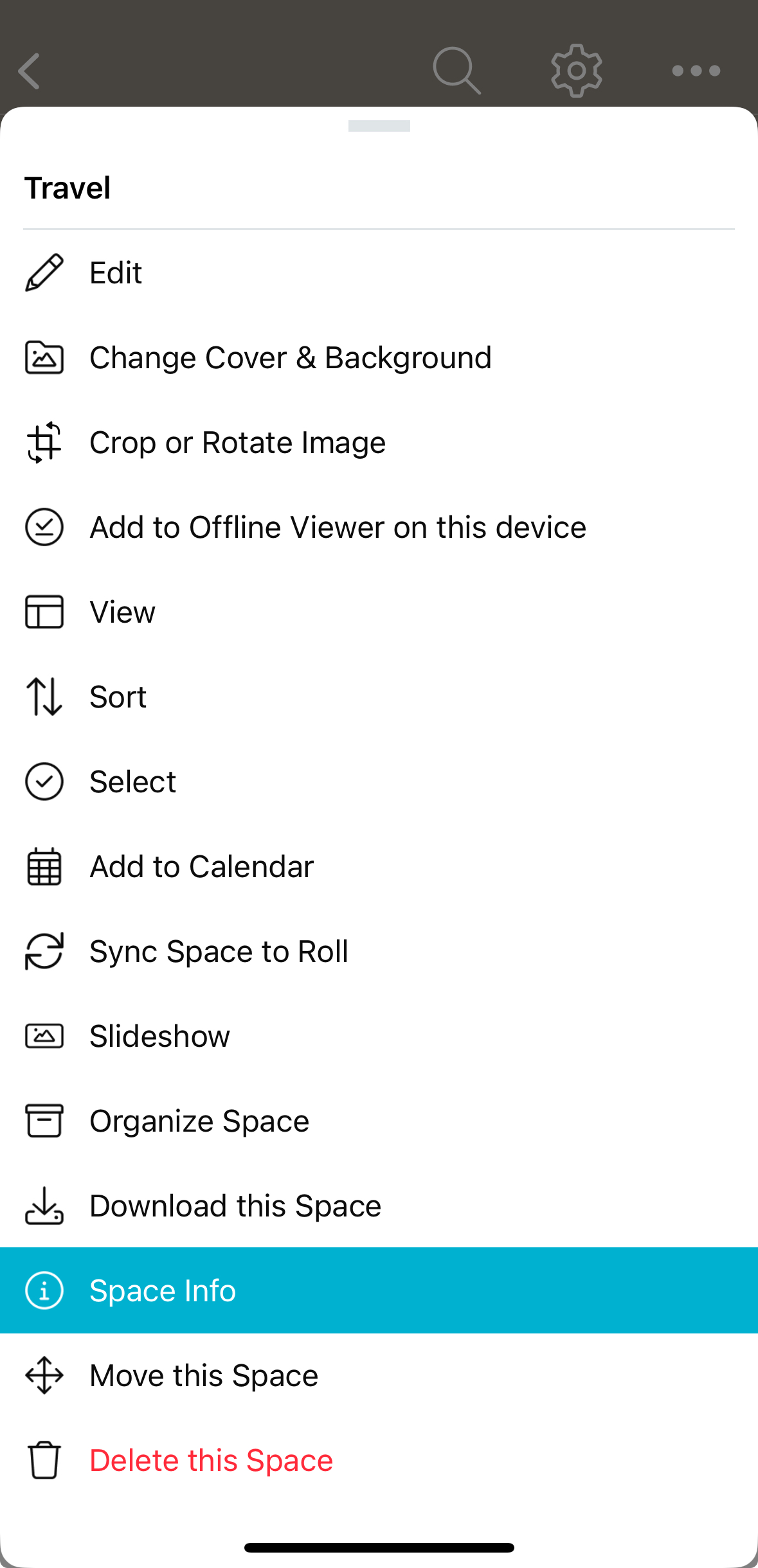
1. Tap on 3-dot ( ⋮ ) menu in the upper-right corner.
2. Select “Space Info”.
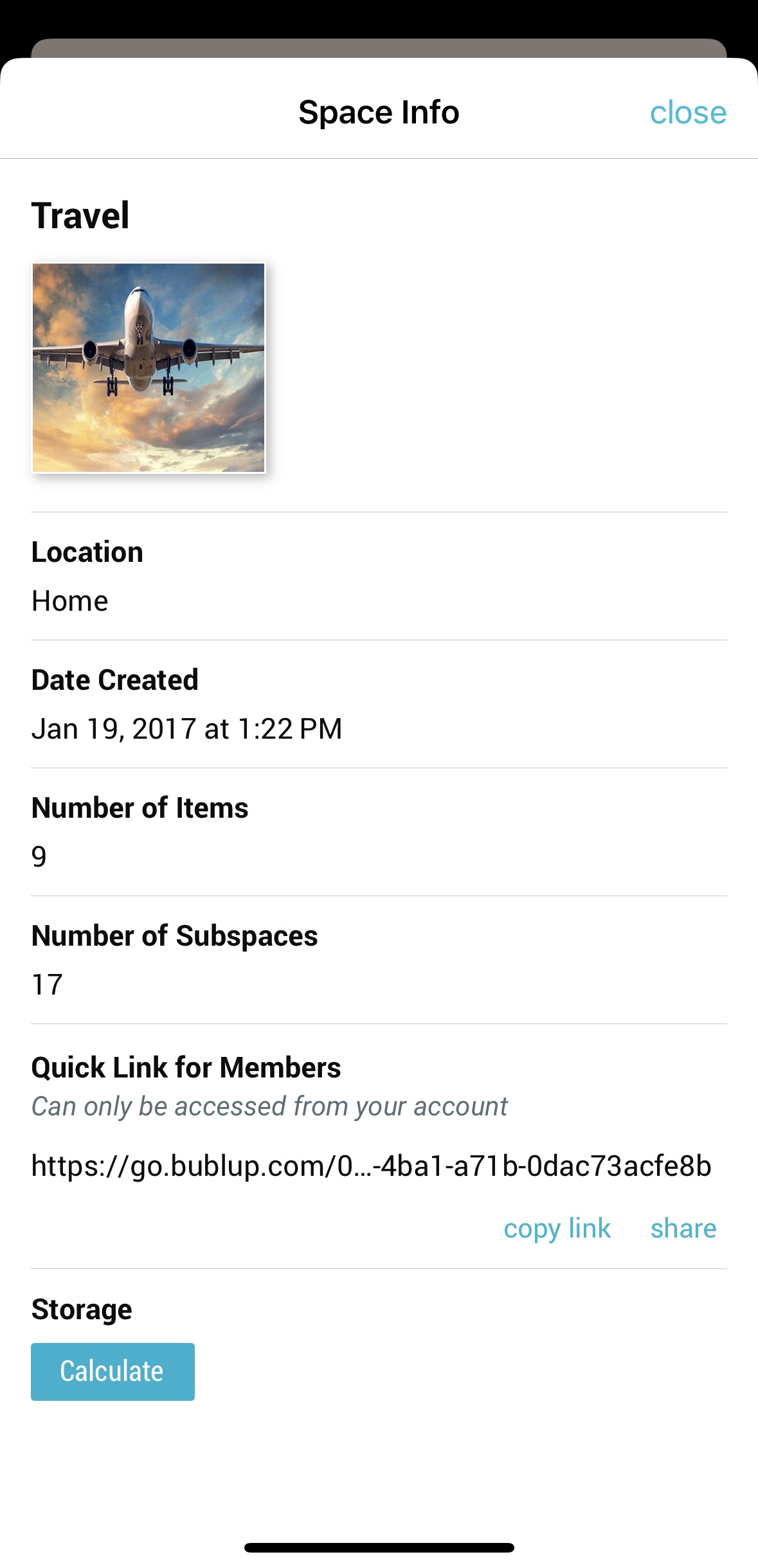
The “Quick Link for Members” is a direct link to the space that is usable by all space members.
To download the space image, tap on the image in the space info screen to open it in the Bublup image viewer. From there, you can tap on the 3-dot (…) menu and select “Save to Photos”.
Create a space (i.e. folder):
1. To create a space or sub-space, click on the blue “+” button.
2. Select “General” for a generic space, or choose a more tailored space. Learn more about different types of spaces here.
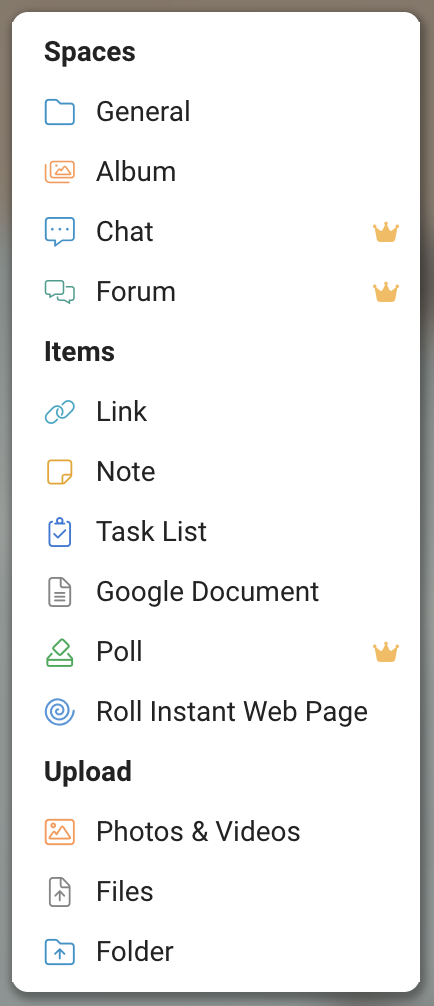
3. A dialog box will appear with “Unnamed Space” highlighted. Name your space, and then click “create”.
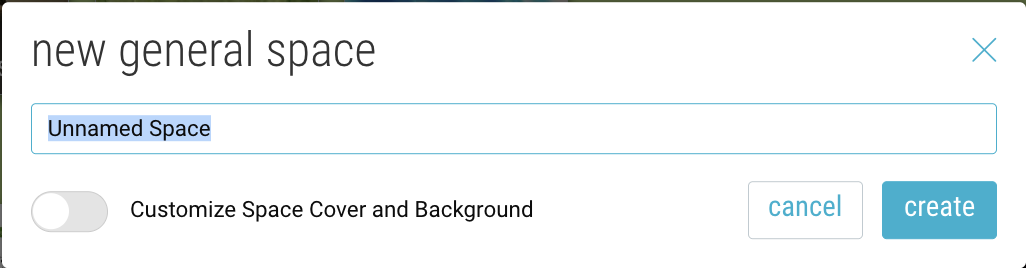
You can choose to customize the cover of your new space as you create it. Just toggle the “Customize Space Cover and Background” option to “on”.
Space Info:
The space info button includes the space’s location, creation date, creator, the space image, the total number of items in the space, a convenient “quick link” to the space, and a “calculate storage” button.
To view space info:
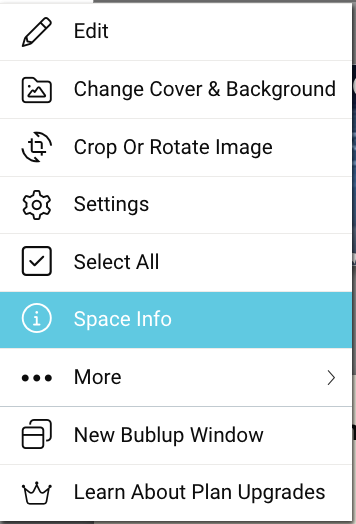
1. Click on the (☰) menu in the upper-left corner.
2. Select “Space Info”.
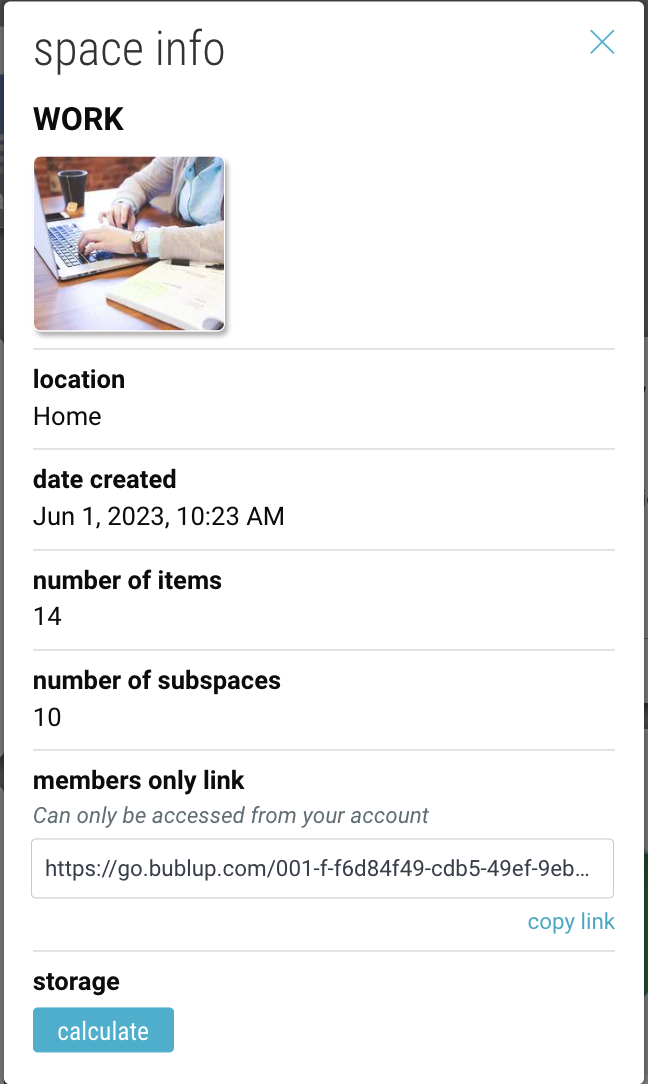
The “members only link” is a direct link to the space that is usable by all space members.
To download the space image, double-click on the image in the space info screen to open it in the Bublup image viewer. From there, you can click on the 3-dot (…) menu and select “download”.