
You can have your spaces organized into various subspaces, based on criteria you choose.
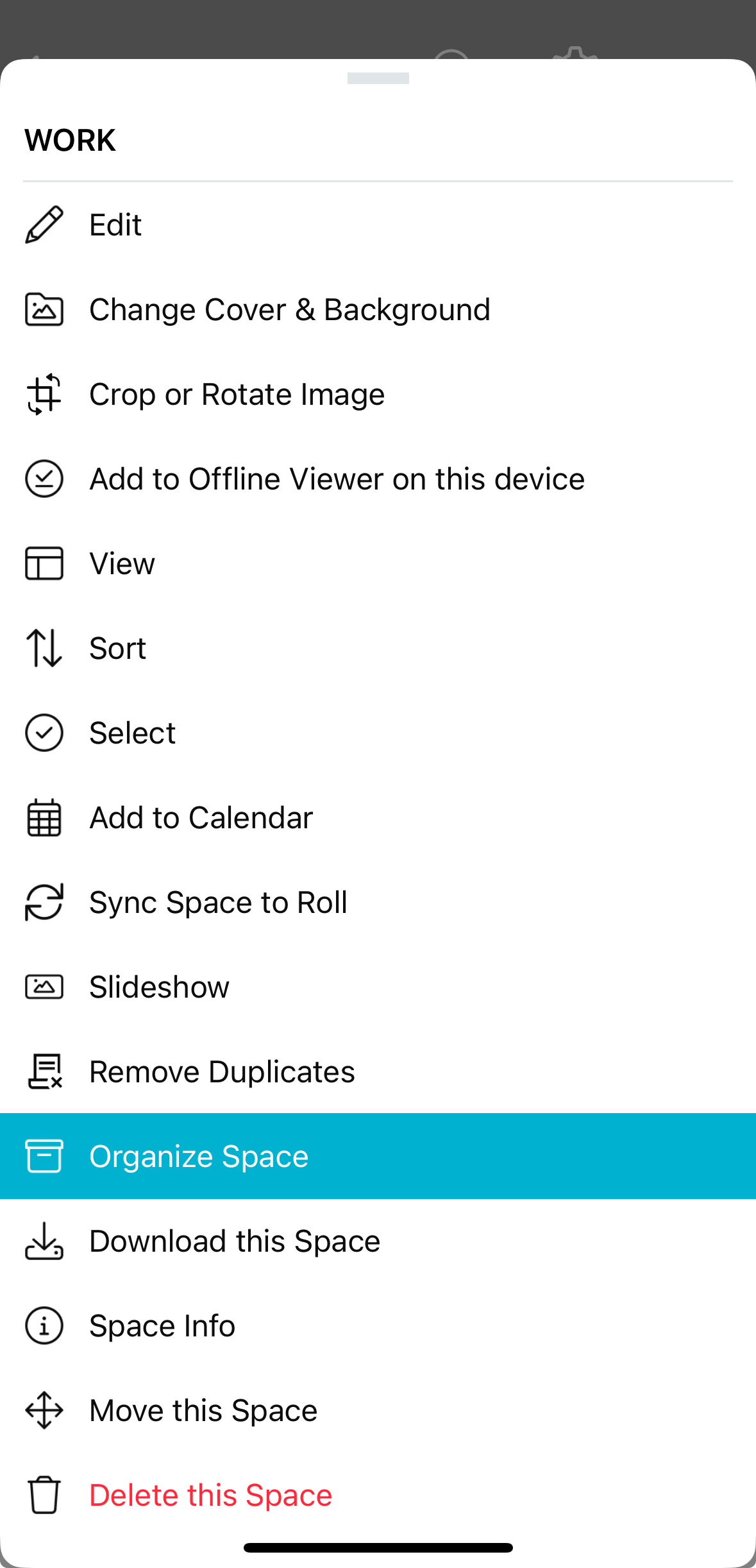
While inside a space, tap the 3-dot menu in the upper-right corner and select “Organize Space”.
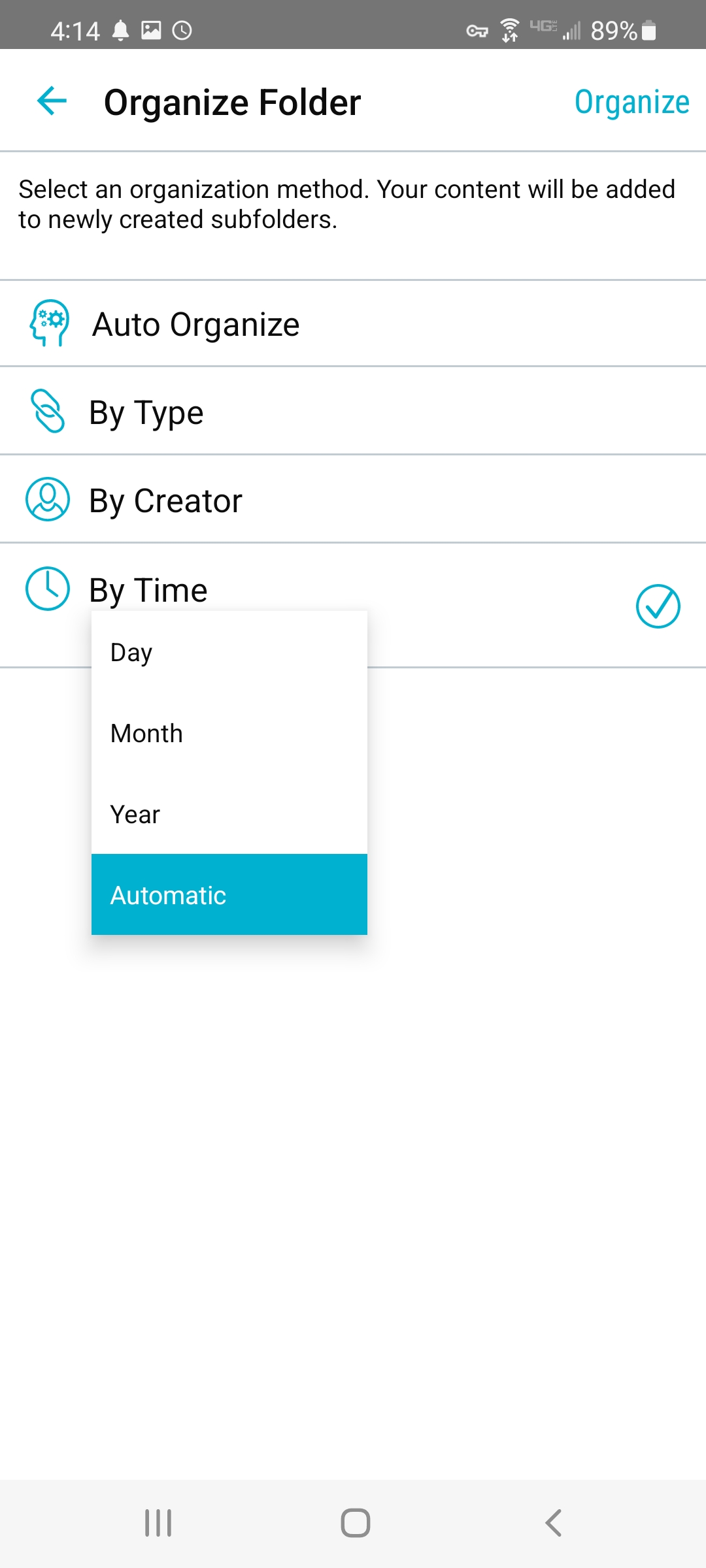
- Auto-Organize – Allow Bublup to decide the best way to organize the space, based on its contents.
- By Type – Separate everything by the types of items they are. (links, images, documents, etc.)
- By Creator – Separate items by who originally saved them.
- By Time – Separate items by their creation dates. You can choose to group by year, by month, by day, or let Bublup choose the most likely option for you.)
Note: This action cannot be undone.
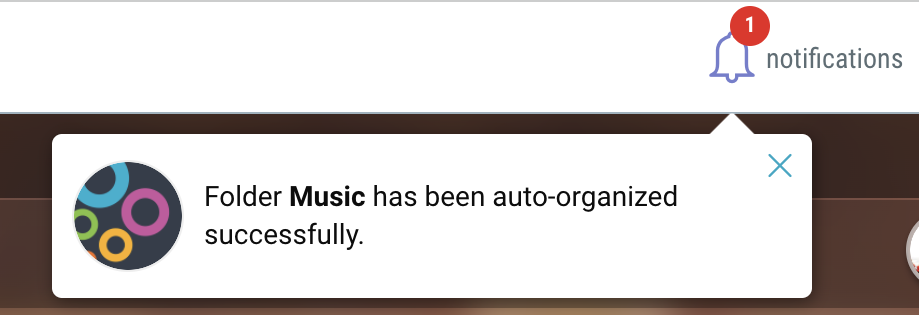
Organizing your spaces takes place in the background so that you can continue to work in Bublup. However, while this is happening, you should avoid adding or moving items within the space. Once complete, you will receive a notification that your space has been reorganized.
You can have your spaces organized into various subspaces, based on criteria you choose.
While inside a space, select “More” → “Organize Space”.
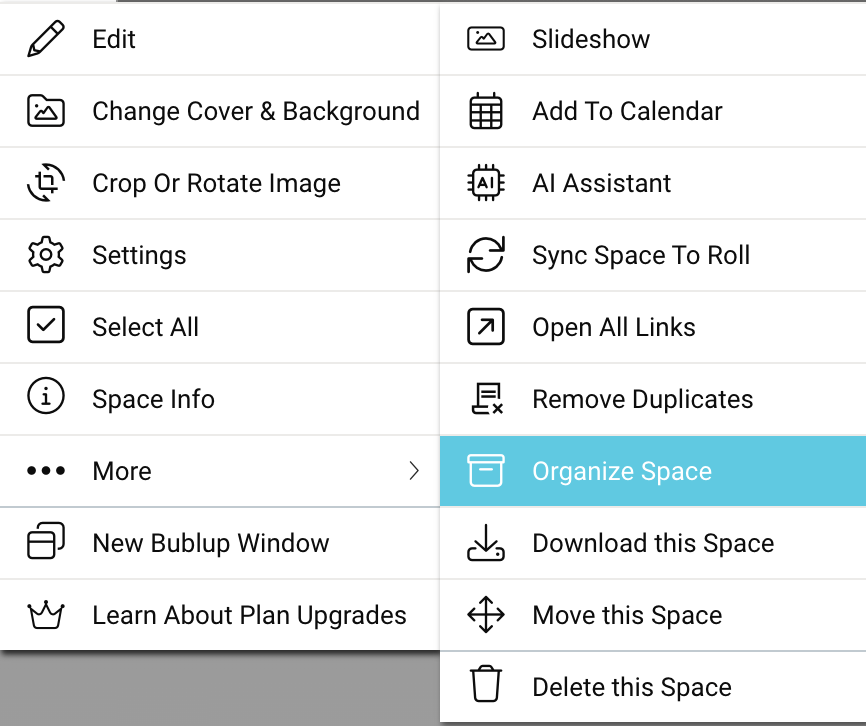
You will be given a choice of how you would like it organized.
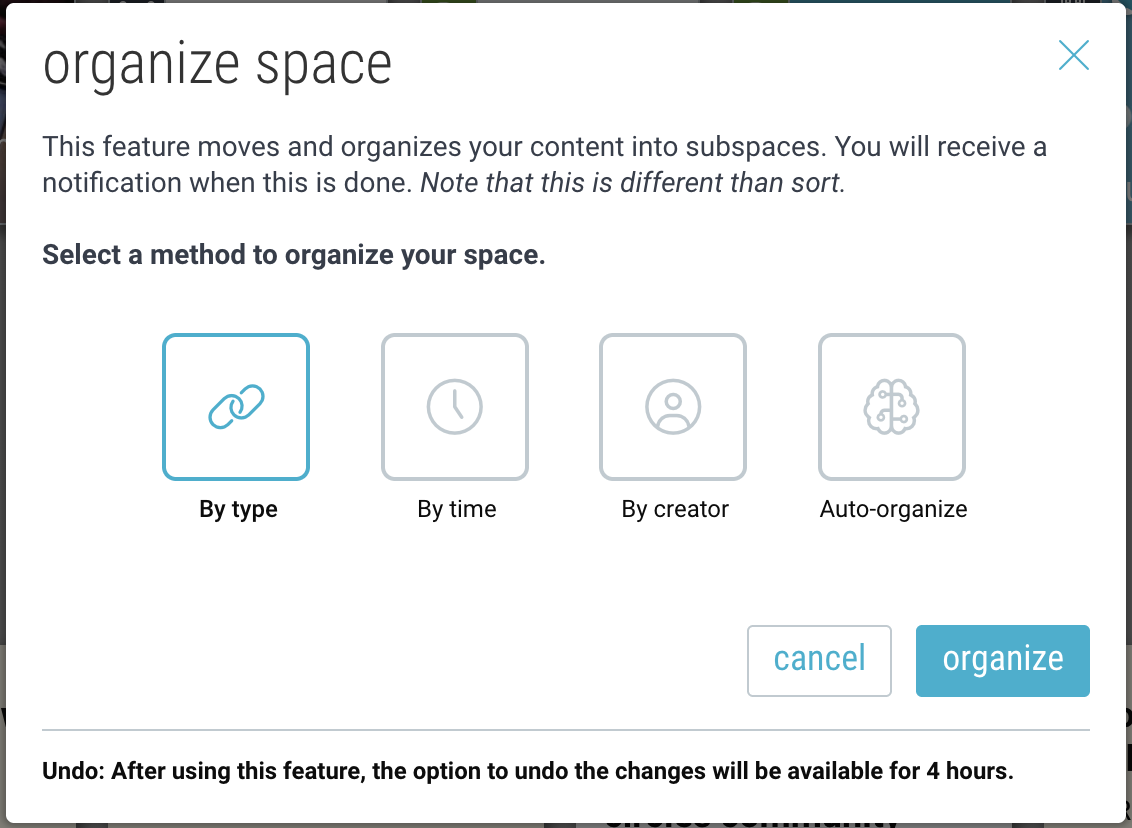
- By Type – Separate everything by the types of items they are. (links, images, documents, etc.)
- By Time – Separate items by their creation dates. You can choose to group by year, by month, by day, or let Bublup choose the most likely option for you.)
- By Creator – Separate items by who originally saved them.
- Auto-Organize – Allow Bublup to decide the best way to organize the space, based on its contents.
Note: This action cannot be undone.
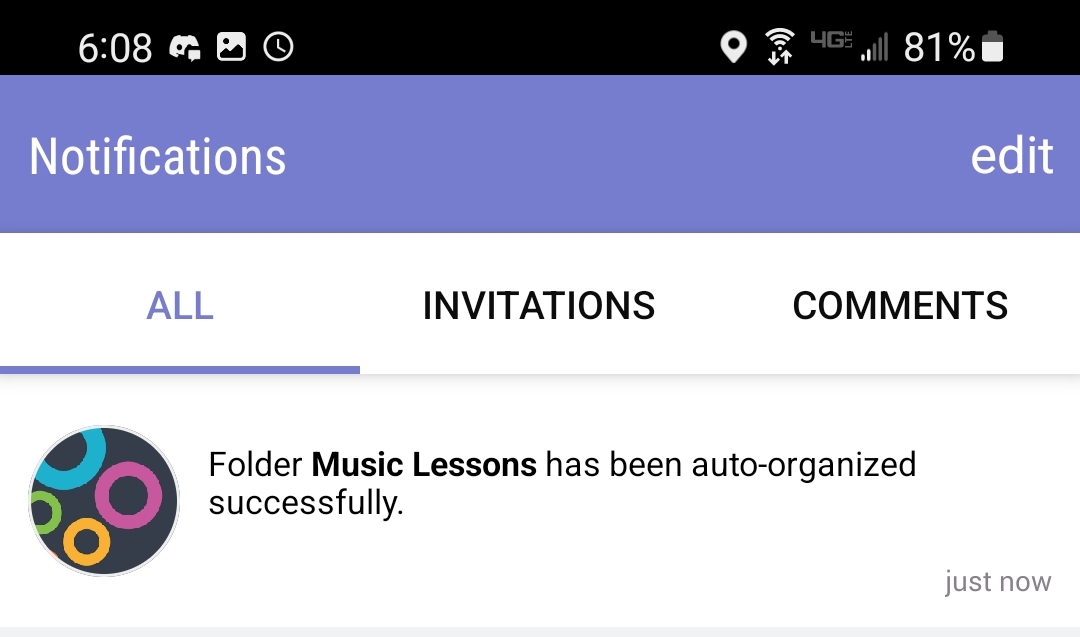
Organizing your space takes place in the background so that you can continue to work in Bublup. However, while this is happening, you should avoid adding or moving items within the space. Once complete, you will receive a notification that your space has been reorganized.