

A shortcut is a direct link to one of your spaces. You can put a shortcut in any space, including your Home.
1. Go to the outside of the space you want a shortcut to.
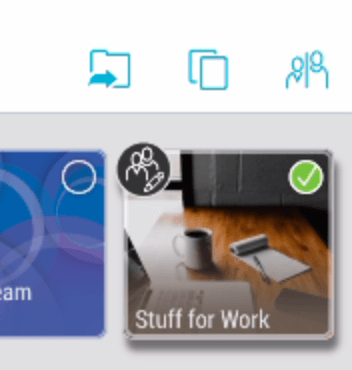
2. Press and hold on the space. The “select” mode will activate and your space will show a green check mark. Now tap the shortcut icon (folder with an arrow) at the top of your screen.
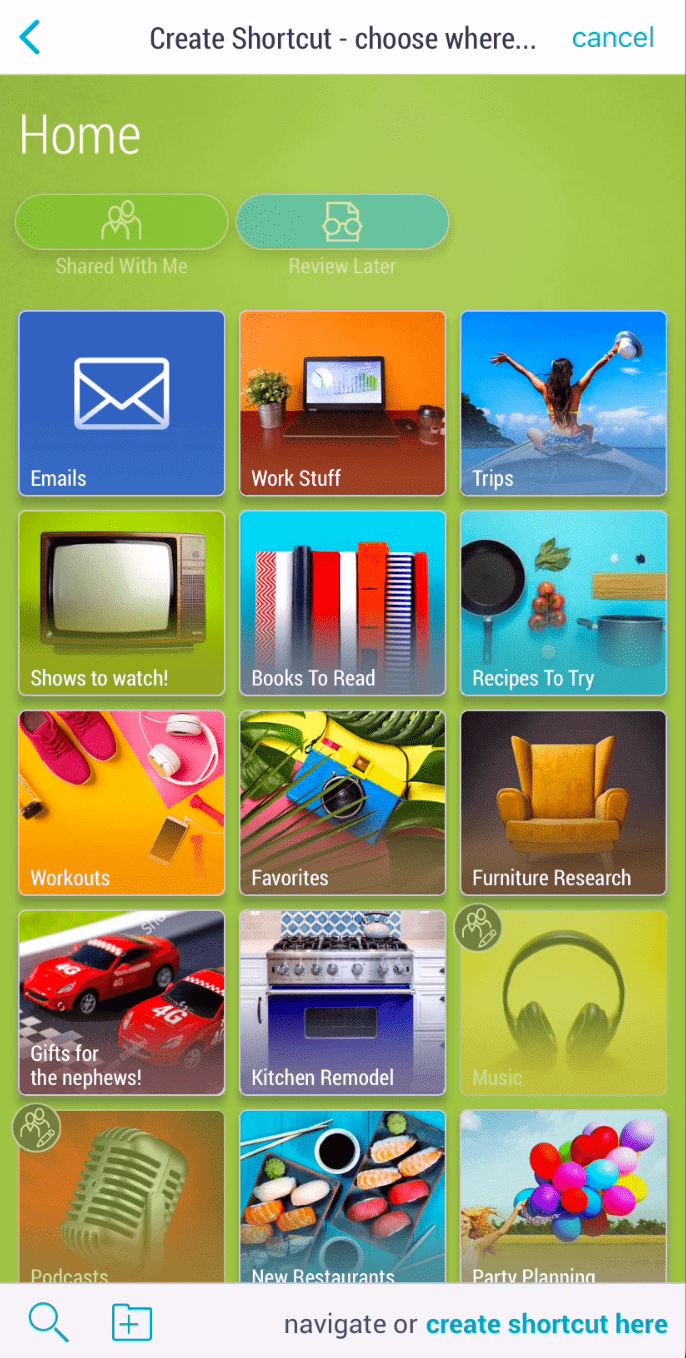
3. Navigate to the location where you want your shortcut and tap “create shortcut here” in the bottom-right corner.
4. Your shortcut will now appear. Notice the shortcut icon on the shortcut space.

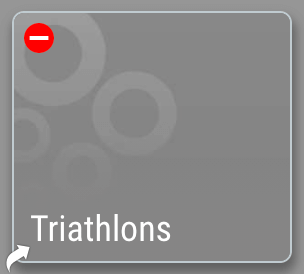
Note: When a shortcut is saved in a shared space which others do not have access to, it will display as grey, with a “no entry” icon.
A shortcut is a direct link to one of your spaces. You can put a shortcut in any space, including your Home.
1. Go to the outside of any space you want a shortcut to.
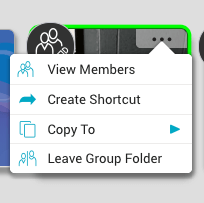
2. Select the 3-dot (…) menu or right-click on the space and select “create shortcut”.
3. Navigate to the location where you want your shortcut and click the “create shortcut” button.
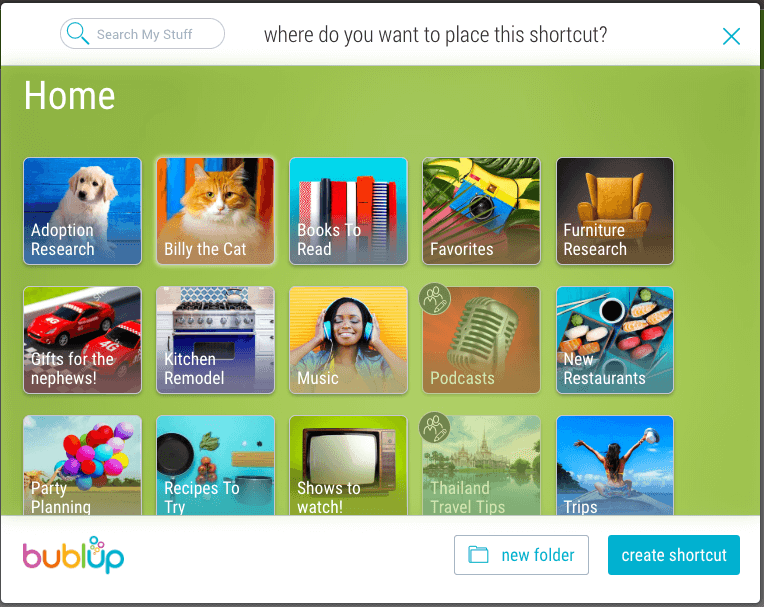
4. Your shortcut will now appear. Notice the shortcut icon on the shortcut space.
Note: When a shortcut is saved in a shared which others do not have access to, it will display as grey, with a “no entry” icon.