
Moving a single item
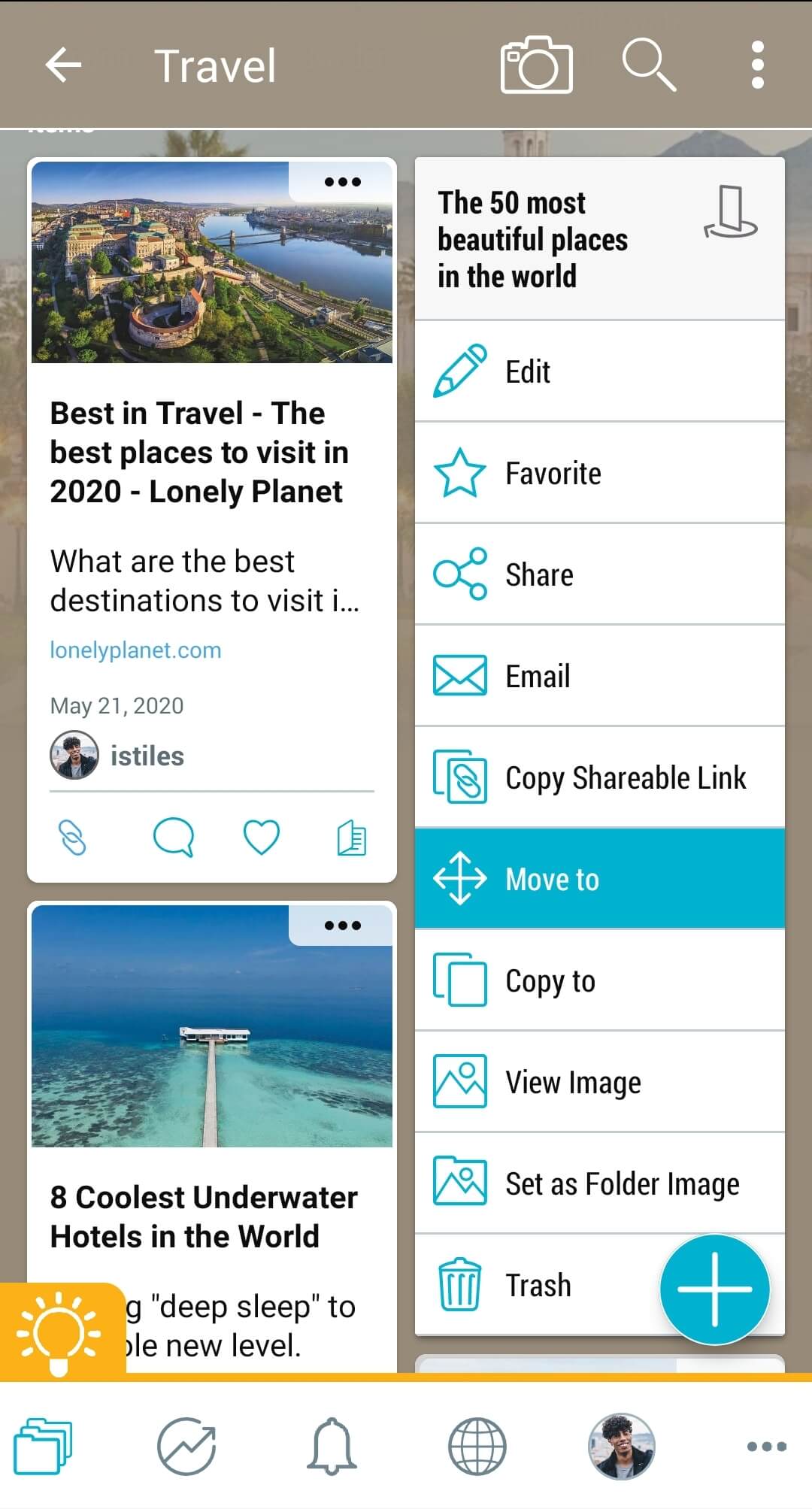
1. Move any item by tapping on the 3-dot (…) menu on the top-right corner and selecting “Move to”.
2. Navigate to the destination space and tap on “move here”.

Moving multiple items or spaces
1. Select multiple items or spaces to move by tapping on the 3-dot (…) menu in the top-right corner of the space and choosing “select”.
Pro Tip: You can also select multiple items using “long press” on your mobile device. Simply tap and hold your finger on an item or folder you would like to move. This will trigger the multi-select mode, allowing you to select multiple items and spaces.

2. Choose the items and/or spaces you would like to move by tapping on them. A green check mark will appear on items that will be moved. Once you’ve selected your items, tap the “move” icon.

3. Navigate to the destination space, then tap the blue “move here” icon.
Quick Drop items into recent spaces
1. Tap and hold your finger on the item. The blue “quick drop” area will be shown in the upper-right corner.

2. While continuing to hold your finger on the screen, drag your item(s) to the “quick drop” area. Your most recently used spaces will be shown. Drag your item to the destination space.

Pro tip: You can select multiple items using “long press” on your mobile device. Simply tap and hold your finger on an item or folder to trigger the multi-select mode. Once you have selected all items, you can long press on any of them and drag into the Quick Drop area. They will all be moved to the new space.
Move a single item or space
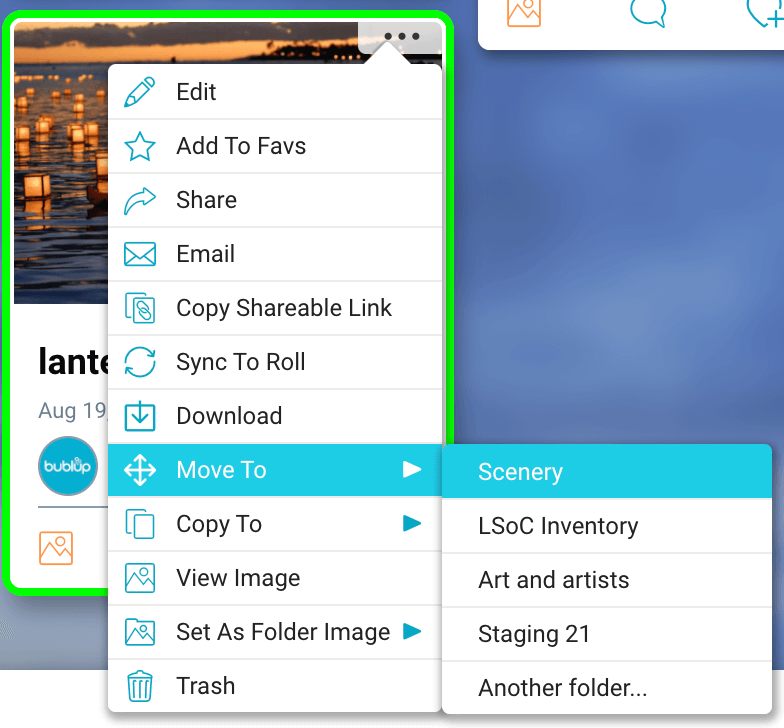
1. Right-click, or click on the 3-dot (…) menu in the upper-right corner of a space or item. Hover over the “move to” option in the menu.
2. Click one of the recently used space names to quickly move an item there, or select “another space” to choose a different destination.
Simultaneously move multiple items/spaces
1. Drag your cursor over all of the spaces and items you want to move, or hold down Ctrl/Cmd while clicking each item to select them individually. All selected items will have a green outline.
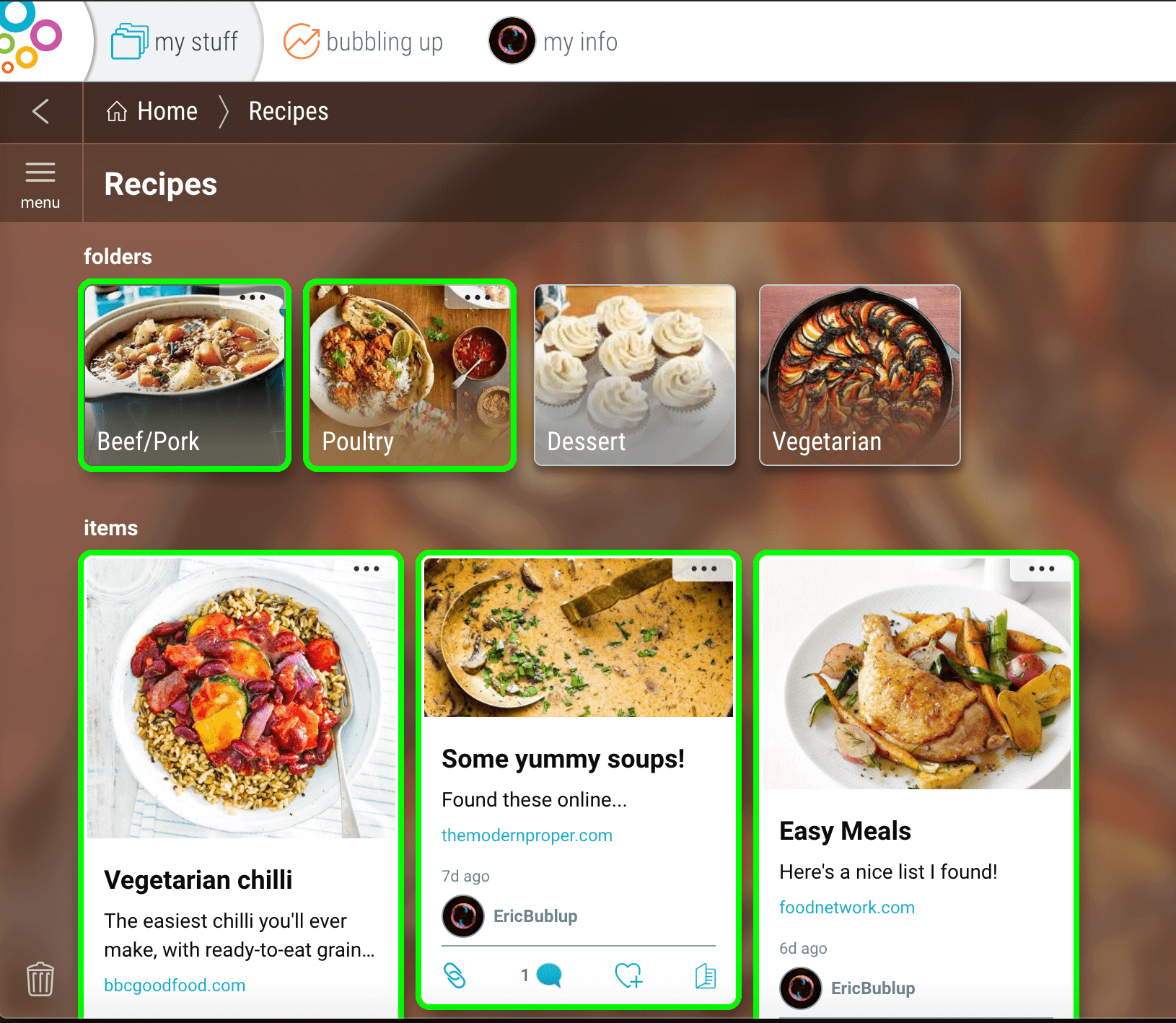
2. Right-click, or click on the 3-dot(…) menu of any of the selected items to show the options menu.
3. Hover over the “move to” option in the menu.
4. Click one of your recently used space names to quickly move an item there, or select “another space” to choose a different destination.
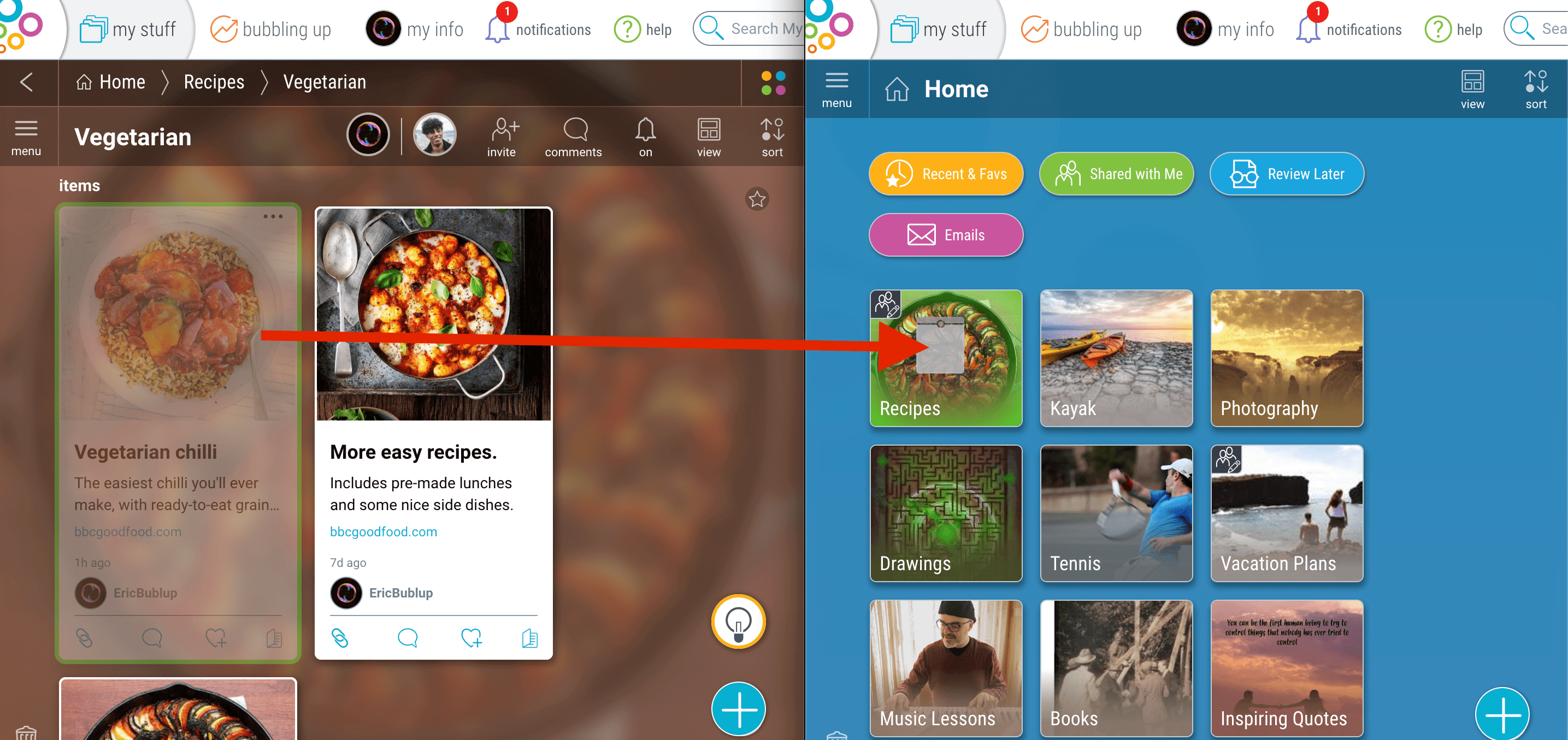
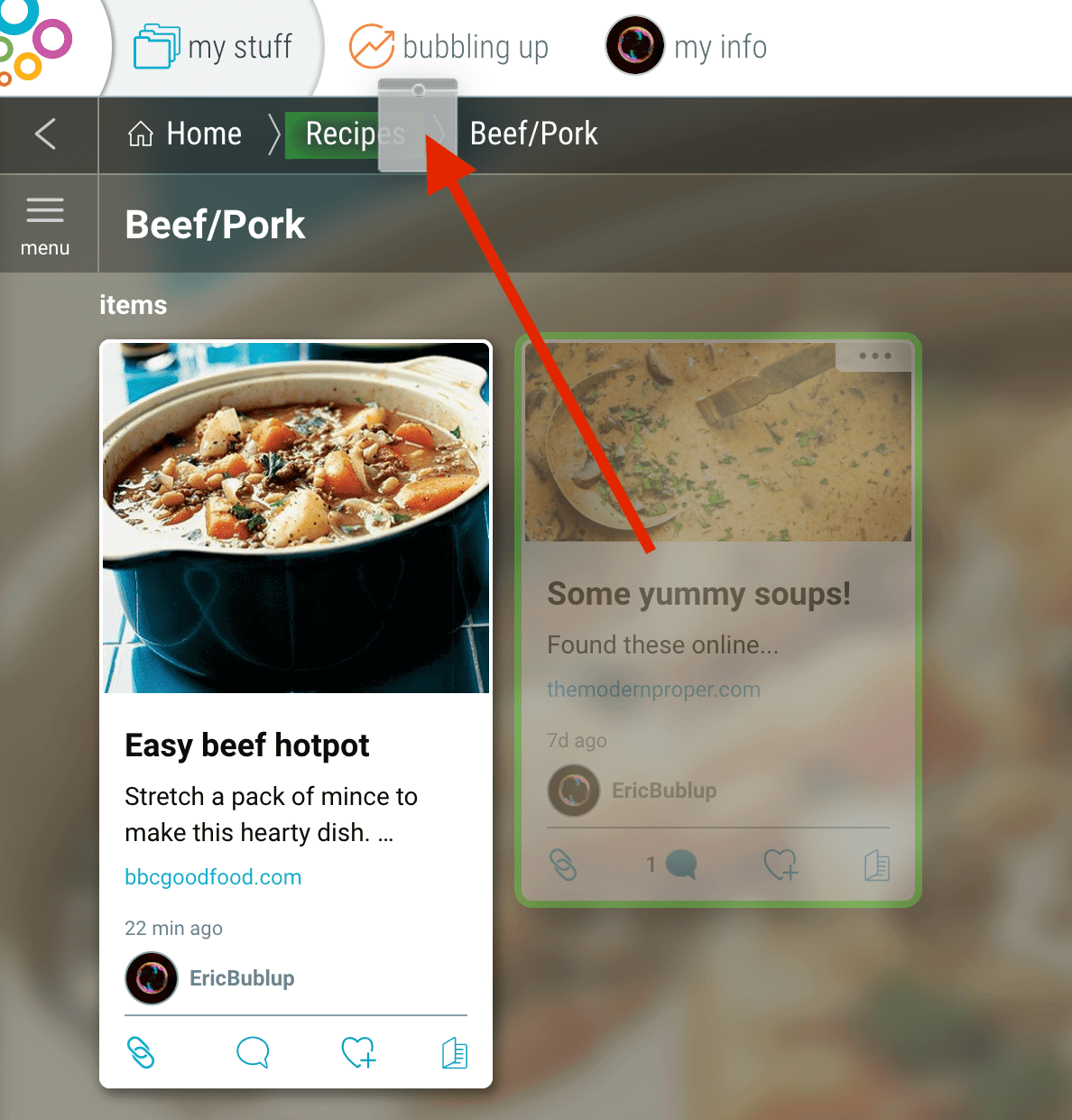
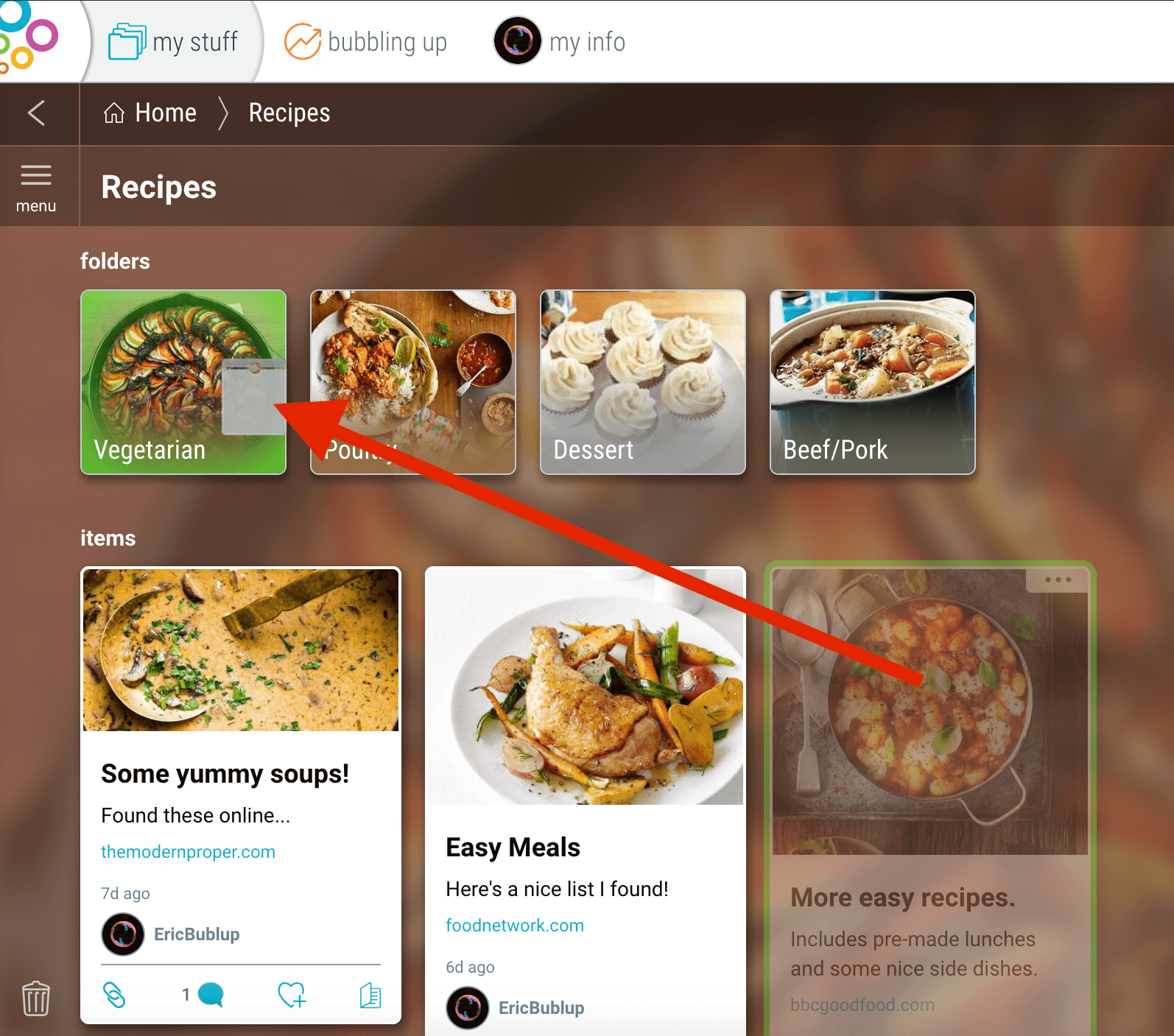
Pro Tip: You can also move an item or space (or a selection of items and spaces) by clicking and dragging into:
Your breadcrumbs bar
Another space in view
Another space in a different window. (Make sure your windows appear side-by-side, and you can move items from one location into another.)