

Home
Home is where all of your saved content is kept. Everything you save will be organized into spaces. All spaces, along with any shortcuts you add, live within Home.
When you are in any other space, the “My Stuff” icon in the lower left corner of your app is your Home button.
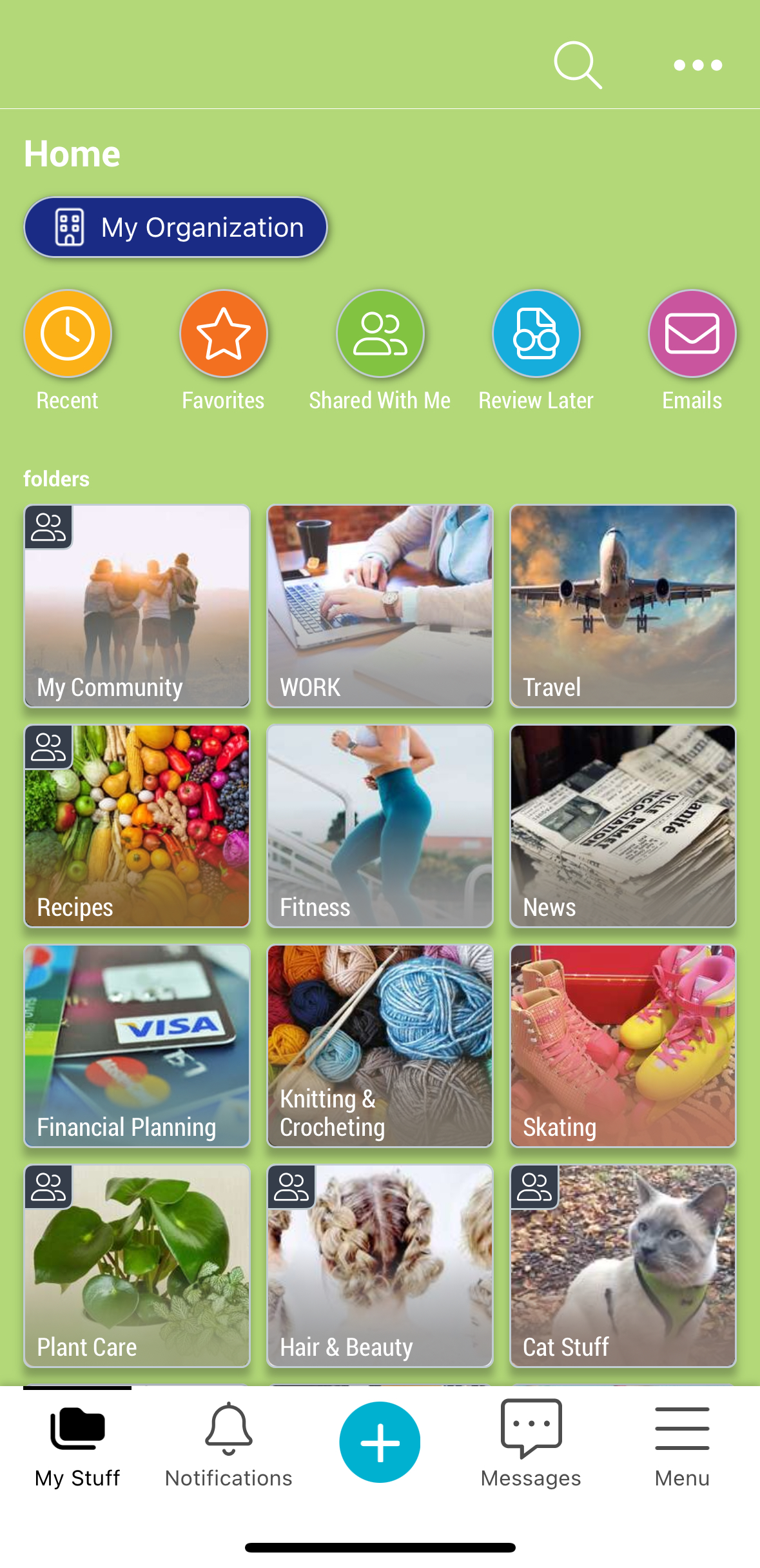
Space hierarchy and navigation
From Home, you can tap into your spaces, where you can save files, images, videos, web-links, notes, and other subspaces.
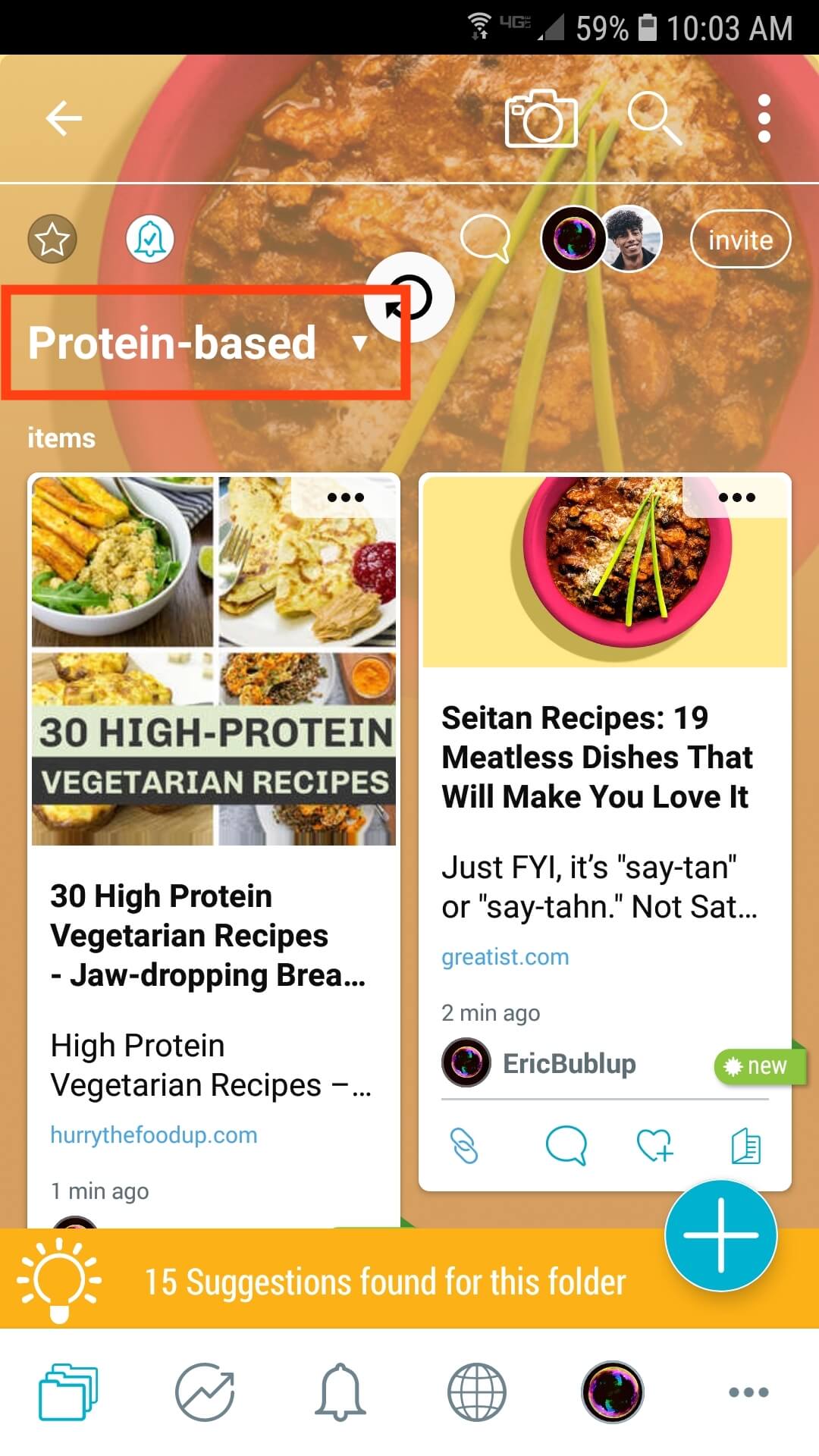
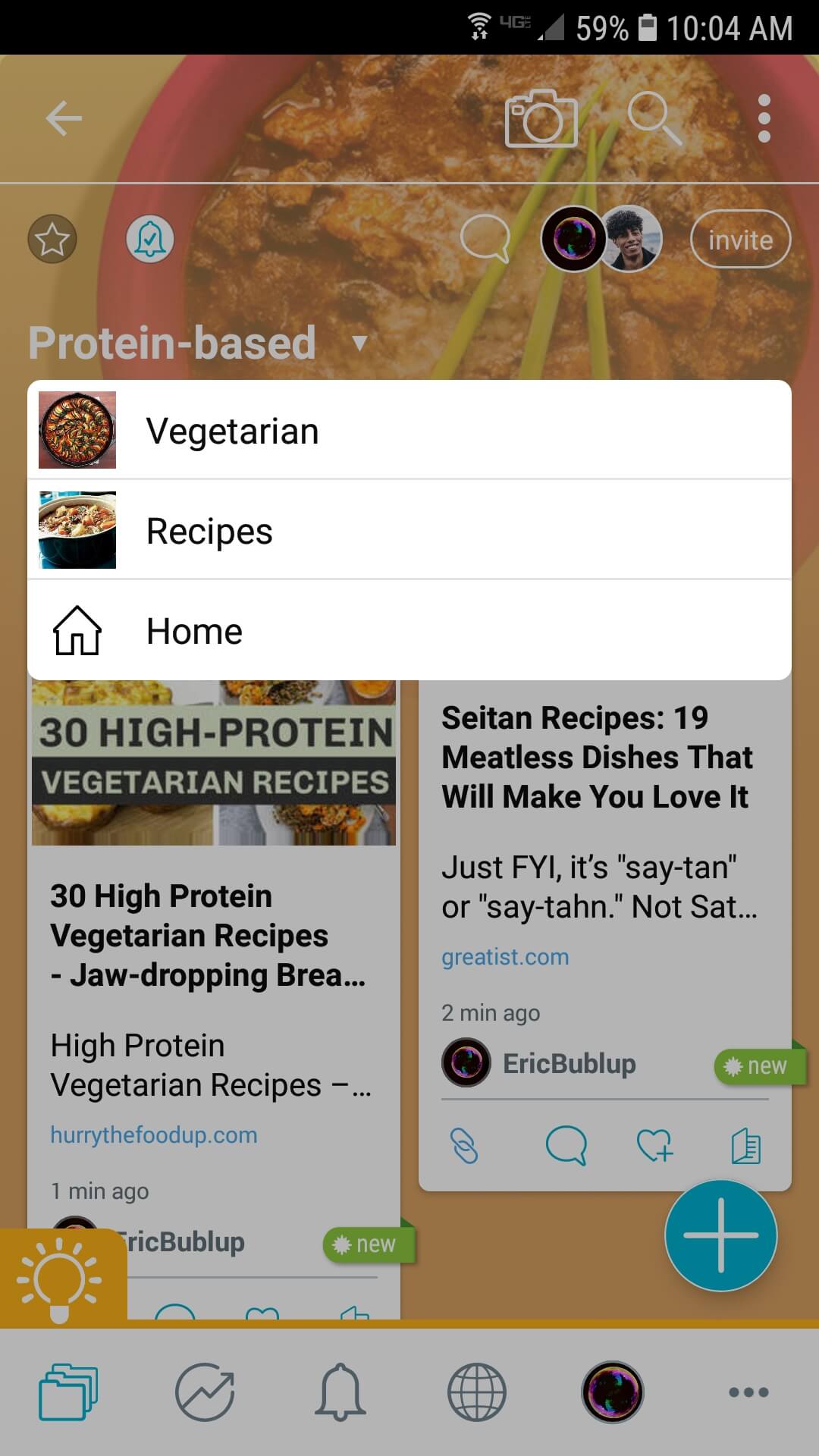
The breadcrumbs feature shows your space name in the top left, below the favorites (star) icon, shows the space you are in. Tapping on it will drop-down a list of spaces that precede it, showing where you are in the chain of spacess and subspaces. You can tap on any space to immediately go there. In this example, We are in a subspace called “Protein-based”, which is in the space “Vegetarian”, in “Recipes”, and of course, in “Home”.
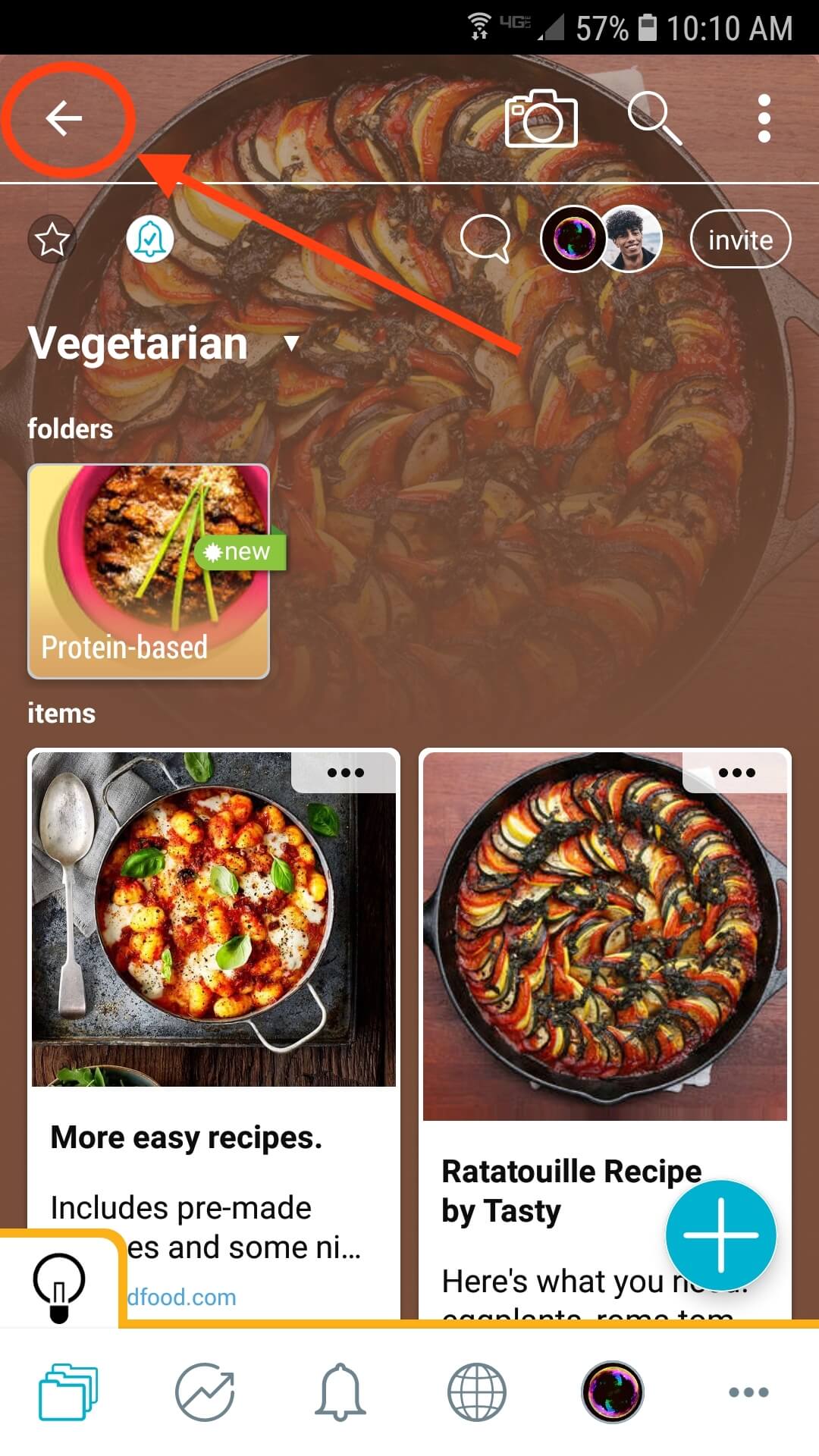
To move up one space at a time, tap the “back” button, found at the top-left of your app.
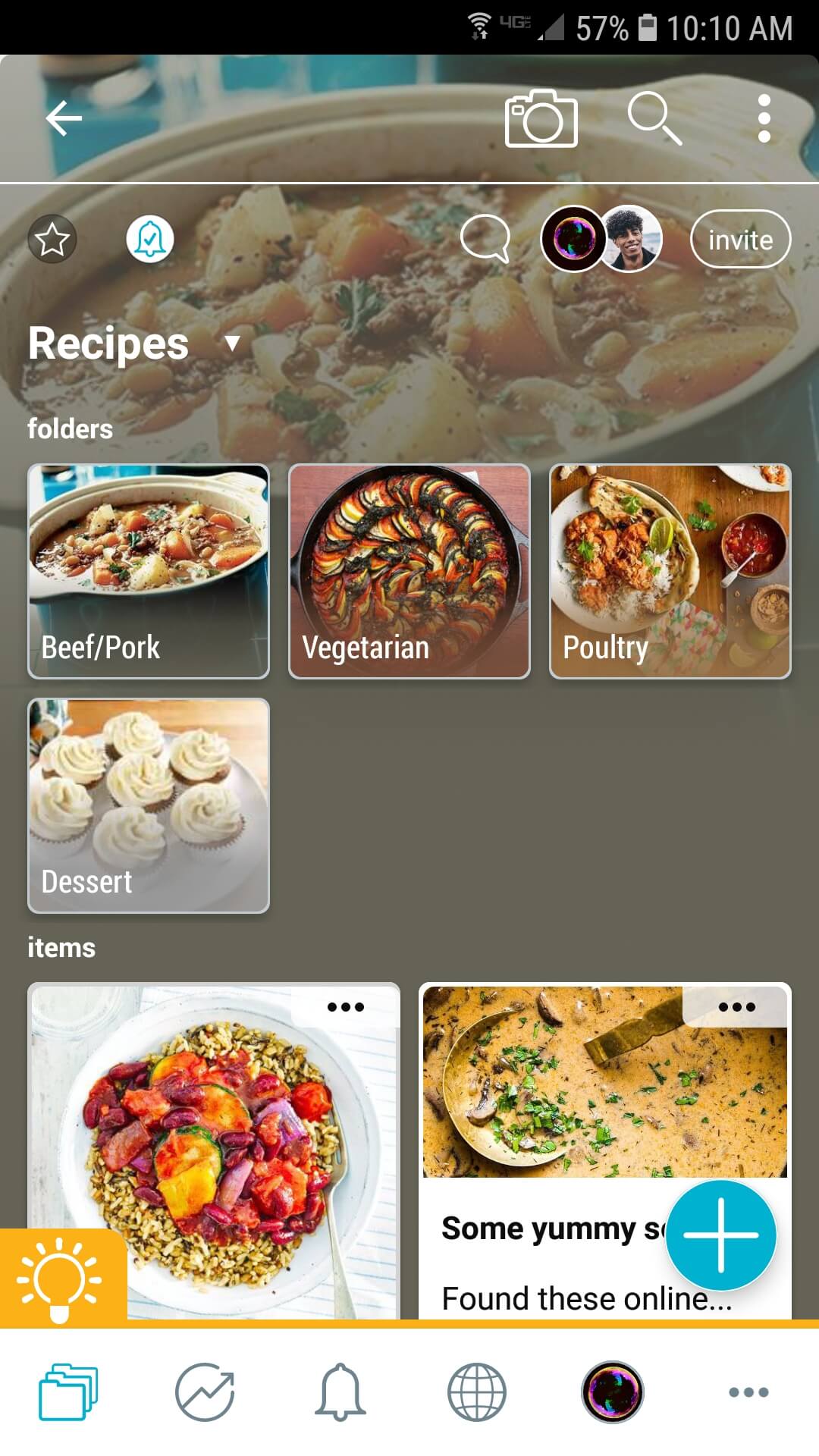
Here is a video of our breadcrumbs feature for mobile.
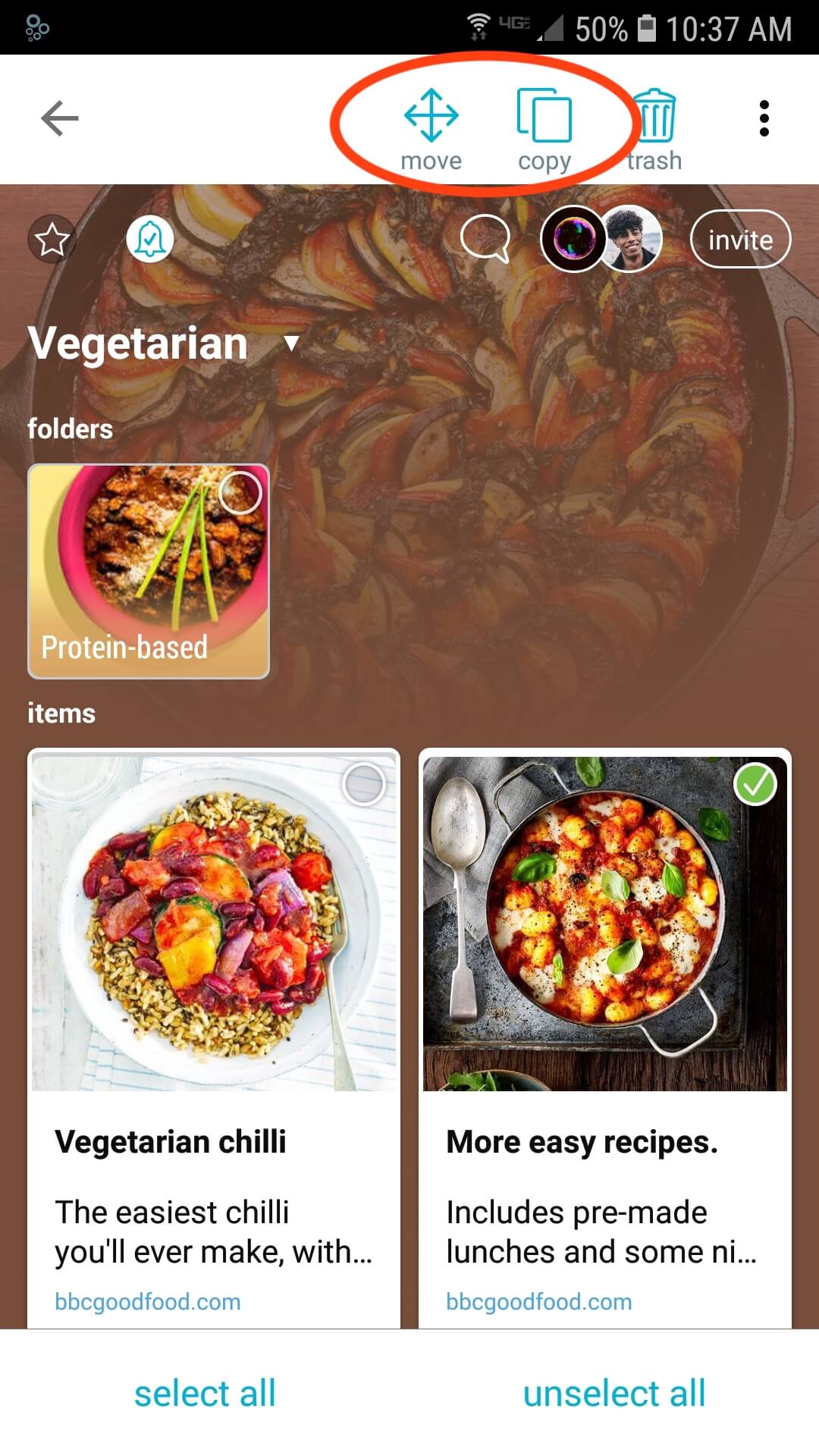
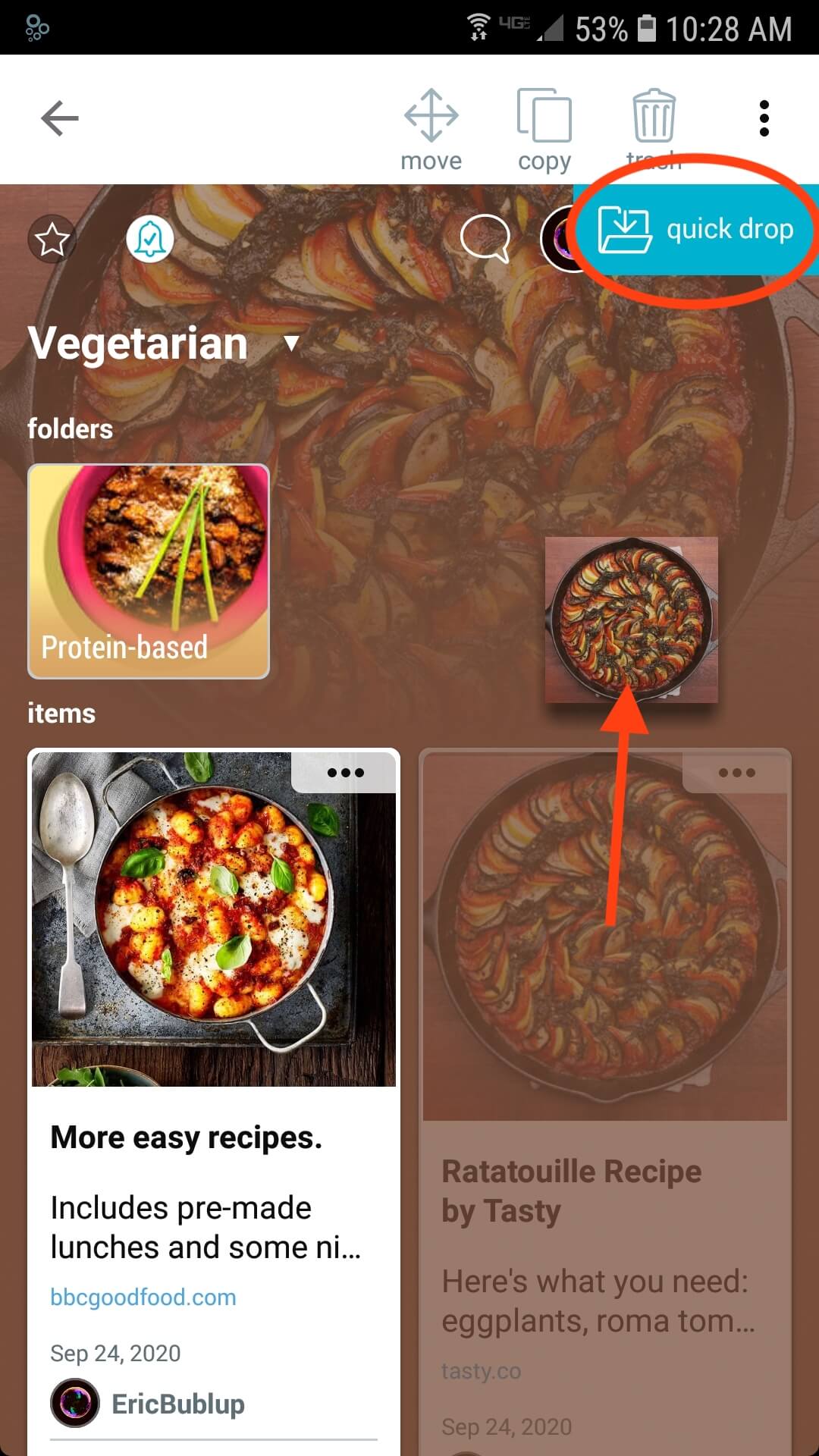
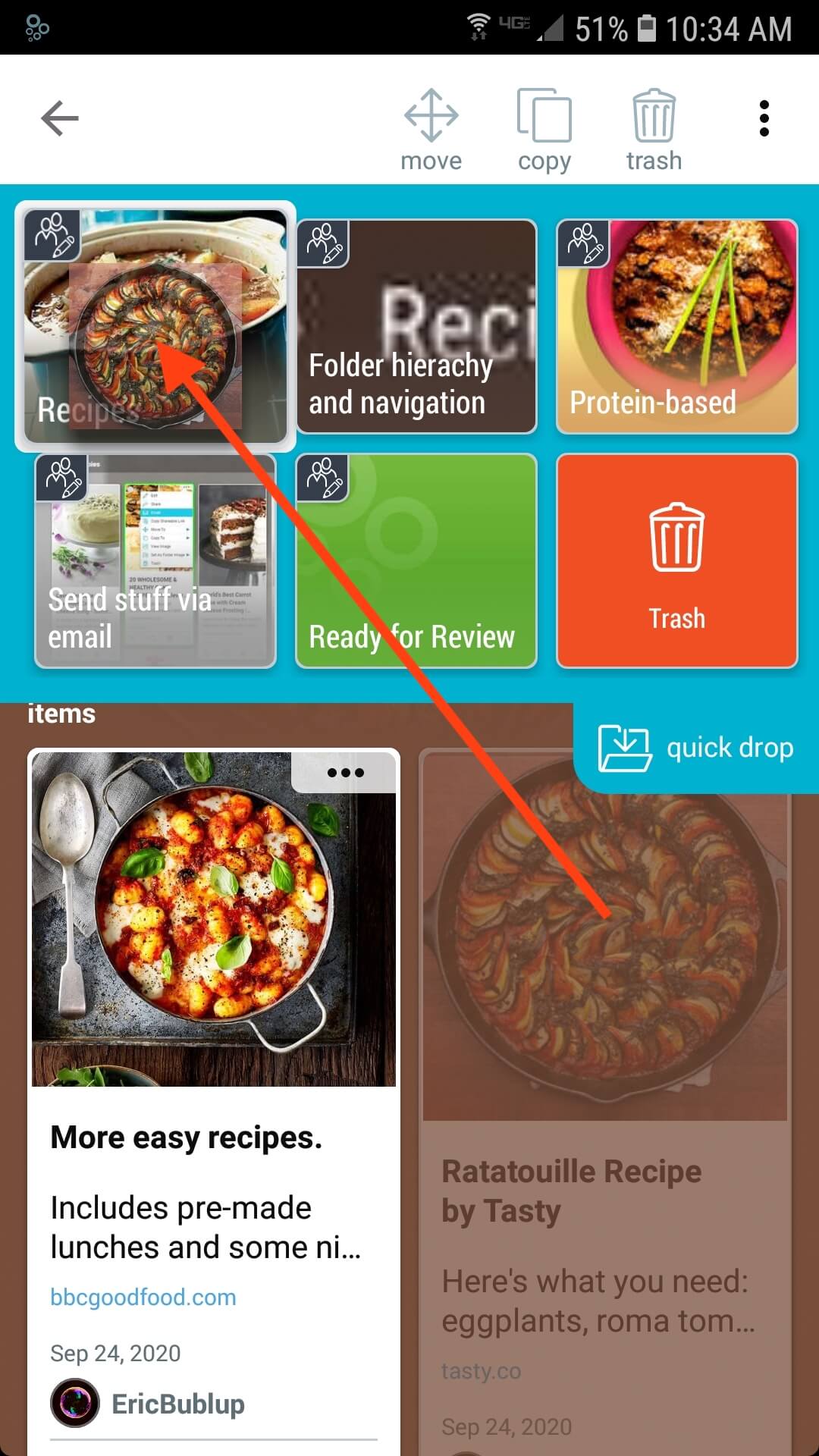
Pro Tip:You can long-press an item to select it (or multiple items) and then tap on “move” to select a space to move the items into, or “copy” to create a copy in another space. You can also simply drag them to the “Quick-drop” area, to quickly move them into one of your most recently used spaces.
Special Spaces in Home
Your Home also has “special spaces” in the “more” menu:
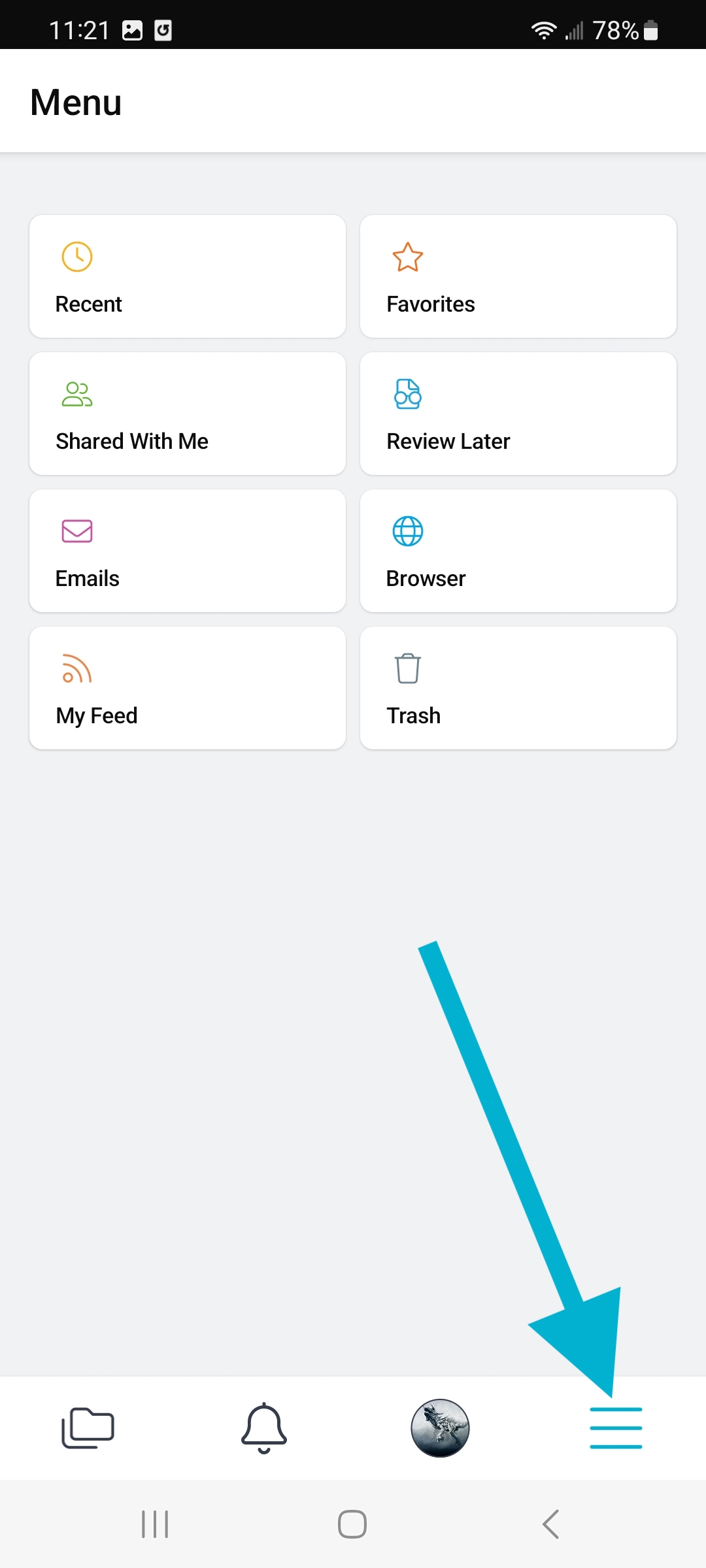
- Recents and Favorites – Your most recently viewed and your favorited spaces.
- Shared with Me – When other users share spaces with you, a link to them can always be found here.
- Review Later – Sometimes you want to save something quickly, then look it over and file or delete it later.
- Emails – Save important emails in Bublup by forwarding them to your Bublup account.
My Stuff
My Stuff is the area where all of your content is saved.
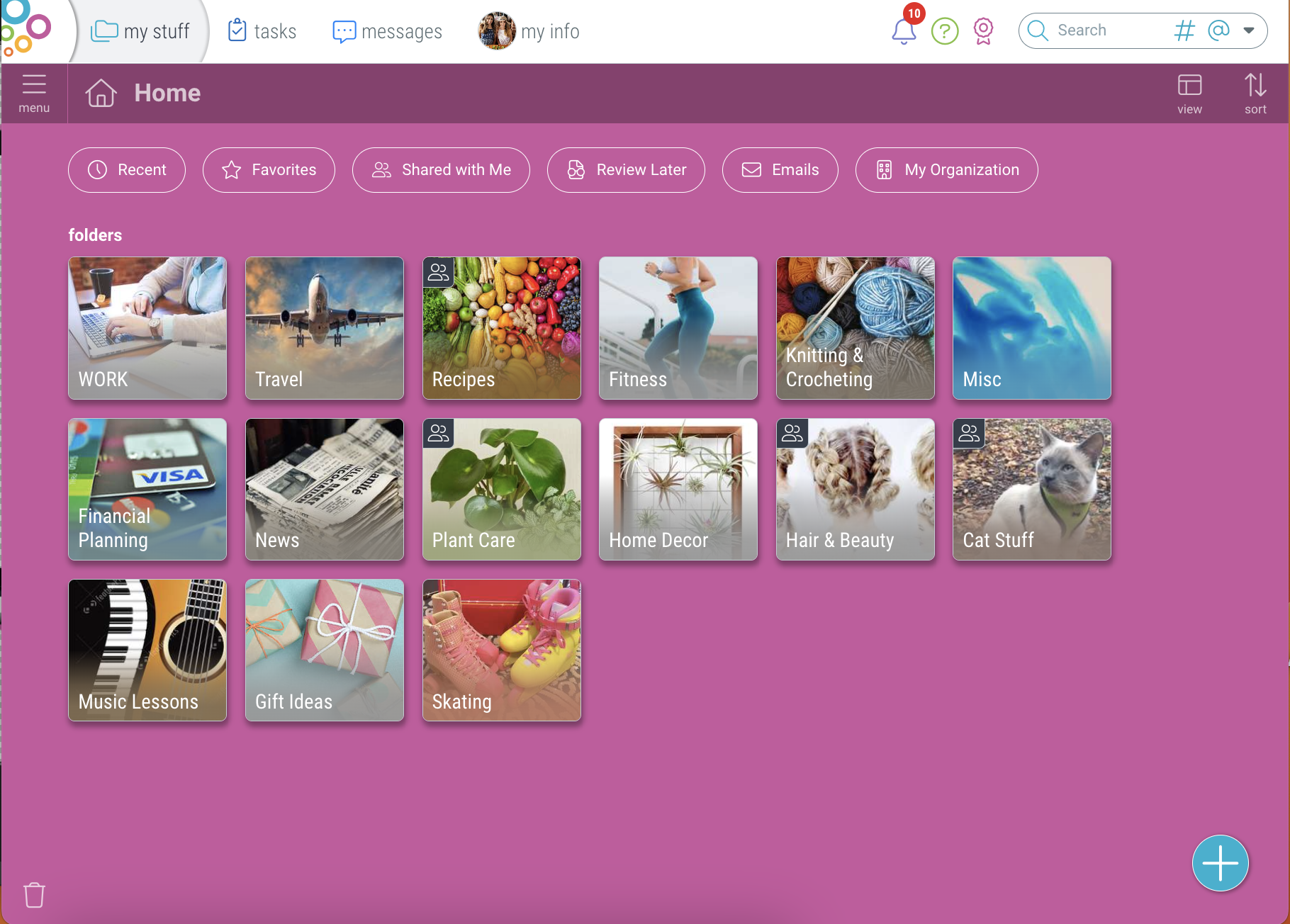
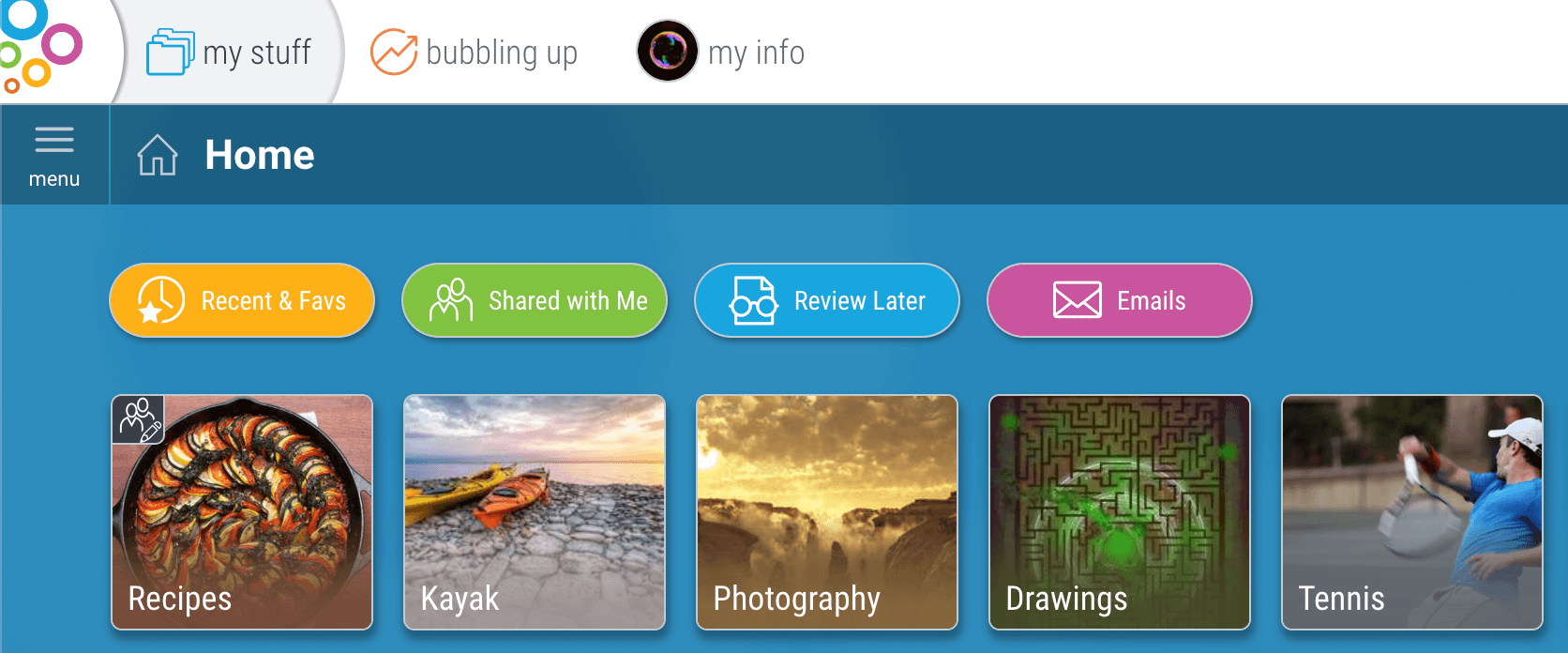
Your starting point in “My Stuff” is “Home.” The home button returns you to the top-most area in your space hierarchy.

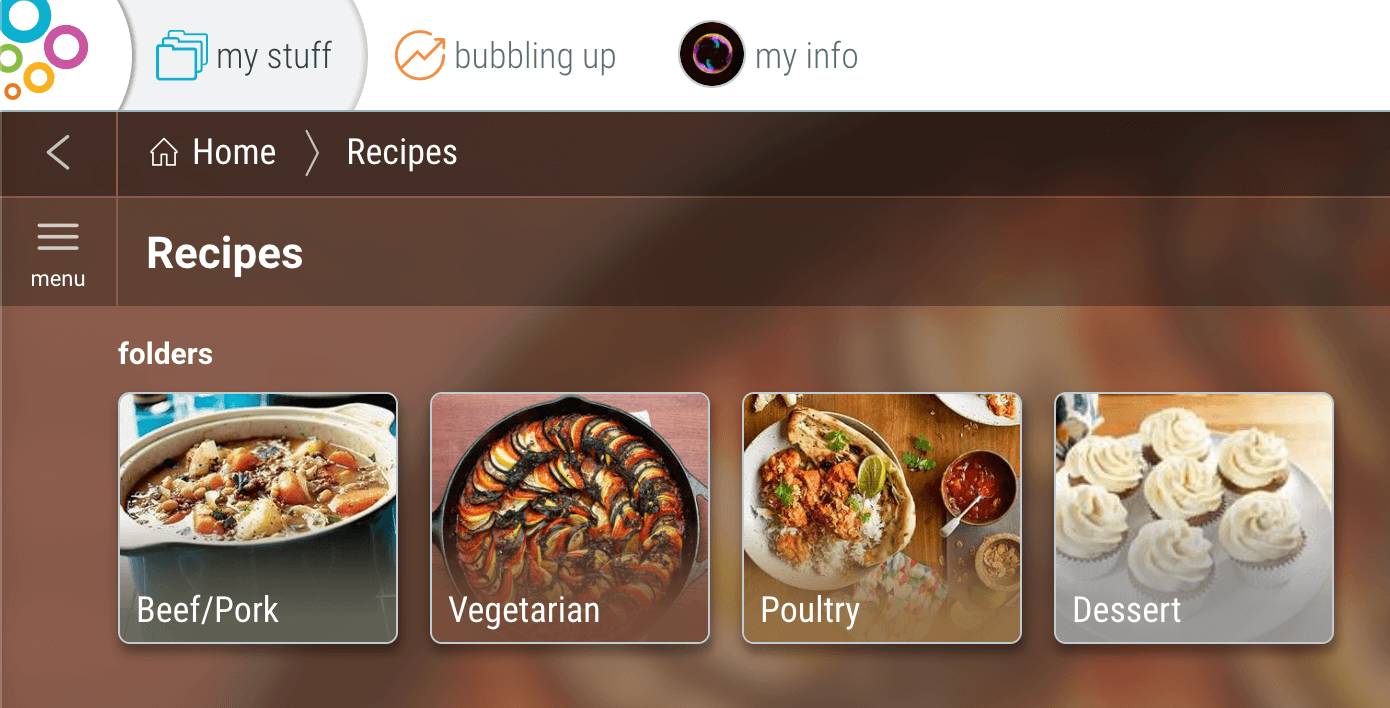
All spaces, along with any shortcuts you add, live here. From Home, you can click into your spaces, where you can save files, images, videos, web-links, notes, and other subspaces.
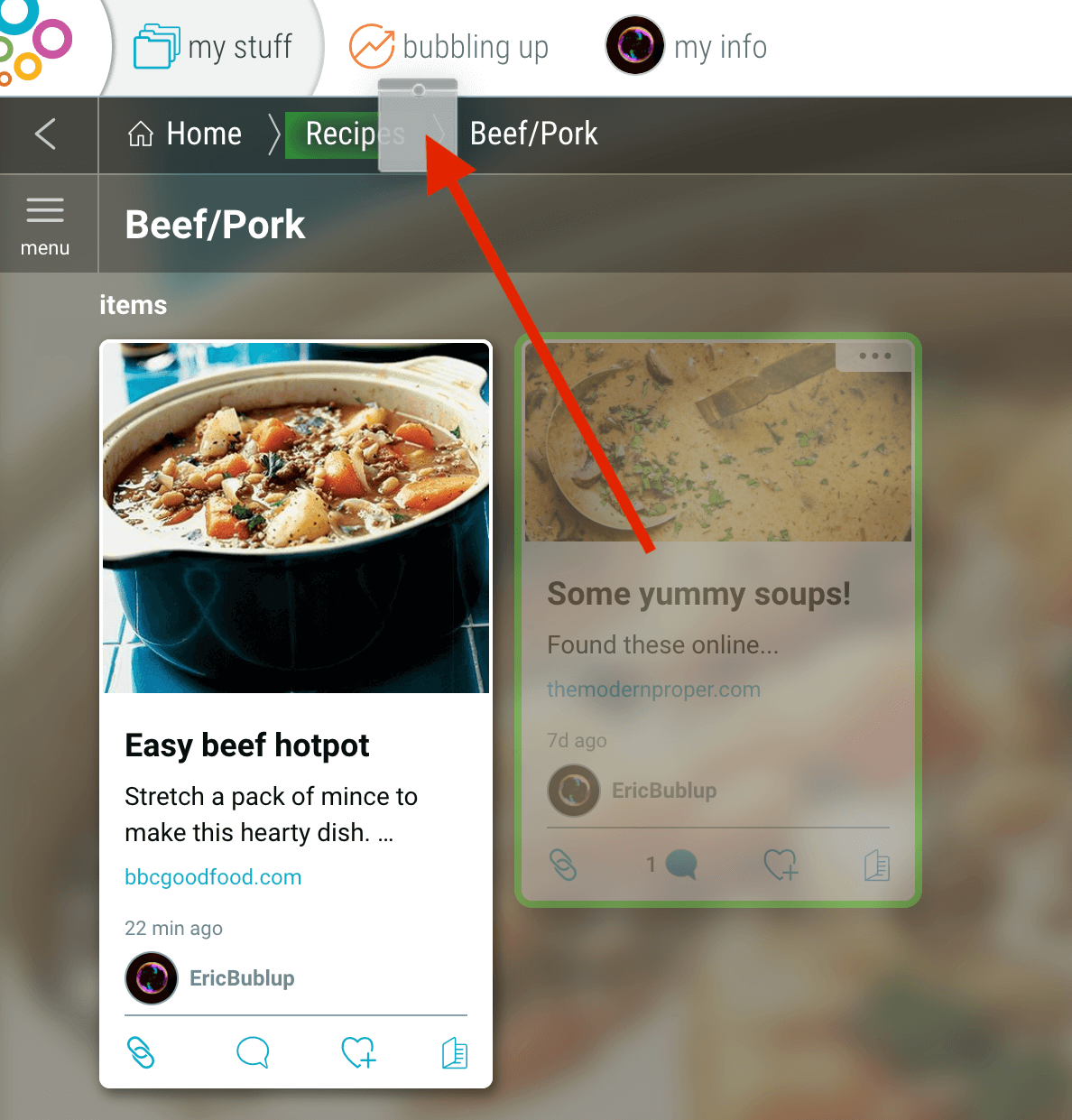
The breadcrumbs bar in the top left, below the “my stuff” button, shows where you are in the chain of spaces and subspaces. You can click on any part – from “Home” to any subspace above your current location to go there.
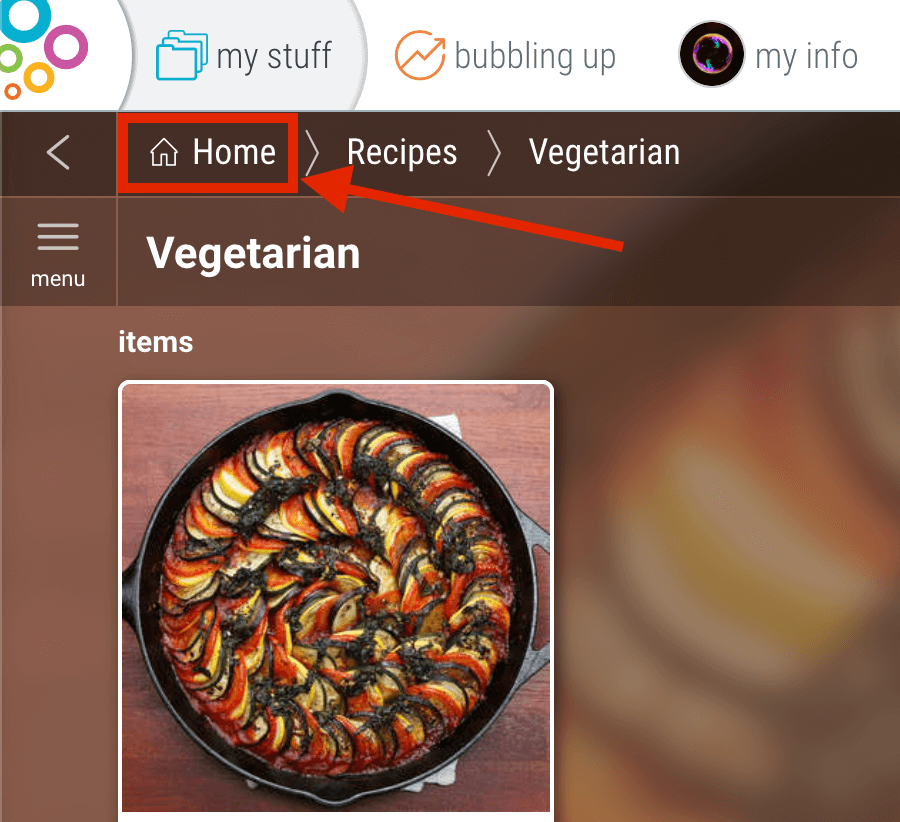
Pro Tip:You can move items and spaces to new locations by simply dragging them into the place in the navigation bar where you want them to go.
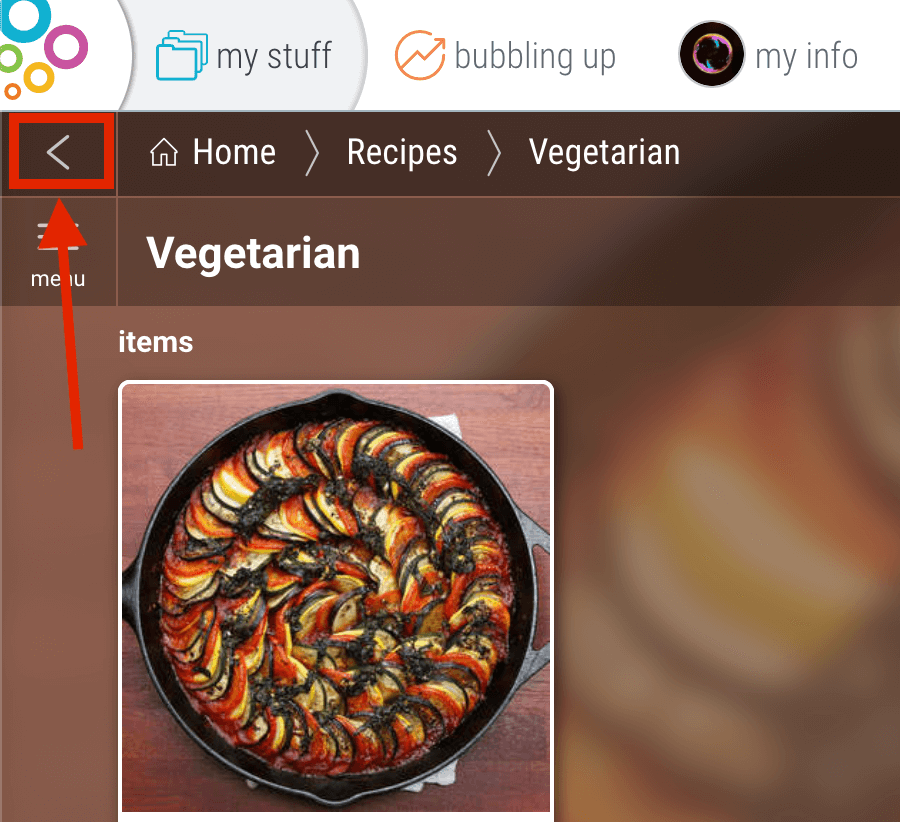
To move up one space at a time, click the “back” button, found to the left of the “home” button.
Special Spaces in Home
Your Home also has “special spaces”:

- Recents and Favorites – Your most recently viewed and your favorited spaces.
- Shared with Me – When other users share spaces with you, a link to them can always be found here.
- Review Later – Sometimes you want to save something quickly, then look it over and file or delete it later.
- Emails – Save important emails in Bublup by forwarding them to your Bublup account.