

Pinning allows you to keep a subspace or an item in a fixed position at the top of your spaces. When you pin a subspace or an item, it stays in place, even after you navigate away and come back to the space. This feature helps with easy and consistent access to items and spaces you may want to use more than others.
Subspaces can be pinned in the spaces section, and items can be pinned in the items section. Depending on the space permissions, admins may be the only ones that can do the pinning.
To pin an item:
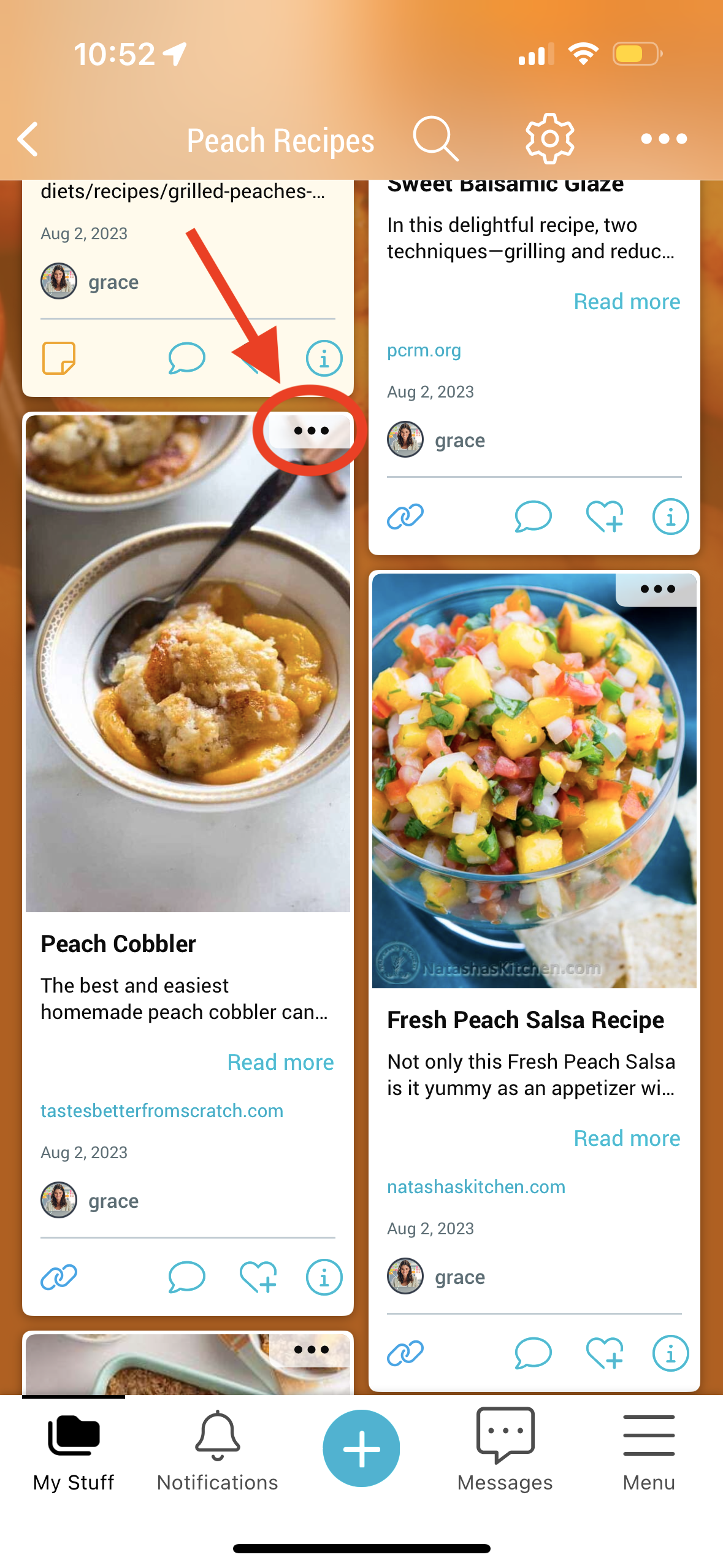
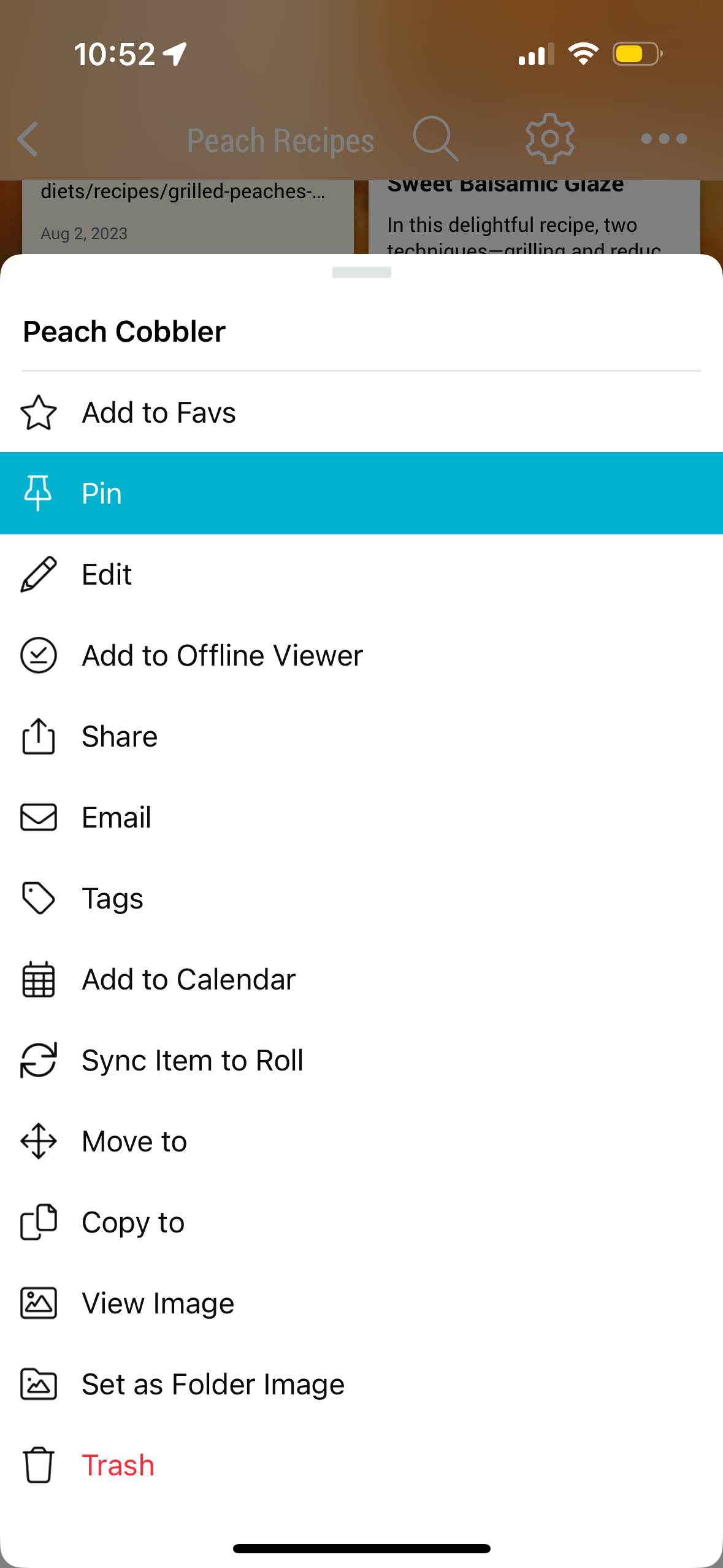
Tap the 3-dot menu on the item and select “Pin”.
To pin a space:
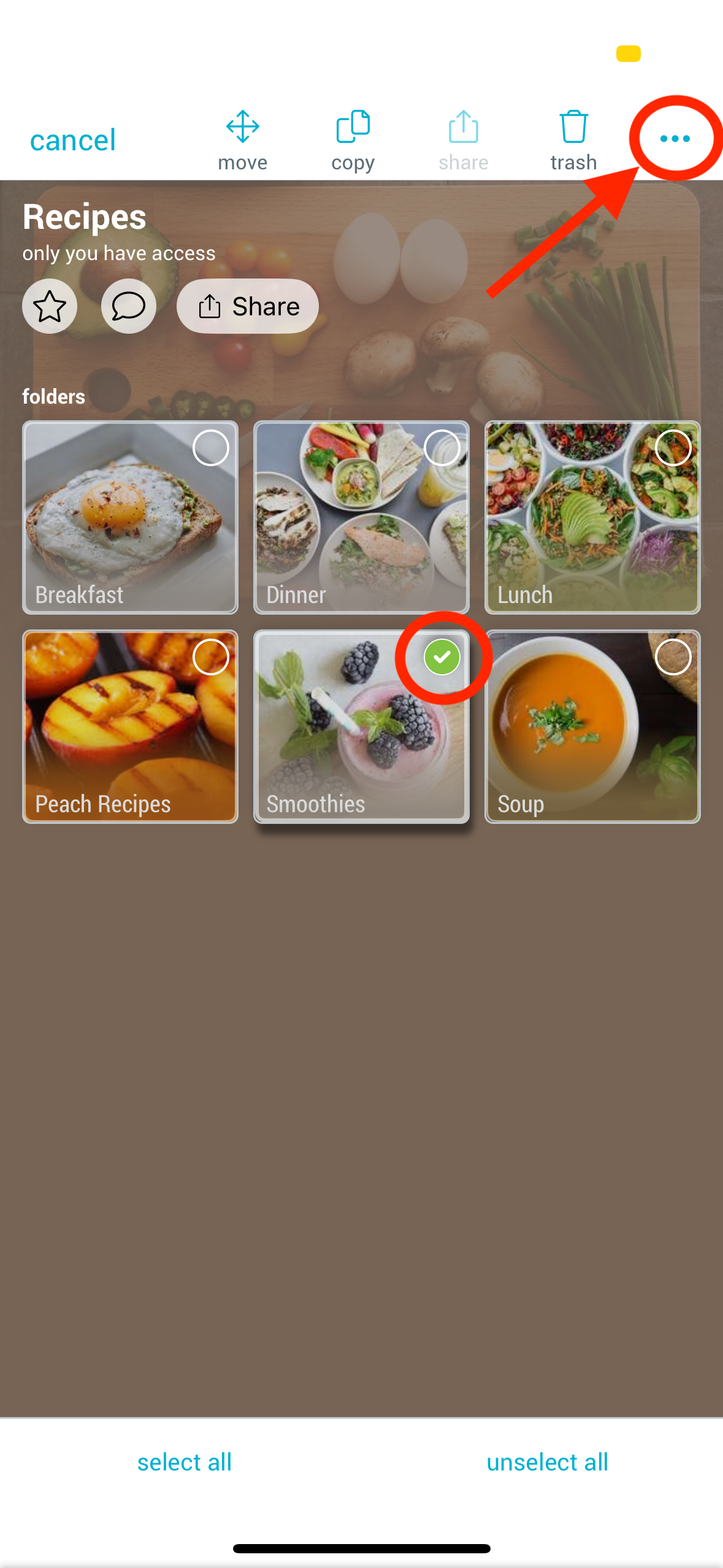
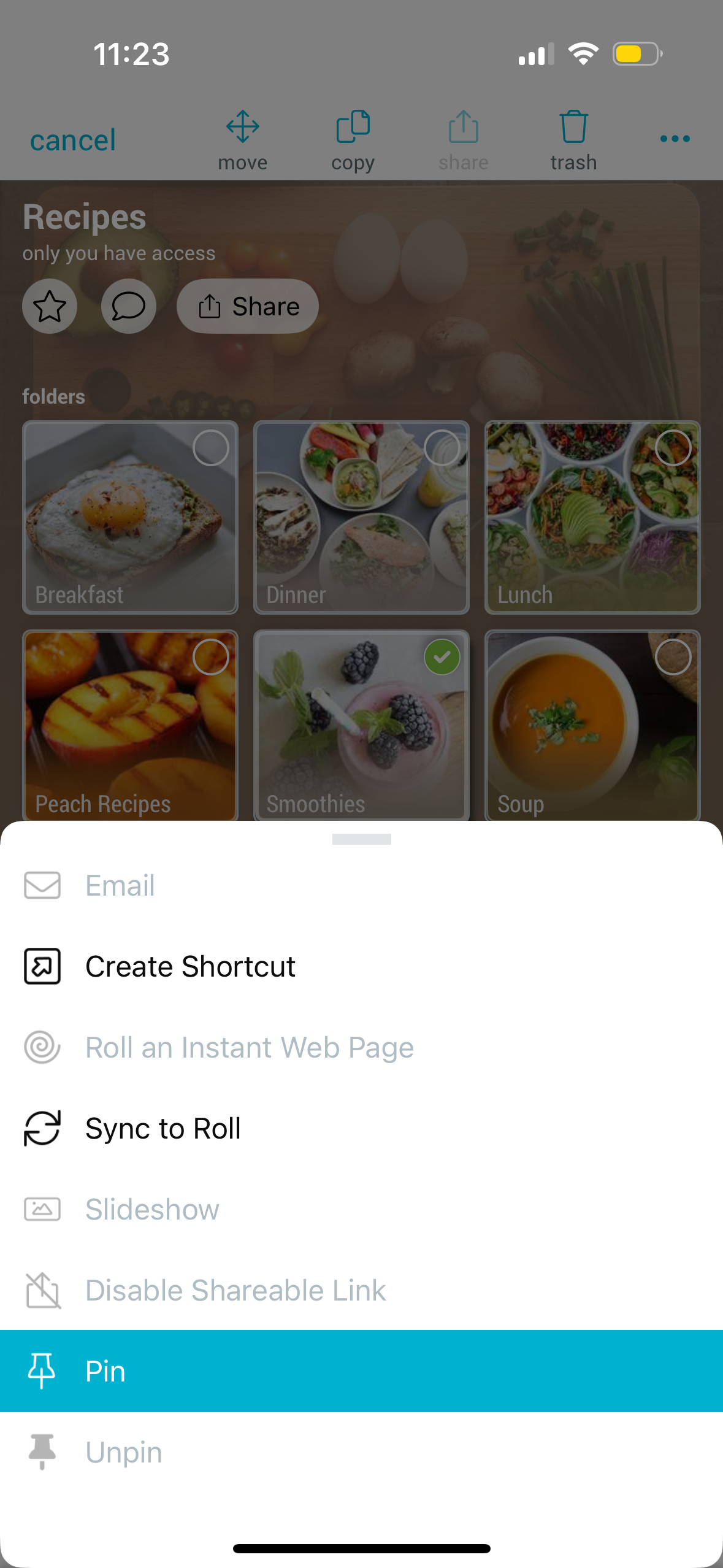
Long-press to select a space. Then tap the 3-dot menu in the upper-right corner and select “Pin”.
Pinned item will appear at the top of your “items” section, and pinned spaces will appear at the top of your “spaces” section. They will show a pin icon in the upper-left corner.
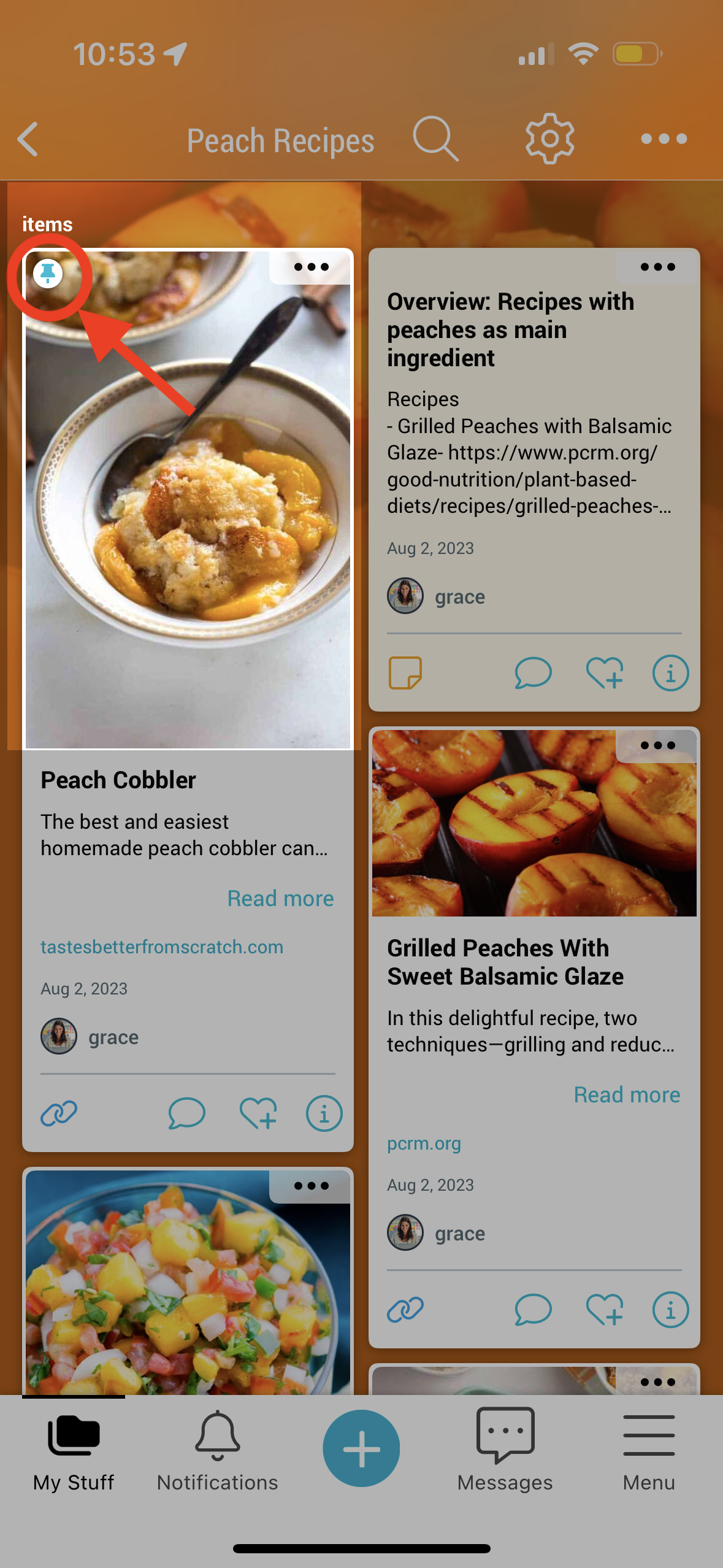
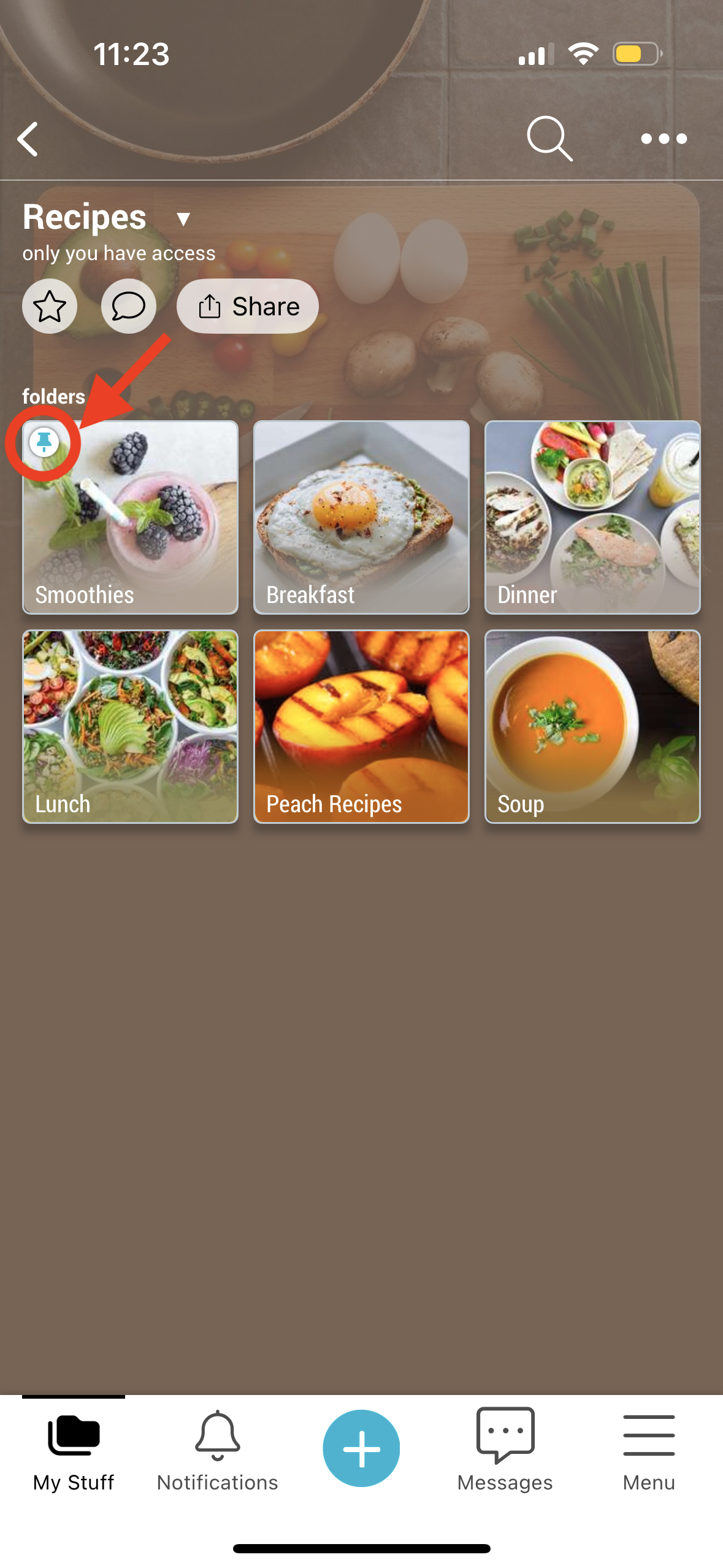
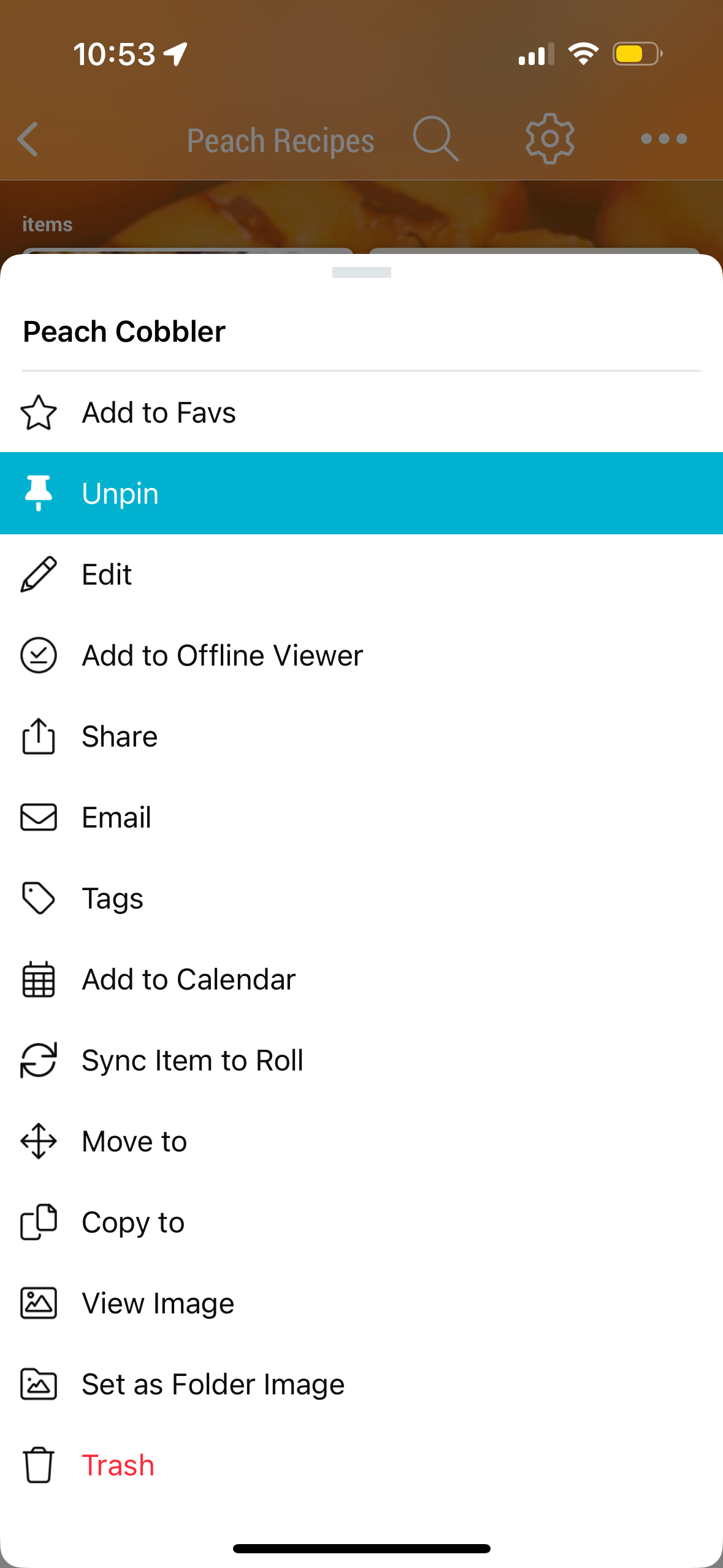
To unpin, return to the 3-dot menu and select “Unpin”.
Reordering Pinned Items and Spaces
If you have multiple pinned items or subspaces, they will be sorted according to your Sort preference for that space. To manually reorder pinned items, long-press and drag the item to where you want them.

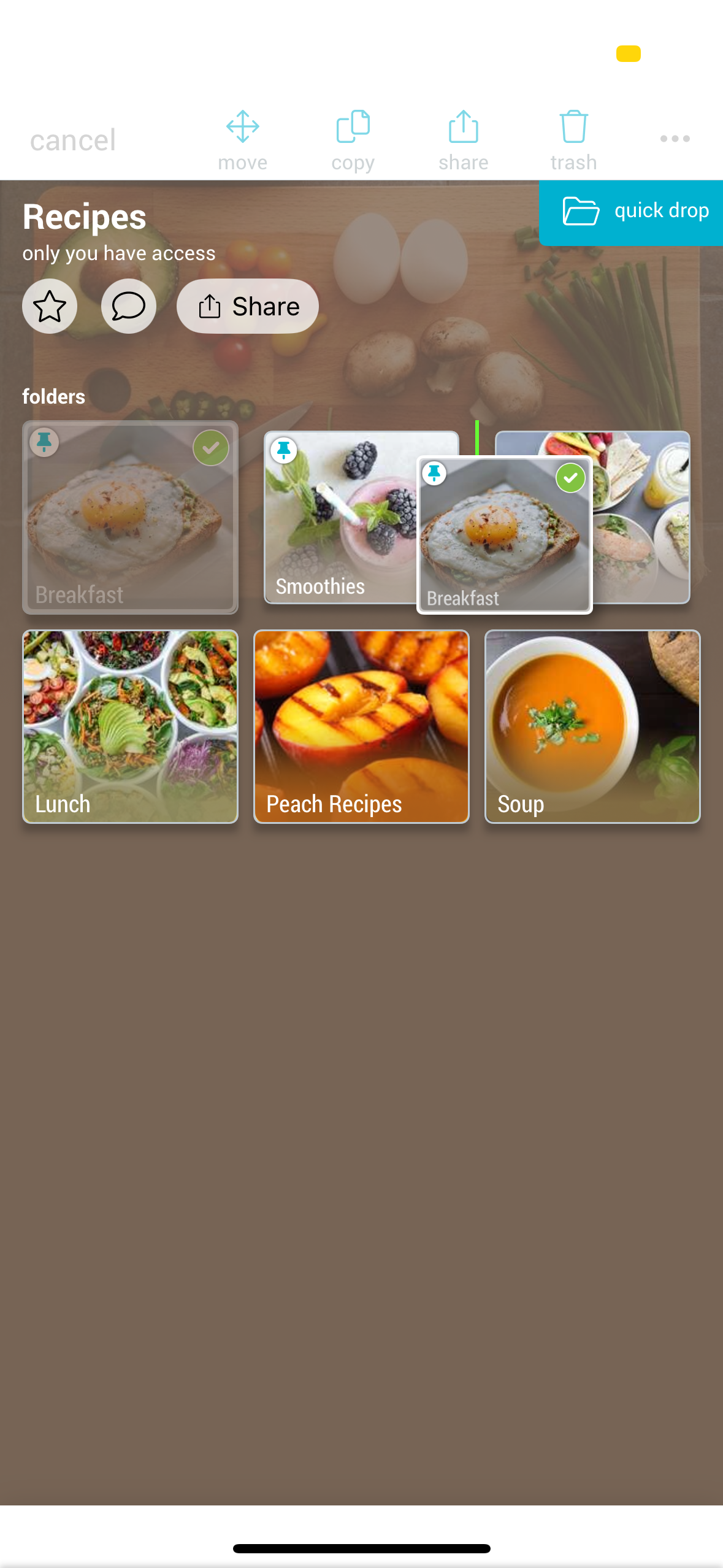
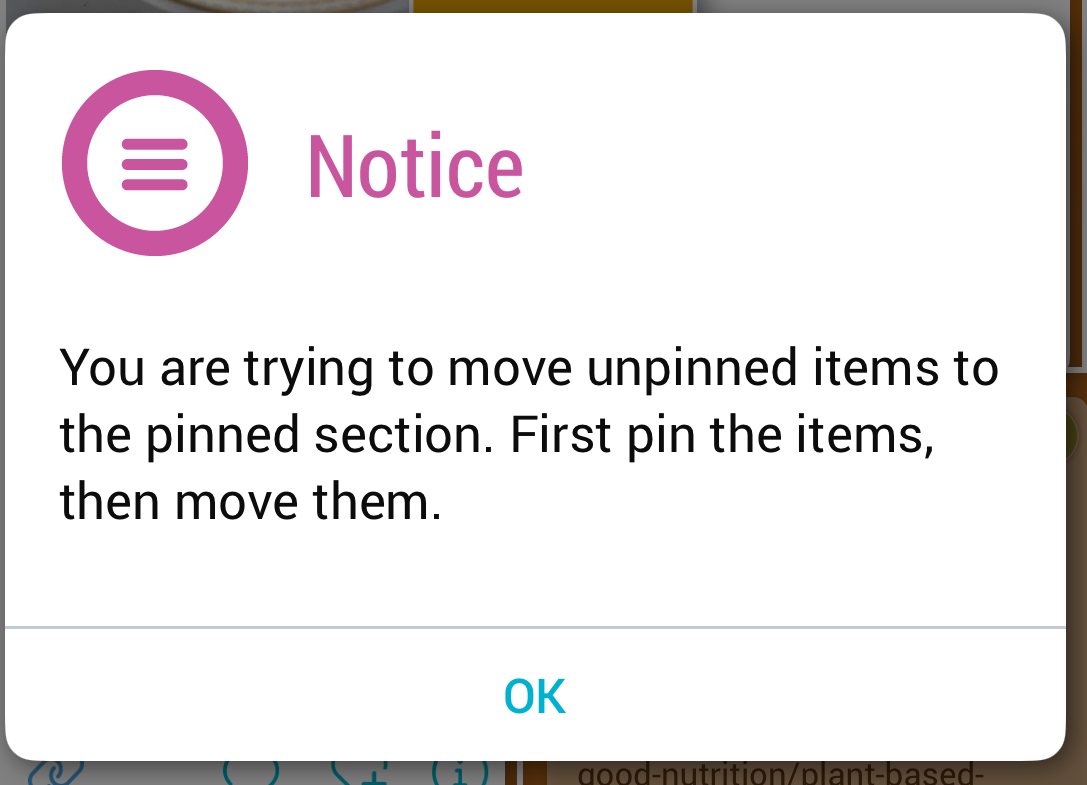
Note: unpinned items or spaces cannot be moved in front of pinned items or spaces.
Pinning allows you to keep a subspace or an item in a fixed position at the top of your spaces. When you pin a subspace or an item, it stays in place, even after you navigate away and come back to the space. This feature helps with easy and consistent access to items and spaces you may want to use more than others.
Subspaces can be pinned in the spaces section, and items can be pinned in the items section. Depending on the space permissions, admins may be the only ones that can do the pinning.
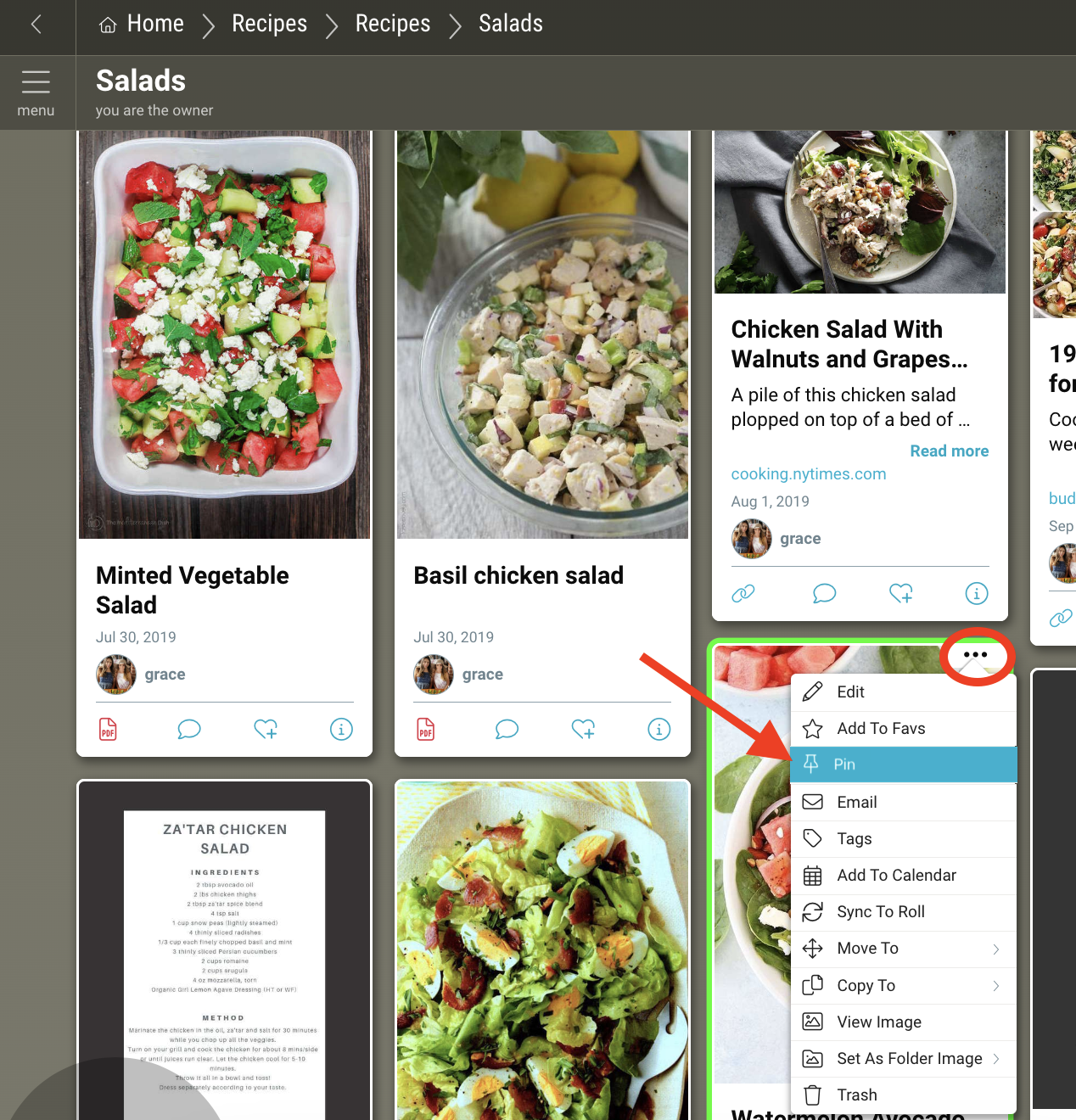
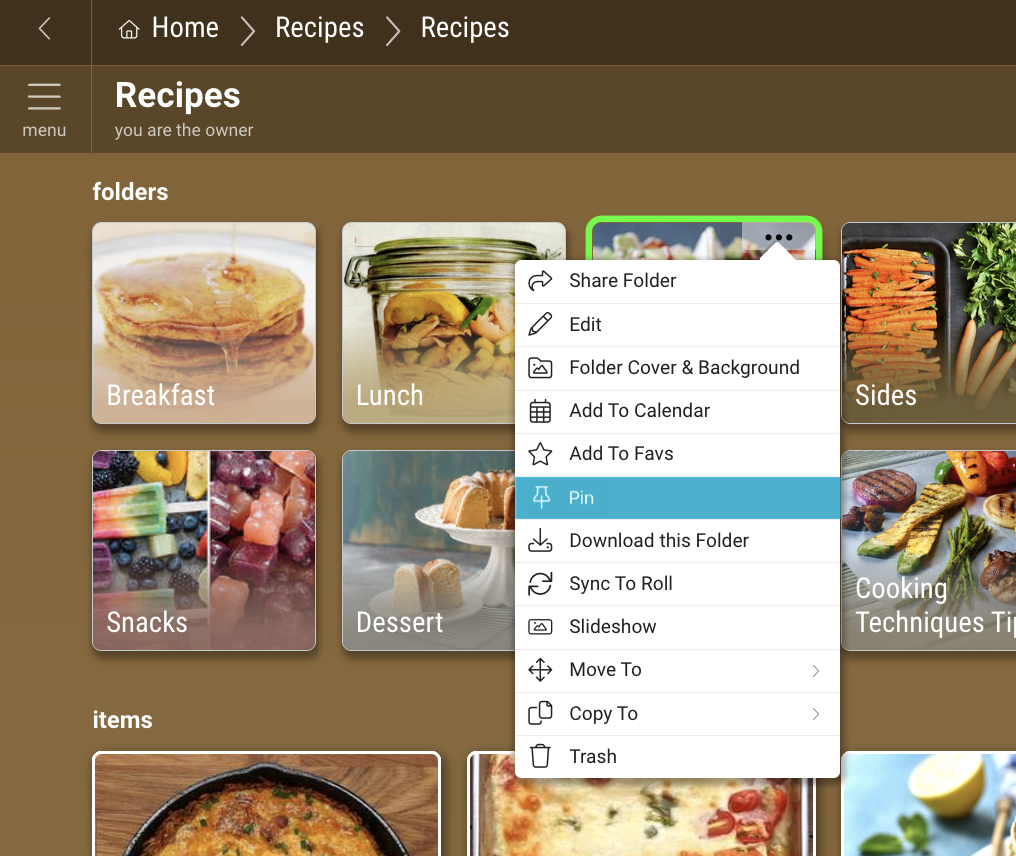
To pin an item or space:
Click the 3-dot menu on the item and select “Pin”.
Pinned item will appear at the top of your “items” section, and pinned spaces will appear at the top of your “spaces” section. They will show a pin icon in the upper-left corner.
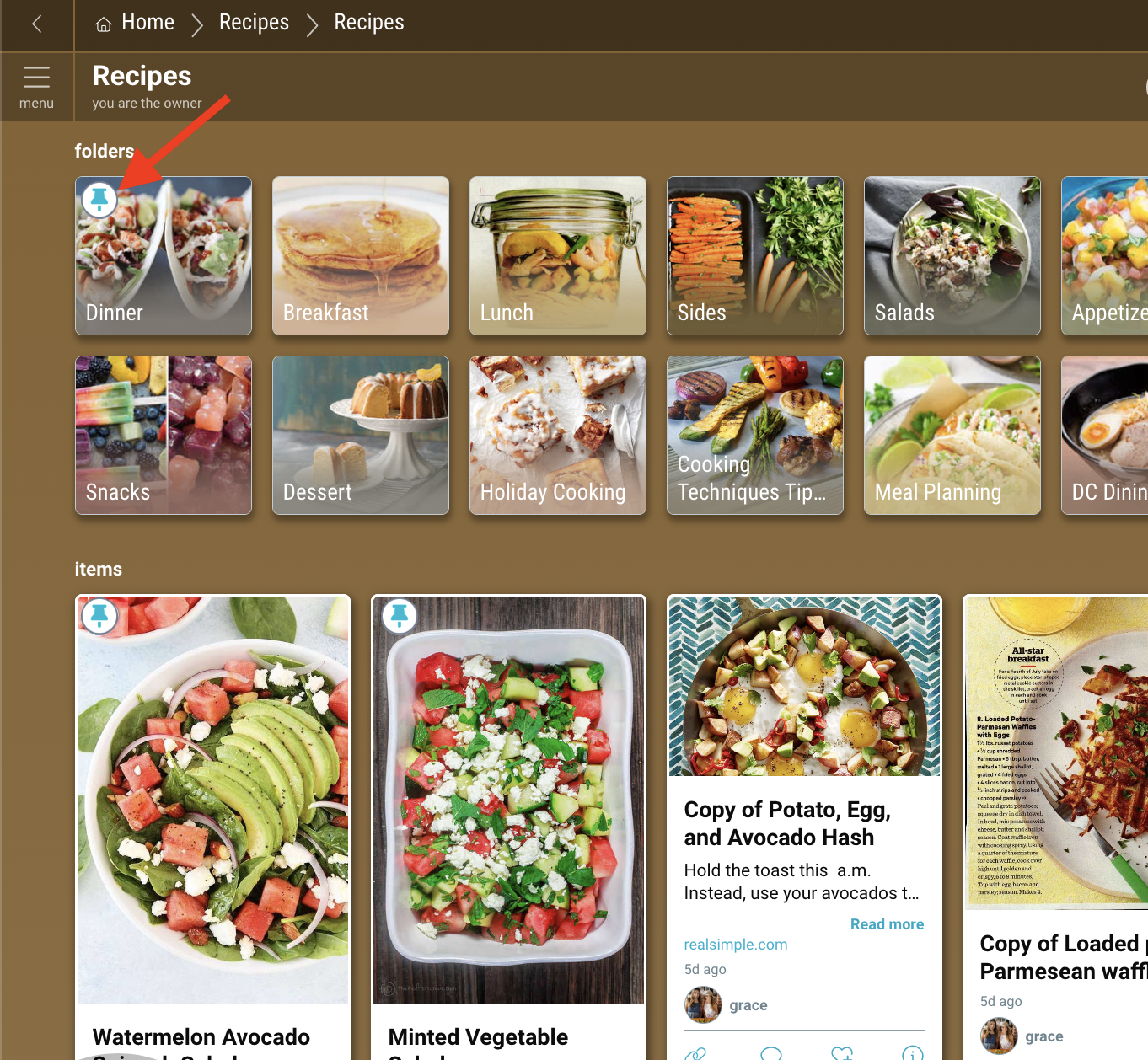
To unpin, click the 3-dot menu and select “Unpin”.
Reordering Pinned Items and Spaces
If you have multiple pinned items or subspaces, they will be sorted according to your Sort preference for that space. To manually reorder pinned items or spaces, click and drag the item to where you want them.
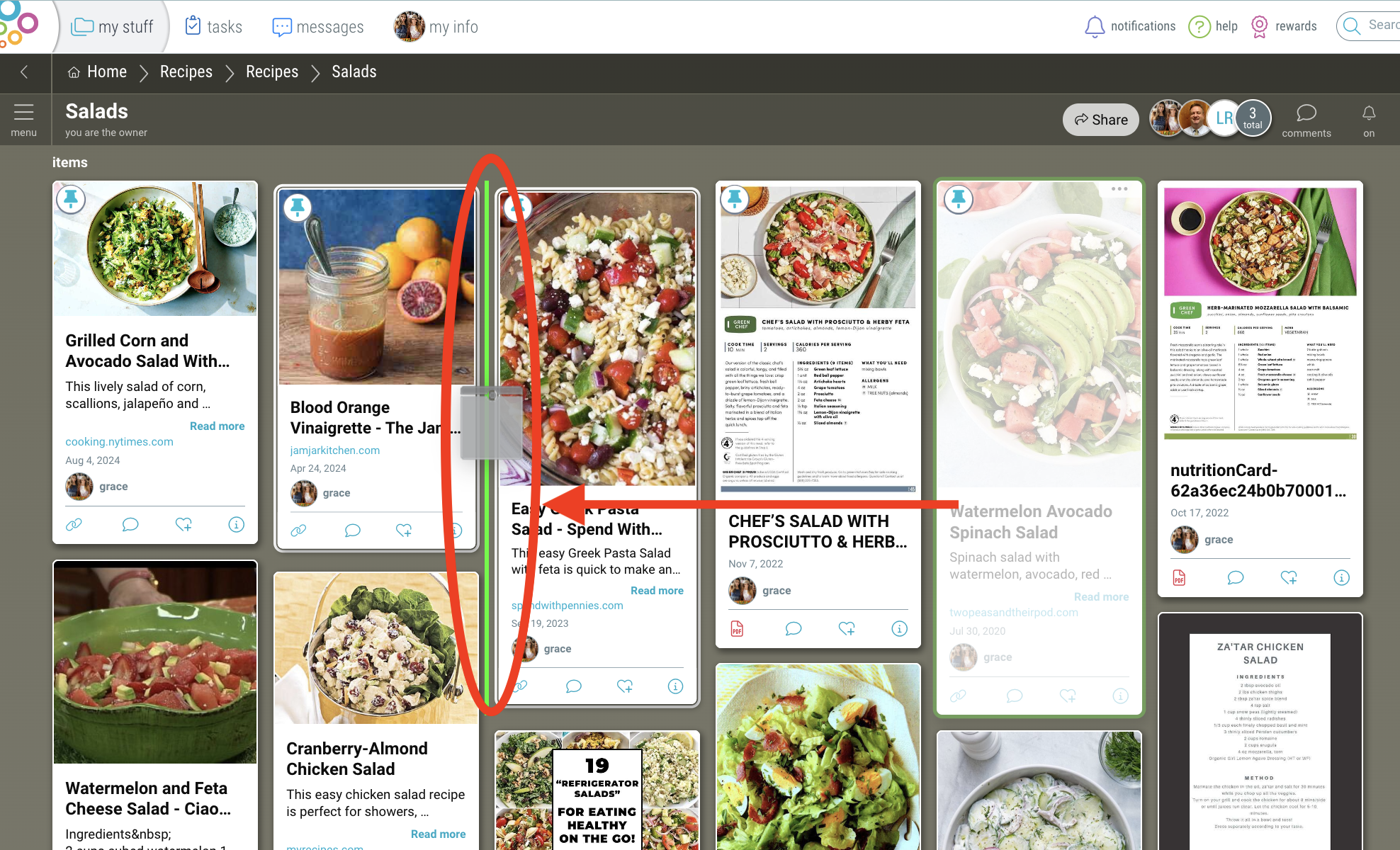
Note: Unpinned items or spaces cannot be moved in front of pinned items or spaces.