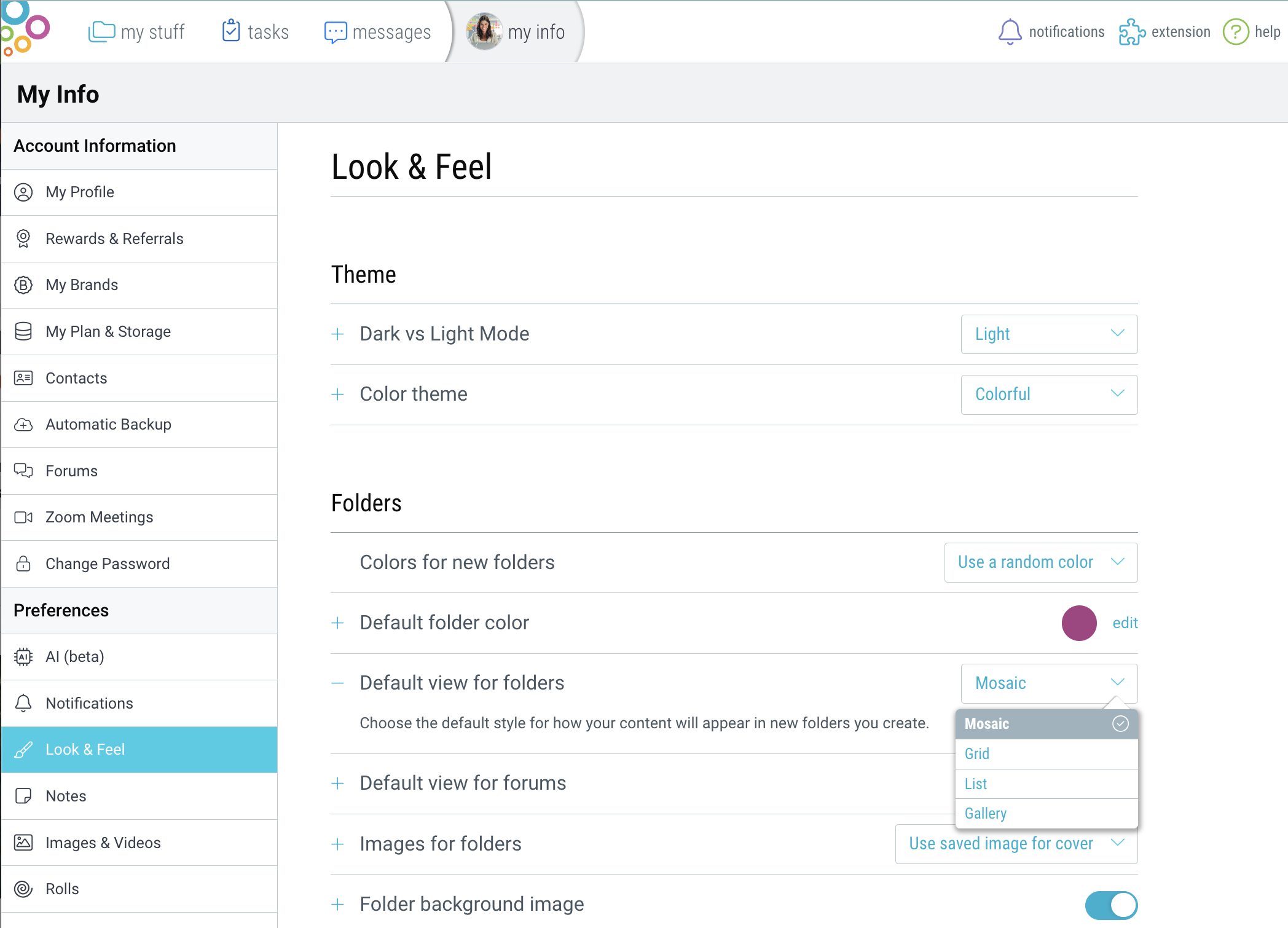

1. Tap the 3-dot (…) menu in the upper-right corner and choose the “view” option.
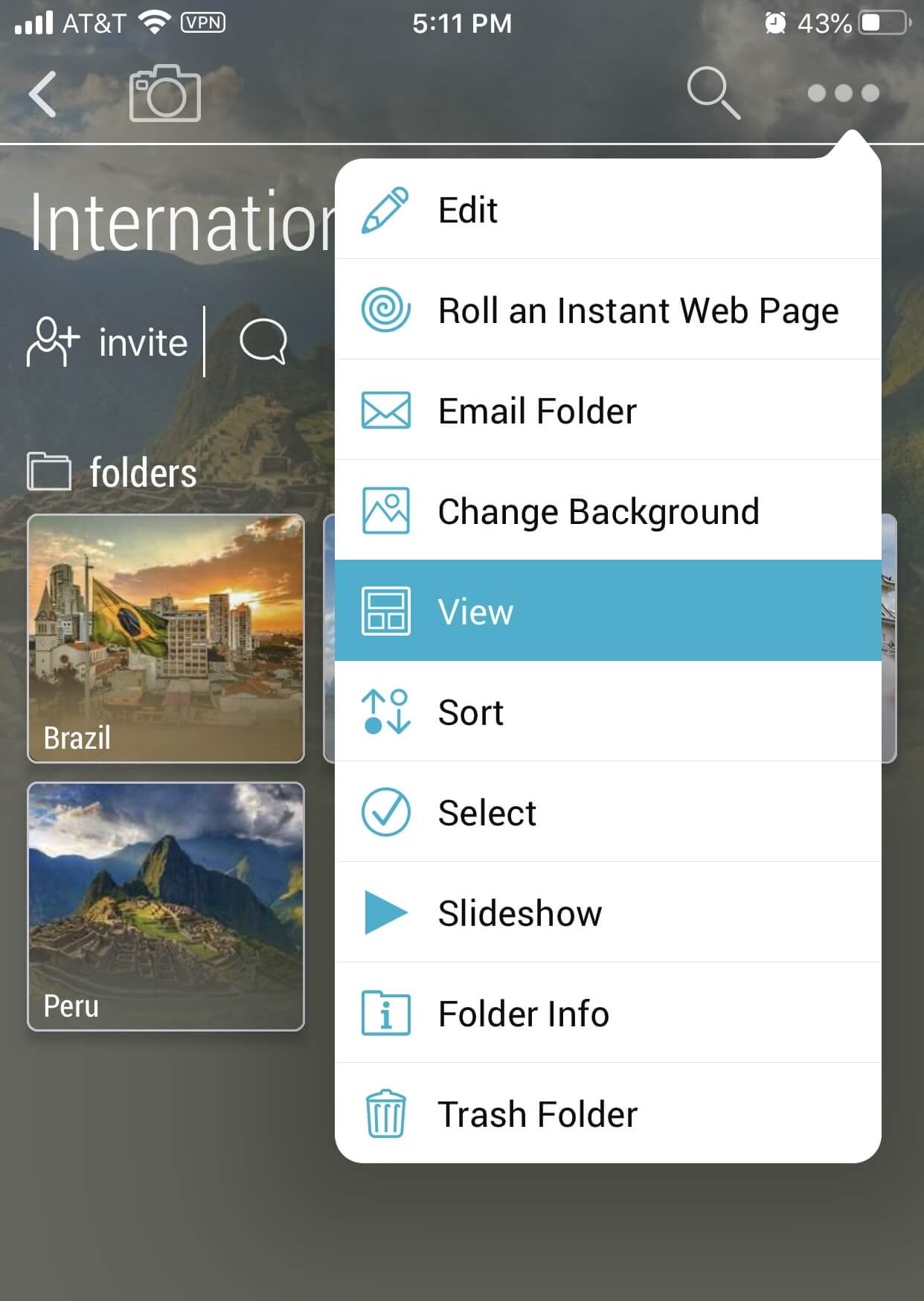
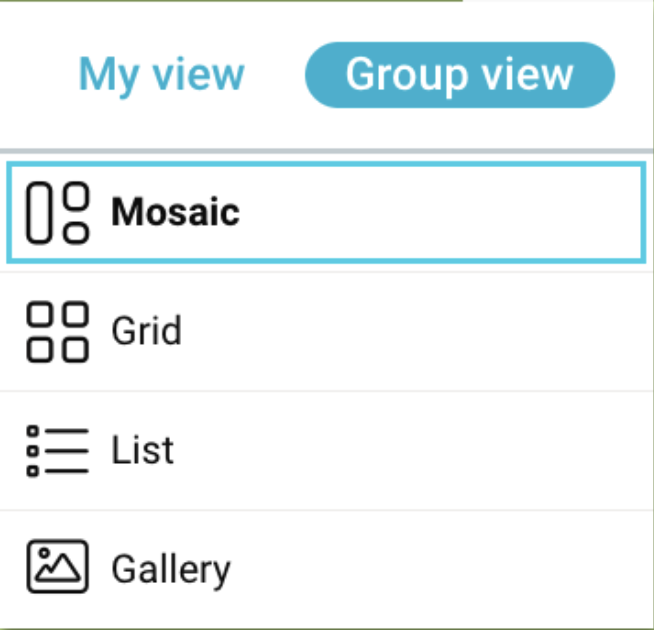
2. Change your view option to mosaic, grid, list, or gallery view.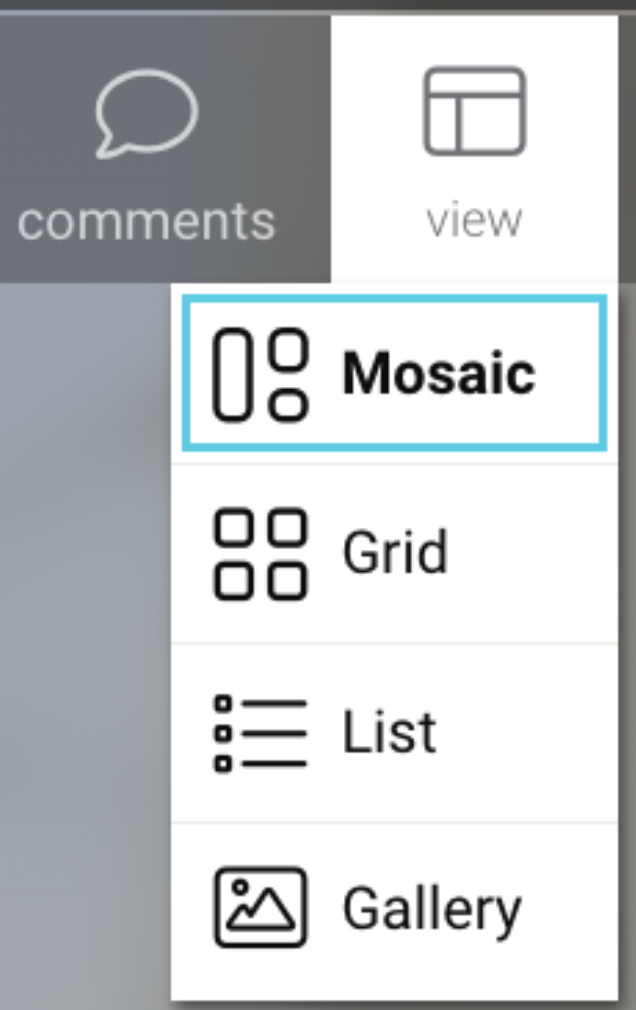
Item View Options
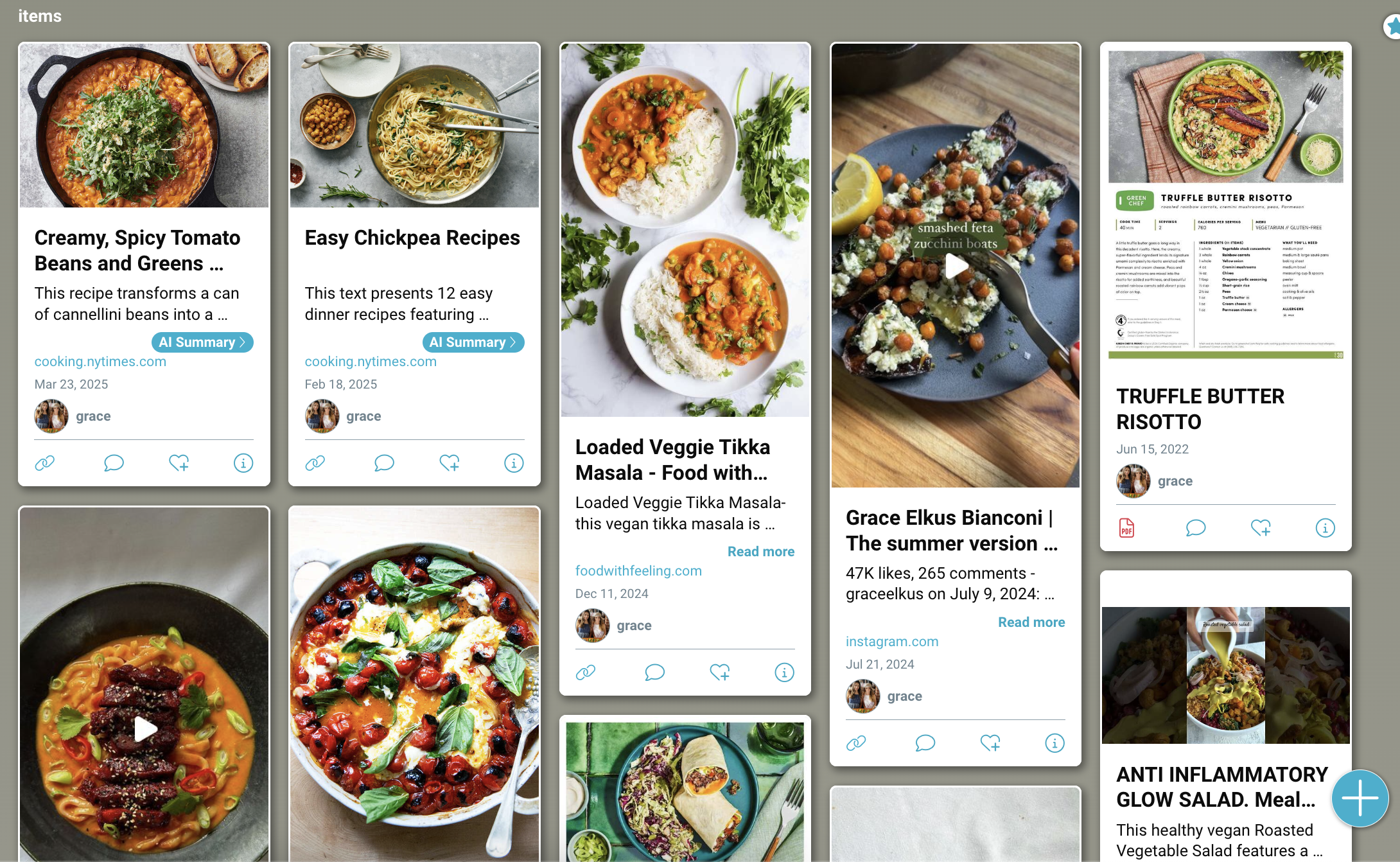
- Mosaic: Classic Bublup view with staggered item heights.
- Grid: Uniform height tiles. Choose between portrait, square, or landscape images.
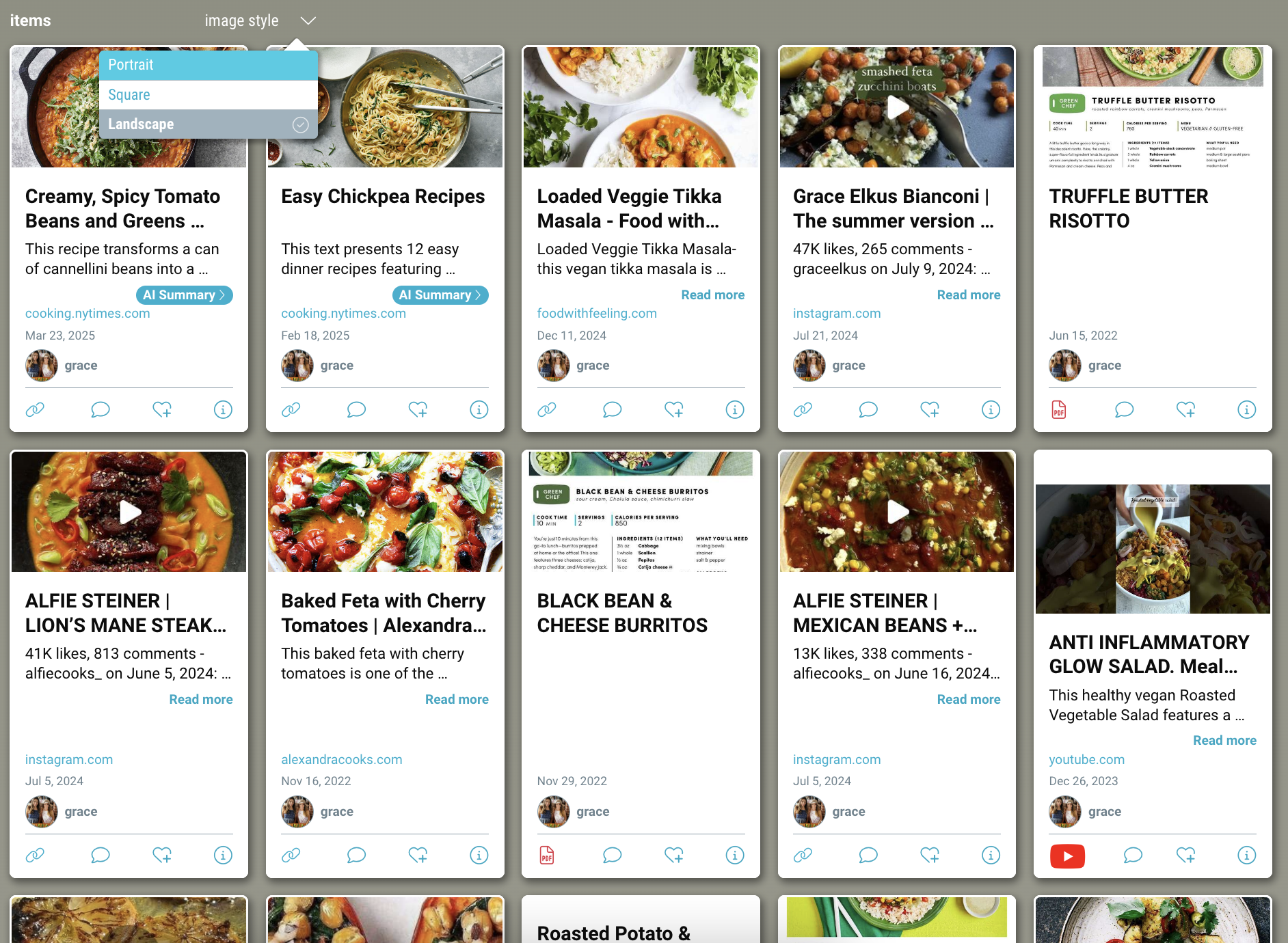
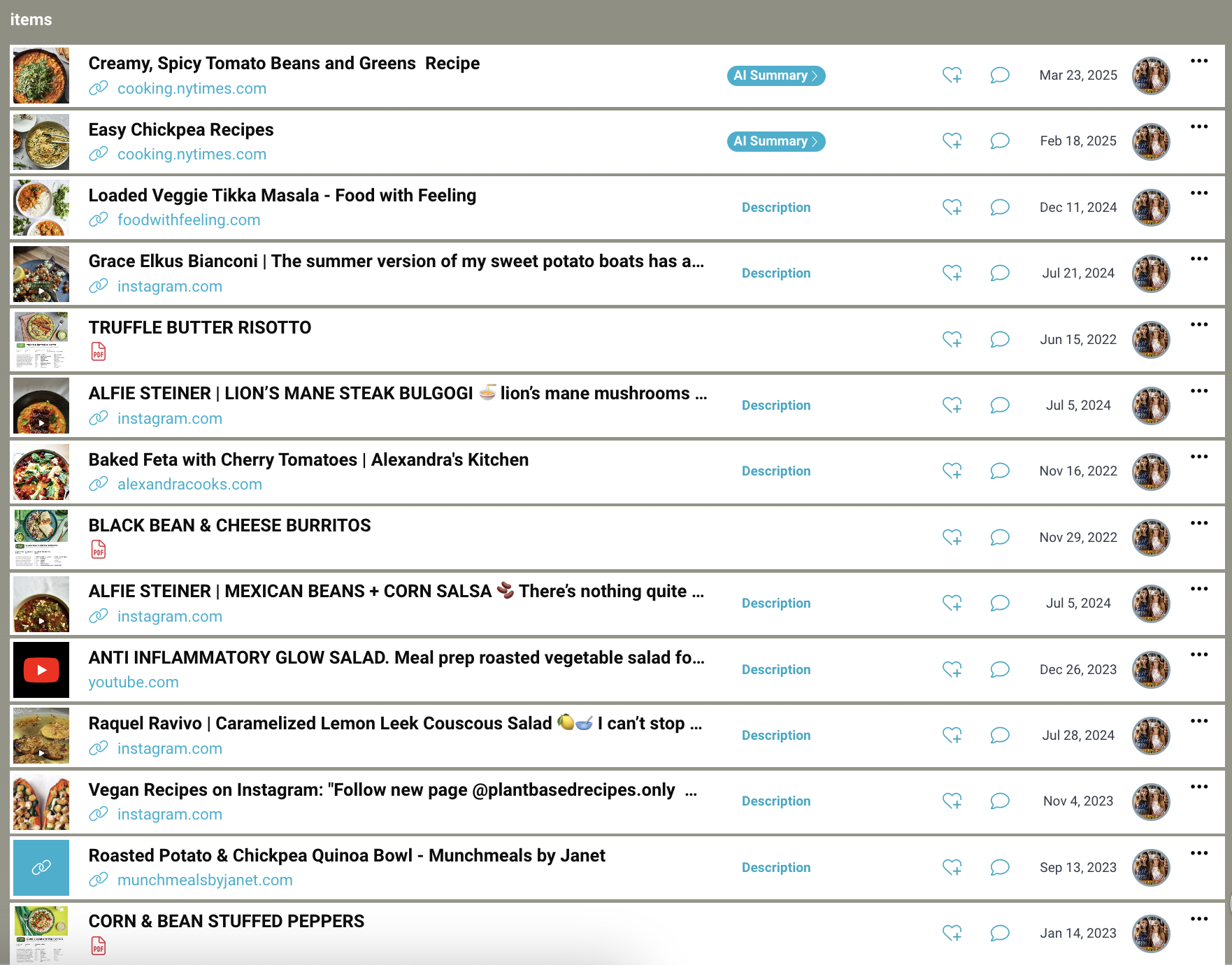
- List: Best for large folders with lots of items.
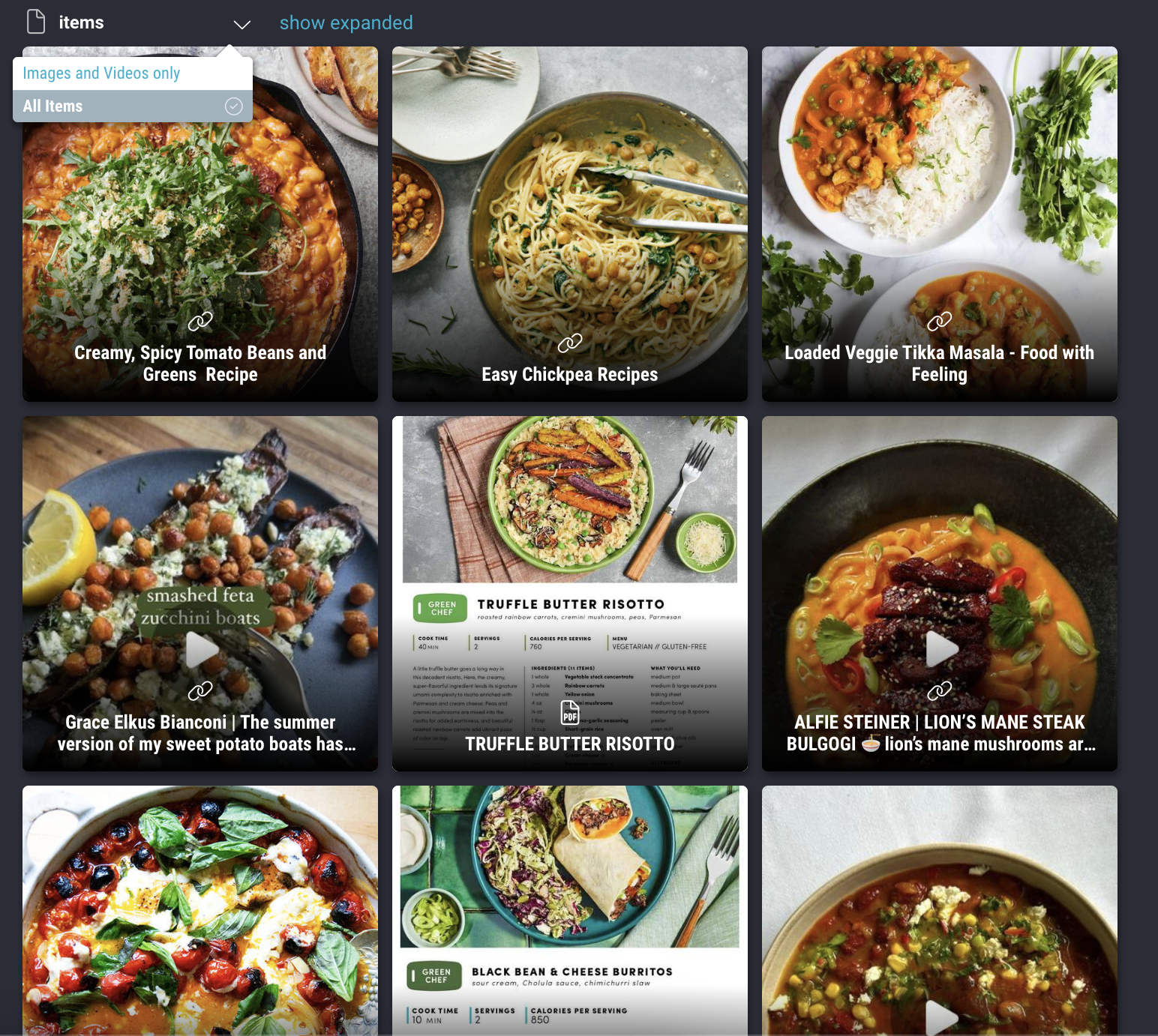
- Gallery: Best for viewing photos and videos.
Shared Spaces
As an admin or owner of a shared space, you can use “group view” to set the default view for the space for all members.
Setting a Universal Default Preference
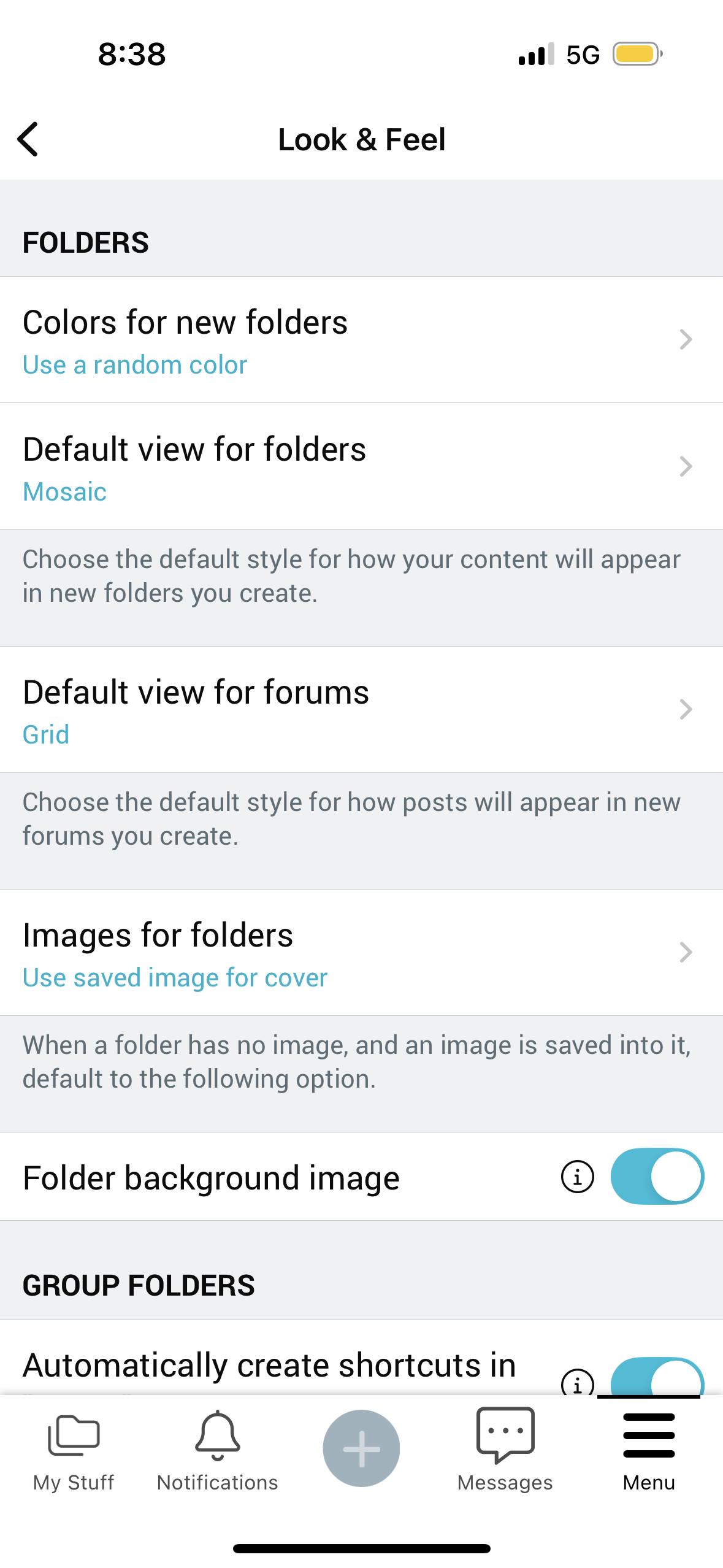
Navigate to ☰Menu > “My Info & Settings” > “Look & Feel”. Then go to the “Spaces” section and set your default view for new spaces, as well as new forums.
Click the “view” button in the upper-right corner. Change your view to mosaic, grid, list, or gallery view.
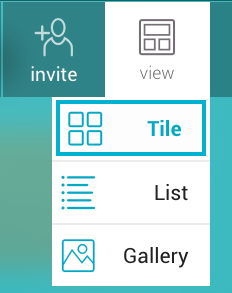
Item View Options
- Mosaic: Classic Bublup view with staggered item heights.
- Grid: Uniform height tiles. Choose between portrait, square, or landscape images.
- List: Best for large folders with lots of items.
- Gallery: Best for viewing photos and videos.
Shared Spaces
As an admin or owner of a shared space, you can use “group view” to set the default view for the space for all members.
Setting a Universal Default Preference
Navigate to “My Info” > “Look & Feel”. Then go to the “Spaces” section and set your default view for new spaces, as well as new forums.