

Use Bublup’s AI Curator, in combination with Feeds, to automatically curate content whenever new content is added to your feed—no need to do it manually. This helps keep your feed spaces relevant and eliminates unwanted content. This feature is available to Business and Enterprise plans.
Setting up your space’s AI Curator:
(Note: This feature must be set up initially on desktop.)
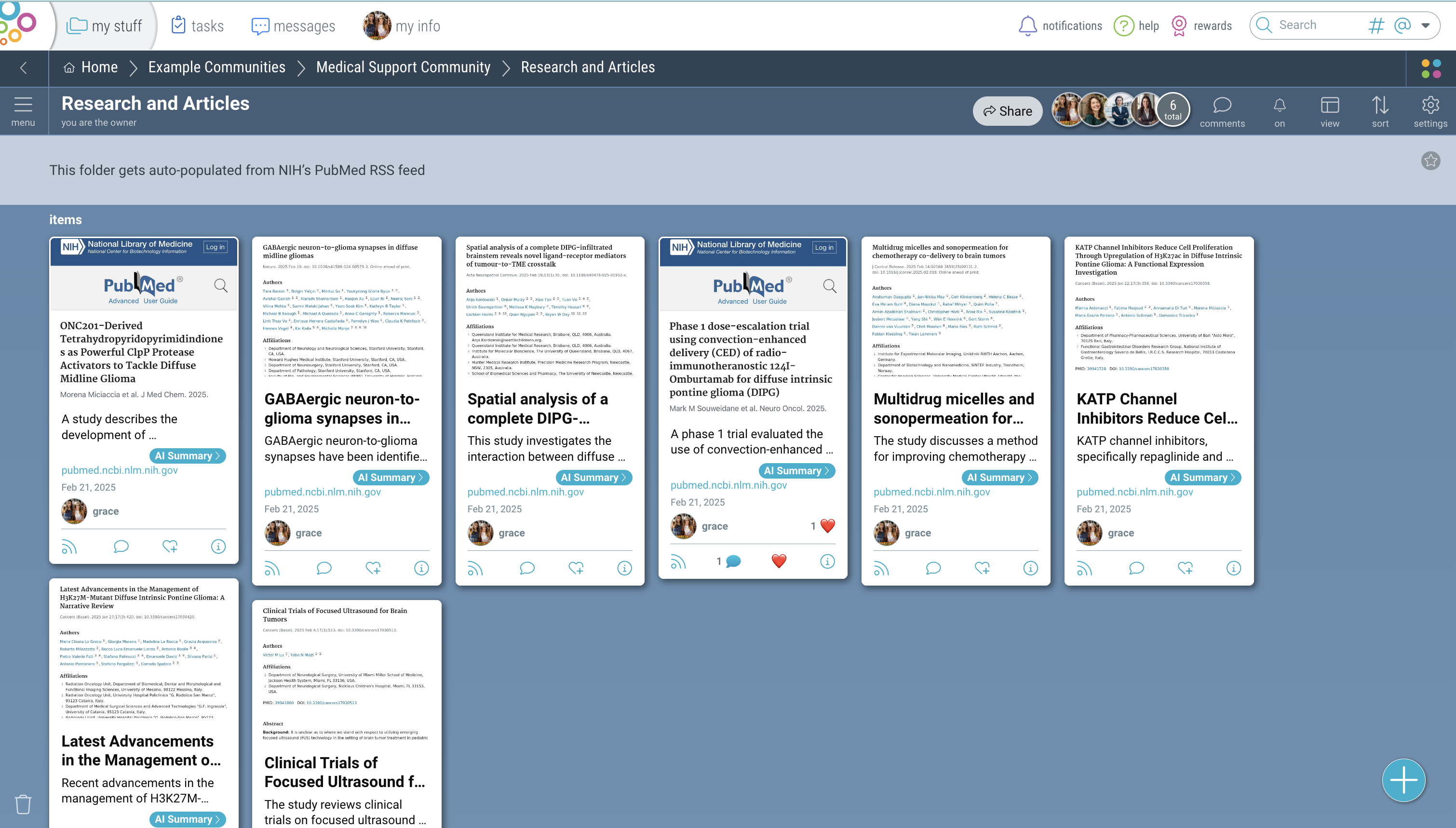
1. Click the “settings” icon in the upper-right corner of your space.

2. In the “AI Curator” tab, click the toggle next to “Enable AI curator” to toggle it on.
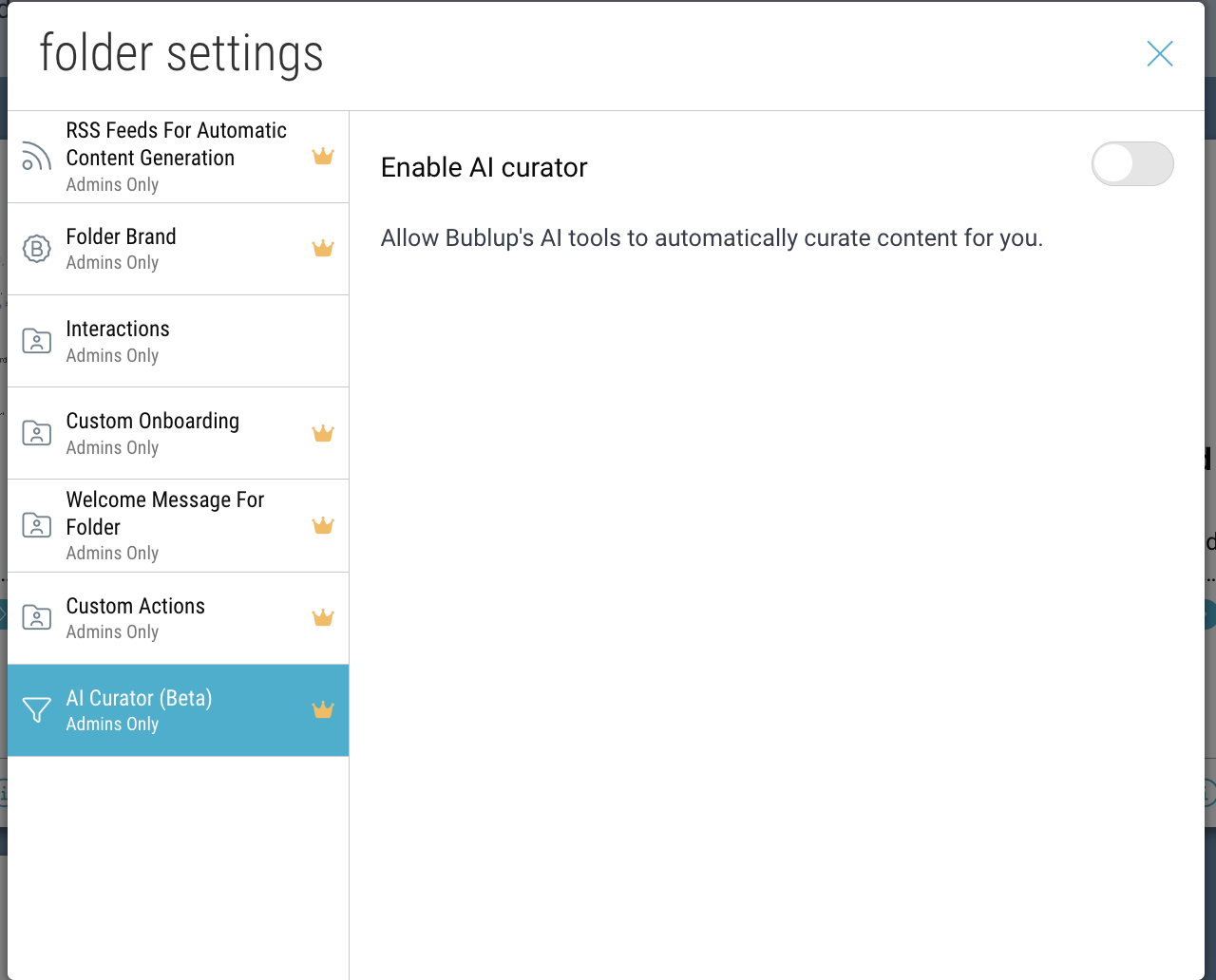
3. From here, you can:
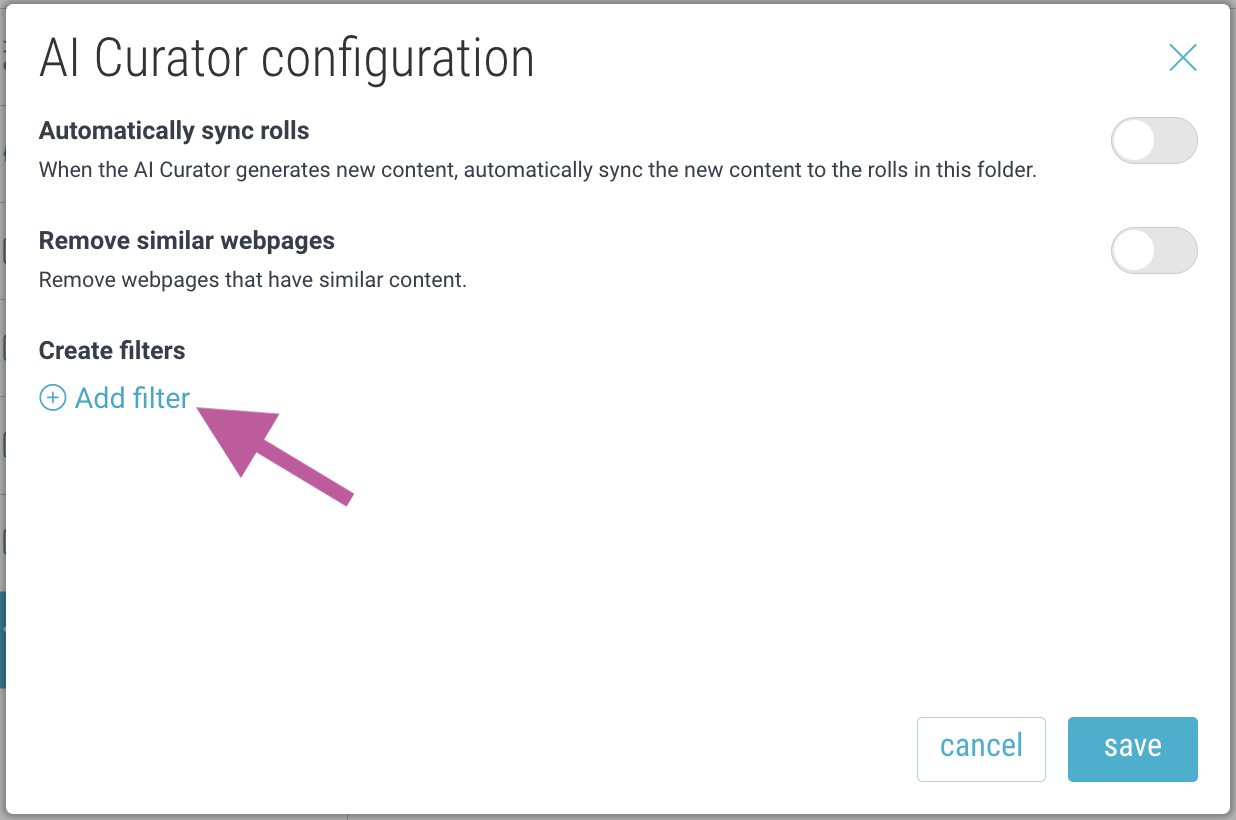
- Automatically sync rolls to pull in new content
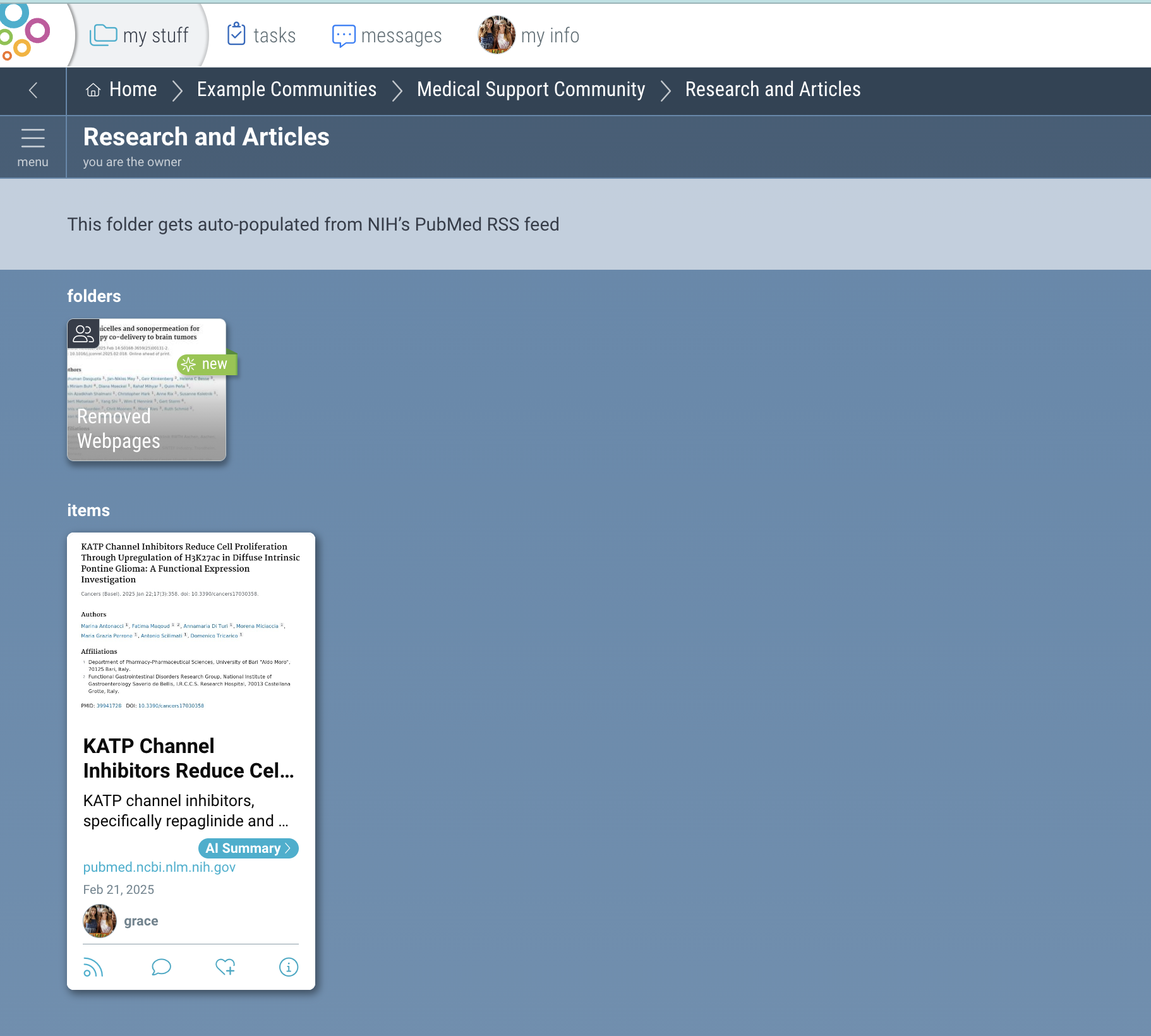
- Remove similar webpages from your feed
- Add custom filters to remove webpages
Creating an AI keyword filter:
1. To create a new smart keyword filter, click “Add filter”.
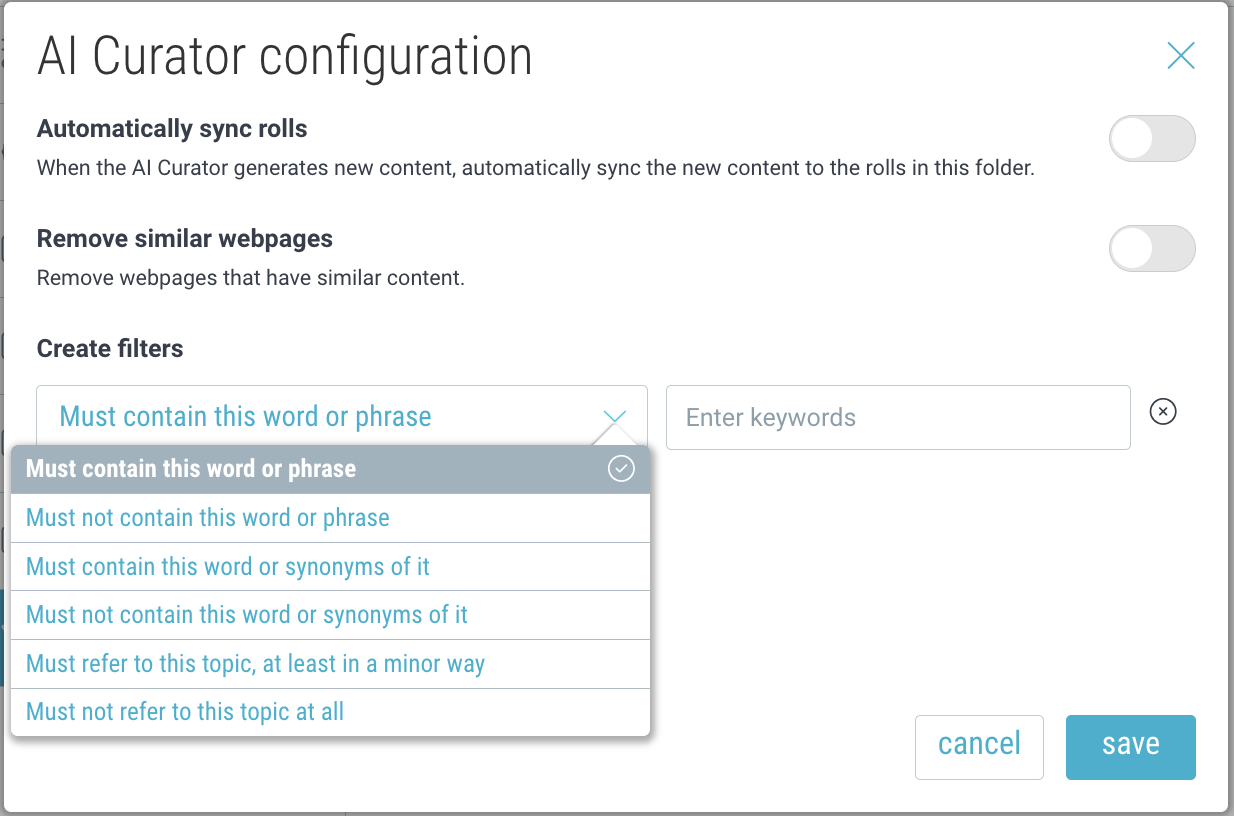
2. Select your preferred filtering method and enter your keywords.
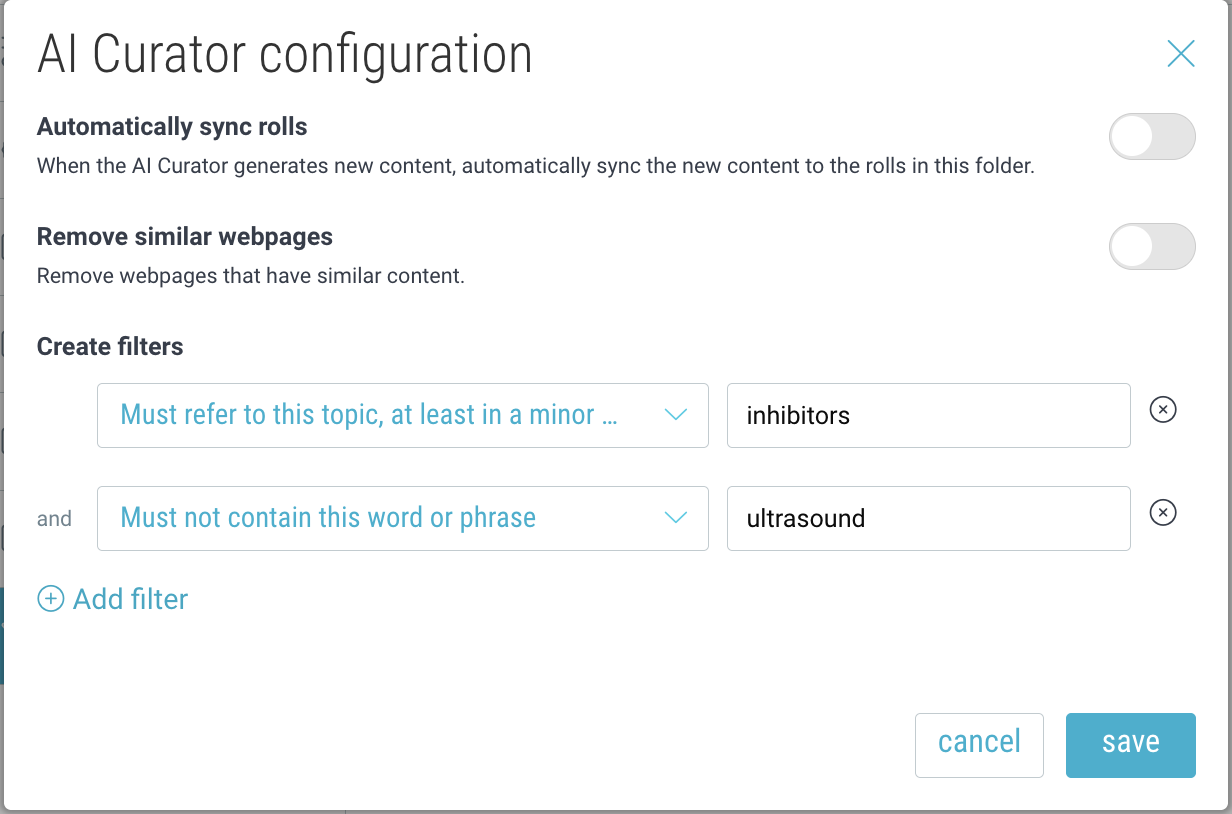
3. Any content matching your filter criteria will be removed.
Use Bublup’s AI Curator, in combination with Feeds, to automatically curate content whenever new content is added to your feed—no need to do it manually. This helps keep your feed spaces relevant and eliminates unwanted content. This feature is available to Business and Enterprise plans.
Setting up your space’s AI Curator:
1. Click the “settings” icon in the upper-right corner of your space.
2. In the “AI Curator” tab, click the toggle next to “Enable AI curator” to toggle it on.
3. From here, you can:
- Automatically sync rolls to pull in new content
- Remove similar webpages from your feed
- Add custom filters to remove webpages
Creating an AI keyword filter:
1. To create a new smart keyword filter, click “Add filter”.
2. Select your preferred filtering method and enter your keywords.
3. Any content matching your filter criteria will be removed.