

Feeds are an easy way to stay up to date with your favorite websites, such as blogs or podcasts. Automatically populate your Feed spaces with new links from RSS and YouTube sources of your choice.
Setting up your Feeds:
(Note: This feature must be set up initially on desktop.)
1. Use the + button and select the “Feed” option under “Spaces”. Then name your space.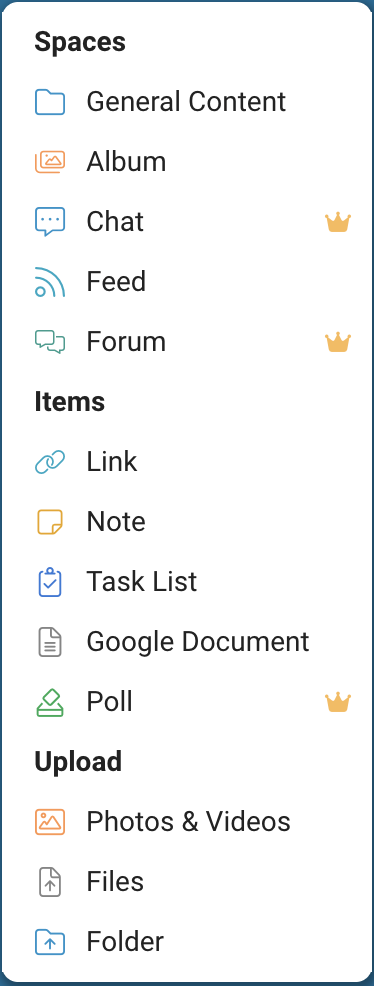
2. This space can combine feeds from multiple sources. To set up the first feed, give it a name and select the source type: RSS or YouTube.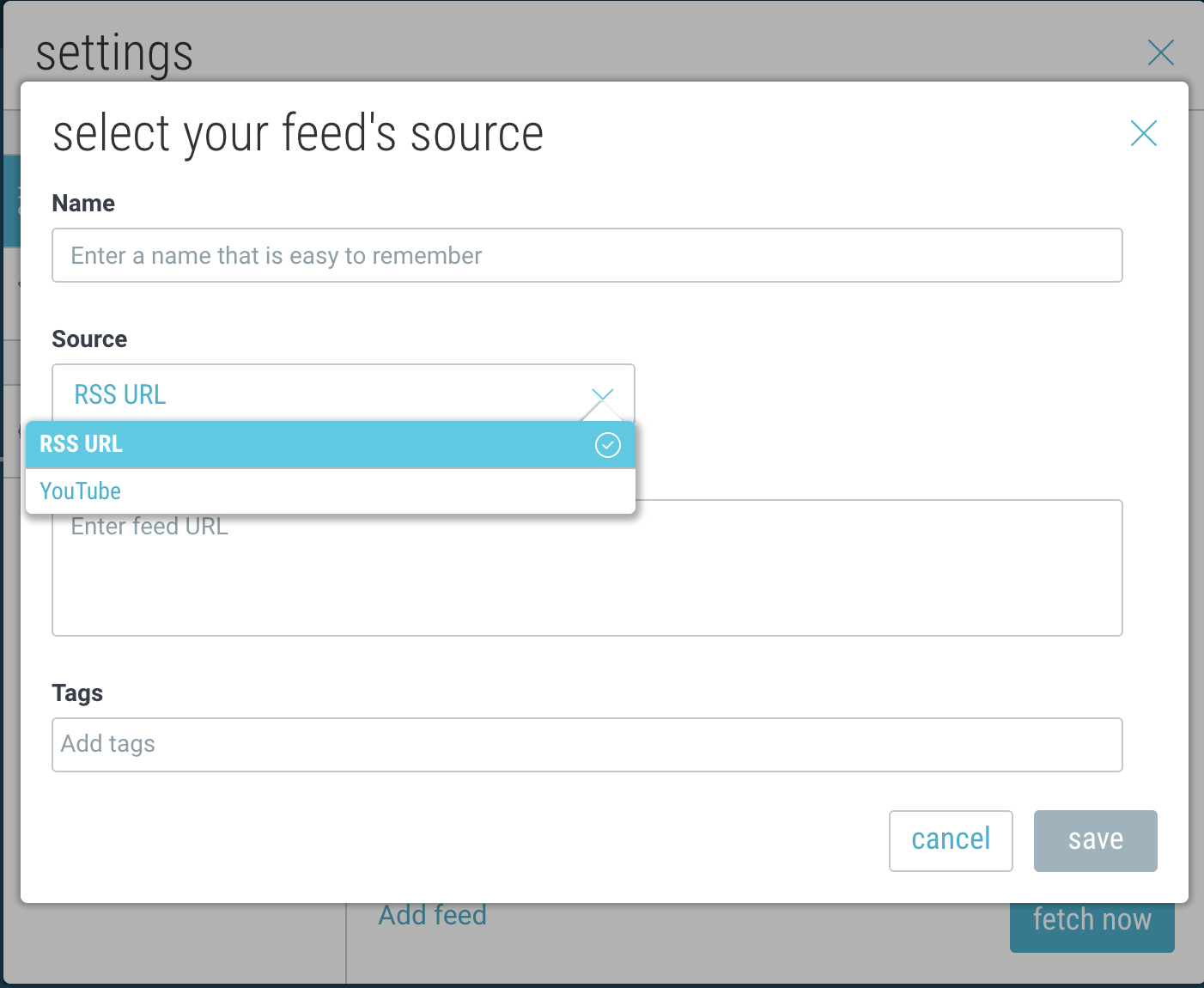
3. If you selected “RSS“, copy and paste a link to the RSS feed source of your choice.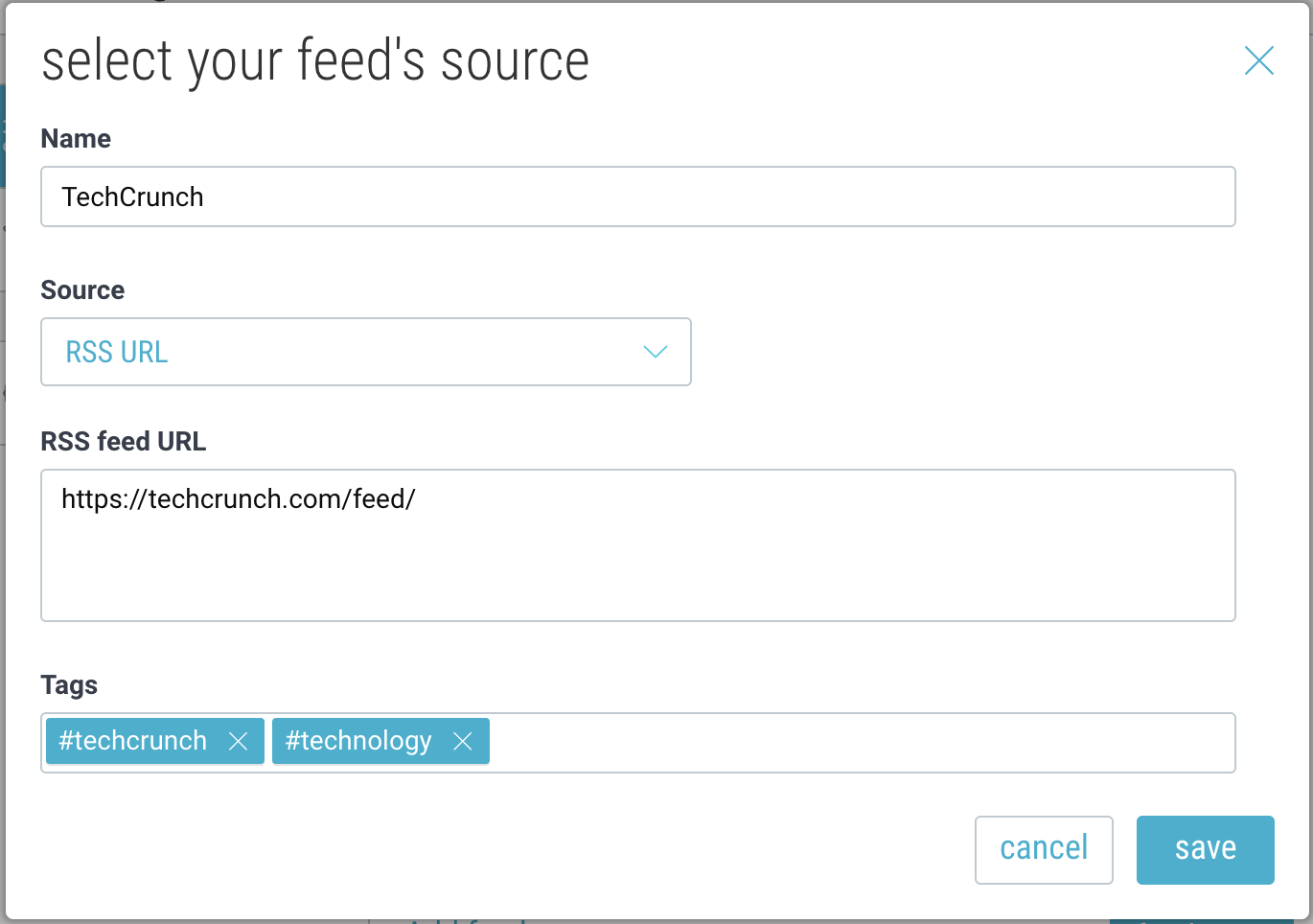
Check out this link for some examples of popular RSS feeds, or set up Google Alerts as RSS feeds.
4. If you select “YouTube“, choose between Username, Channel, Playlist, or Community Posts, and enter the corresponding ID or handle. You can also optionally filter out YouTube “shorts”.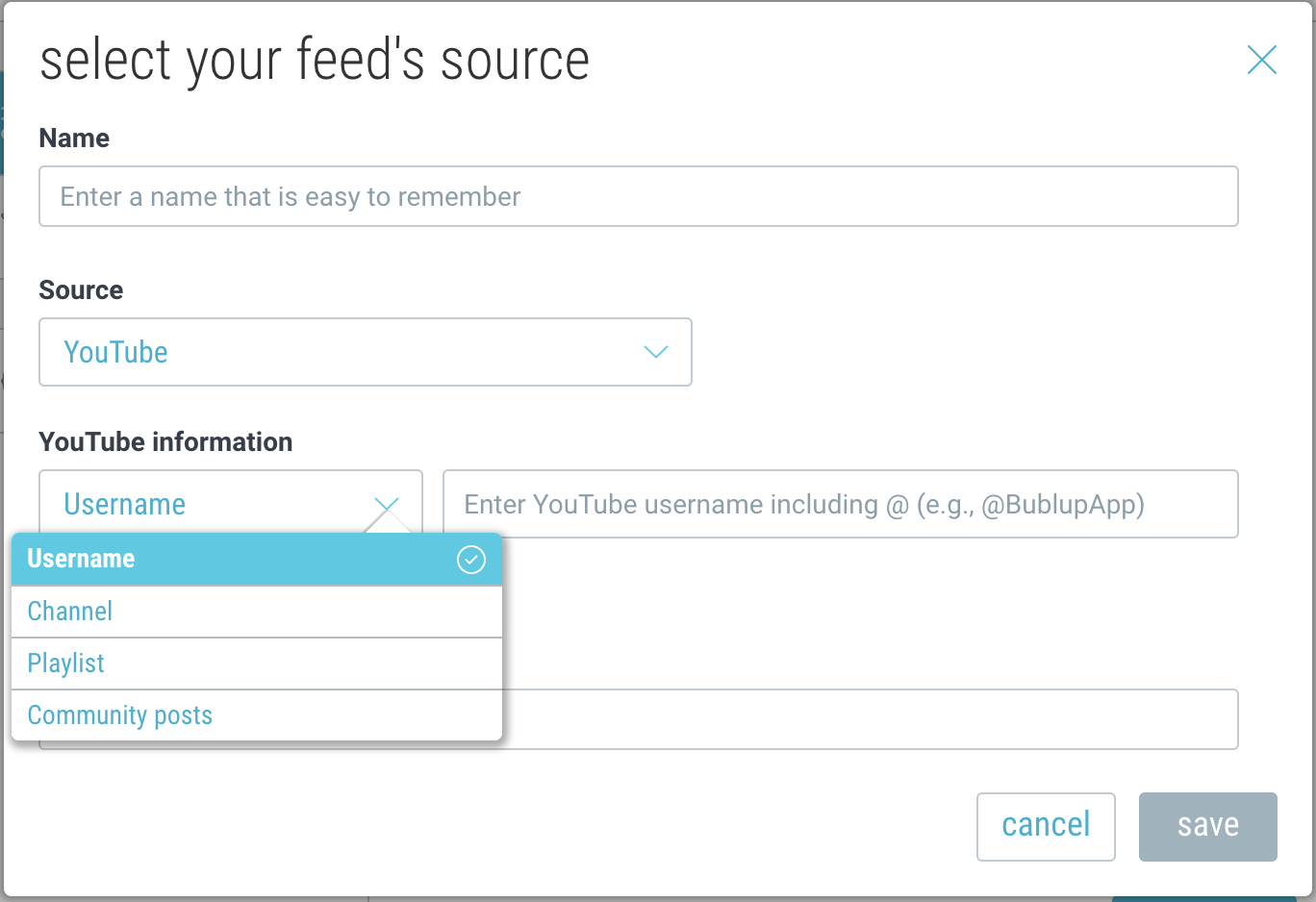
5. Add (optional) tags and click “save”.
6. Click “fetch now” when you’re ready to start populating your space.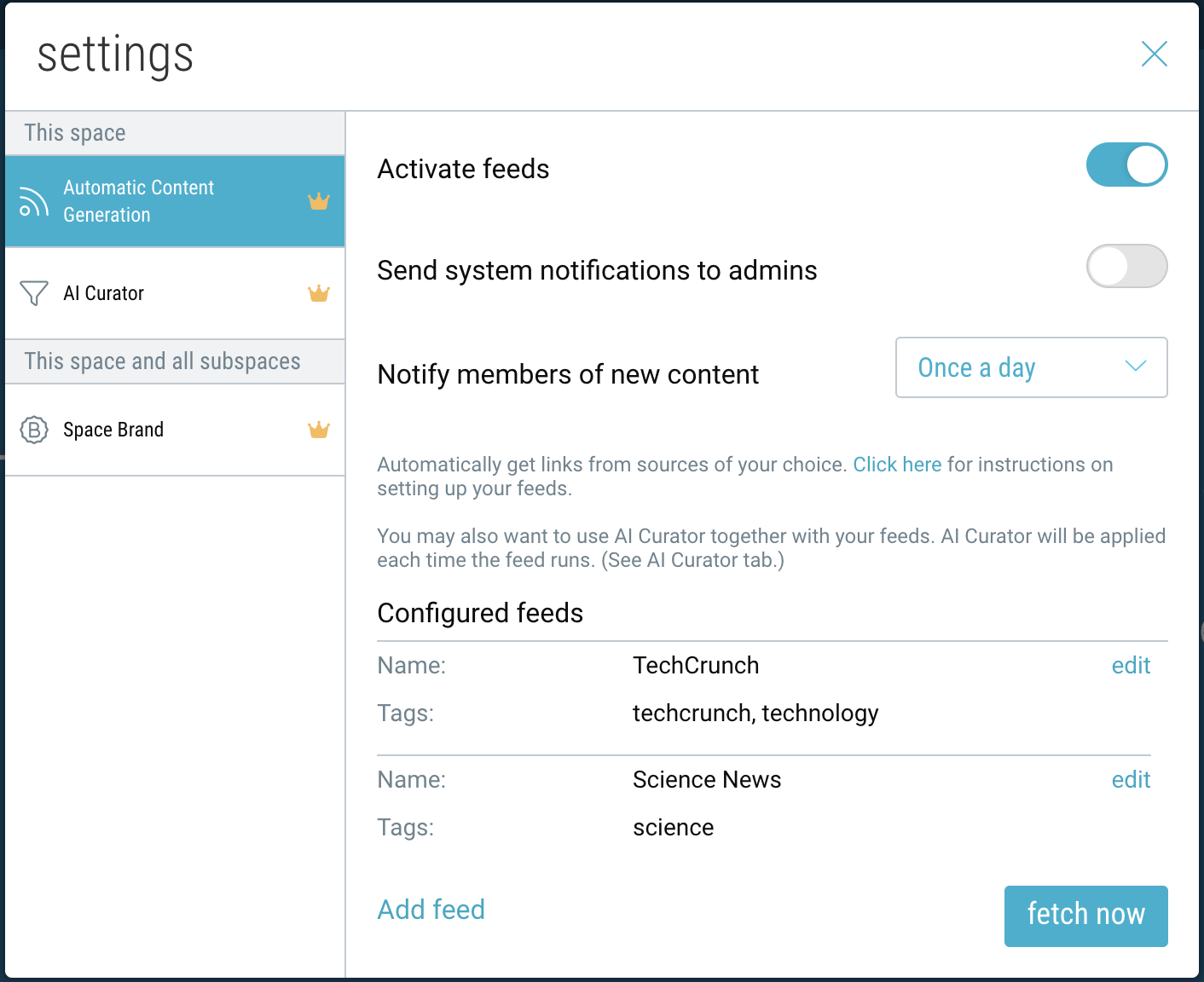
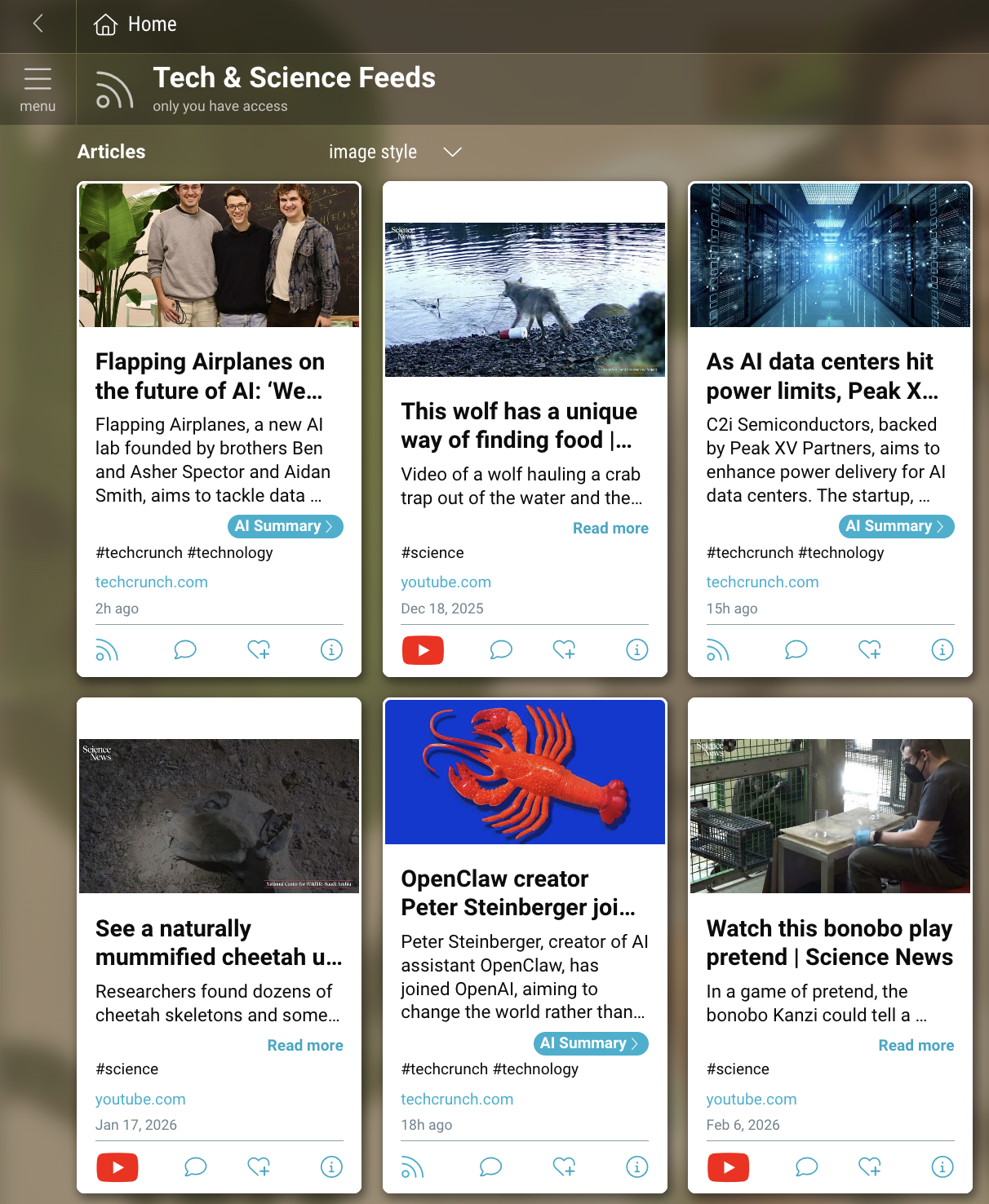
7. Your space will begin to automatically populate with links from your feeds, and will update throughout the day as new content is detected.
Managing Your Settings:
Navigate to the “settings” icon in the upper-right corner of your space.
- To enable or disable your feed space, click the toggle next to “Activate feeds”.
- To alert the admins of this space of any system notifications, enable that toggle preference.
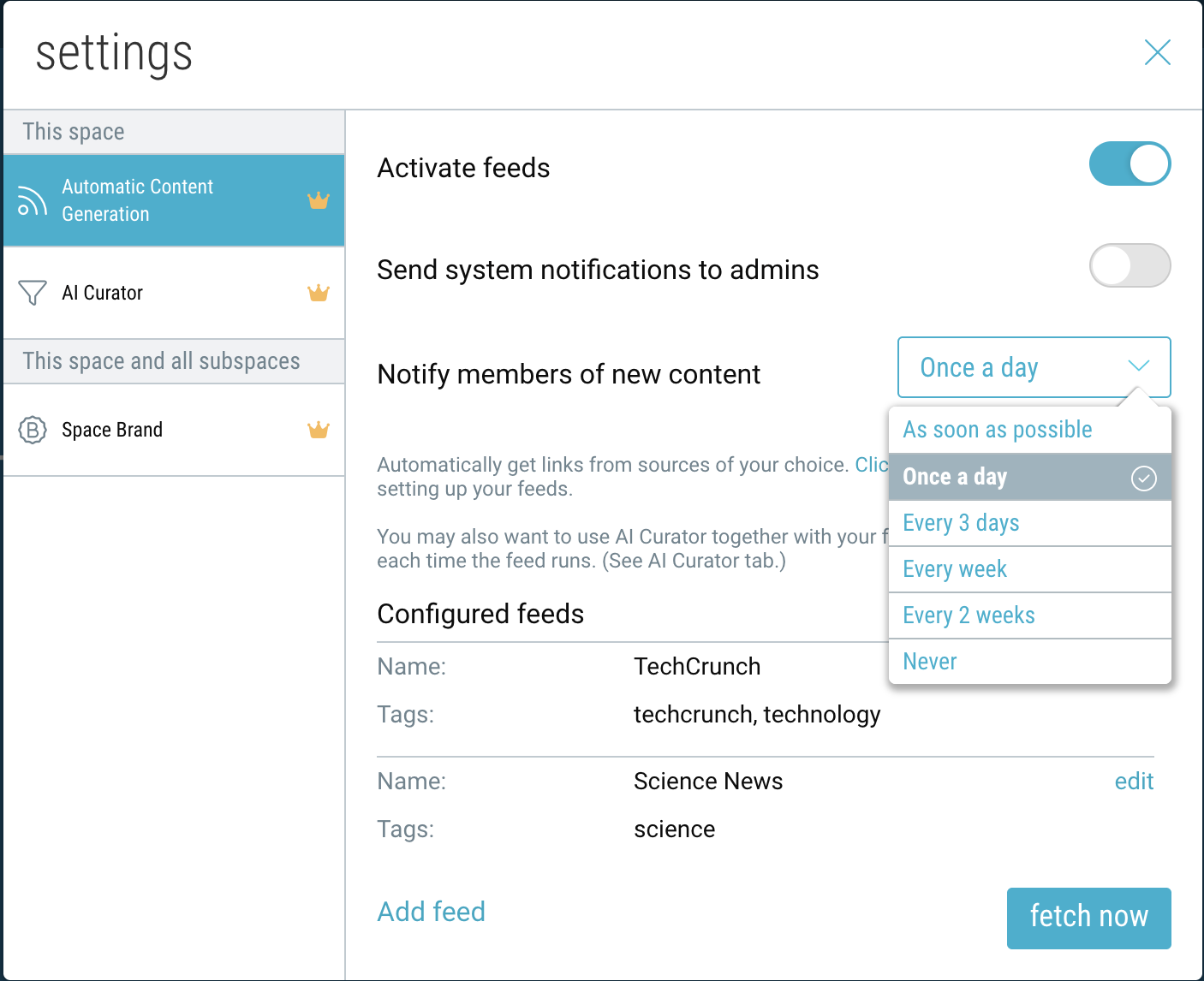
- To change how often members are notified of new content, select your preferred time interval.
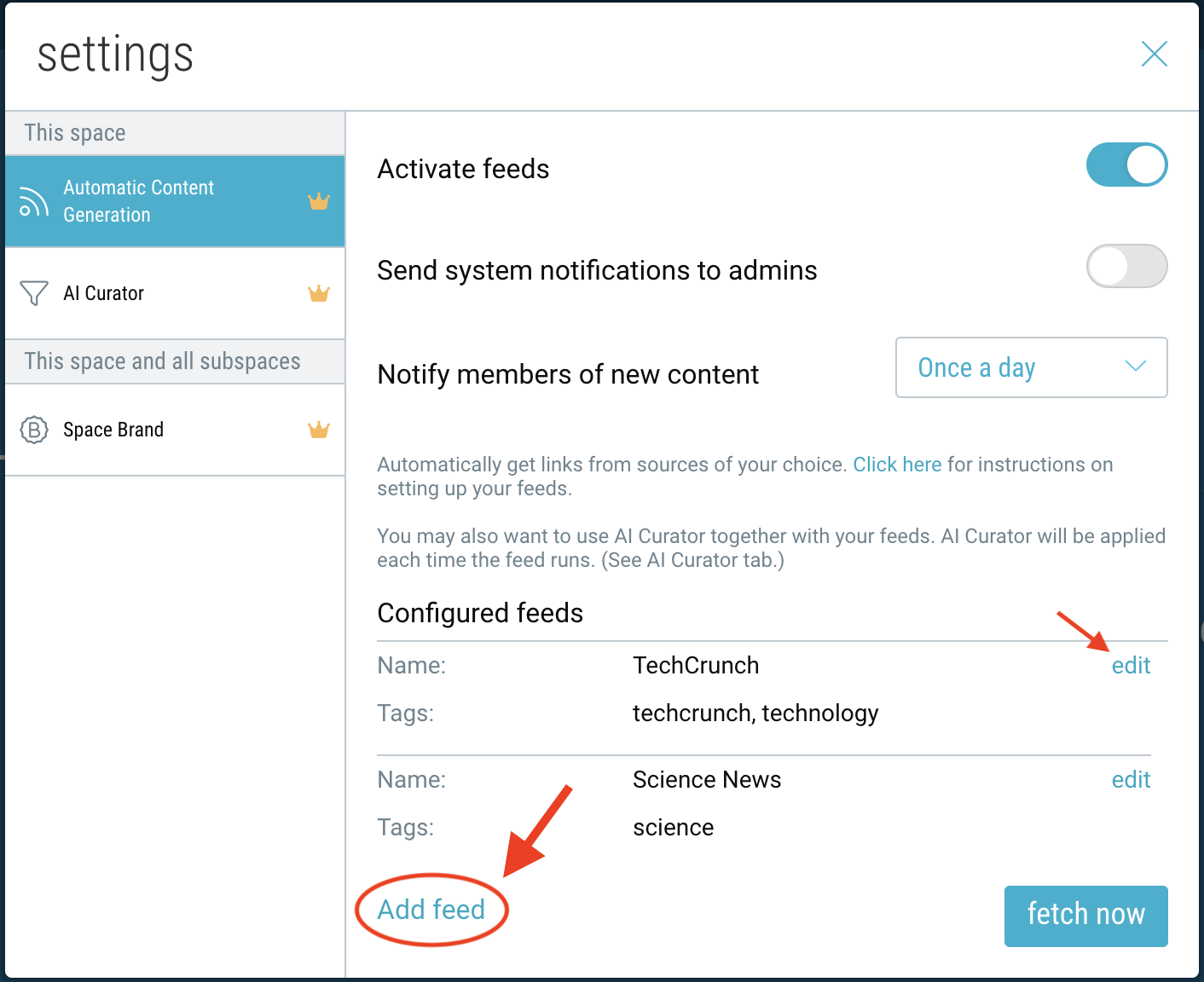
- To add multiple RSS feeds to the same folder, click “Add RSS feed”. To edit or remove an existing feed, click “edit”.
- To automatically filter content from your feeds, enable the AI Curator by navigating to that settings tab.
Managing Your Feeds:
The total number of feeds allowed (across all spaces) depends on your plan:
-
- Basic: 1 feed
- Premium: 3 feeds
- Pro: 5 feeds
- Business: 10 feeds
- Enterprise: 100 feeds
The number of most recent items stored in your space also depends on your plan:
-
- Basic: 25 items
- Premium: 50 items
- Pro: 100 items
- Business: 200 items
- Enterprise: unlimited (older items will be moved to an “Archive” space)
Setting up RSS Feeds via Google Alerts:
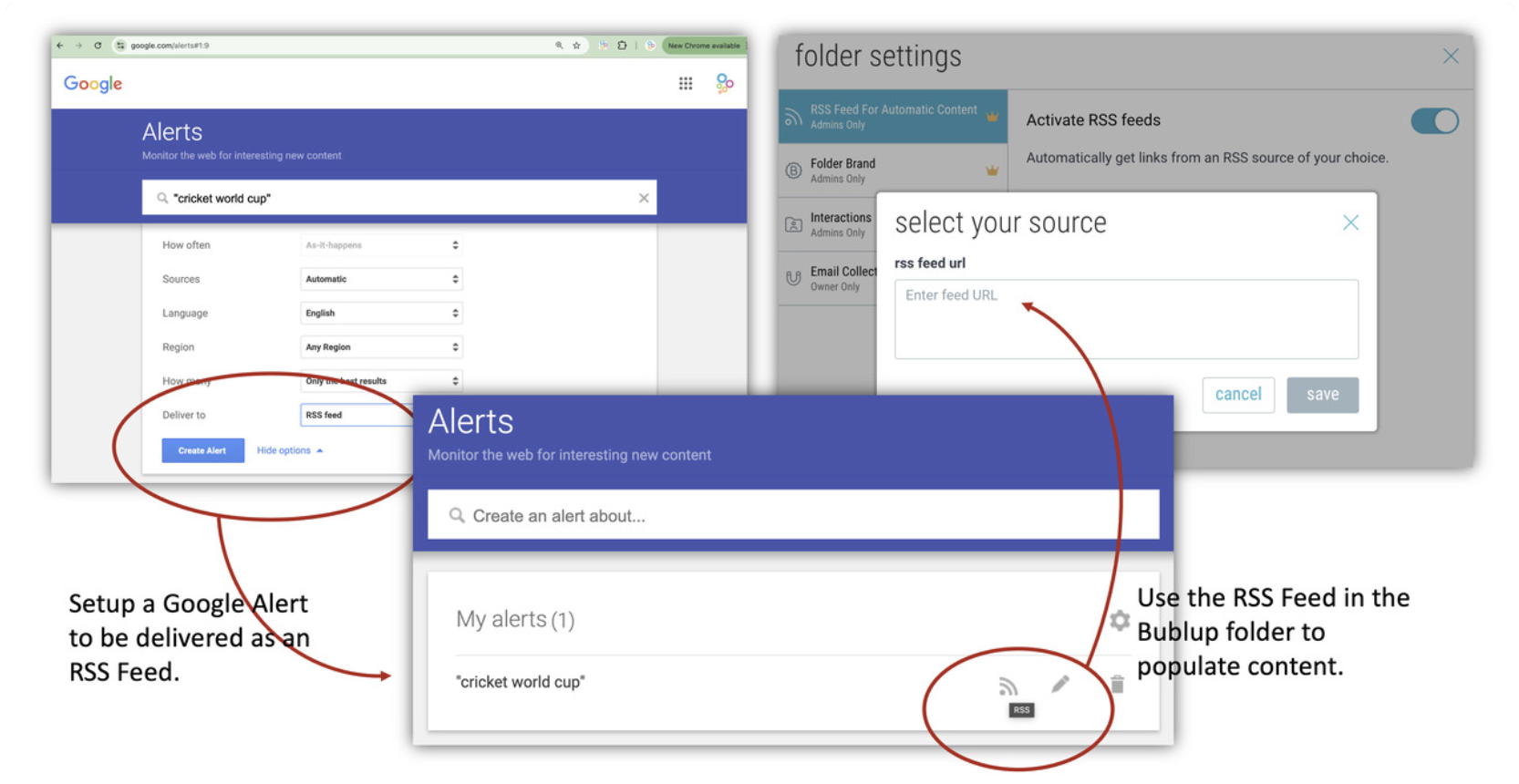
1. Go to www.google.com/alerts.
2. Create an alert for your phrase of interest (e.g. “cricket world cup”).
3. Click “show options”. Under “Deliver to”, select ‘RSS Feed’.
4. Click “Create Alert” to generate a custom RSS feed link.
5. Copy the RSS feed link and add it to your Bublup space using the steps above.
Feeds are an easy way to stay up to date with your favorite websites, such as blogs or podcasts. Automatically populate your Feed spaces with new links from RSS and YouTube sources of your choice.
Setting up your Feeds:
1. Use the + button and select the “Feed” option under “Spaces”. Then name your space.
2. This space can combine feeds from multiple sources. To set up the first feed, give it a name and select the source type: RSS or YouTube.
3. If you selected “RSS“, copy and paste a link to the RSS feed source of your choice.
Check out this link for some examples of popular RSS feeds, or set up Google Alerts as RSS feeds.
4. If you select “YouTube“, choose between Username, Channel, Playlist, or Community Posts, and enter the corresponding ID or handle. You can also optionally filter out YouTube “shorts”.
5. Add (optional) tags and click “save”.
6. Click “fetch now” when you’re ready to start populating your space.
7. Your space will begin to automatically populate with links from your feeds, and will update throughout the day as new content is detected.
Managing Your Settings:
Navigate to the “settings” icon in the upper-right corner of your space.
- To enable or disable your feed space, click the toggle next to “Activate feeds”.
- To alert the admins of this space of any system notifications, enable that toggle preference.
- To change how often members are notified of new content, select your preferred time interval.
- To add multiple RSS feeds to the same folder, click “Add RSS feed”. To edit or remove an existing feed, click “edit”.
- To automatically filter content from your feeds, enable the AI Curator by navigating to that settings tab.
Managing Your Feeds:
The total number of feeds allowed (across all spaces) depends on your plan:
-
- Basic: 1 feed
- Premium: 3 feeds
- Pro: 5 feeds
- Business: 10 feeds
- Enterprise: 100 feeds
The number of most recent items stored in your space also depends on your plan:
-
- Basic: 25 items
- Premium: 50 items
- Pro: 100 items
- Business: 200 items
- Enterprise: unlimited (older items will be moved to an “Archive” space)
Setting up RSS Feeds via Google Alerts:
1. Go to www.google.com/alerts.
2. Create an alert for your phrase of interest (e.g. “cricket world cup”).
3. Click “show options”. Under “Deliver to”, select ‘RSS Feed’.
4. Click “Create Alert” to generate a custom RSS feed link.
5. Copy the RSS feed link and add it to your Bublup space using the steps above.