
Add Spaces & Subspaces
Spaces are how you organize your content within Bublup. There are general spaces, as well as spaces catered towards specific use cases. Within spaces, you can create subspaces and save content.
The different space types include:
- General Content
- Albums
- Chats
- Forums
- Feeds
- Organizations & Communities (requires Business or Enterprise plan)
To learn more about the different space types, click here.
Add Items to Spaces
Use the “+” menu to add different items to your spaces.

In Bublup, you can upload:
- Links
- Notes
- PDFs
- Documents
- Photos
- Videos
- Audio files
- Task lists
- Polls
- Imported folders or files
- Google Docs, Sheets, Slides and Forms
Install Bublup's Browser Extension
The Bublup browser add-on, also known as the “Nanobar”, lets you save links to Bublup directly from any web page with the click of a button.
Instructions for installing the browser extension
Bublup’s extension is available exclusively on Chrome, Chromium, and Edge. The Bublup desktop app is officially supported on the Chrome, Safari, Firefox, Chromium and Edge browsers.
For Chrome/Chromium:
1. Click on this link for the Chrome Web Store.
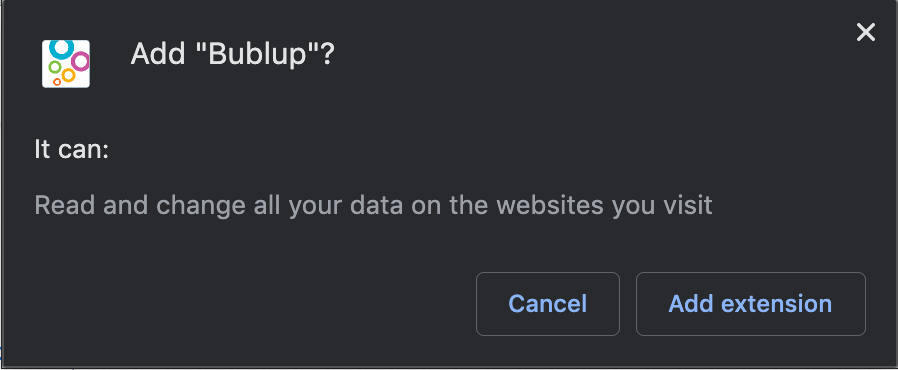
2. Select “Add to Chrome”.
3. Select “Add Extension”.
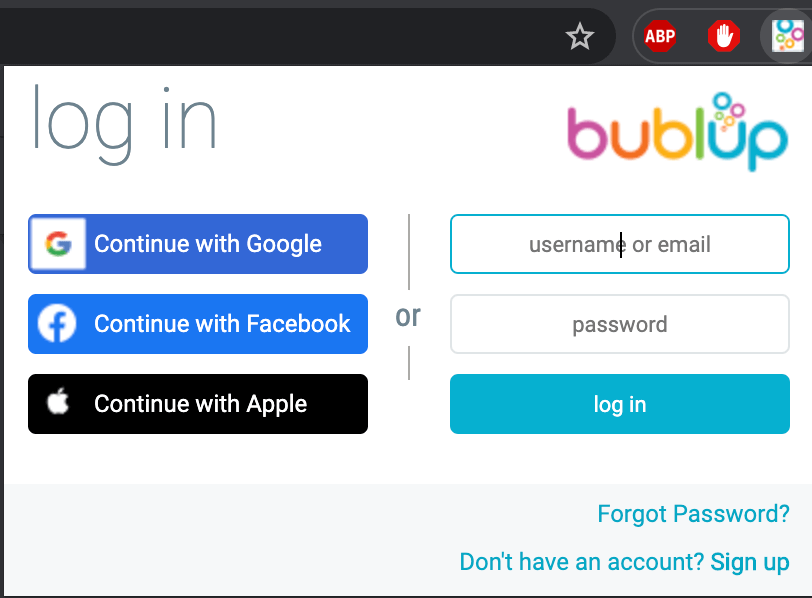
4. Log into Bublup by clicking on the bubbles icon next to the URL bar.
For Microsoft Edge:
1. Click on this link for the Edge Add-ons Store.
2. Select “Get”.
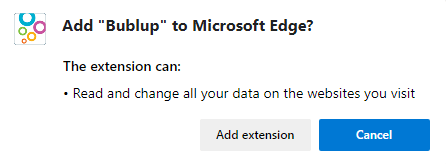
3. Select “Add Extension”.
4. Log into Bublup by clicking on the bubbles icon next to the URL bar.
Using the browser extension
Using our extension for Chrome and Microsoft Edge enables you to save to Bublup without disrupting your browsing experience. The Bublup extension includes a handy nanobar, along with some mouse and extension menu options.
Nanobar

The nanobar has 2 functions:
- Clicking on the bubbles will open Bublup in a new tab or navigate to Bublup in an existing tab.
- Selecting the “+” button will save the webpage you’re viewing into Bublup.
Quick Menus
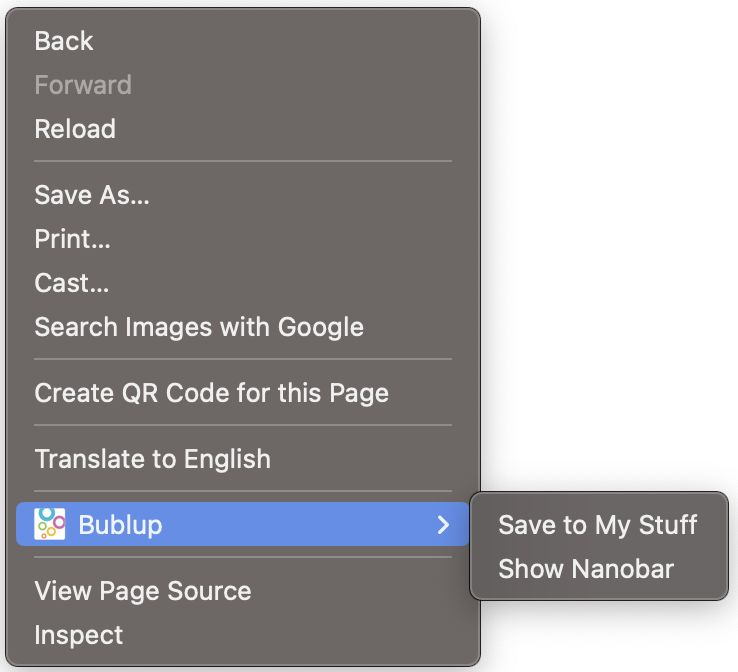
Once the browser extension is installed, you can right-click on a web page and choose to save the page from there.
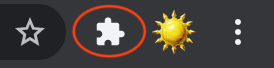
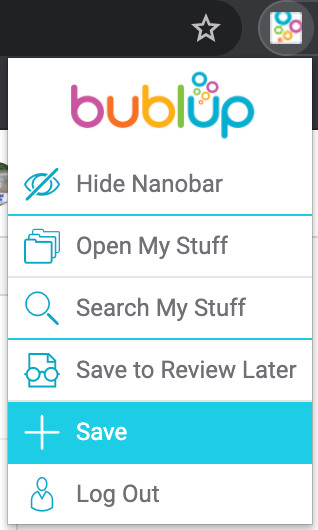
You also will have a menu in the extensions bar at the top:
Save Emails in Bublup
Quickly and easily save important emails and their attachments to Bublup, right from your inbox.
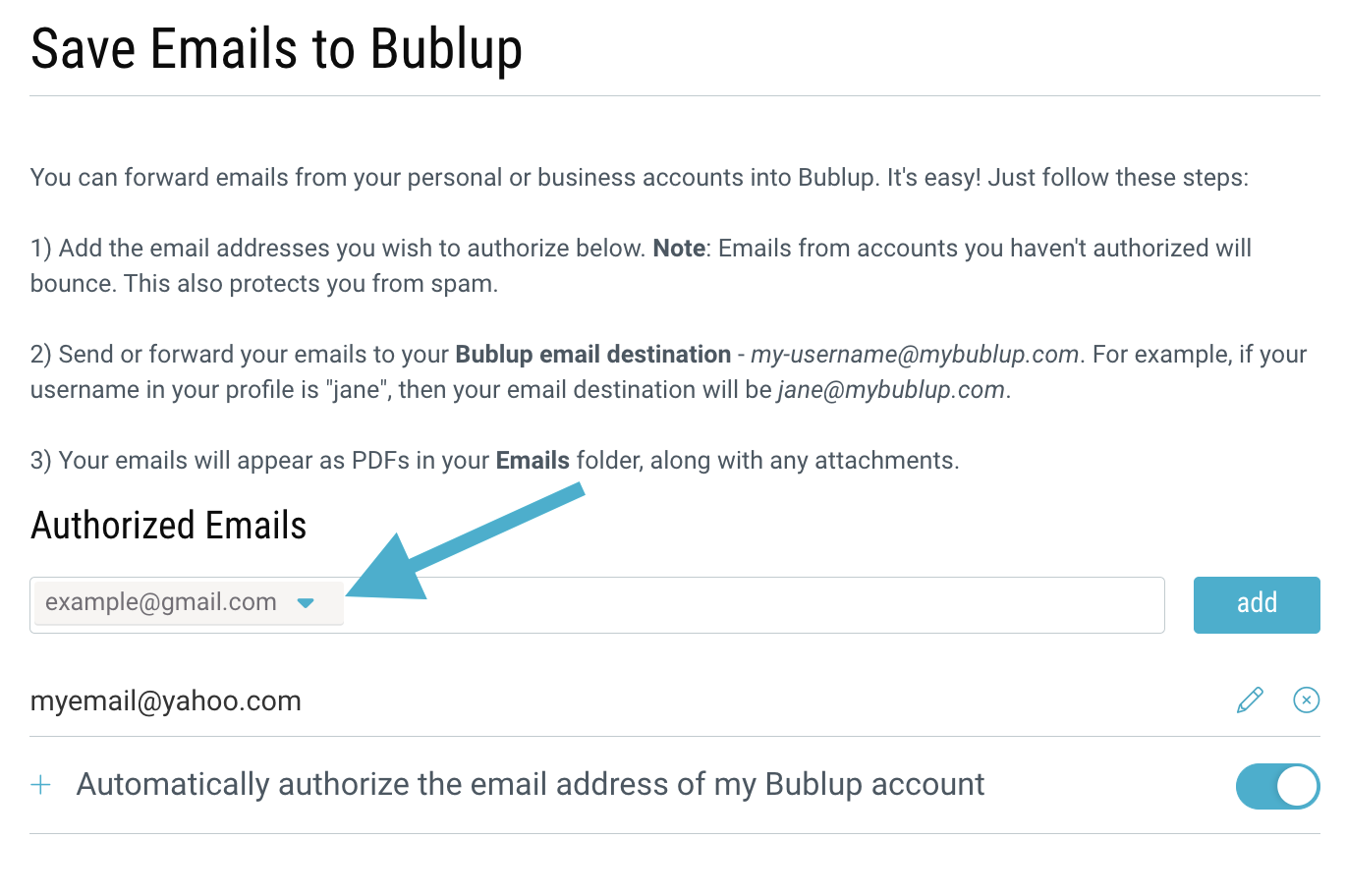
1. Click on “My Info” in the upper-left corner.
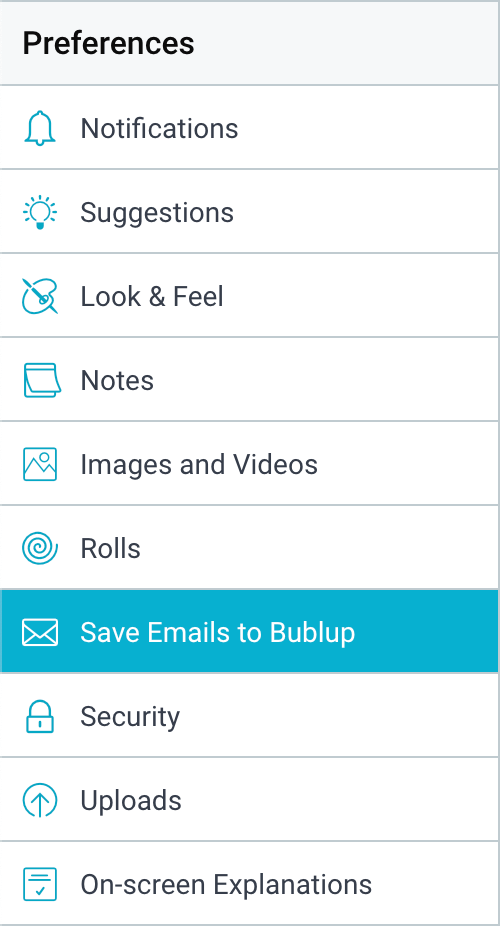
2. Select “Save Emails to Bublup” from the “Preferences” menu.
3. Enter one or more email addresses that you want to authorize for forwarding emails into your Bublup account.
(Emails from other senders will bounce. This is to prevent spam or unwanted emails from coming to your Bublup account.)
4. Now, from your regular email, forward any message you’d like to [your-username]@mybublup.com. For example, if your Bublup username is “JSmith”, forward emails to JSmith@mybublup.com.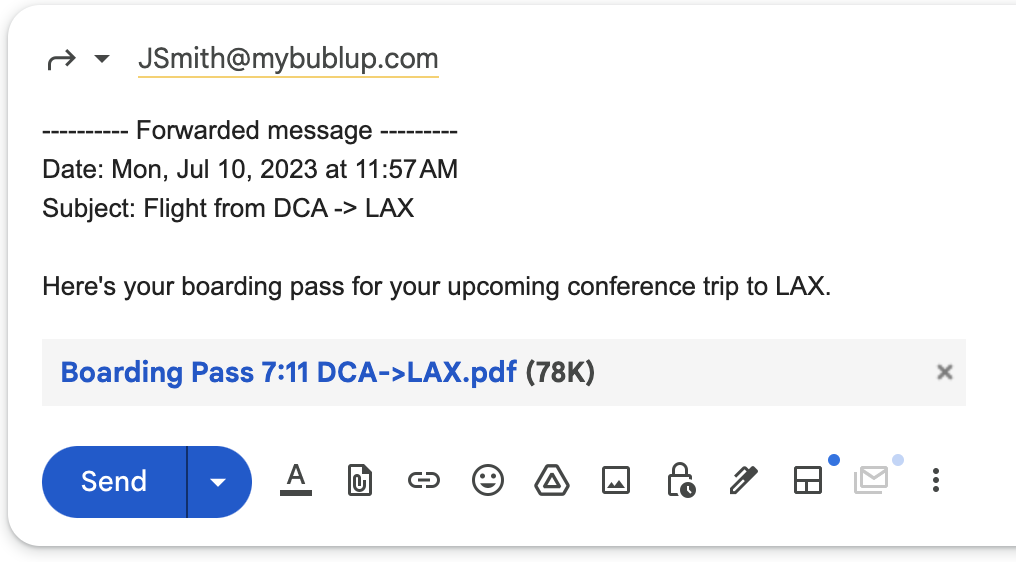
5. Go to your Bublup Home, and click on the “Emails” button.

Inside this space, you’ll see the forwarded message is now saved in your Bublup account as a PDF. Emails with attachments will be created as a sub-folder within the “Emails” space, which includes all attachments as well as a PDF version of the email message.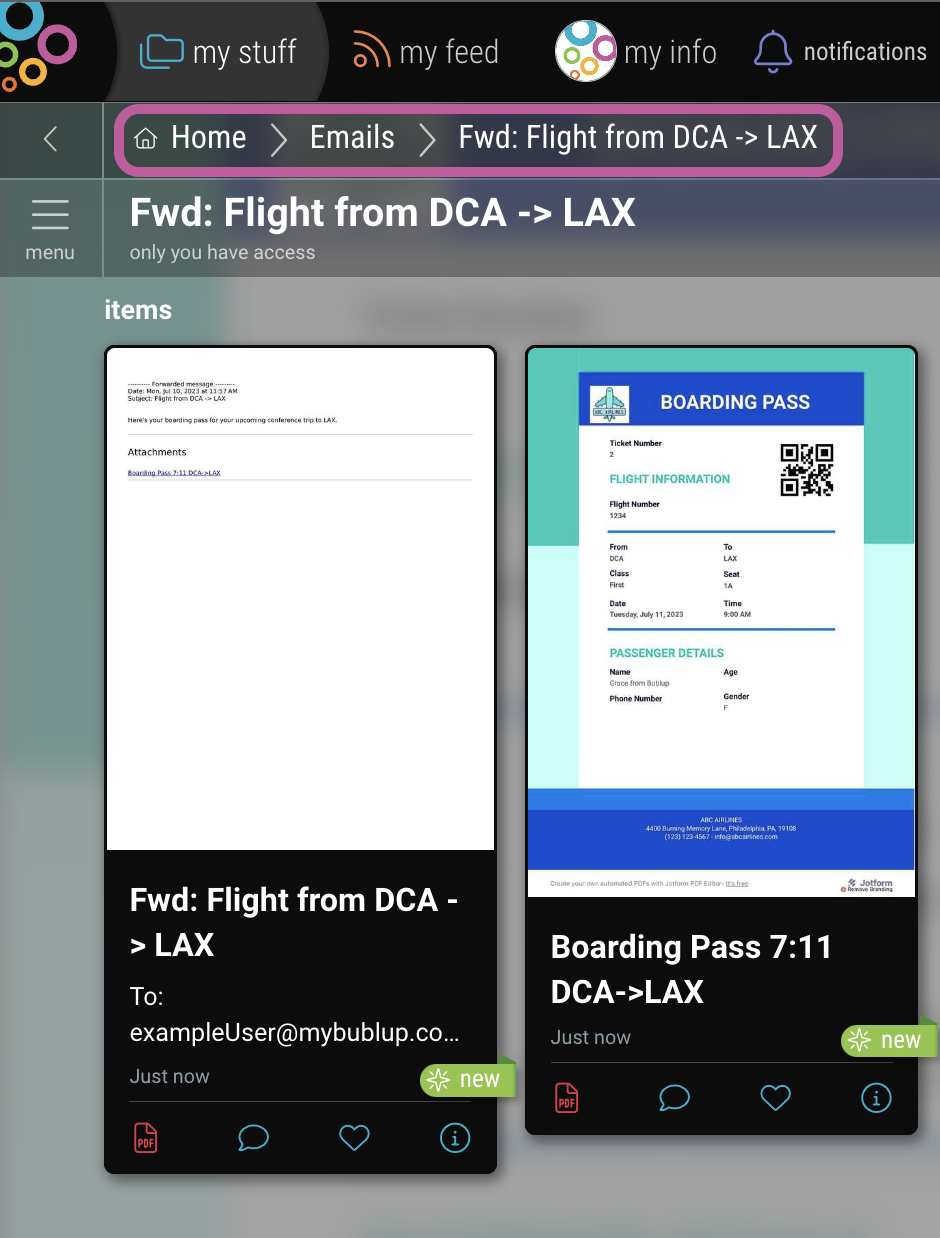
You can easily move forwarded emails from the “Emails” folder to other spaces, so you can keep things organized the way you want.
PRO TIP: Send an email directly to a specific space in Bublup.
To do this:
- Create a shortcut of the space inside the Emails space.
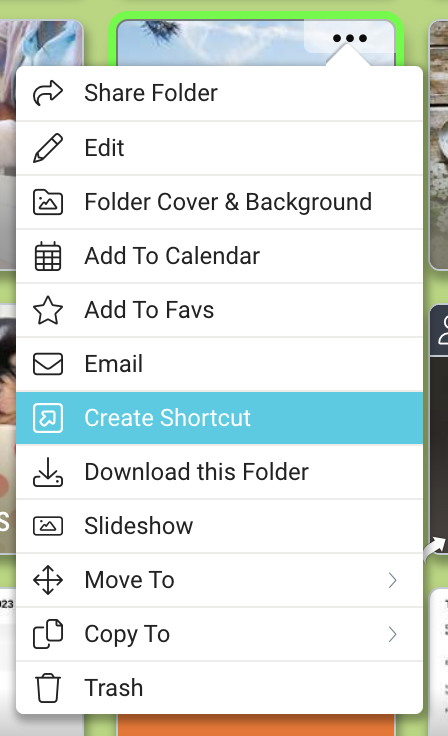
- When you send an email to Bublup, begin the subject line with the space name in brackets: “[space-name] the subject line here”. Example: “[Travel] Fwd: Flights from DCA -> LAX”
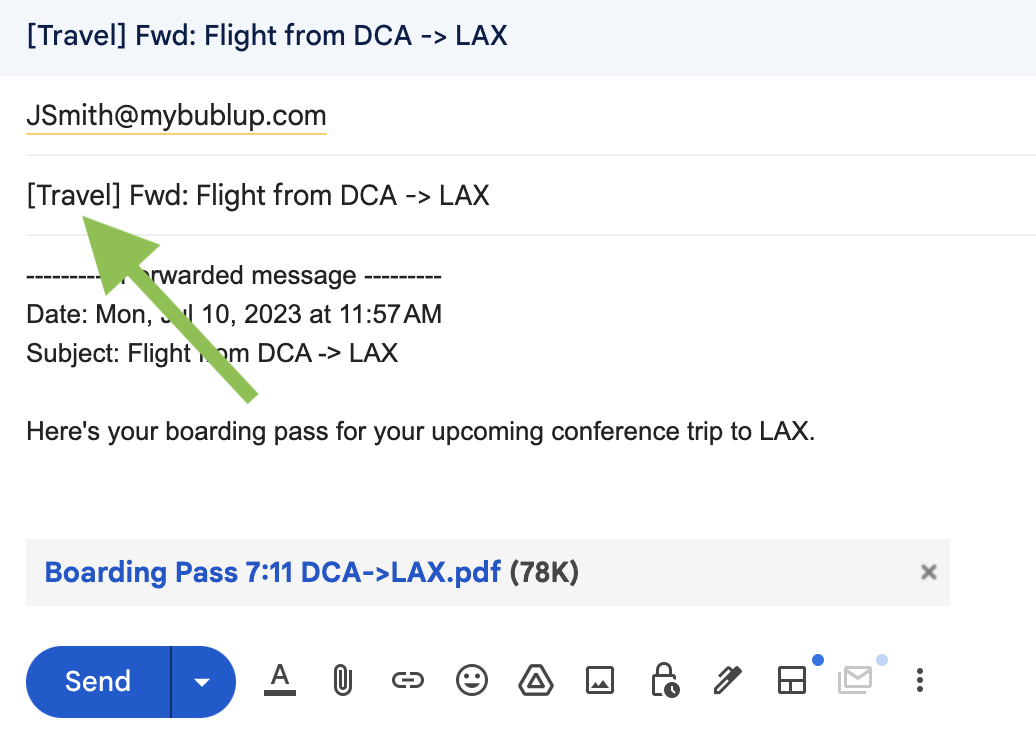
Now the forwarded email will appear in your desired space instead of directly in Emails.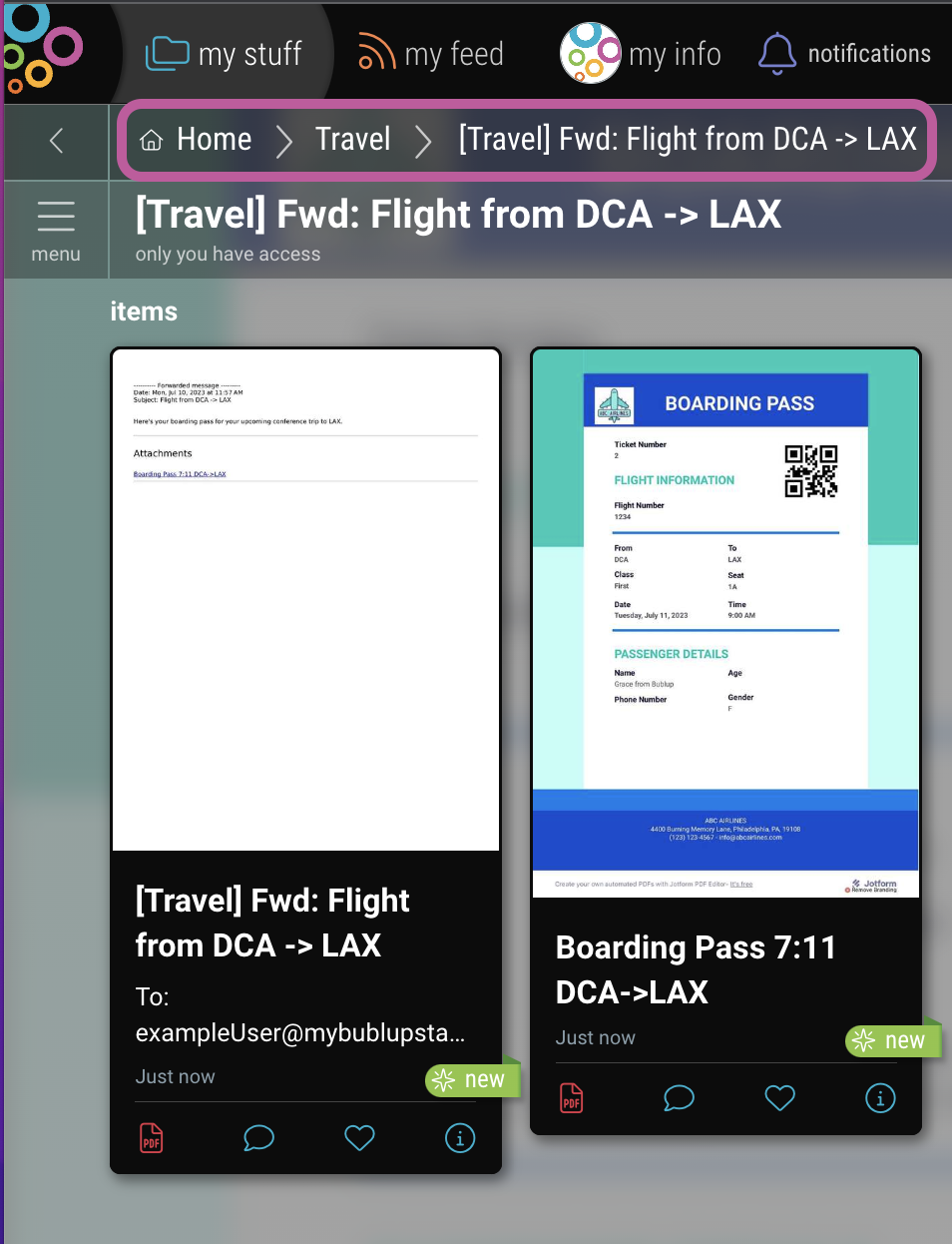
View & Manage Tasks
Keep track of all your tasks in one place! Set due dates and assign them to members of your shared spaces to stay organized.
Viewing tasks in the task center
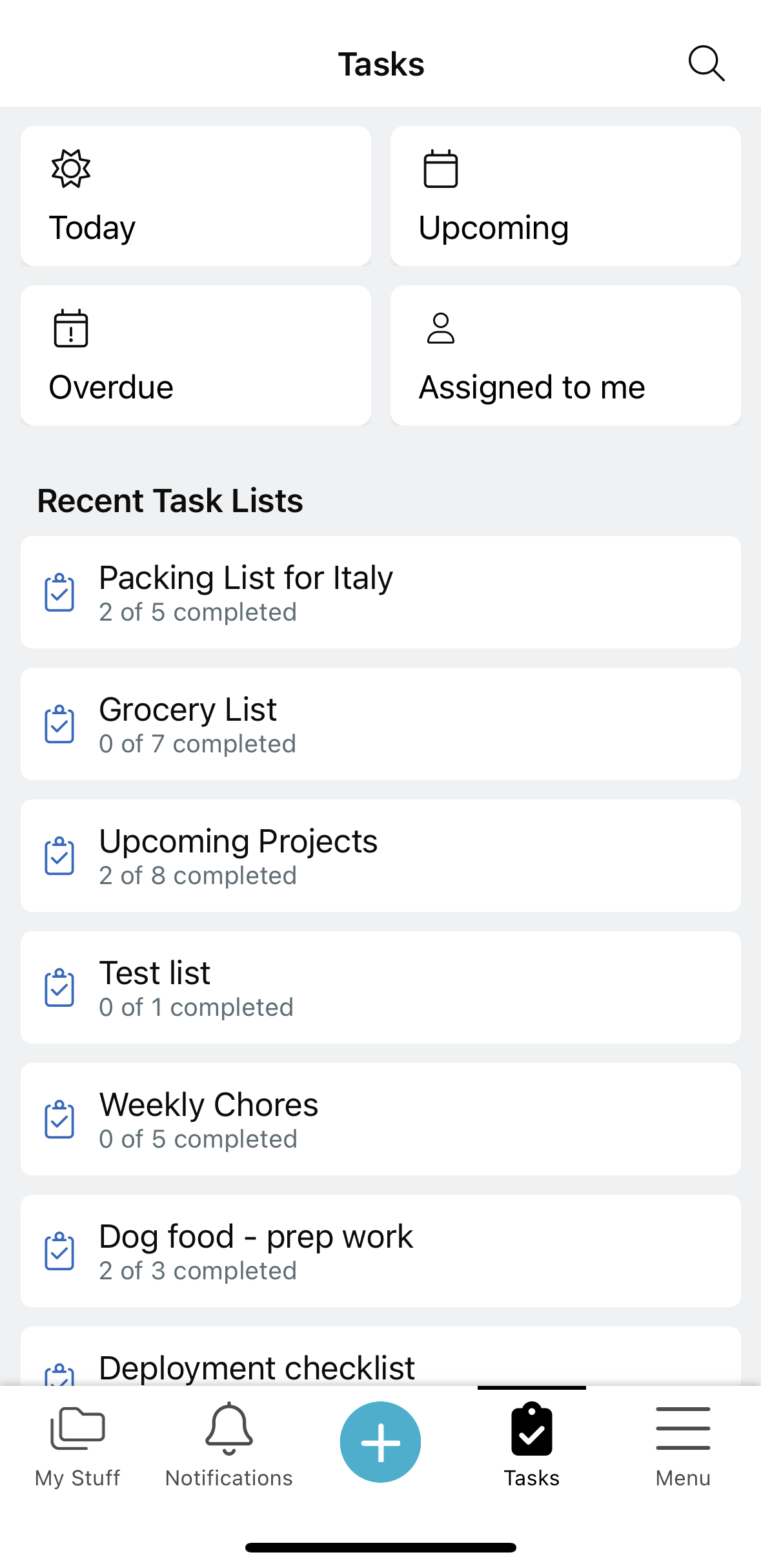
Tap on the “Tasks” icon in the navigation bar.

Easily access your recent task lists, or view tasks based on characteristics such as due today, upcoming, overdue, or assigned to me.
Creating a task list
To create a task list, go to one of your spaces and use the “+” button. (Note: task lists created from the task center will reside in your “Home” folder). For more detailed instructions on how to create and edit task lists, visit this page.

Setting due dates and assigning tasks
Tap on the task to bring up the details view.
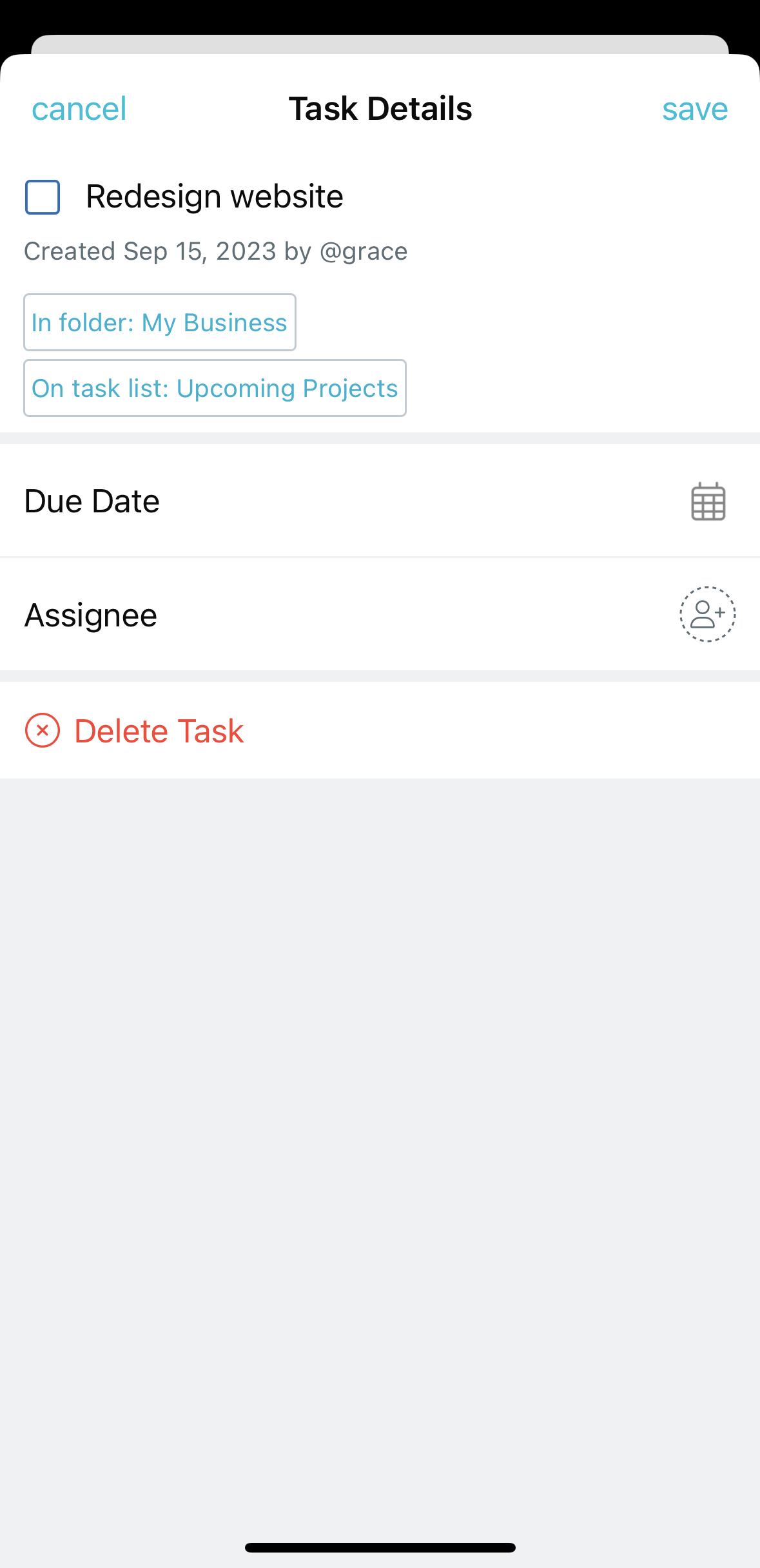
To set a due date, tap on the calendar icon. Tasks that are overdue will appear in red.
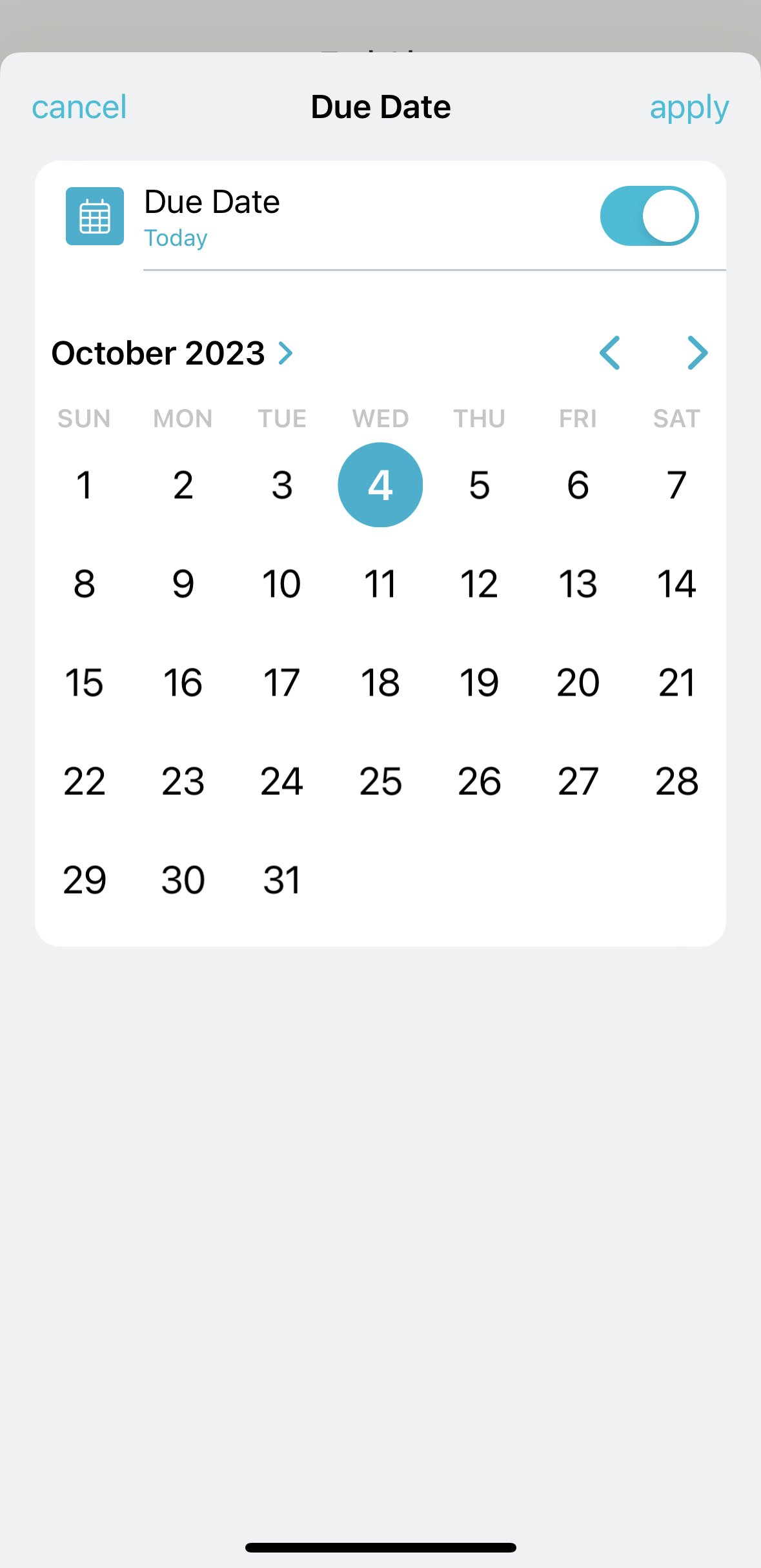
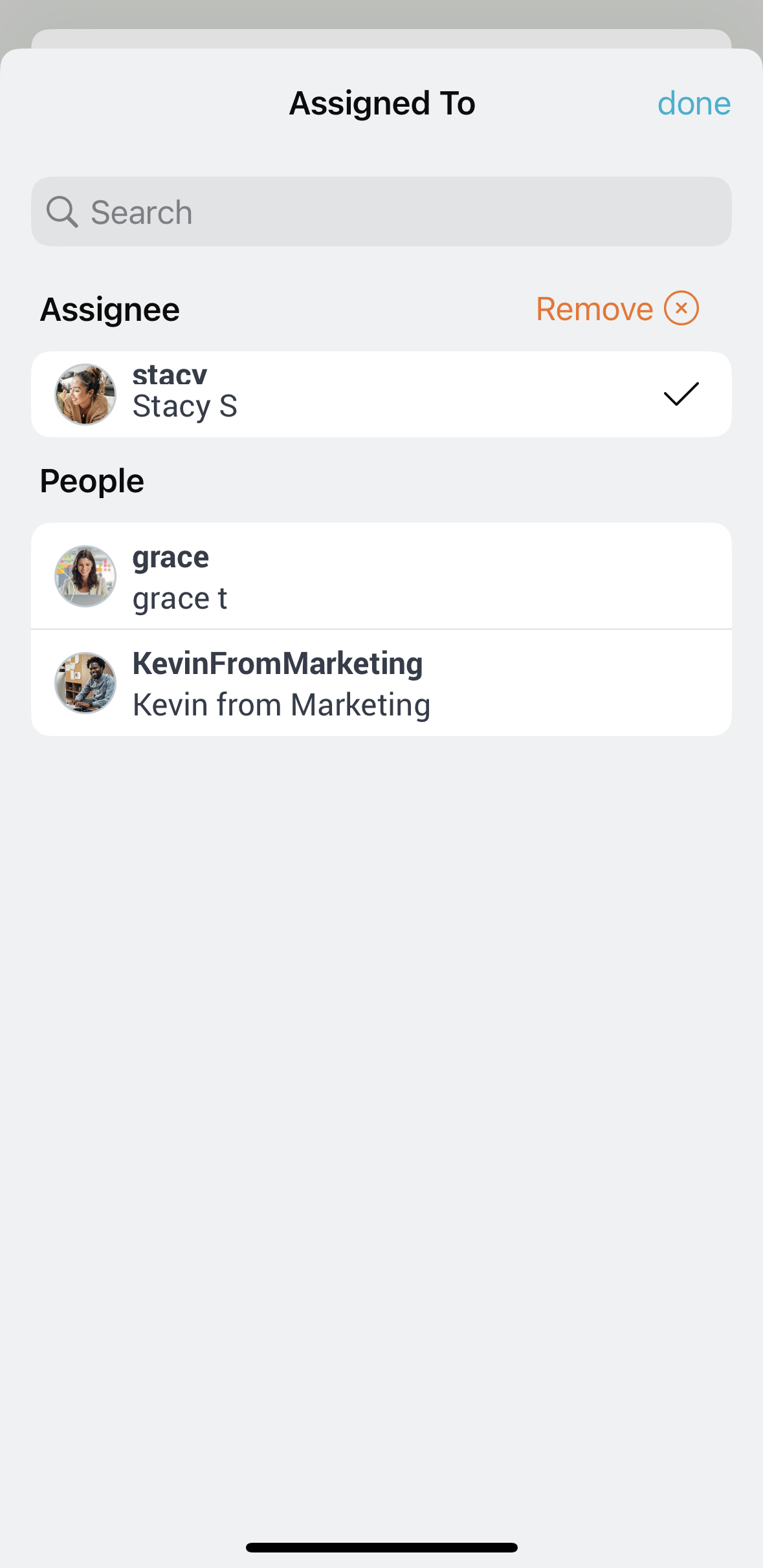
Tap on the person icon to bring up a list of possible assignees. To assign a task to someone, they have to be part of your shared space. If they’re not in your shared space, invite them and then assign the task upon their joining.
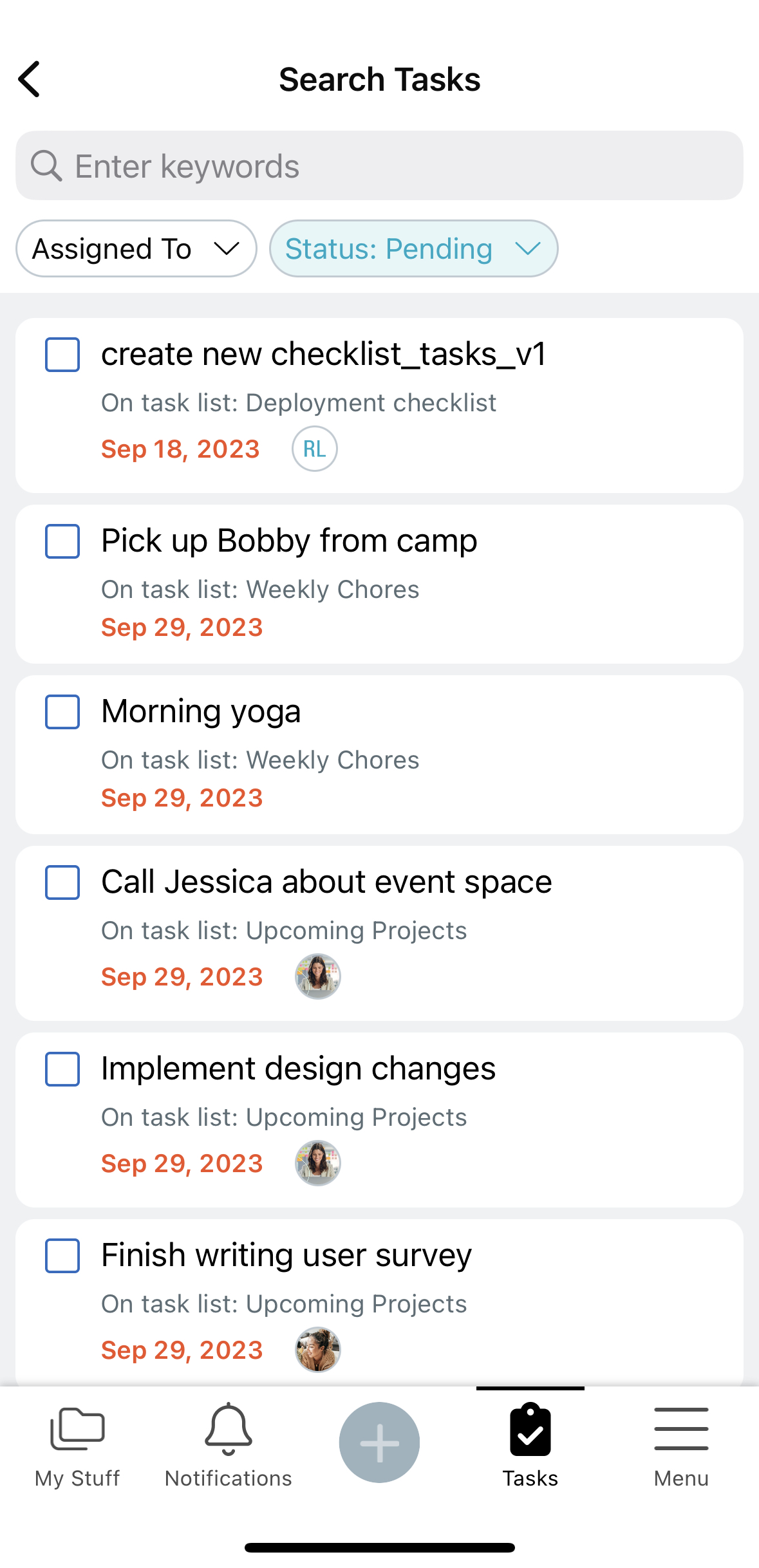
Searching for Tasks
Tap on the magnifying glass inside the Task center to search for tasks by keyword, assignee, or completion status.
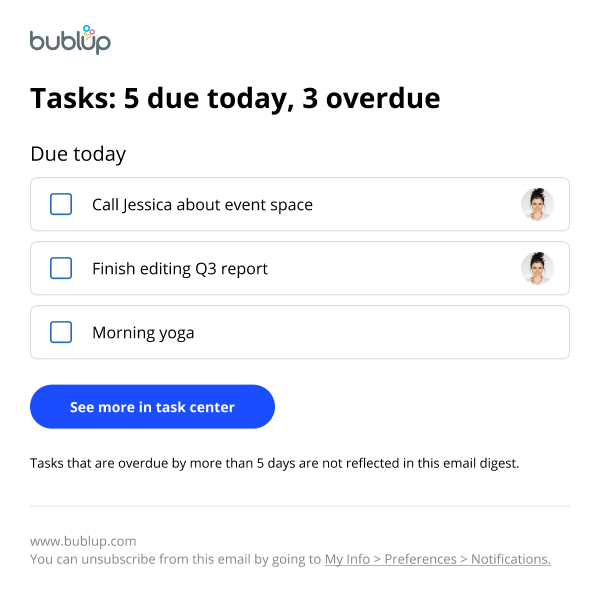
Daily Tasks Email
Receive an email each morning with your upcoming and overdue tasks. Adjust this preference by going to “My Info & Settings” > “Preferences” > “Notifications” > “Tasks”.
Note: Task lists will not be included in rolls you create, since they are intended to be frequently updated.
Connect RSS Feeds
Automatically populate your Feed spaces with new links from RSS and YouTube sources of your choice.
Setting up your Feeds:
1. Use the + button and select the “Feed” option under “Spaces”. Then name your space.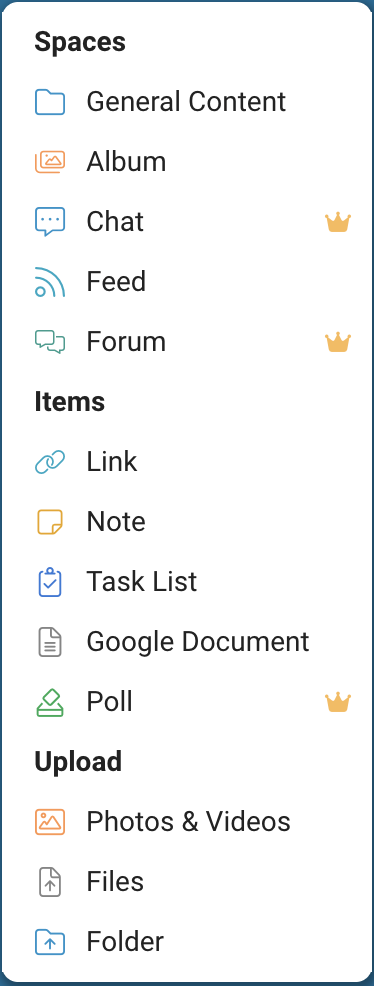
2. This space can combine feeds from multiple sources. To set up the first feed, give it a name and select the source type: RSS or YouTube.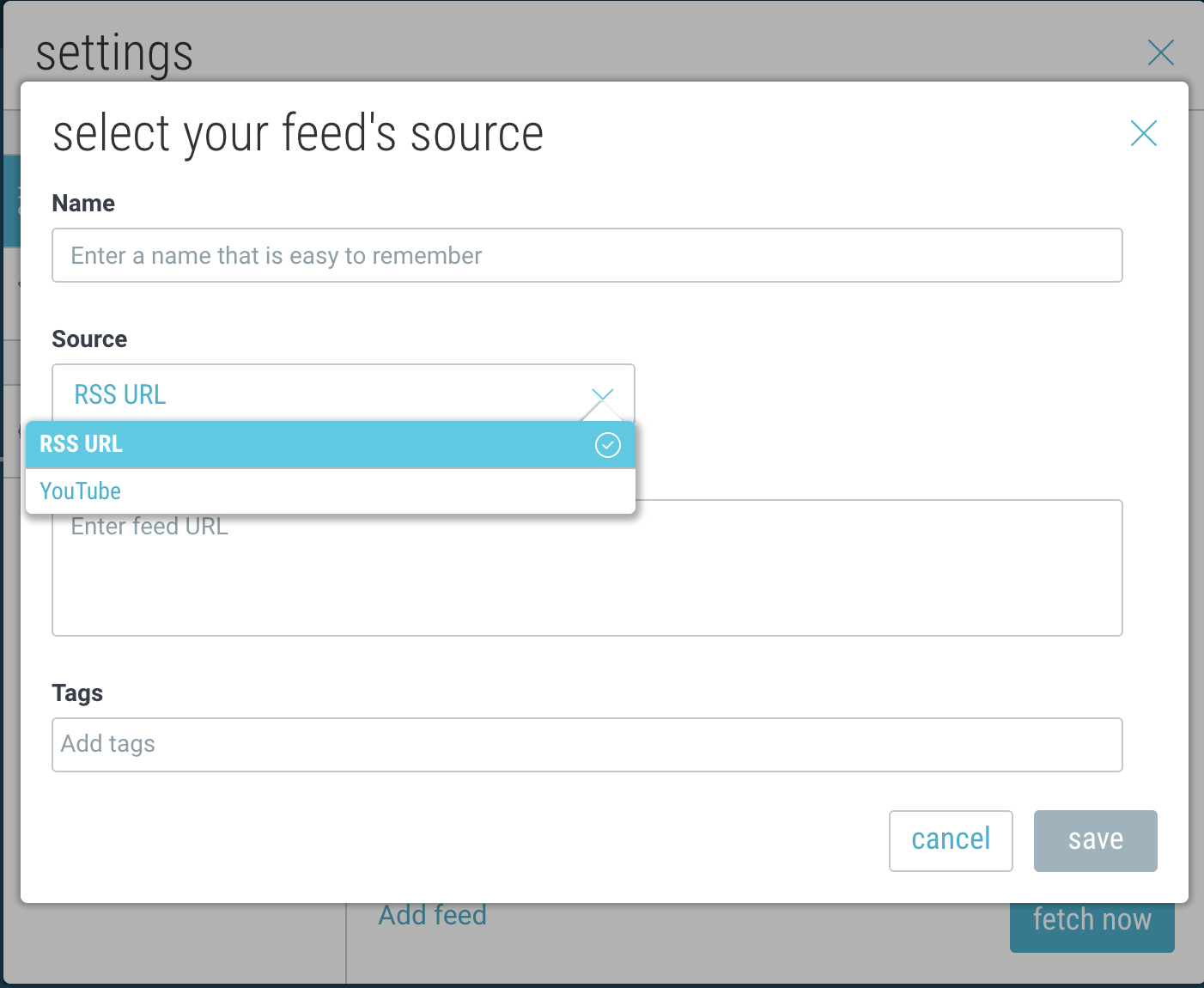
3. If you selected “RSS“, copy and paste a link to the RSS feed source of your choice.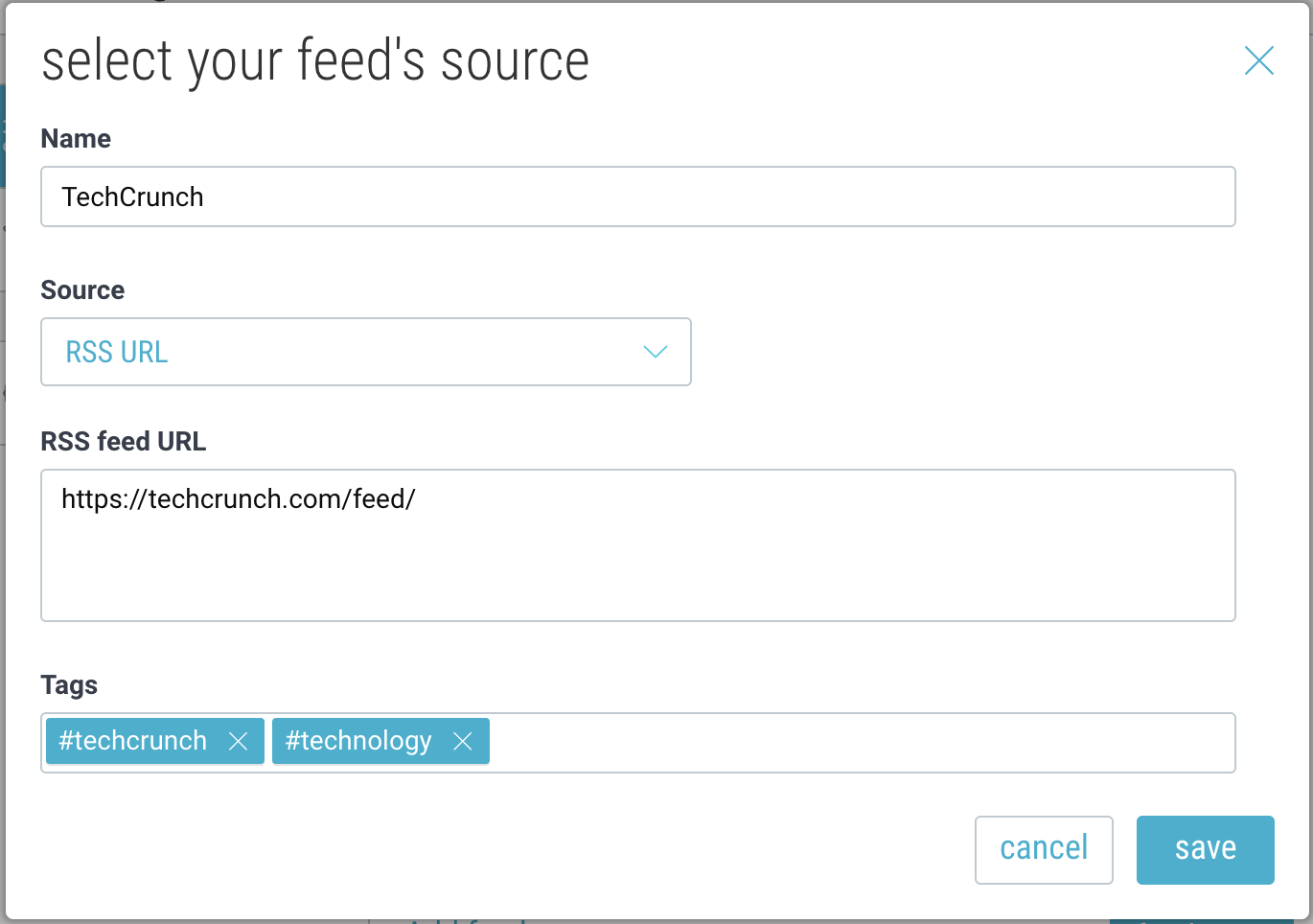
Check out this link for some examples of popular RSS feeds, or set up Google Alerts as RSS feeds.
4. If you select “YouTube“, choose between Username, Channel, Playlist, or Community Posts, and enter the corresponding ID or handle. You can also optionally filter out YouTube “shorts”.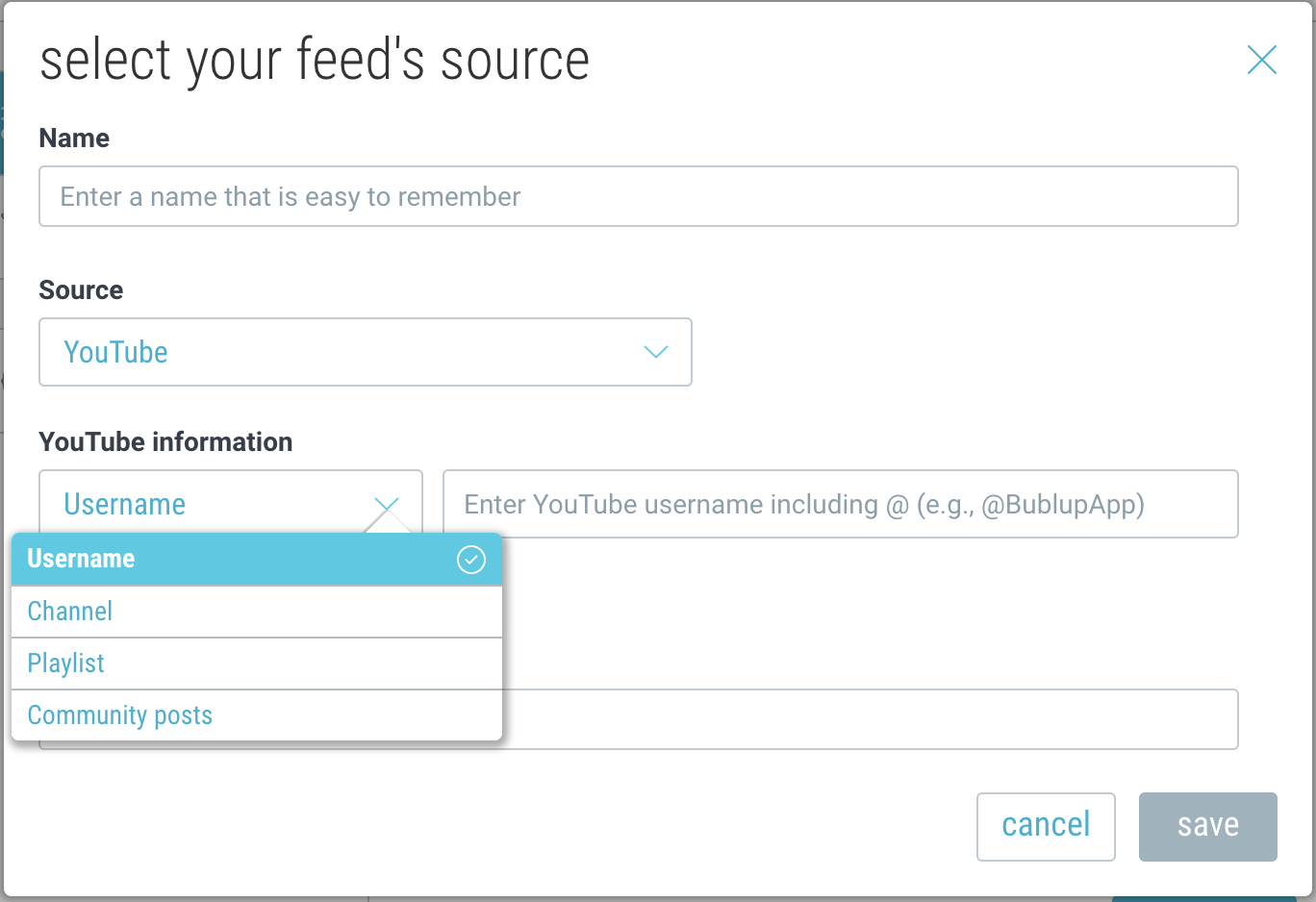
5. Add (optional) tags and click “save”.
6. Click “fetch now” when you’re ready to start populating your space.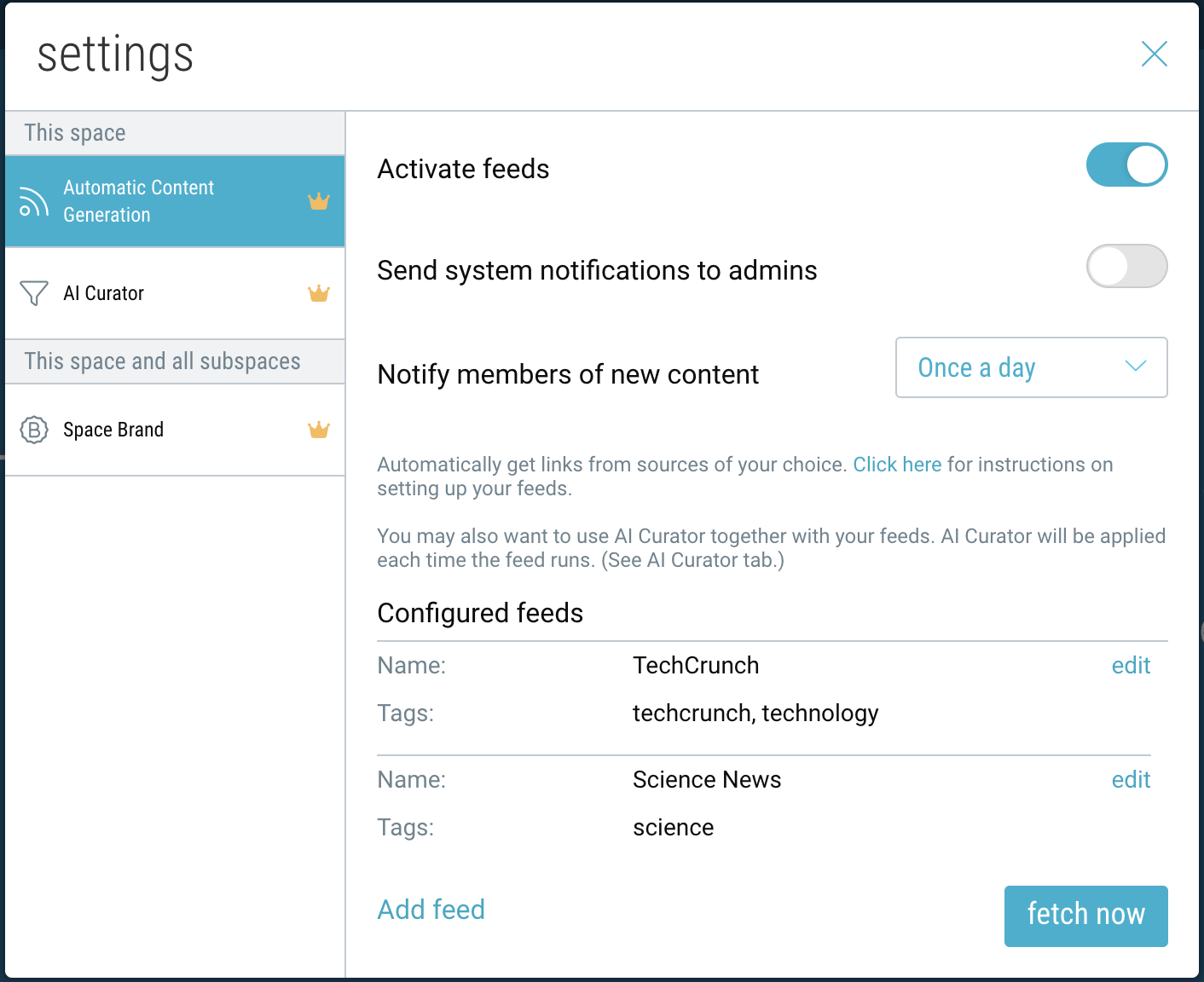
7. Your space will begin to automatically populate with links from your feeds, and will update throughout the day as new content is detected.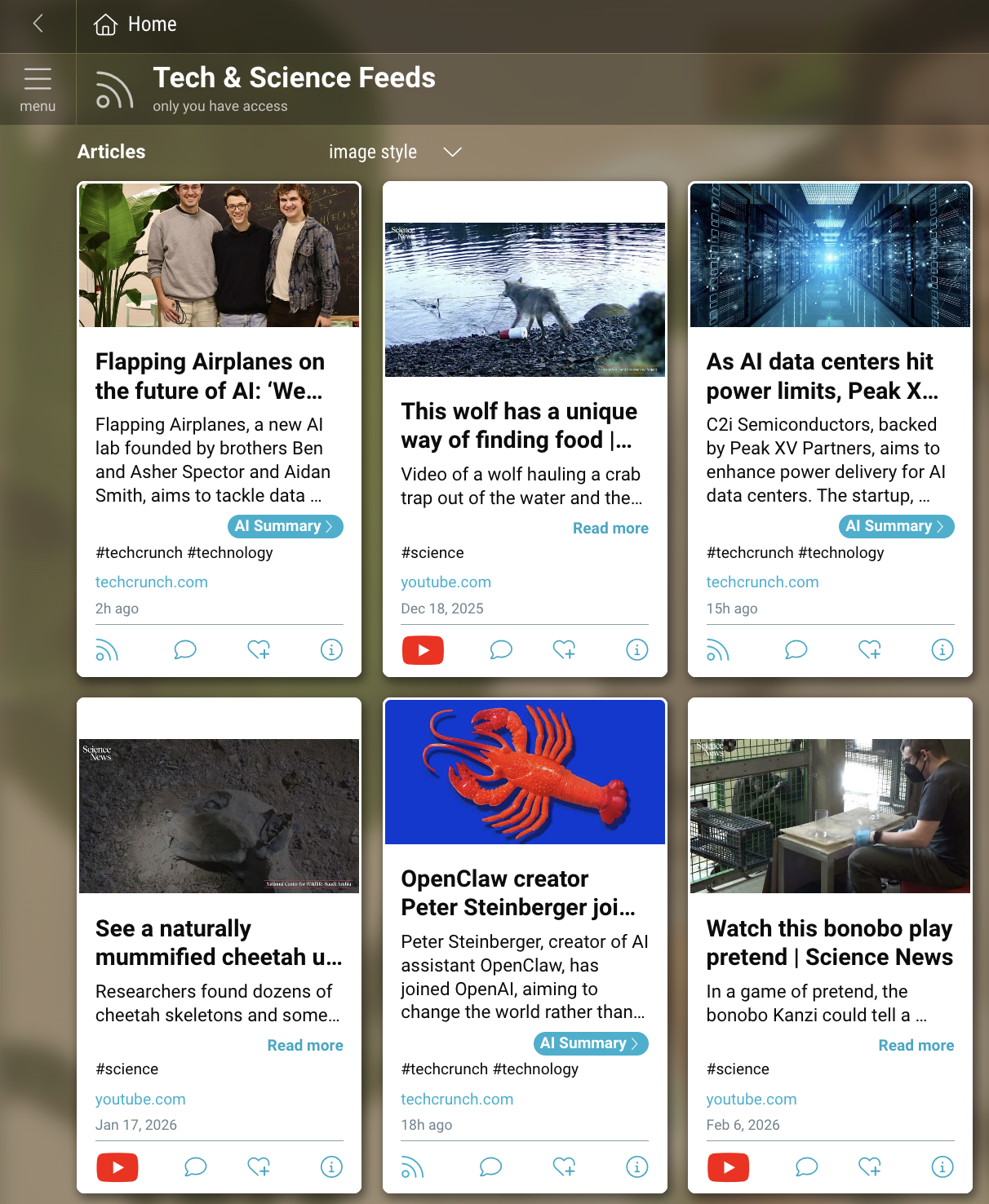
Managing Your Settings:
Navigate to the “settings” icon in the upper-right corner of your space.
- To enable or disable your feed space, click the toggle next to “Activate feeds”.
- To alert the admins of this space of any system notifications, enable that toggle preference.
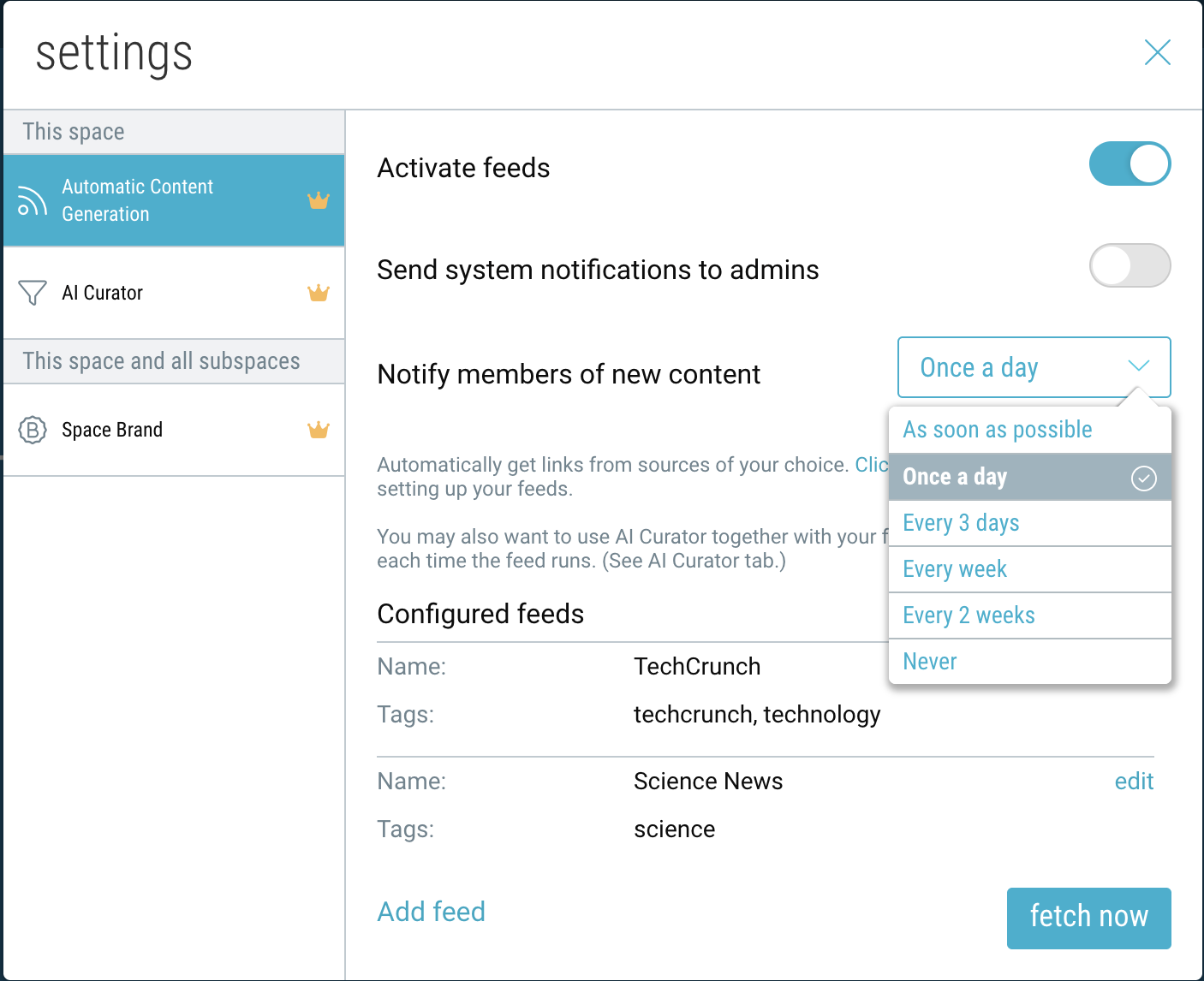
- To change how often members are notified of new content, select your preferred time interval.
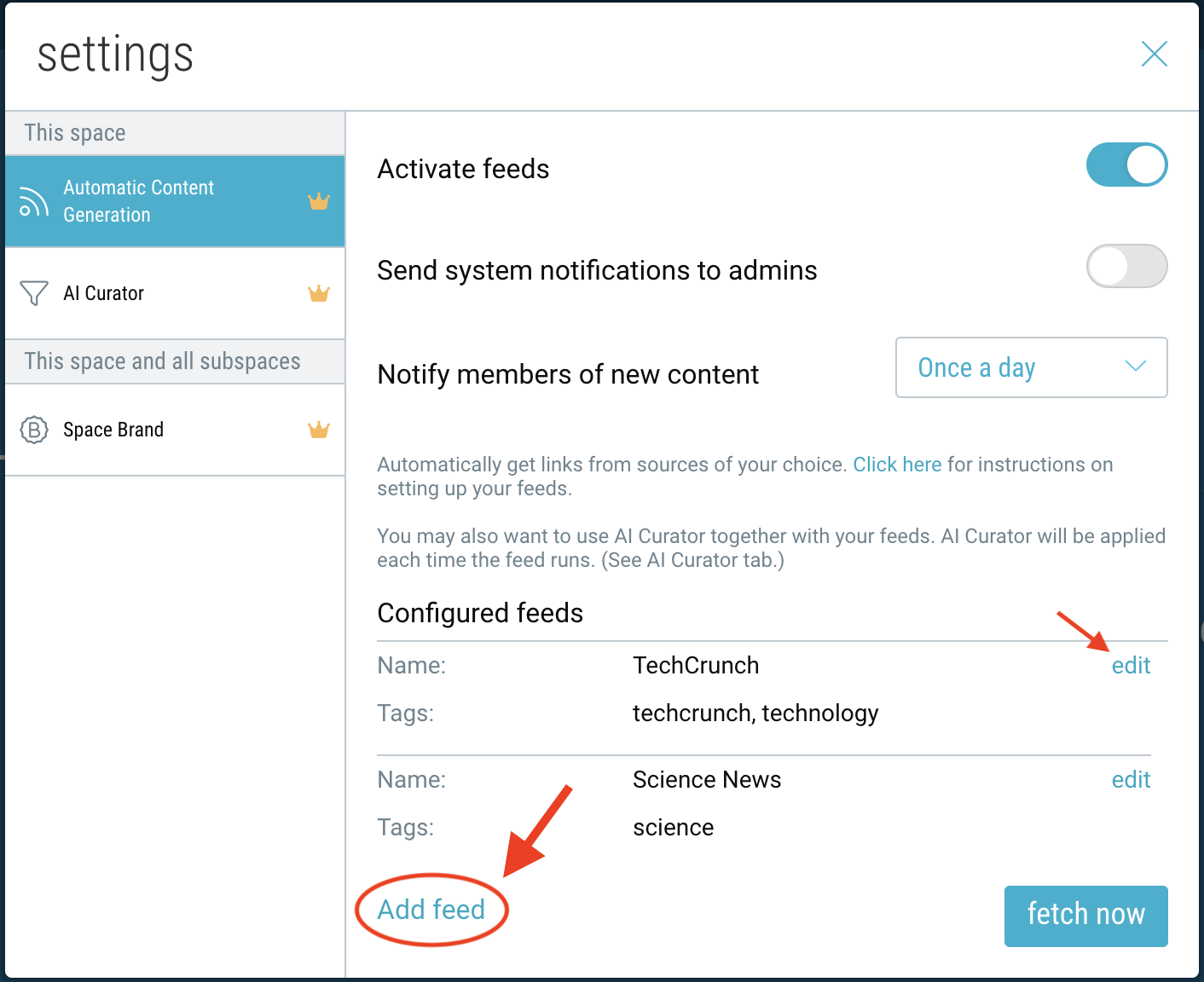
- To add multiple RSS feeds to the same folder, click “Add RSS feed”. To edit or remove an existing feed, click “edit”.
- To automatically filter content from your feeds, enable the AI Curator by navigating to that settings tab.
Managing Your Feeds:
The total number of feeds allowed (across all spaces) depends on your plan:
-
- Basic: 1 feed
- Premium: 3 feeds
- Pro: 5 feeds
- Business: 10 feeds
- Enterprise: 100 feeds
The number of most recent items stored in your space also depends on your plan:
-
- Basic: 25 items
- Premium: 50 items
- Pro: 100 items
- Business: 200 items
- Enterprise: unlimited (older items will be moved to an “Archive” space)
Setting up RSS Feeds via Google Alerts:
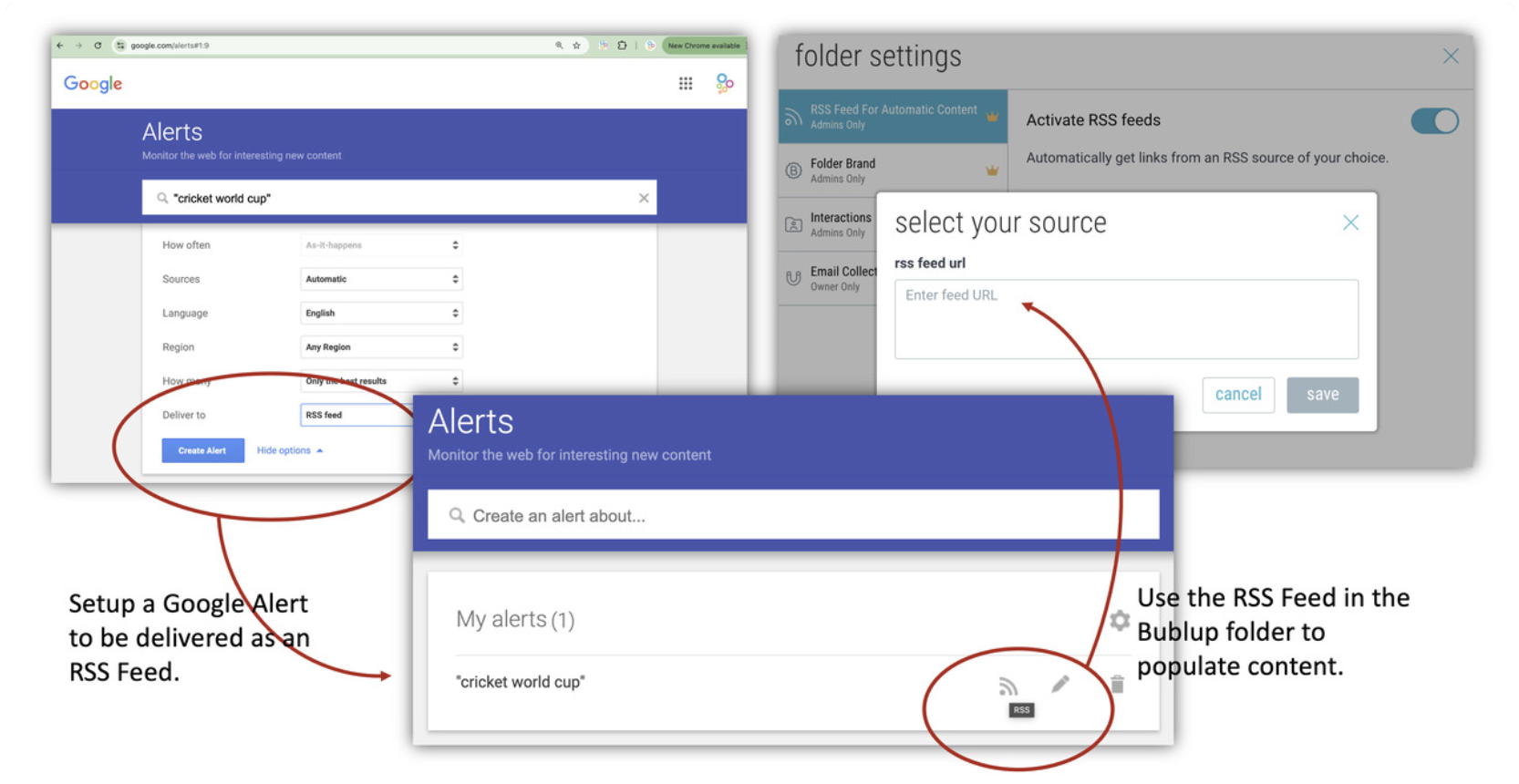
1. Go to www.google.com/alerts.
2. Create an alert for your phrase of interest (e.g. “cricket world cup”).
3. Click “show options”. Under “Deliver to”, select ‘RSS Feed’.
4. Click “Create Alert” to generate a custom RSS feed link.
5. Copy the RSS feed link and add it to your Bublup space using the steps above.
Generate AI Summaries
Bublup uses AI to automatically generate summaries for links saved in your Bublup account.
Viewing AI Summaries
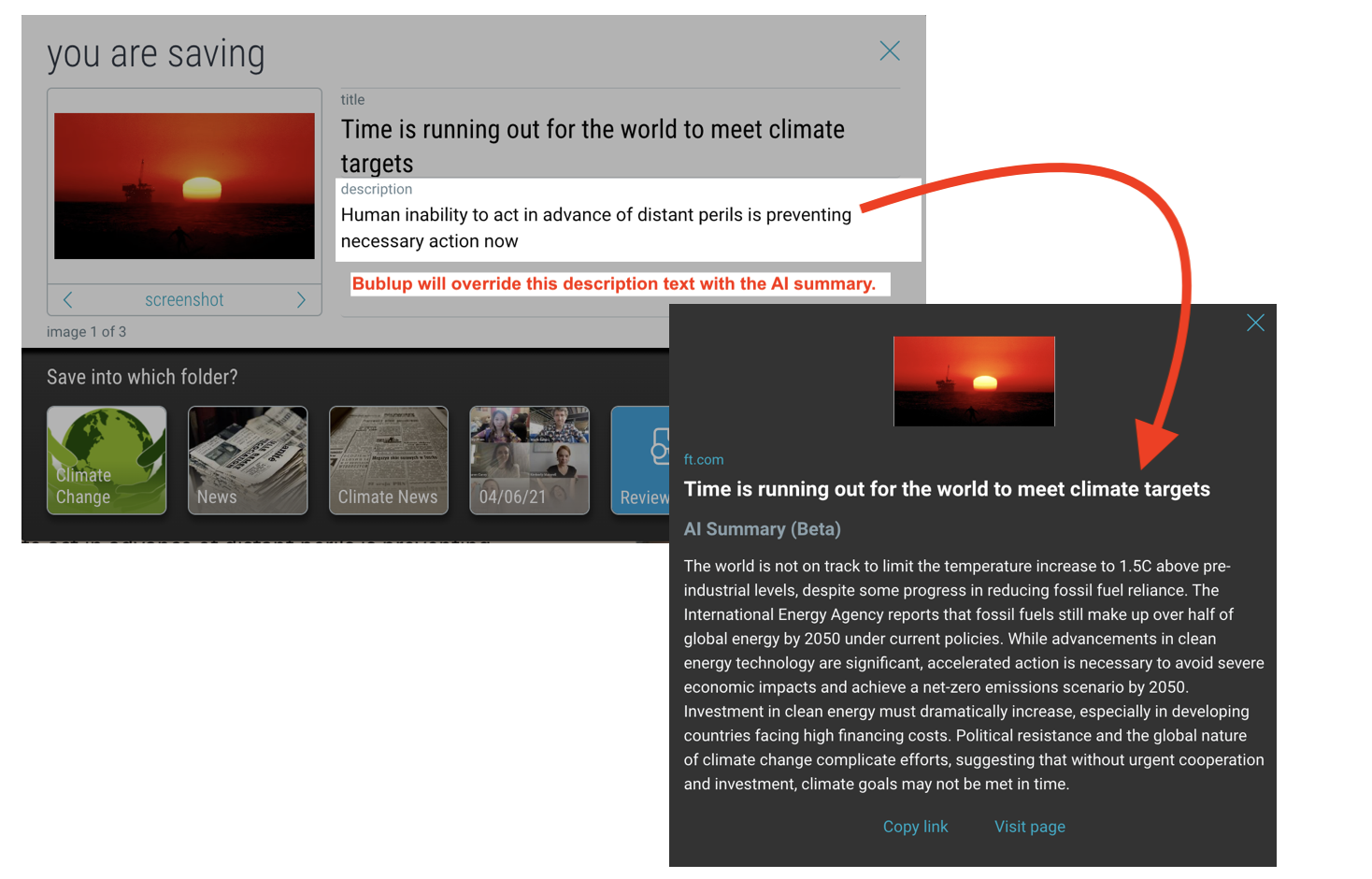
When a summary has been generated, you will see an “AI Summary” button on the item card.
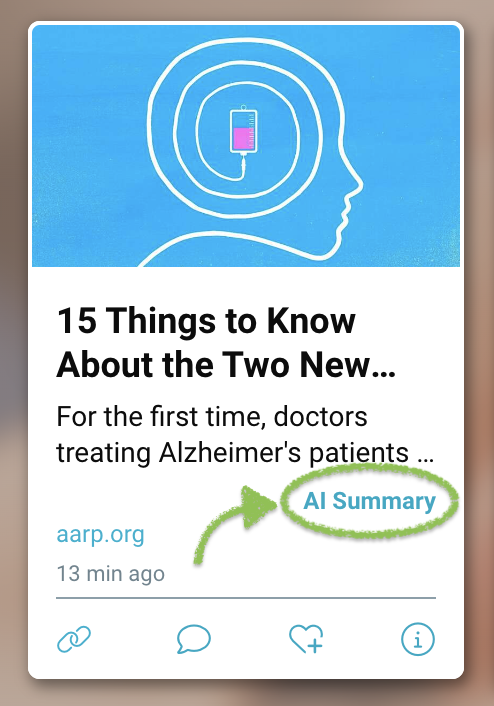
Click on the “AI Summary” button to view the full summary. From here, you can also visit the original page or copy its url.
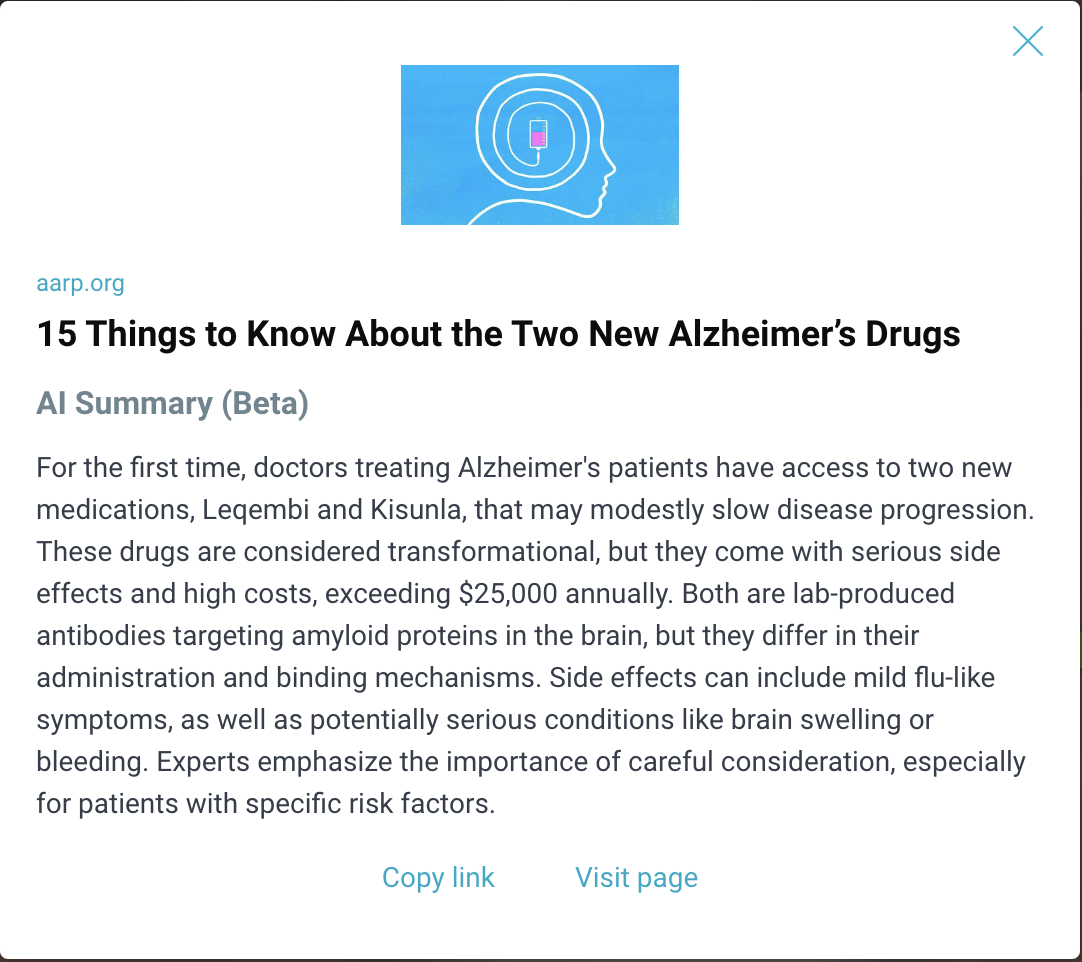
Note: To edit the new AI Summary description, click the 3-dot menu on the item and select “Edit”.
Managing AI Settings
Click on “my info” at the top. Then click “AI” under “Preferences”.
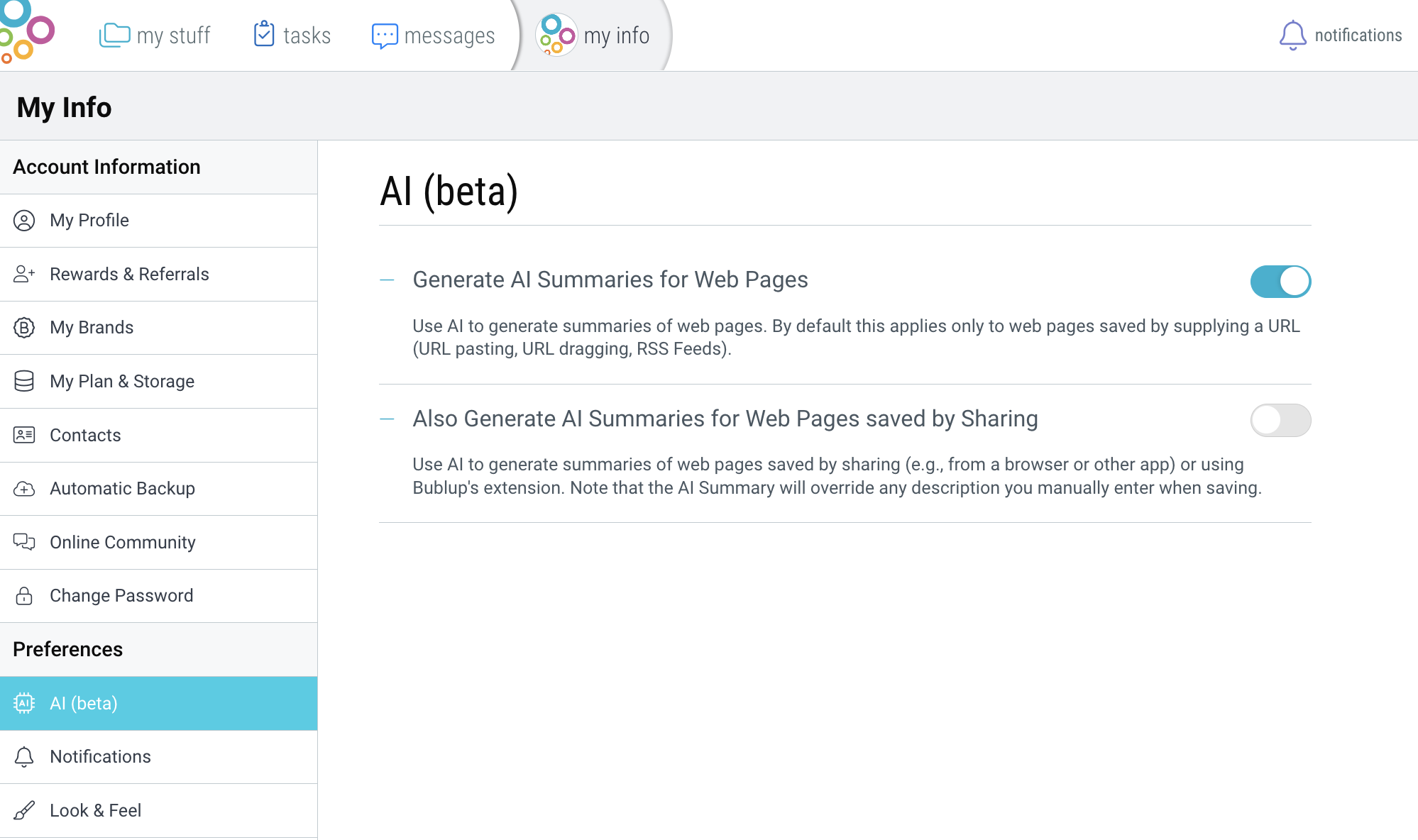
Generate AI Summaries for Web Pages
Use AI to generate summaries of web pages. By default this applies only to web pages saved by supplying a URL (URL pasting, URL dragging, RSS Feeds).
Also Generate AI Summaries for Web Pages saved by Sharing
Use AI to generate summaries of web pages saved by sharing (e.g., from a browser or other app) or by using Bublup’s extension. Note that the AI Summary will override any description you manually enter when saving.
Import Your Bookmarks (desktop-only)
You can easily import those webpages into Bublup if they are bookmarked in Chrome, Chromium, Safari, Microsoft Edge, or Firefox.
1. Export saved bookmarks from your browser by following the steps below.
Chrome/Chromium:
a. Select Bookmarks → Bookmarks manager.
b. Click on the 3-dot ( ⋮ ) menu on the upper-right side of the window (on the blue background), and select “Export Bookmarks”.
c. Choose a location to save the file, and click “Save”.
Safari
a. Open a new Safari window.
b. Select “File” → “Export Bookmarks”.
c. Choose a location to save the file, and click “Save”.
Microsoft Edge
a. Open a new Edge window.
b. Select “Favorites” → 3-dot (…) menu: “Export Favorites”.
c. Choose a location to save the file, and click “Save”.
Firefox
a. Open a new Firefox window.
b. Select “Bookmarks” → “Show All Bookmarks”.
c. From the toolbar, click on the button with the two arrows, and choose “Export Bookmarks to HTML”.
d. Choose a location to save the file, and click “Save”.
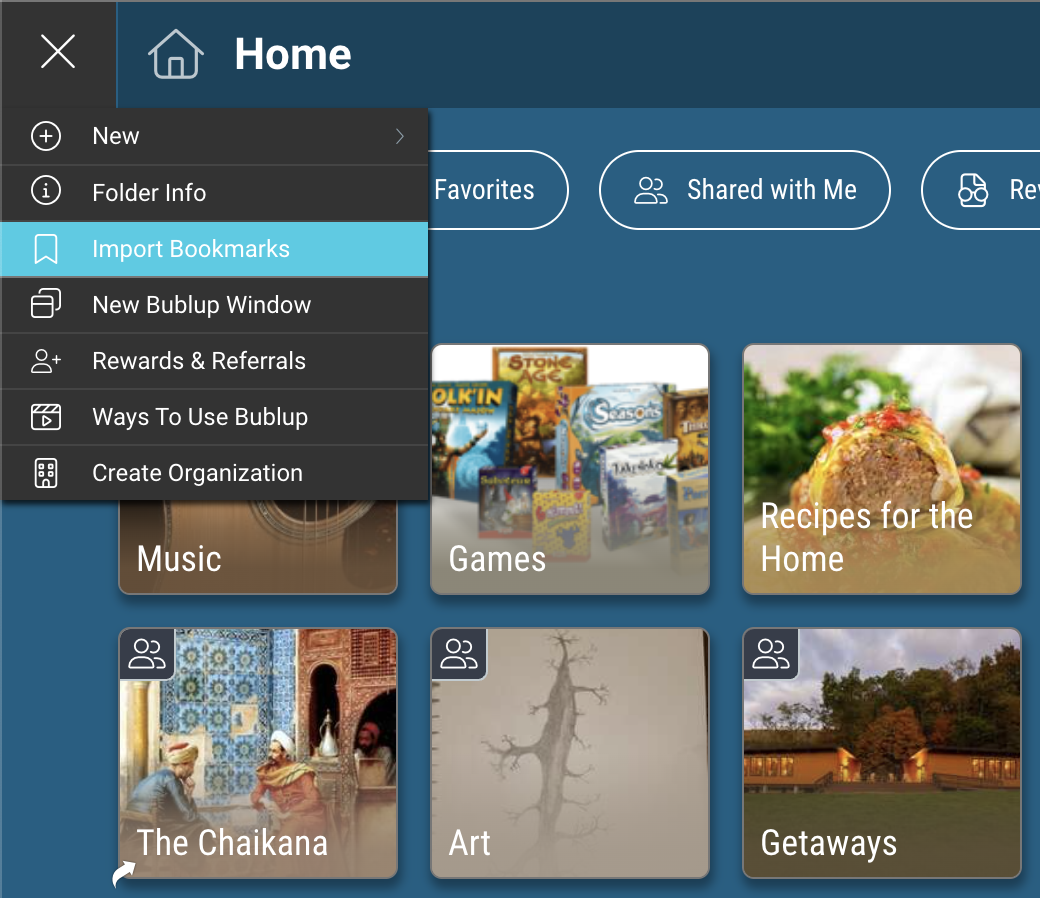
2. Go to “Home” and click on the (☰) menu on the left. Select “Import Bookmarks” among the menu options.
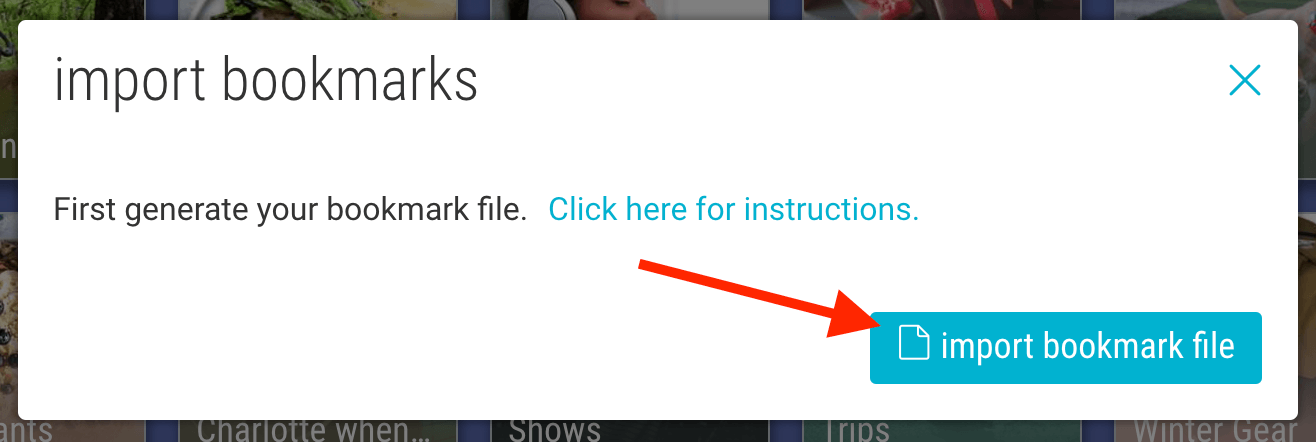
3. Click “import bookmark file” and choose the bookmarks file from your desktop. A folder will automatically be created in Bublup with all of your bookmarks. You can then reorganize these links within in Bublup if you wish.
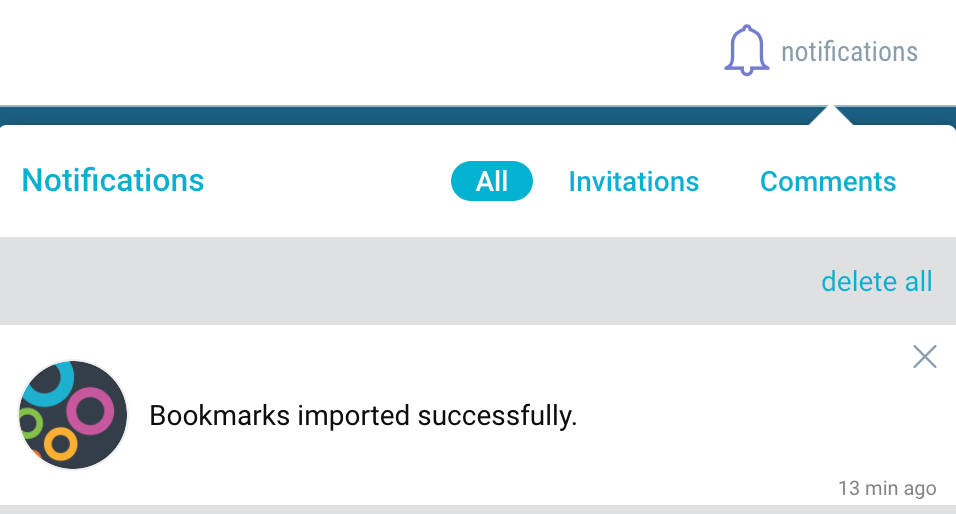
4. You will receive a notification when the import is complete. Note: If you have a large number of bookmarks, the import process may take longer.
Manage Offline Mode (mobile-only)
Set items or spaces to be viewable offline on your mobile device.
To set content as viewable offline:
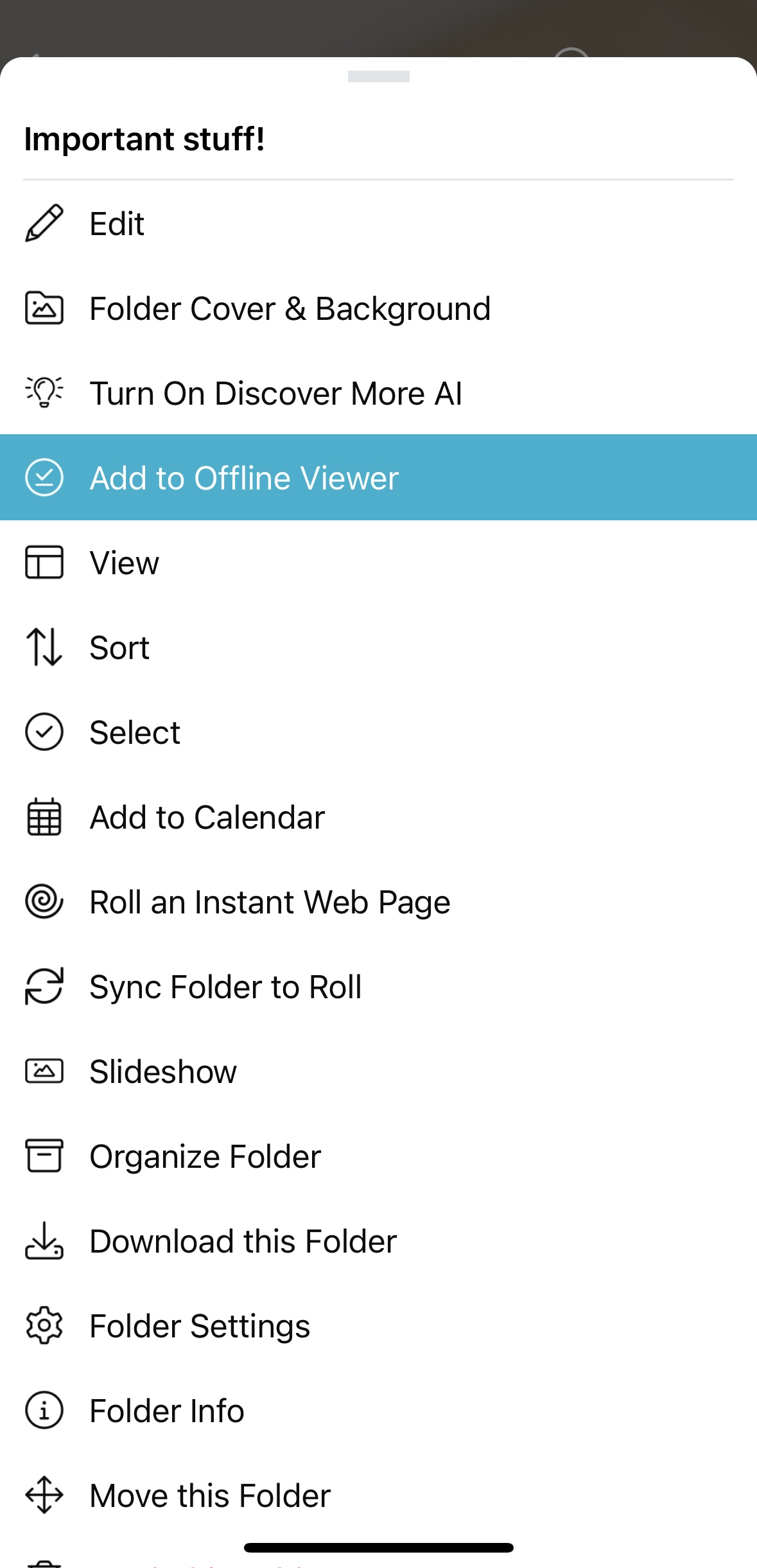
Tap on the 3-dot menu of a space or item, and select “Add to Offline Viewer”.
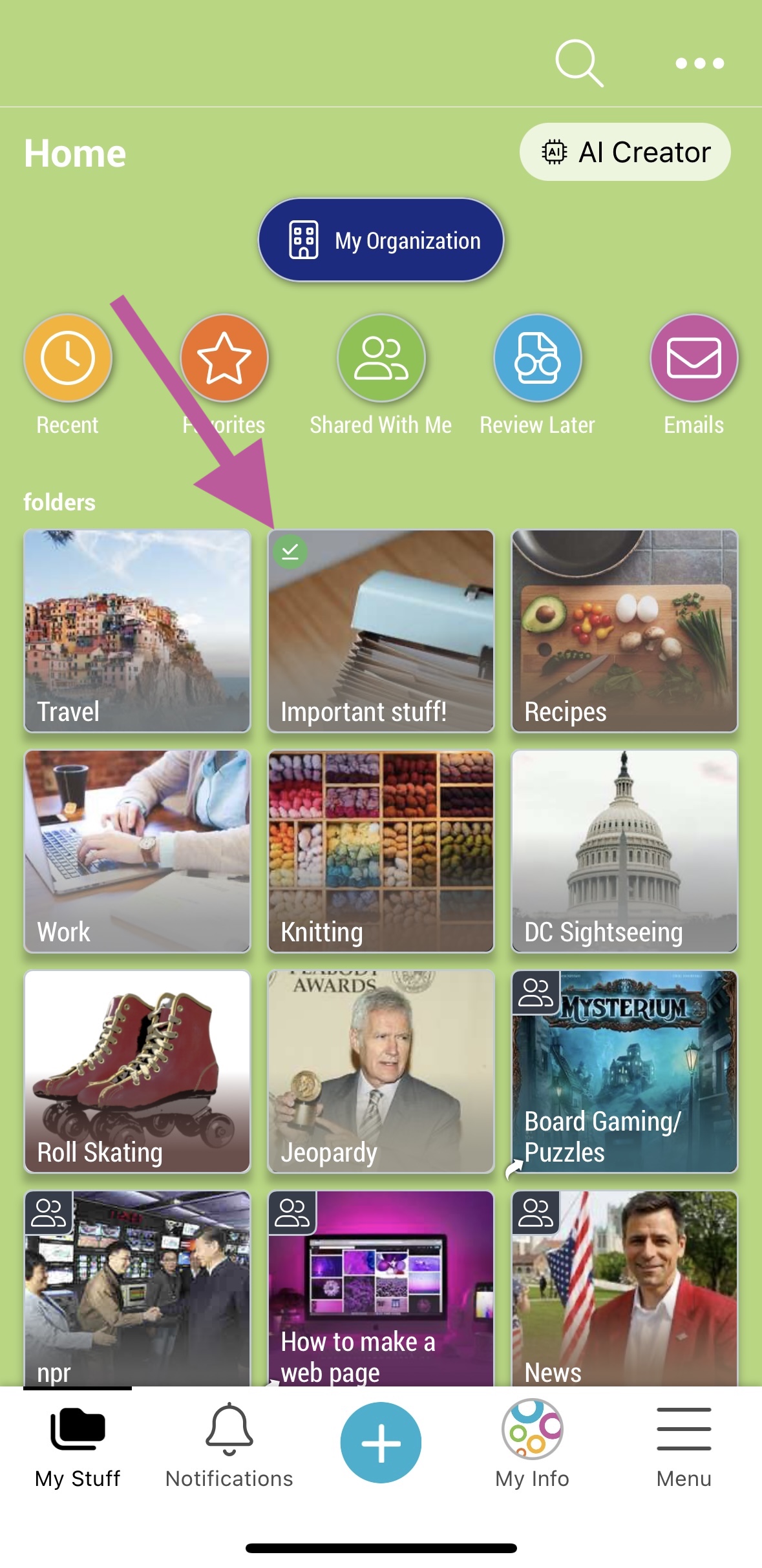
Spaces and items marked for offline view will show a green check mark in the upper-left corner.
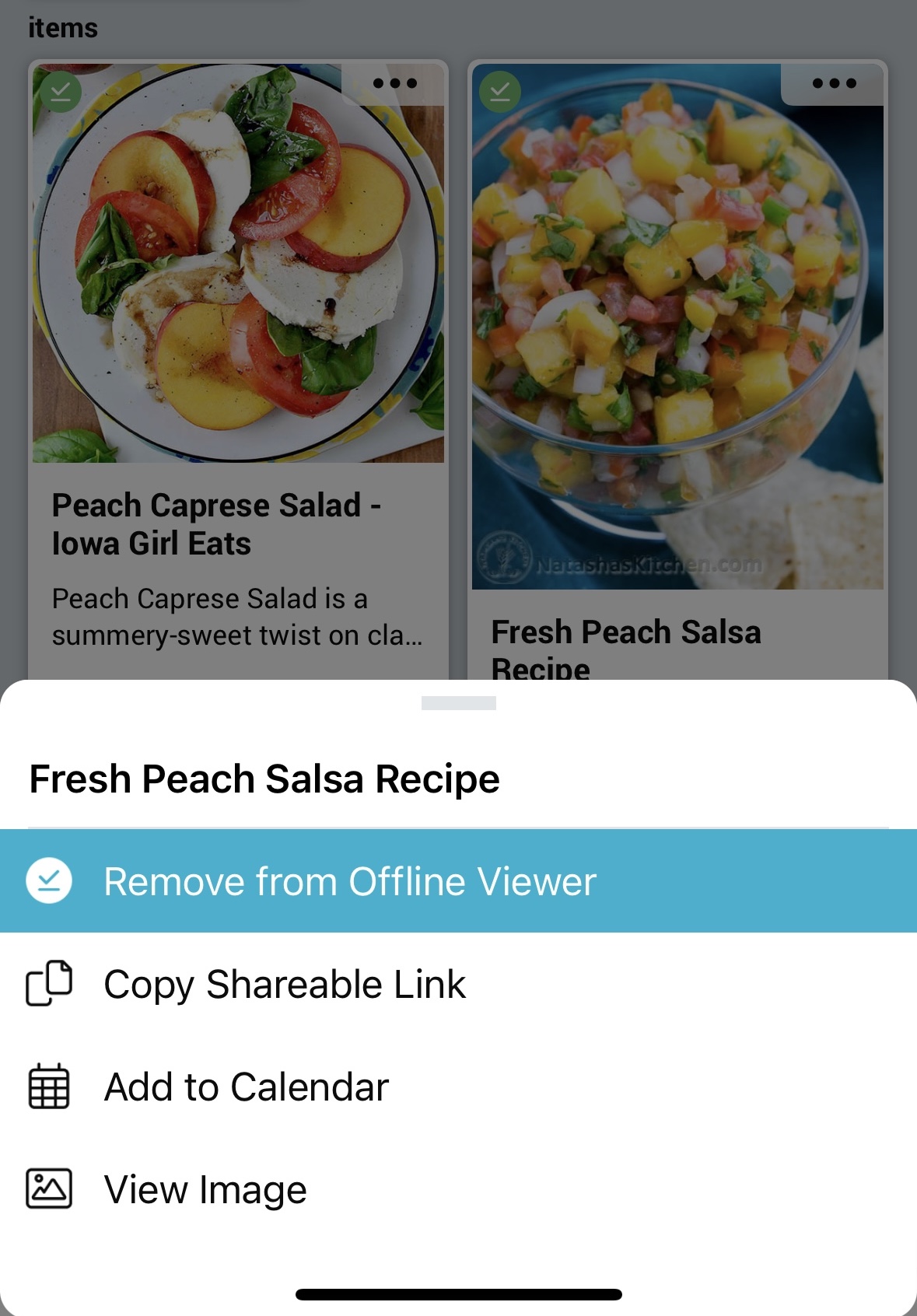
To remove a space or item from offline view, click on the three-dot menu and select “Remove from Offline Viewer”.
Note: Offline mode is on a per-device basis. If you use multiple mobile devices, you will need to set content as viewable offline on each of your devices.
Viewing offline content:
Tap on the (☰) menu in bottom right of the navigation bar, then select “Offline Viewer”.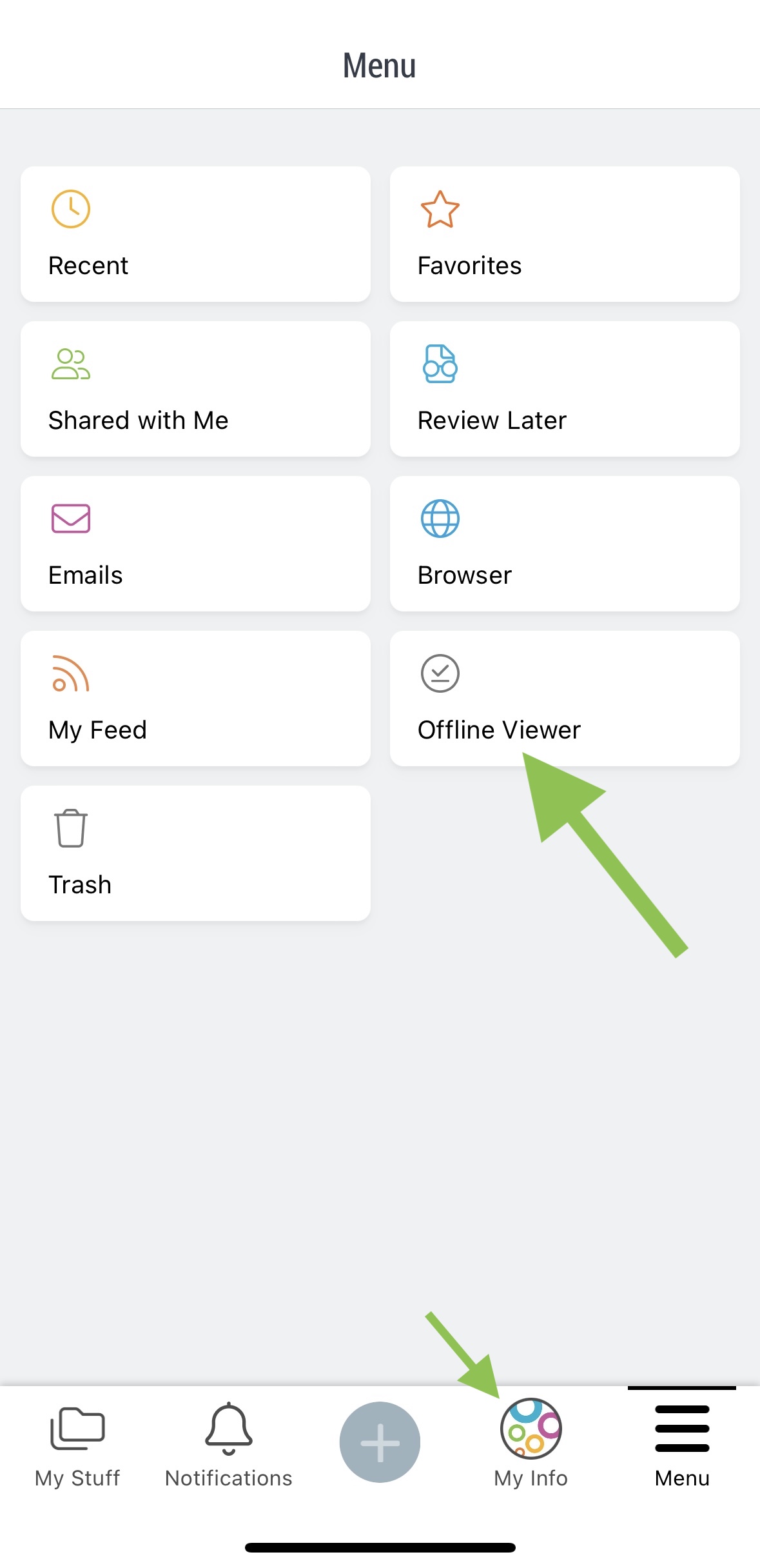
Here you will be able to view all the spaces and items set to view offline.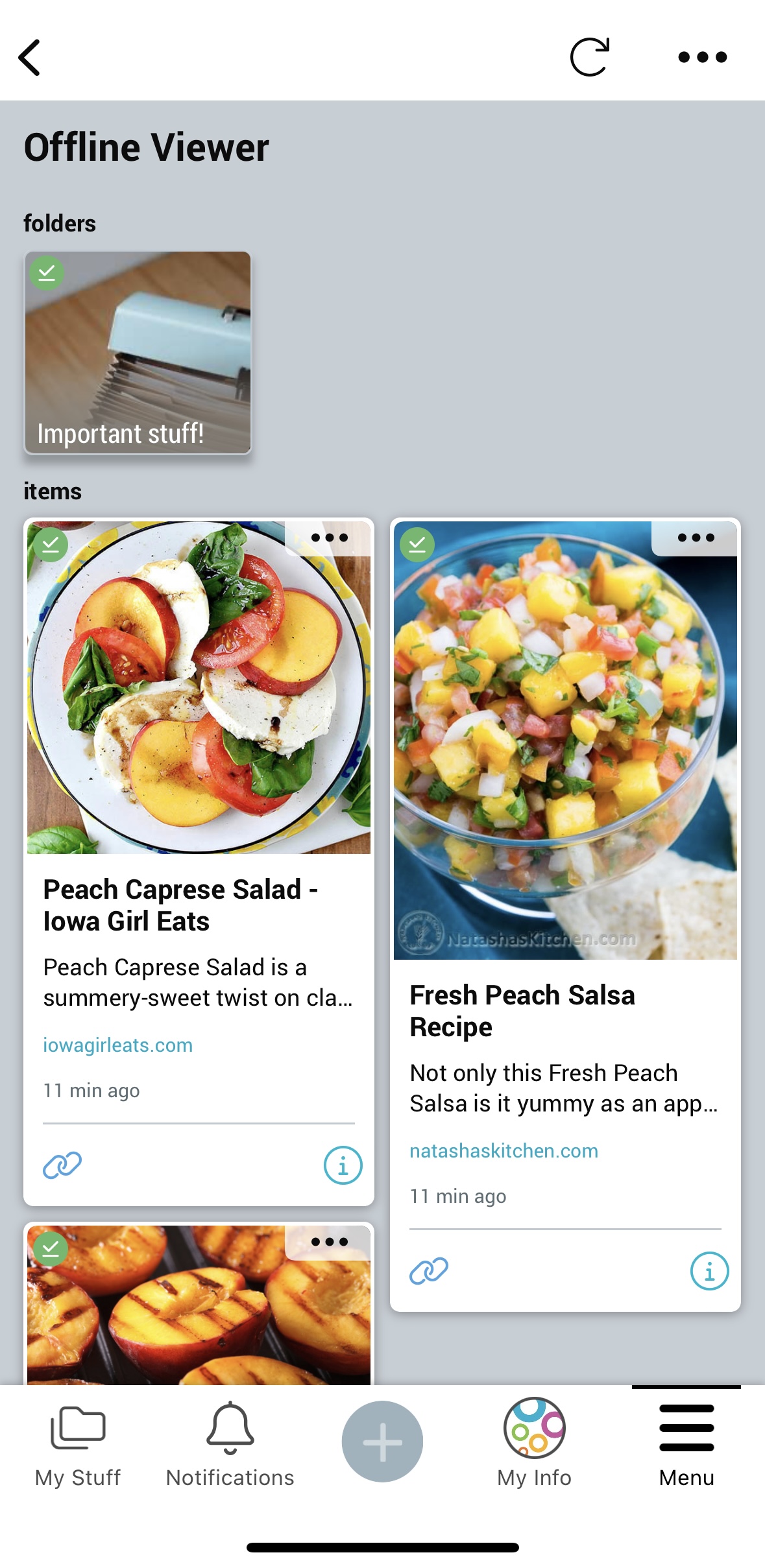
You will be able to access these in the app even when your device has no Wi-Fi or cellular signal.
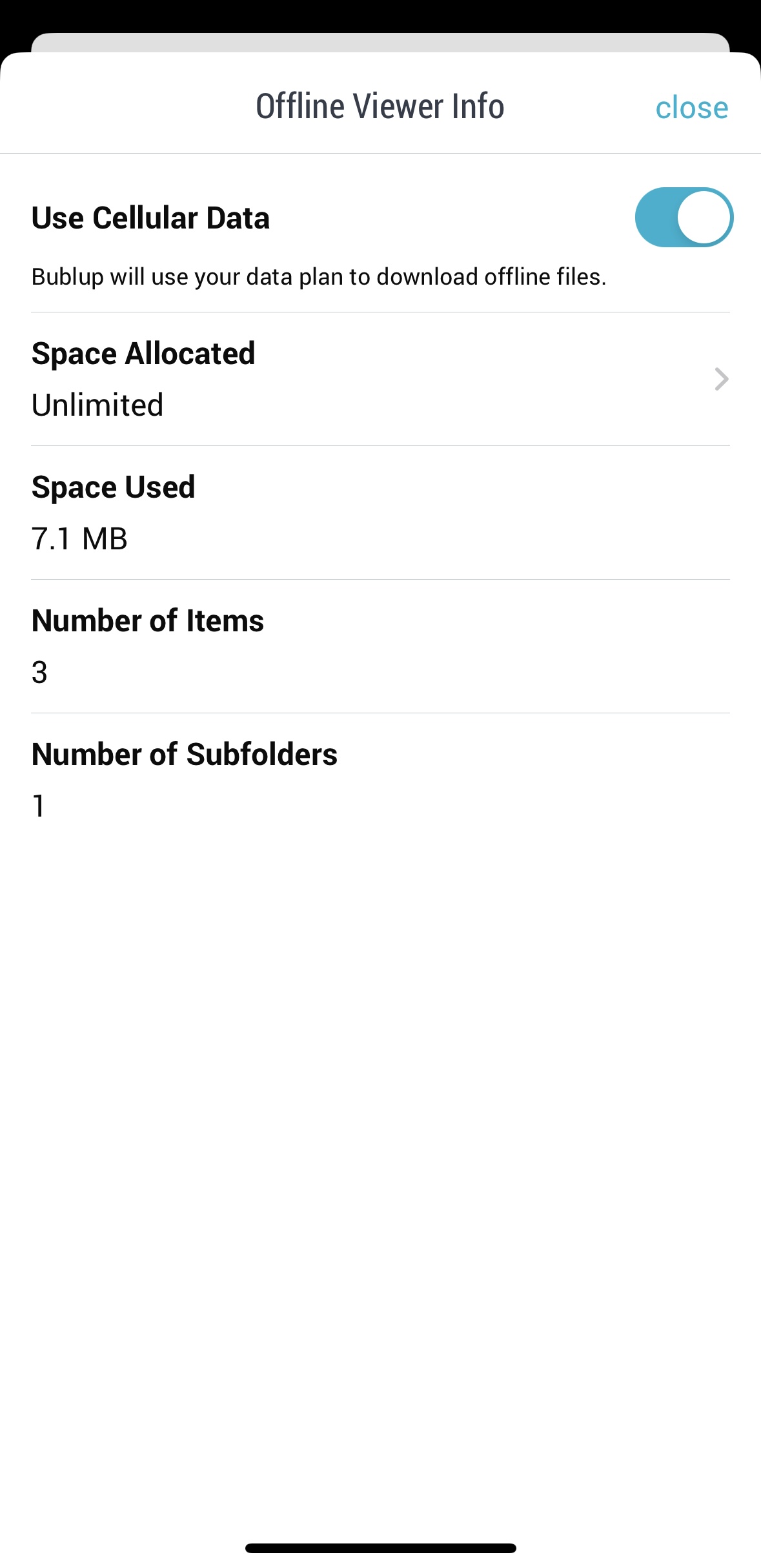
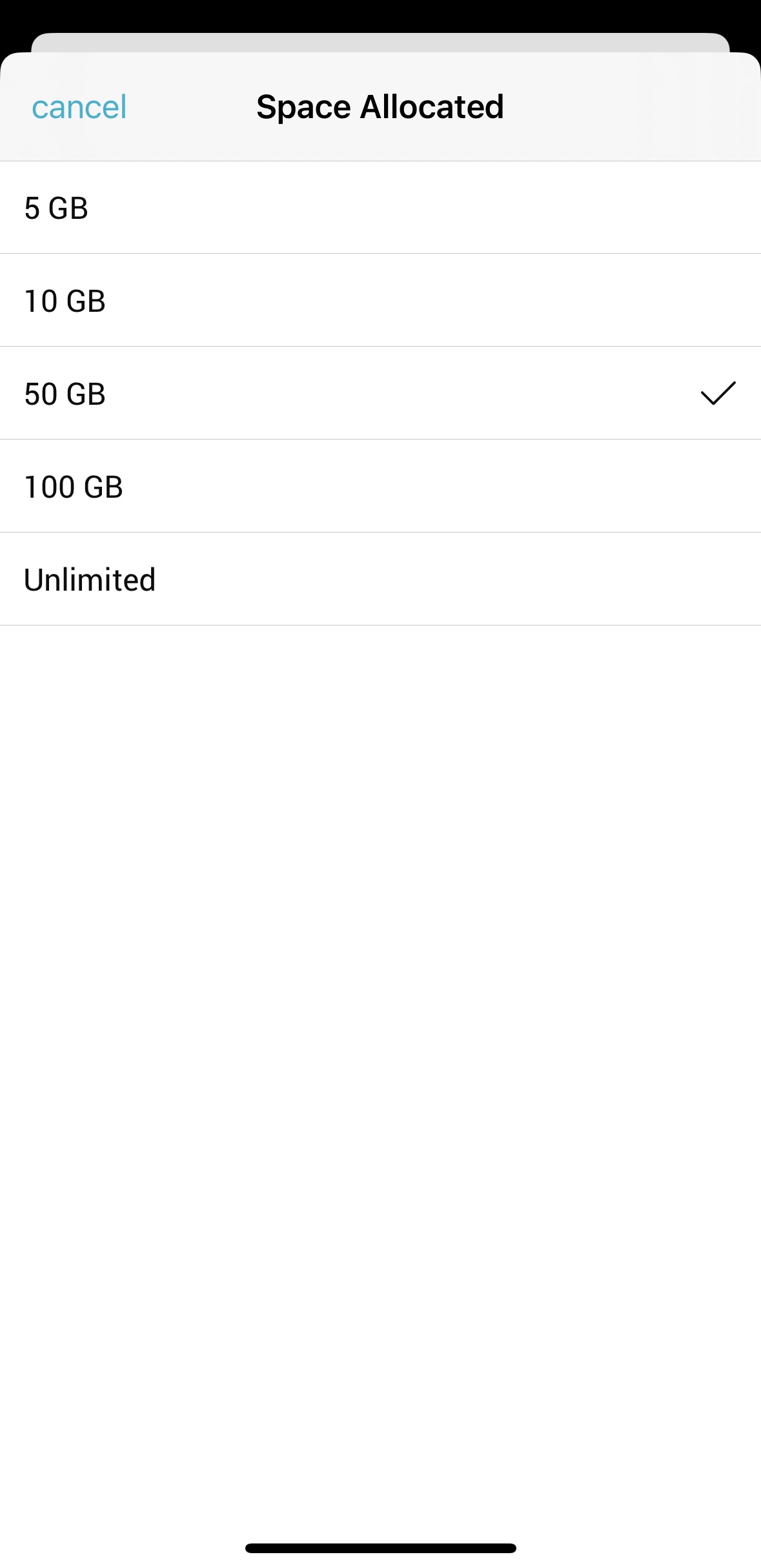
Click on the three-dot menu and select “Offline Viewer Settings” to adjust settings such as cellular data use and local storage limits.
Note: Offline mode is for viewing only. You will not be able to edit your content in offline mode.
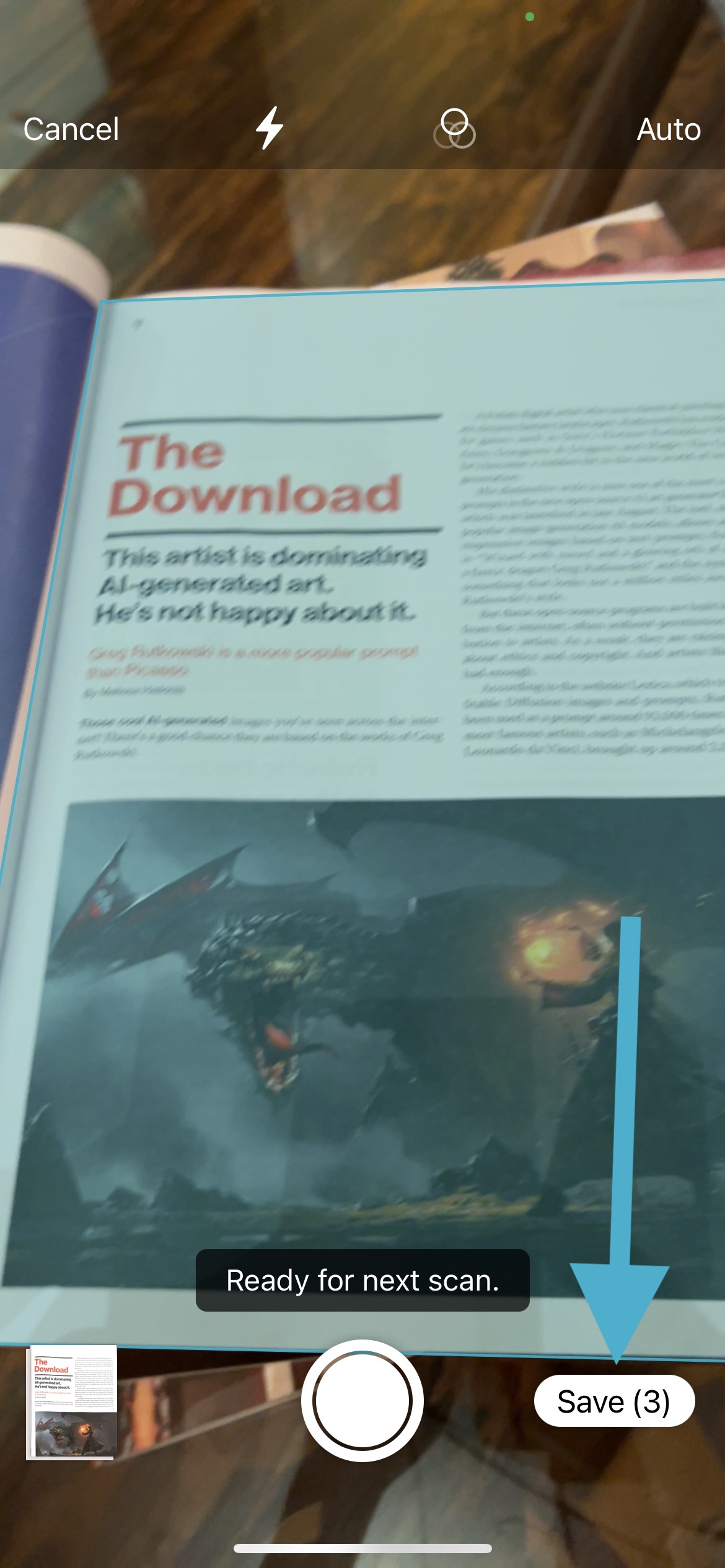
Scan Documents (iOS-only)
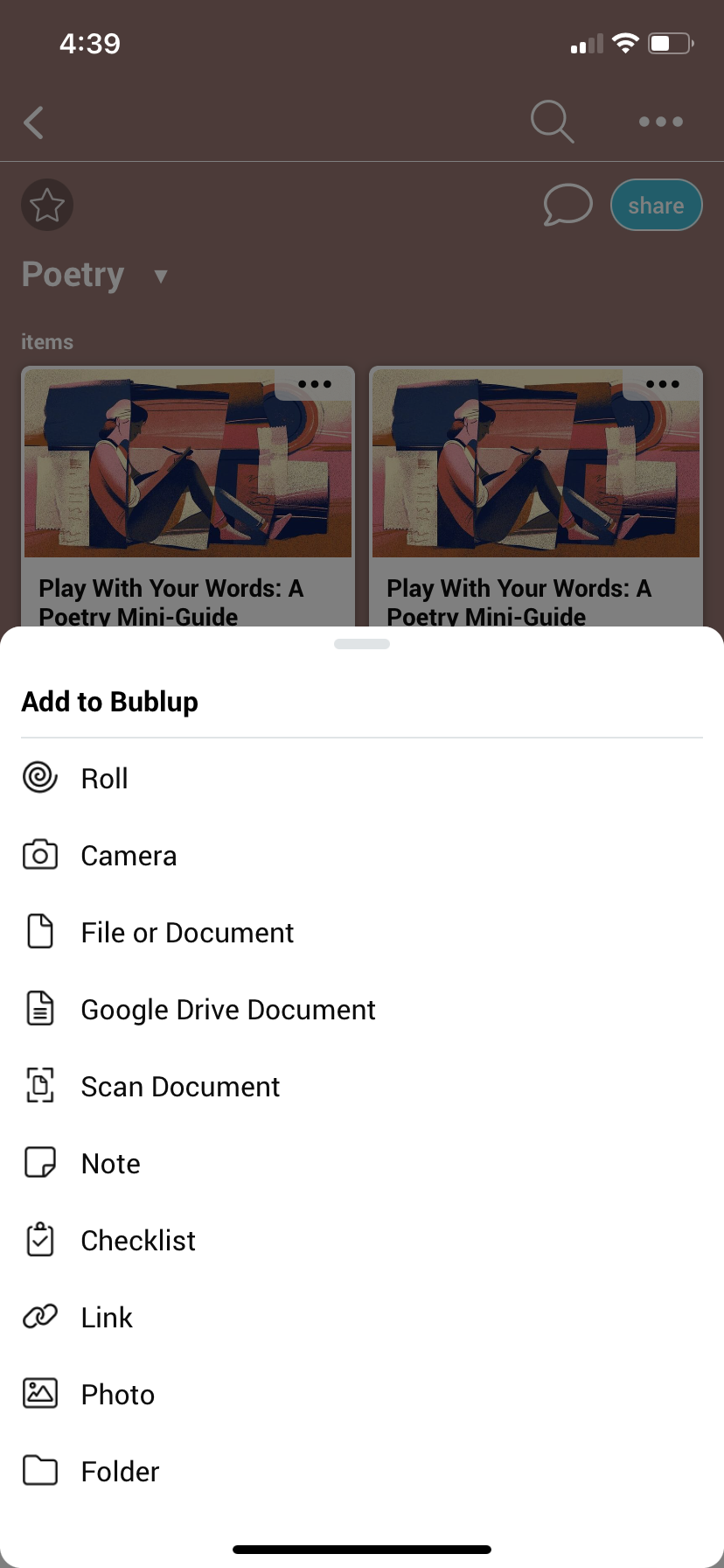
1. Use the “+” button and select “Scan Document”.

2. Take one or more scans of documents, allowing the scanner to automatically select the document dimensions. When complete, tap “save”.
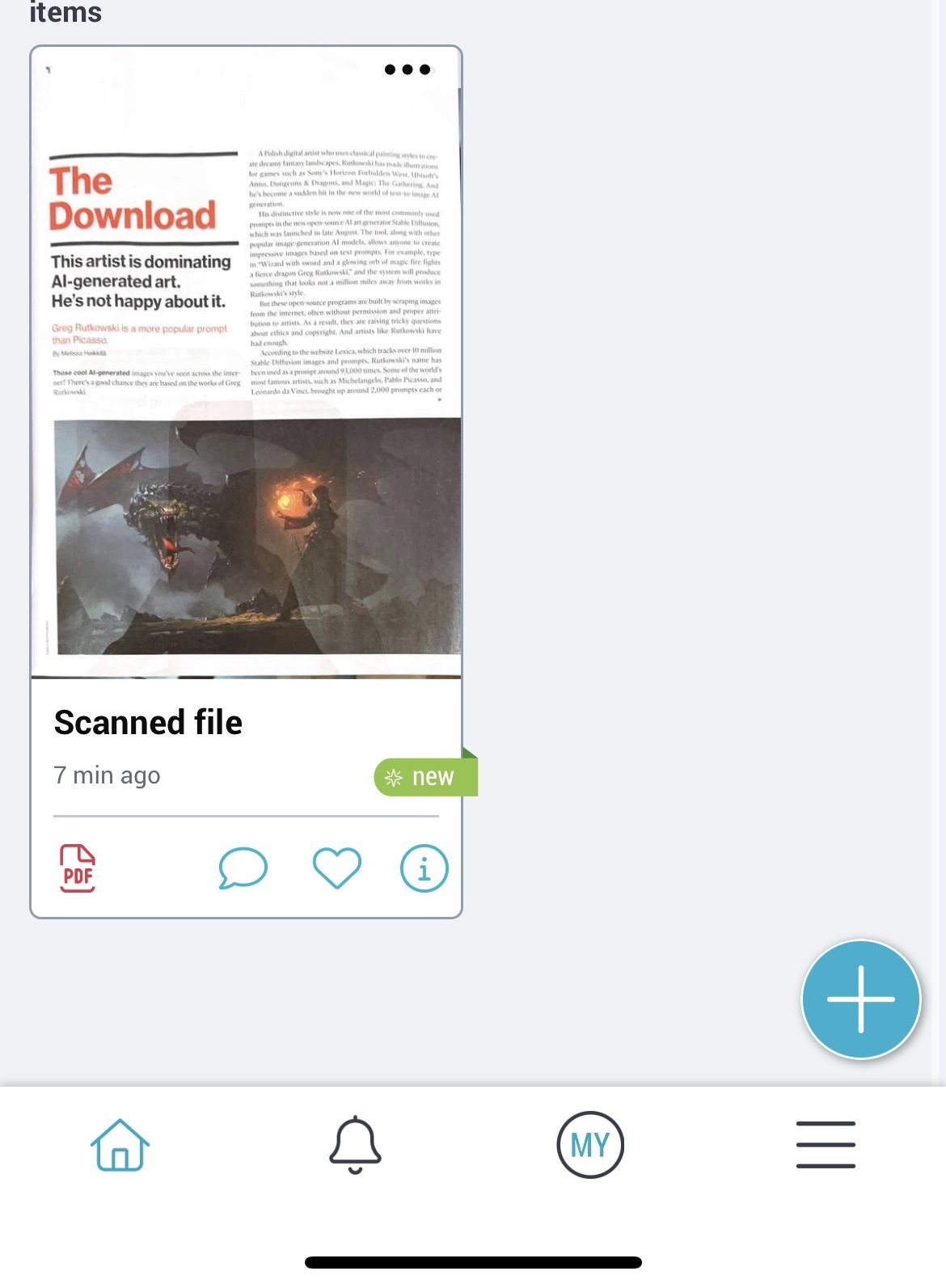
3. Optionally title your document collection, then hit “save” to save it as a PDF.

Create Rolls (instant web pages)
A roll is a web page made from a Bublup space in just a few clicks. No matter the type of content in your space, Bublup lays it out in an easy-to-share format.
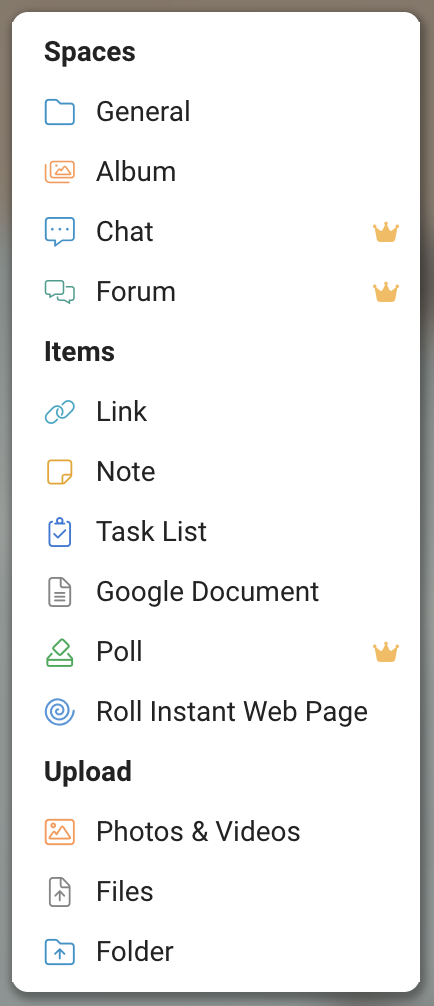
1. Click the ‘+’ button in the bottom-right corner of your space.

2. Click on the ‘Roll’ option in the menu.
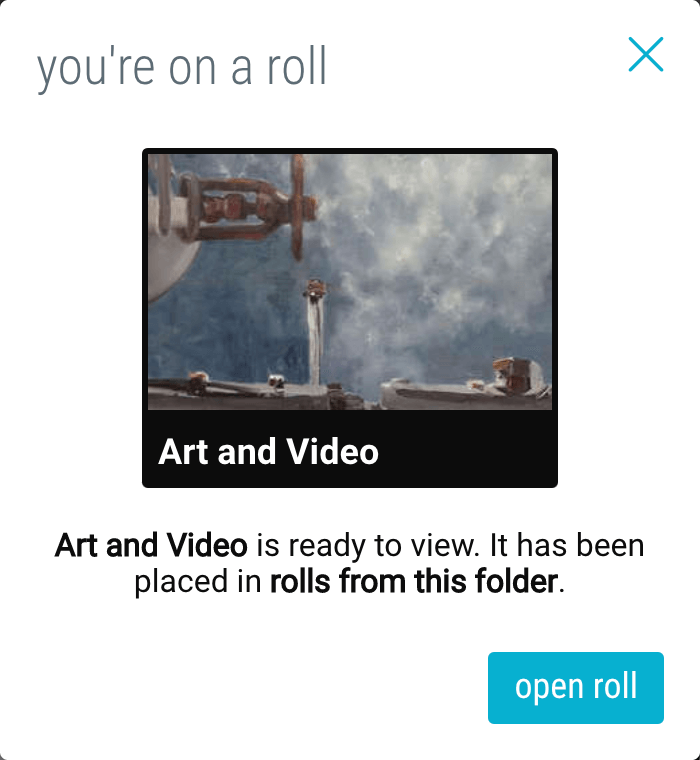
3. Click the “open roll” button in the confirmation box.
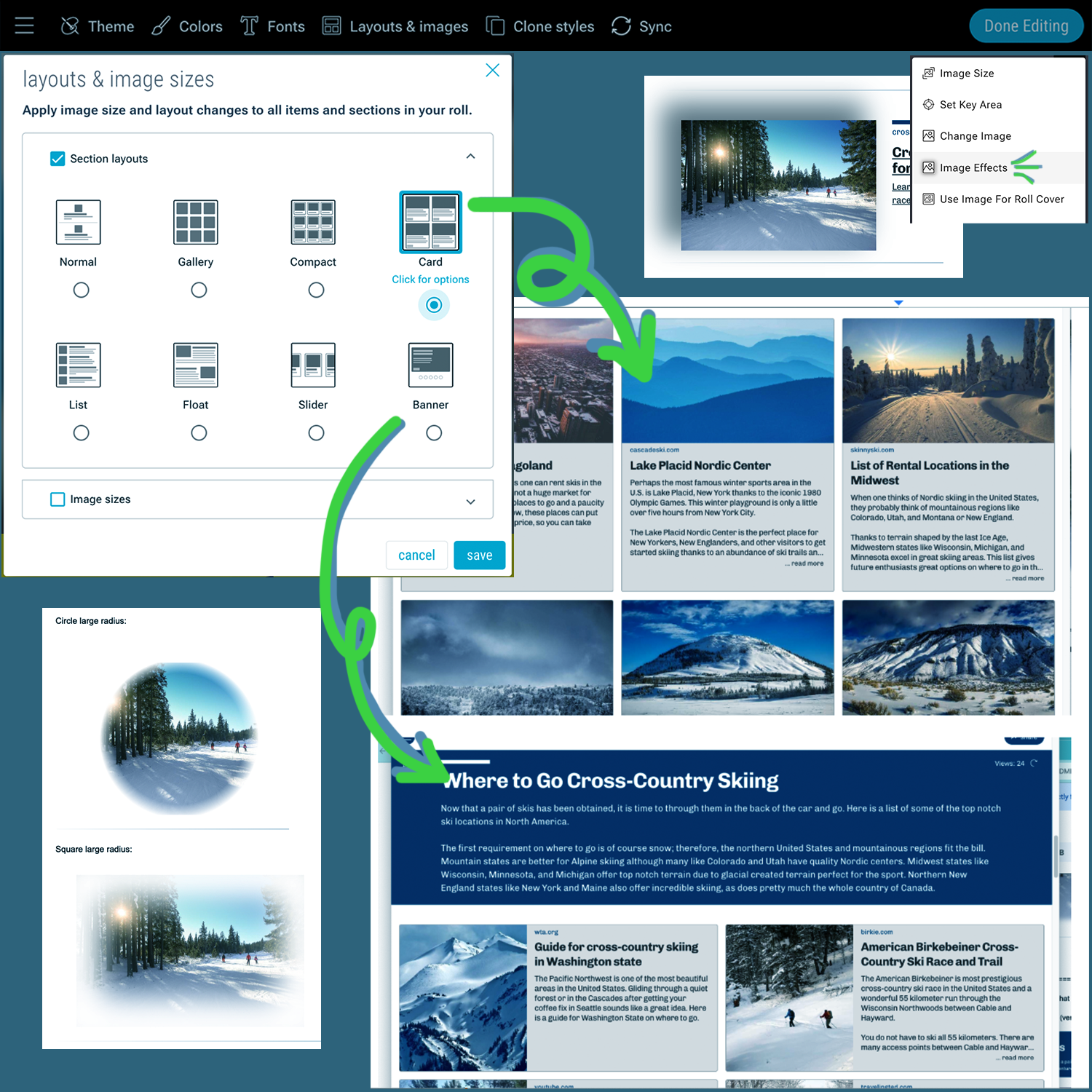
Roll Customization
Choose from different themes, layouts, and colors. Add jump-to links, widgets, password protection, and more. Apply custom branding and domain urls.