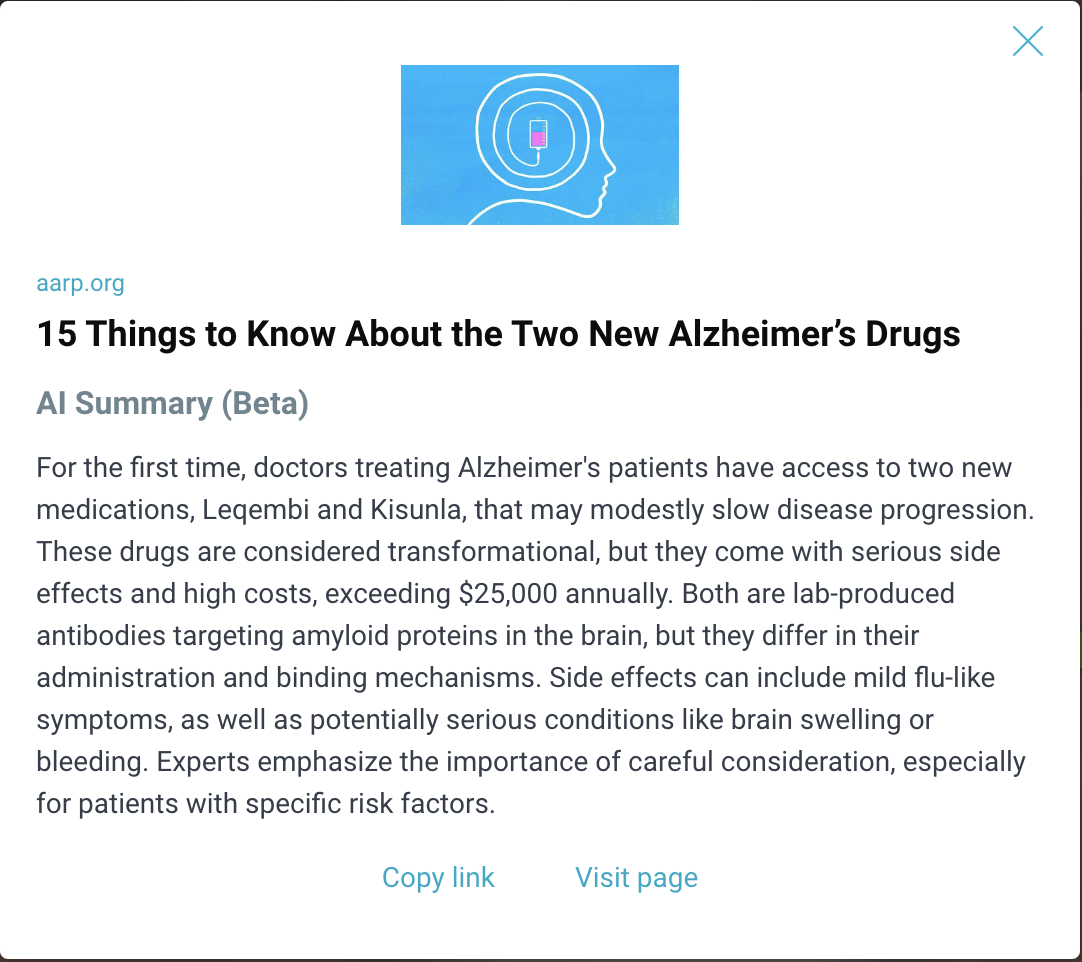

Types of Spaces
Spaces are content is organized in Bublup. In addition to a Community space, there are spaces catered towards specific use cases.
The different space types include:
- Community (1 per Organization)
- General Content
- Albums
- Chats
- Forums
- Feeds
To learn more about the different space types, click here.
Items within Spaces
Within spaces, there can be many different types of content:
- Links
- Notes
- PDFs
- Documents
- Photos
- Videos
- Audio files
- Task lists
- Forum posts
- Polls
- Imported folders or files
- Google Docs, Sheets, Slides and Forms
In shared spaces, free users can view, comment, and react to content within a space. They can also create posts inside of Forum spaces. Paid users with “add”, “edit”, or “admin” permission in a space can add content via the “+” menu.

Community Member Profiles
Community admins can enable and customize community profiles. When you join a Community where this feature is enabled, you’ll be prompted to fill out your profile information.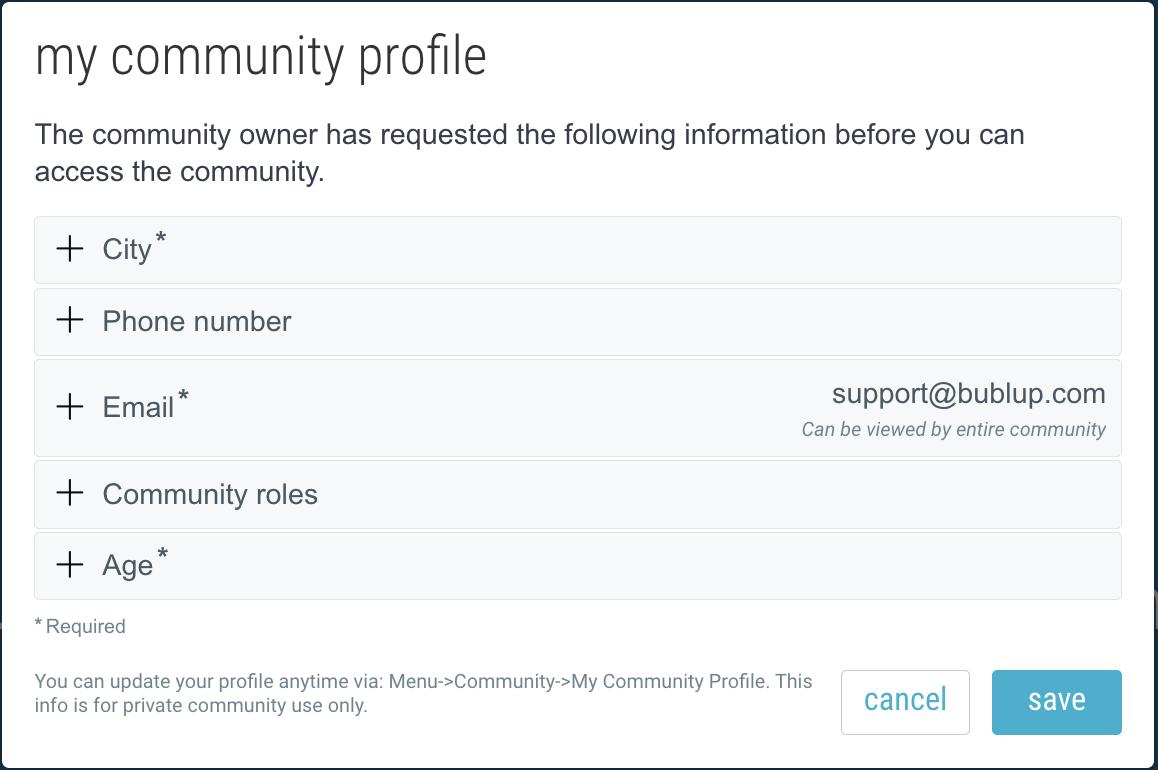
To view and edit your profile information, open the Community folder and go to ☰Menu > “Community” > “My Community Profile”.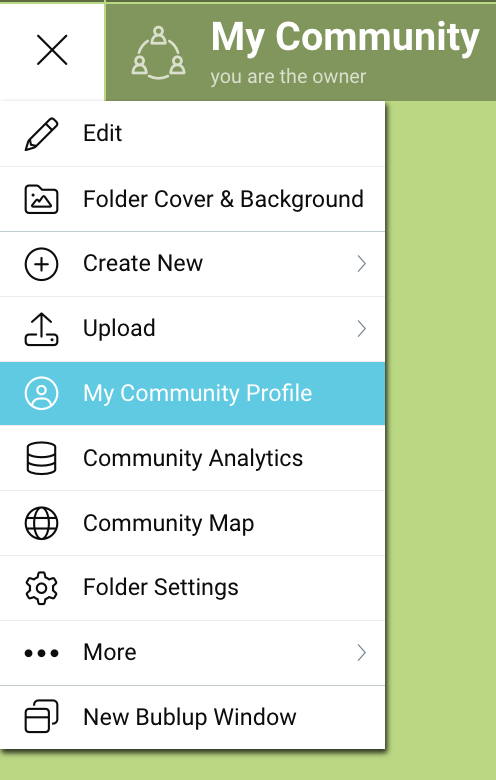
These profiles may include custom fields that can used by community admins to auto-assign members into specific community teams.
Forums Posts
Member Permissions:
- Only Owners or Admins can create forum spaces.
- All members can create new posts, as well as comment and react to existing posts.
- A post can only be edited by its original author.
- An admin can “lock” a post to disable new comments and reactions.
- If a post has no comments, the author can delete it. Once there are comments, only the space owner or admin can delete it.
Creating Posts within a Forum
Inside a Forum space, tap on “Start a post…” or use the + button to create a new post. Give your post a title and write your thoughts. You can also optionally include an attachment or add a cover image. Tap “post” in the upper-right corner to publish.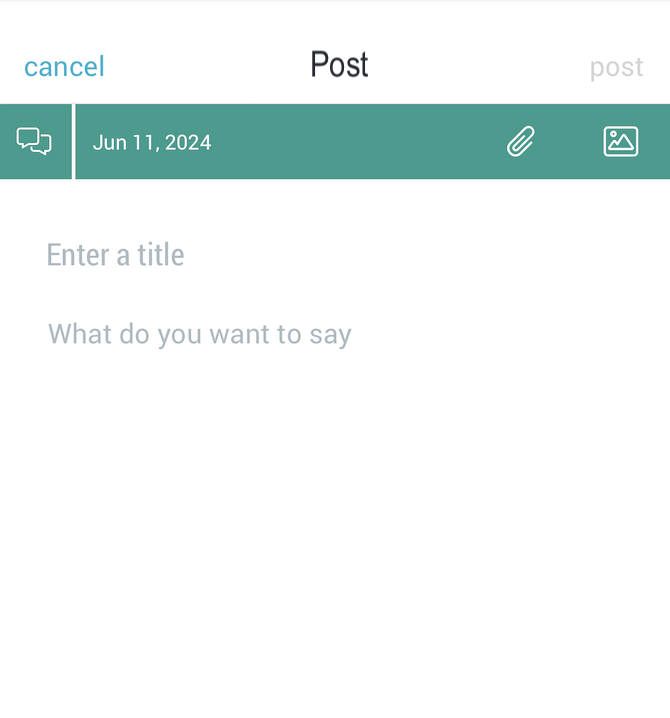
Track how many views, comments and reactions your post receives. Use the 3-dot menu to edit your post.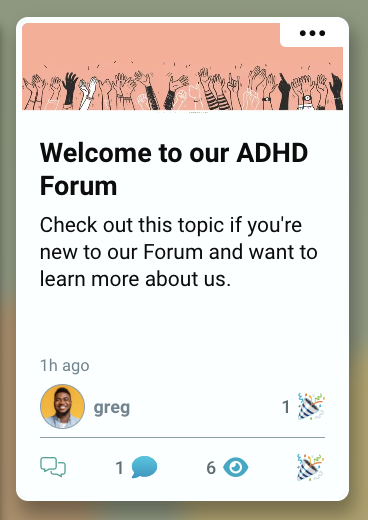
Interacting in Forums
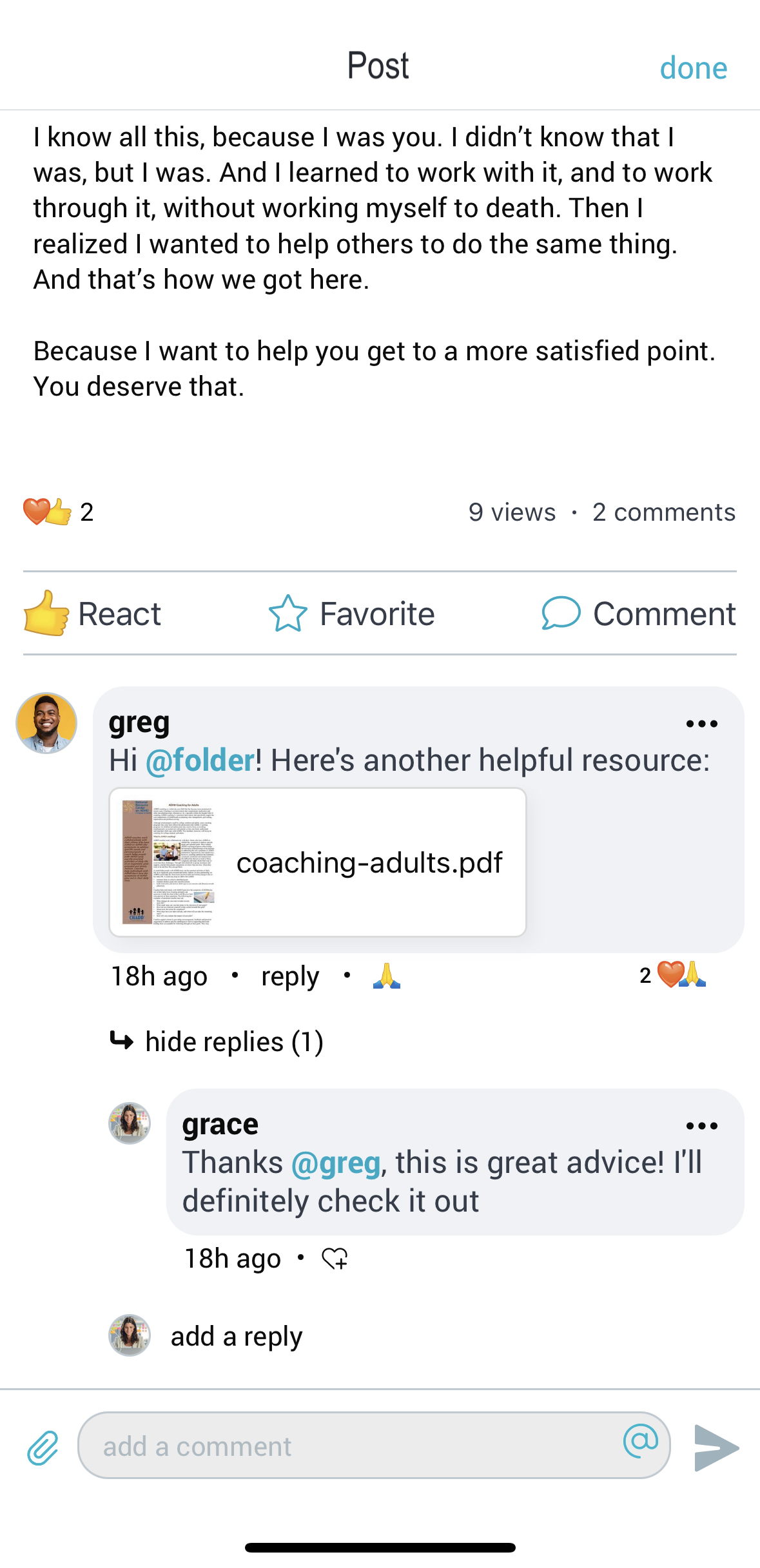
Tap on a post to open it. View and react to existing comments and attachments, or add your own. Use the @ symbol to tag users in your comments. Use the paperclip symbol to include attachements of your own.
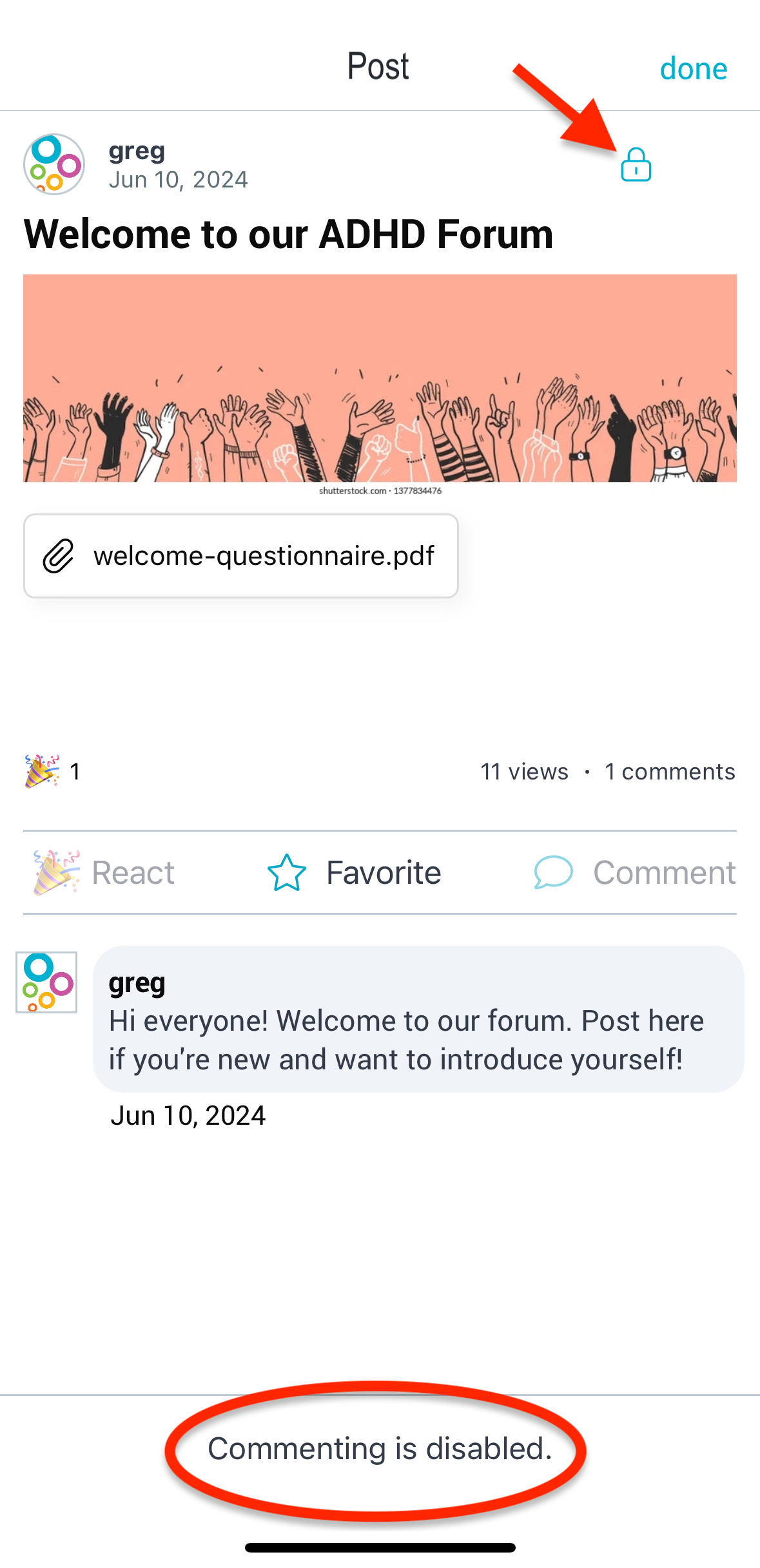
Locking a Post:
An admin can “lock” a post to disable new comments and reactions. Once a post is locked, members will not be able to add new comments or reactions. Existing comments and reactions will still be visible.
Community Directory & Map
Bublup’s interactive Community Directory & Map feature lets you see where community members and entities are located around the world—bringing people together.
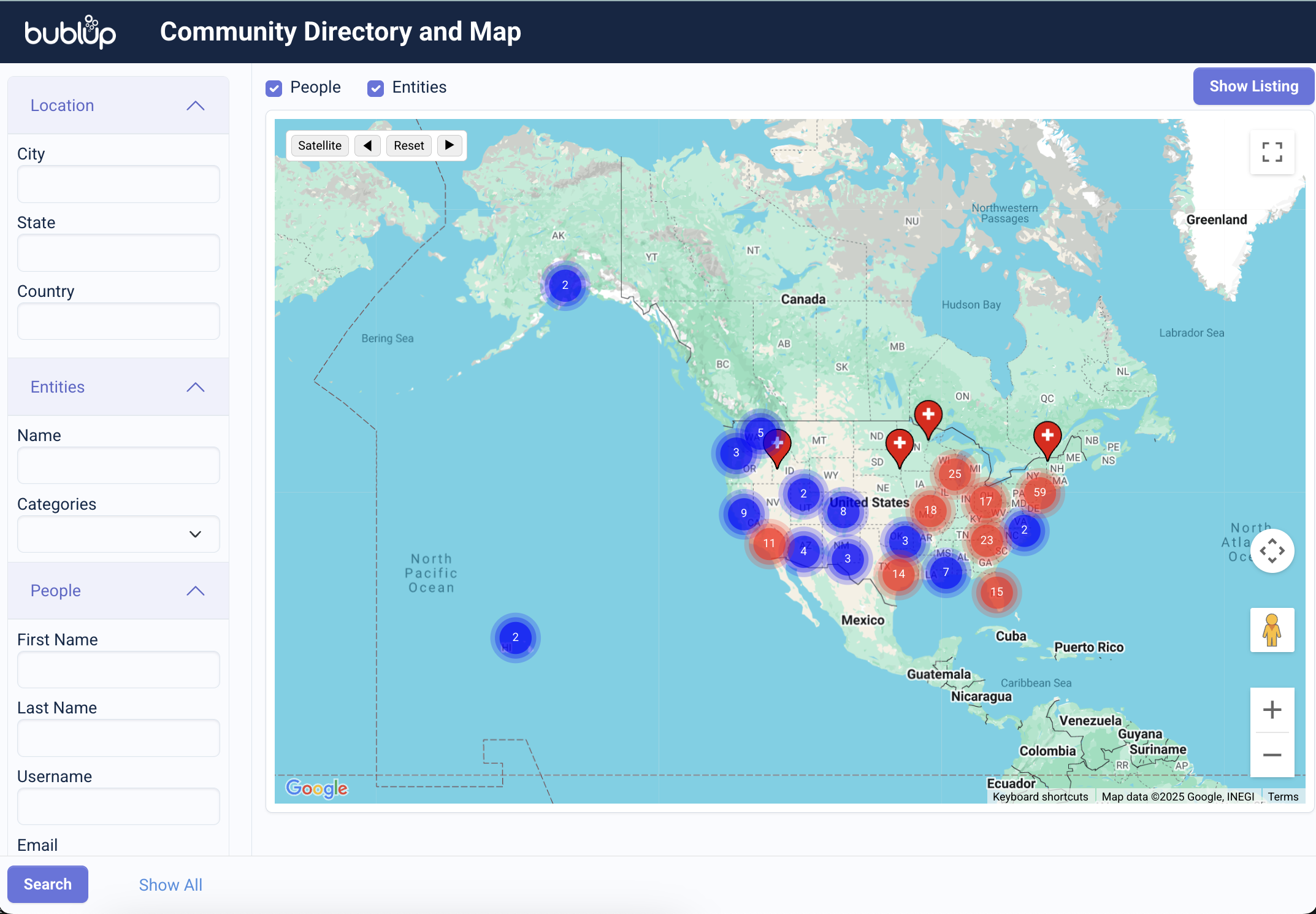
The map shows pins or clusters of where members are located based on their profile settings. It gives you a live, zoomable view of your group’s geographic spread, offering a better sense of the global community you’re a part of.
Privacy note: Users must opt-in to share their approximate location. Exact addresses are never displayed, and locations are generalized for safety.
This feature requires a Business or Enterprise plan to set up, but all community members can participate.
How to Access the Directory & Map
- Open your Community space and go to ☰ menu (on mobile, ••• menu) →“Community Directory & Map”.
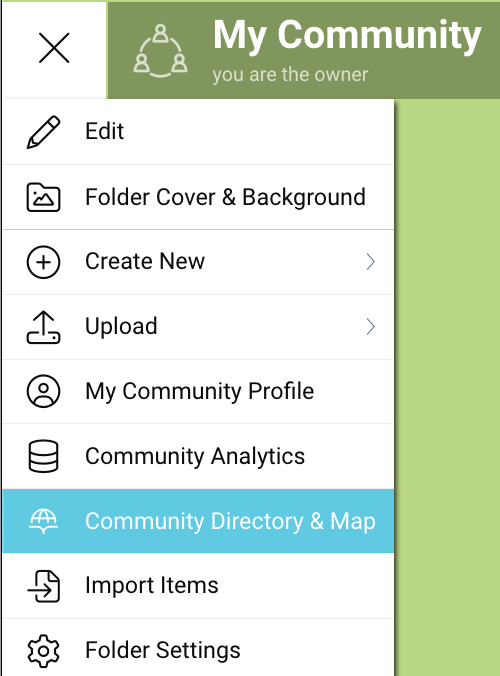
- This will open a separate tab with the community directory & map dashboard.
How It Works
- Zoom & Pan: Use your mouse or touch gestures to explore different areas of the map.
- Member Clusters: In areas with many members, pins will group together. Click on a cluster to zoom in and see individual members.
- Item Location Tags: Any items with location information set will also appear on the map.
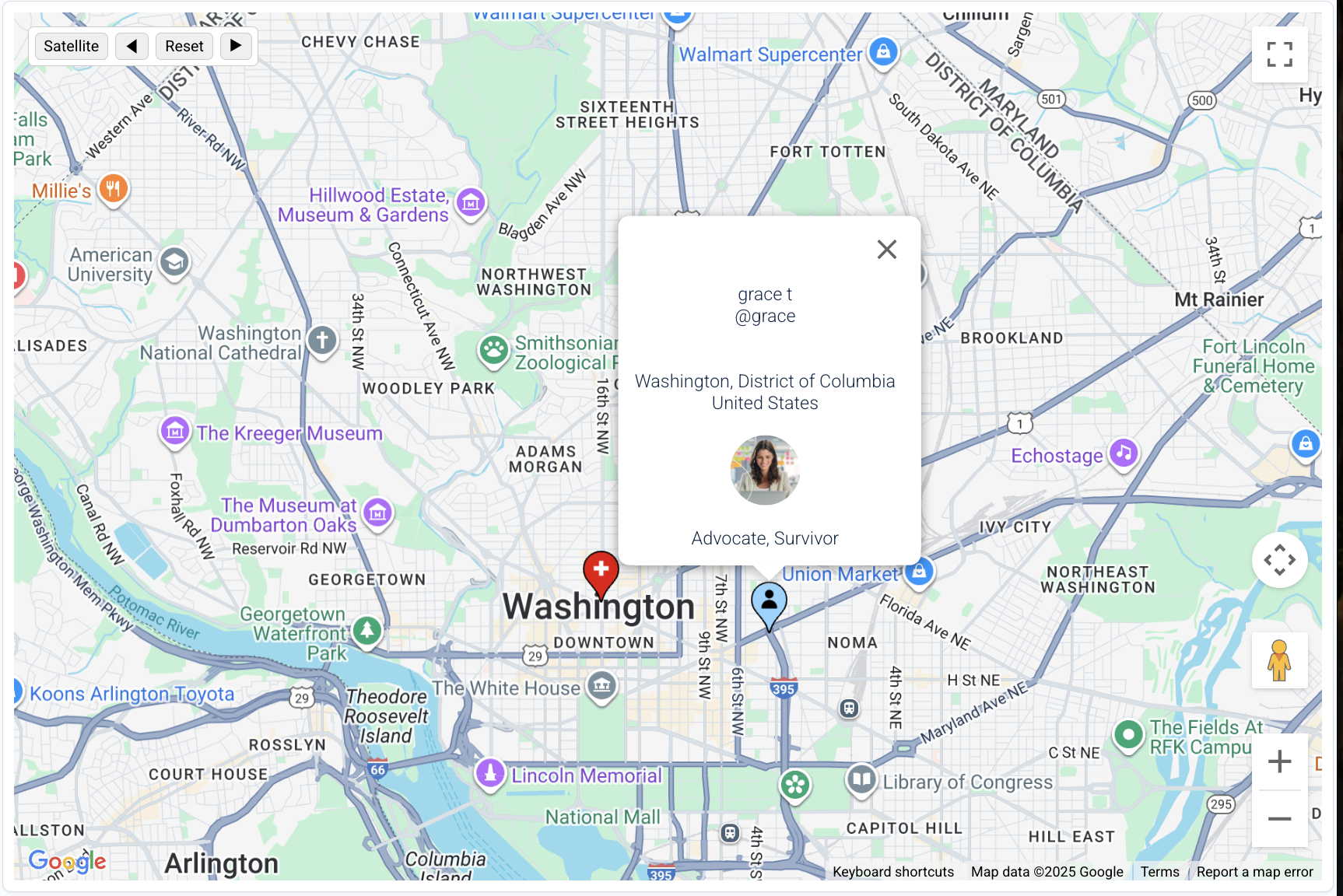
- Click on Pins: Tapping a location pin reveals either a member’s community profile or an entity’s location information.
How to Search the Directory & Map
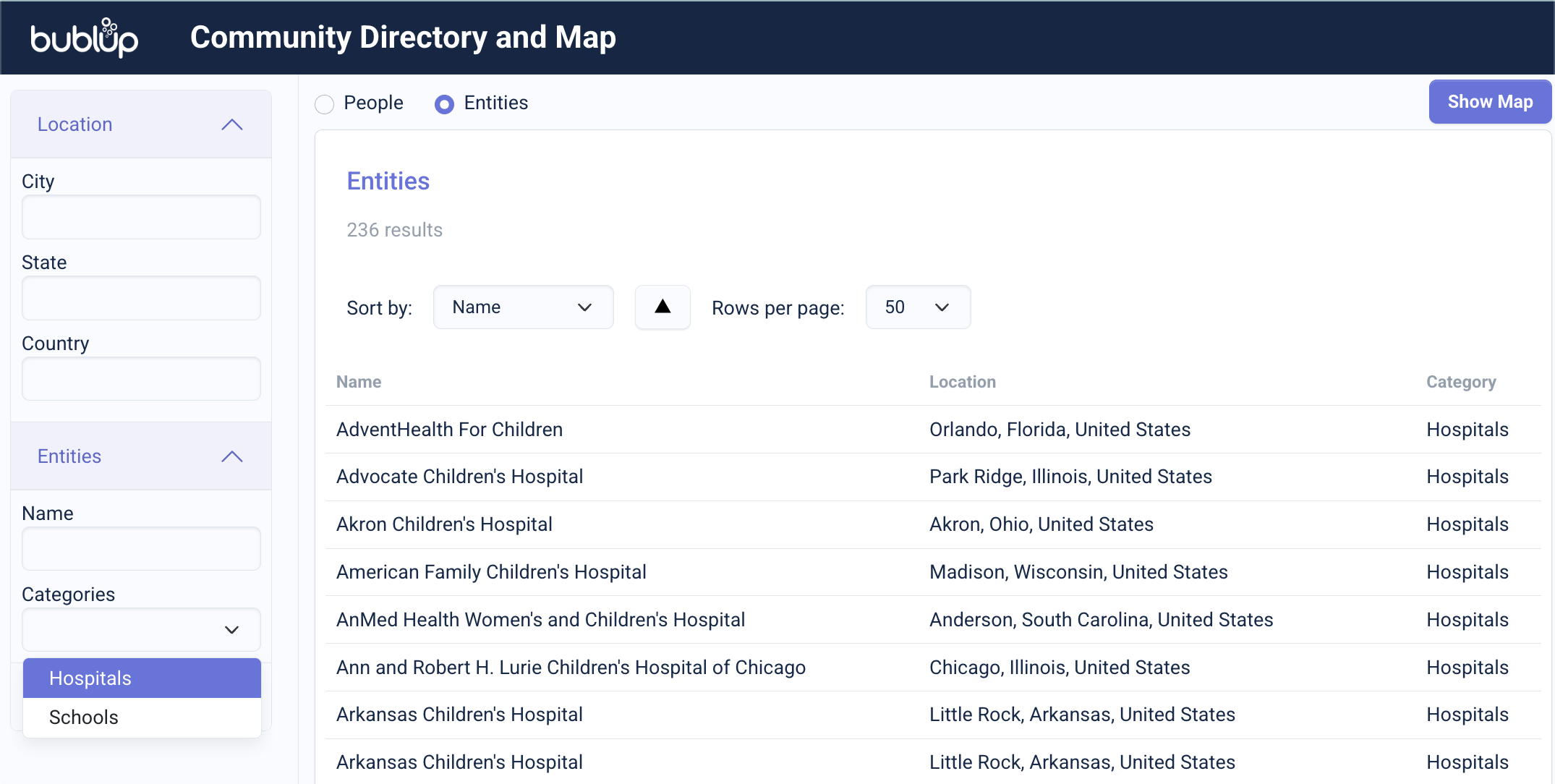
You can search based on a location, entity category, or person. In directory view, choose between searching “people” or “entities”. In map view, enable “people”, “entities” or both.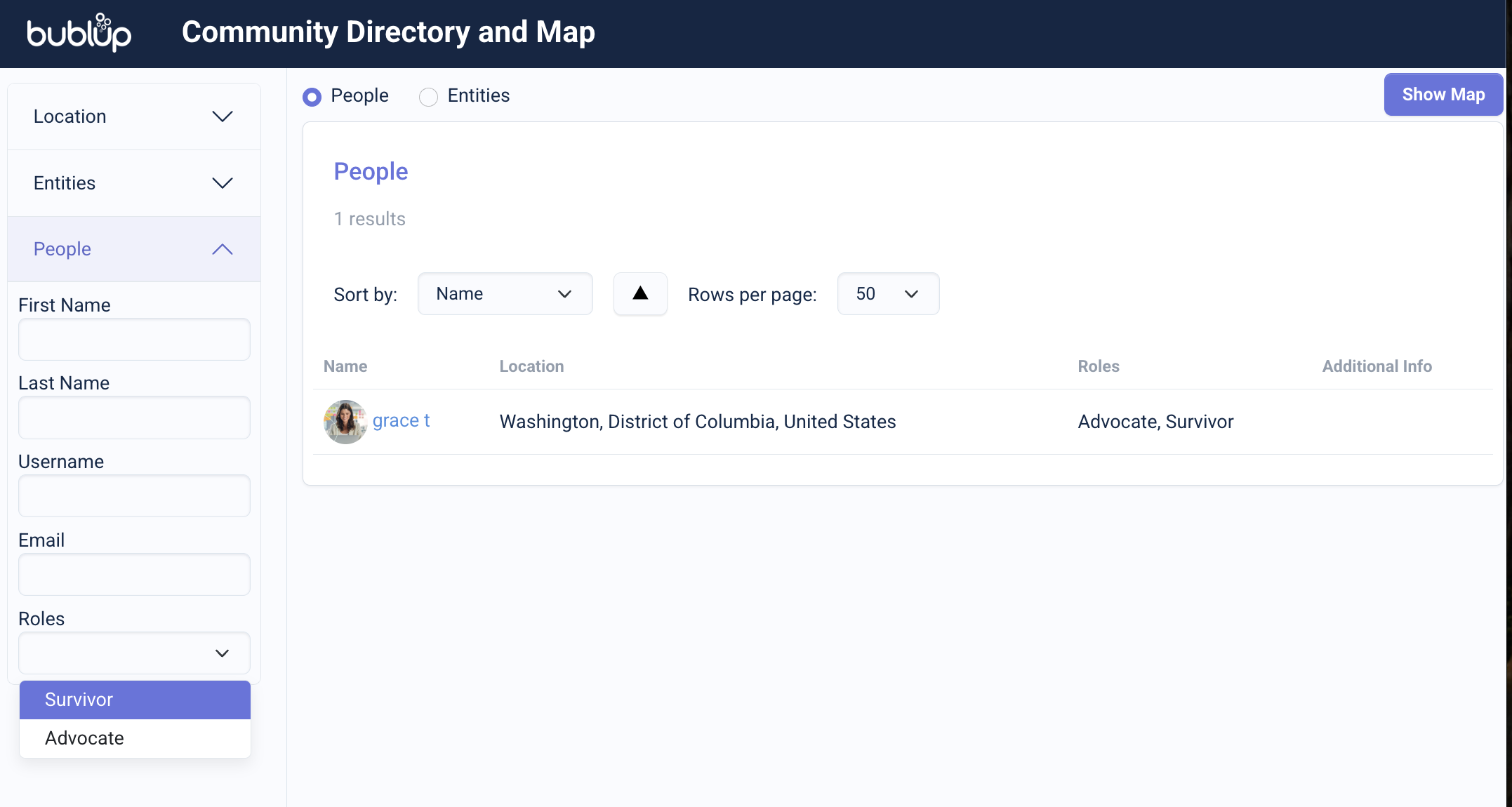
How to Share Your Location
In order to share your location, Community admins must first follow these steps to turn on the community profiles feature.
To appear on the map, open your Community and go to ☰ menu→“My Community Profile”. Then add your city of residence.

Branded Maps
If your community is branded, your directory and map site will also appear branded.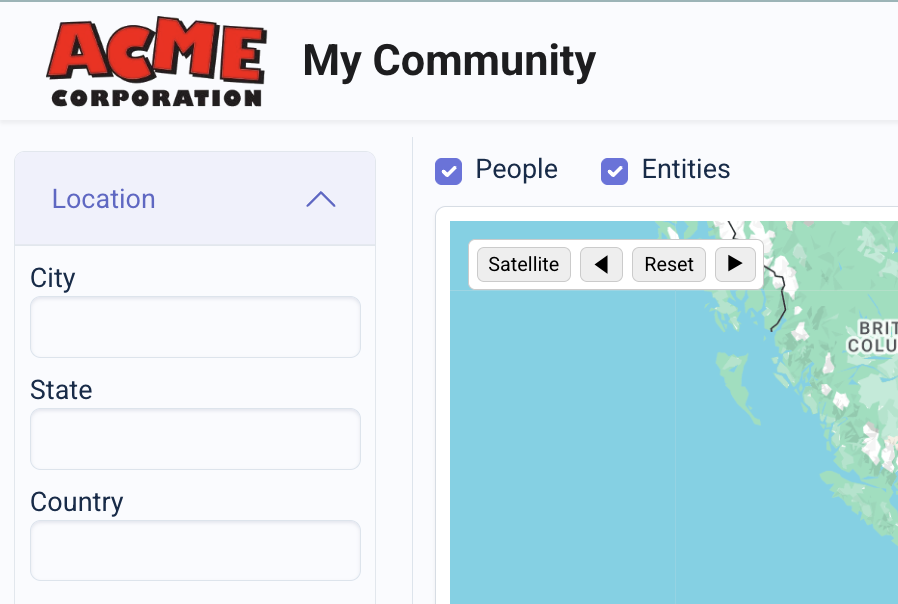
AI Summaries
Bublup uses AI to automatically generate summaries for links saved in your Bublup account.
Viewing AI Summaries
When a summary has been generated, you will see an “AI Summary” button on the item card.
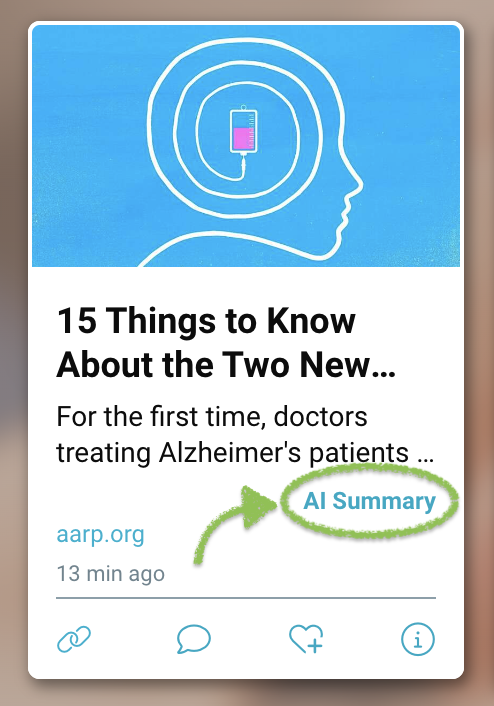
Click on the “AI Summary” button to view the full summary. From here, you can also visit the original page or copy its url.