

Within an Organization or Community, you can save time by importing multiple users into your space at once.
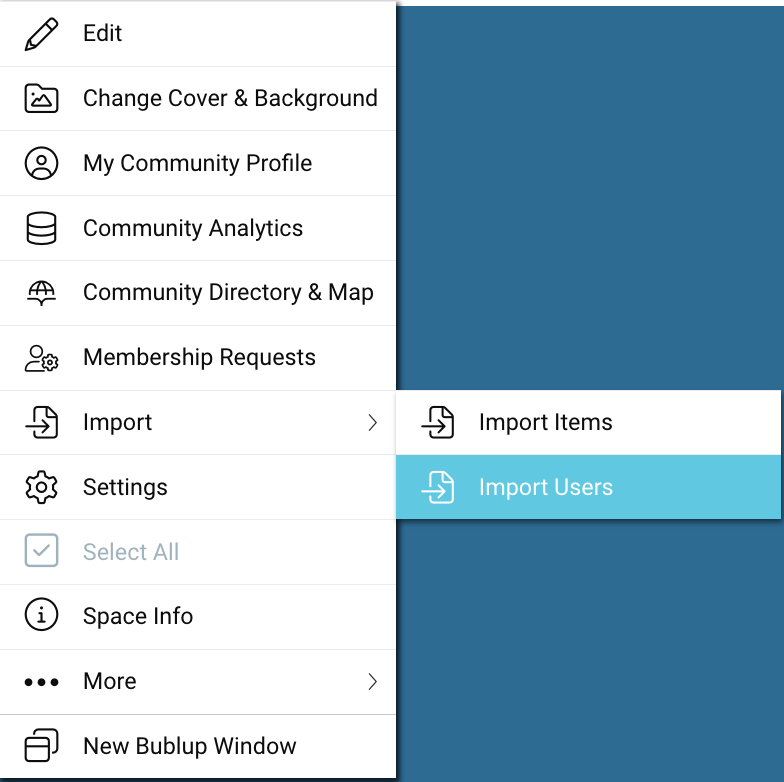
- Click the ☰ menu and select “Import” > “Import Users”.
- Upload a CSV file with one row per user.
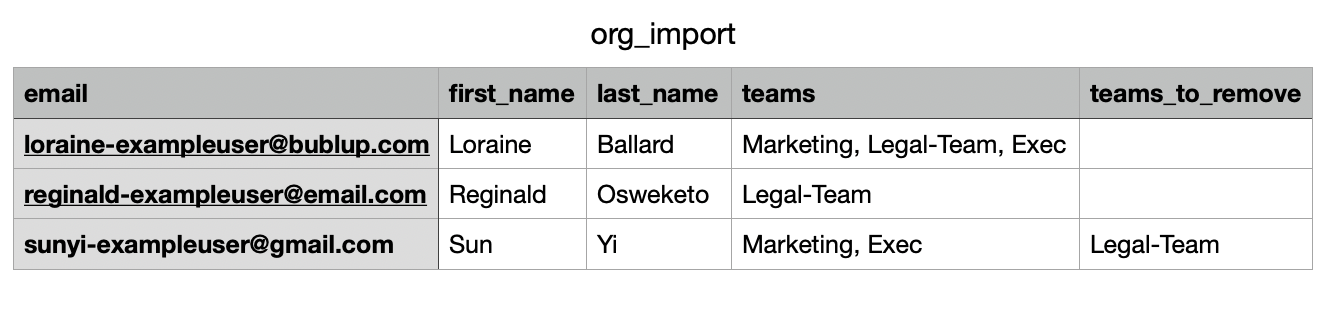
- The first row of the file must include the following as headers:
- ‘email’
- ‘first_name’
- ‘last_name’
- Optionally, you can also specify team assignment, by including the following columns:
-
- ‘teams’: enter the name(s) of the team(s) you would like that user to be added to.
- ‘teams_to_remove’: enter the name(s) of the teams you would like that user to be removed from.
-
- The first row of the file must include the following as headers:
- When your import is complete, you will receive an email and in-app notification.

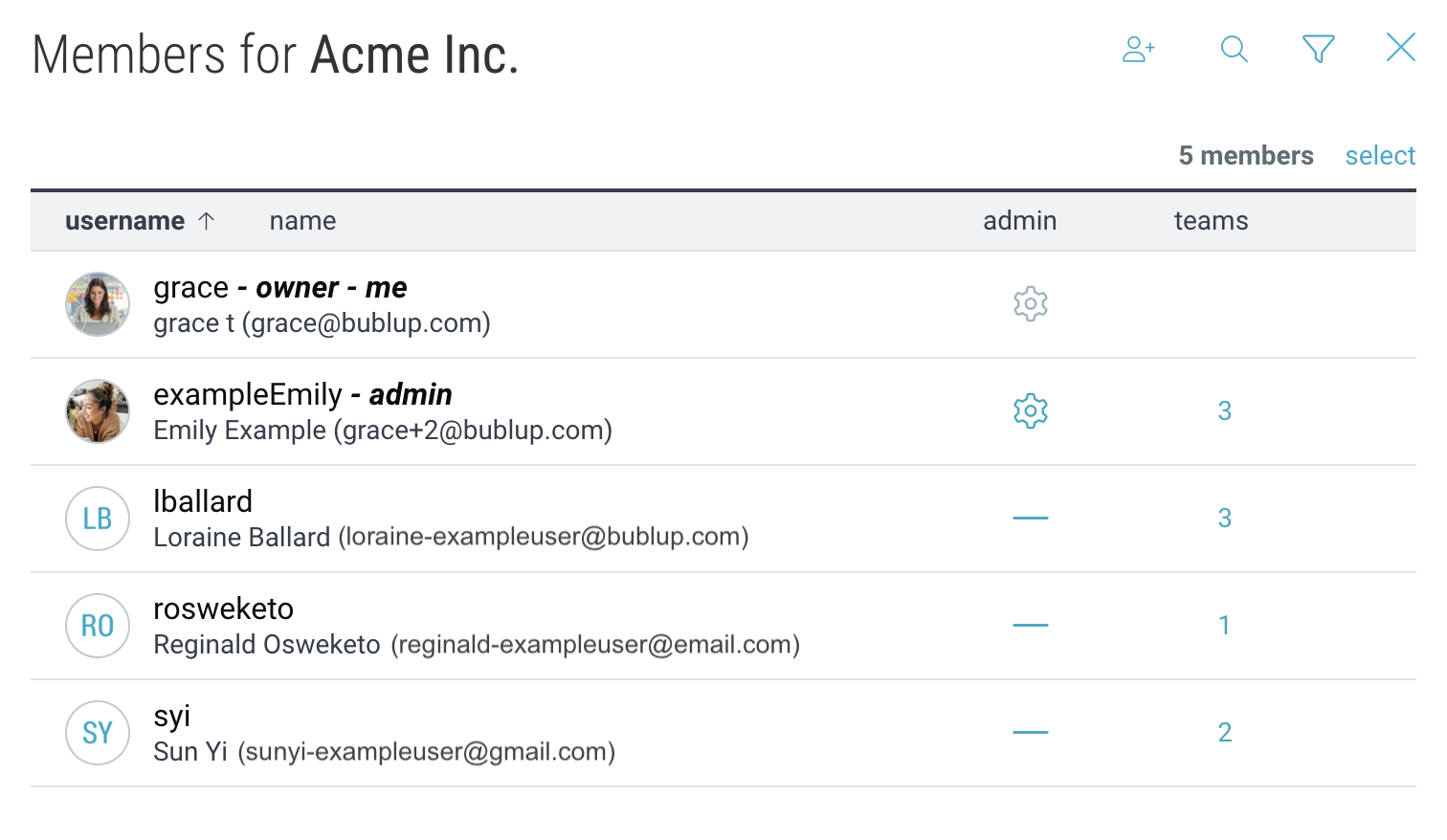
- The imported users will appear in your member management window and will also receive any specified team assignments.
- Note: If there are any errors when processing your import, they will be included in the email you receive.