

At Bublup, we make collaboration fun and simple for everyone. Our interactive platform lets you control collaboration and personalize your projects while streamlining productivity. Control access to your projects and files, receive real-time updates any time a group member makes changes, and stay on top of workflows. No matter what you want to share and collaborate on, Group Folders have you covered!
Learning center
Read our resources below to find out what the Group Folders can do for you:

Create a group folder

Group folder notification

Advanced member management

Manage group folder members

What Are the Benefits of Collaboration Apps?
See group folders in action
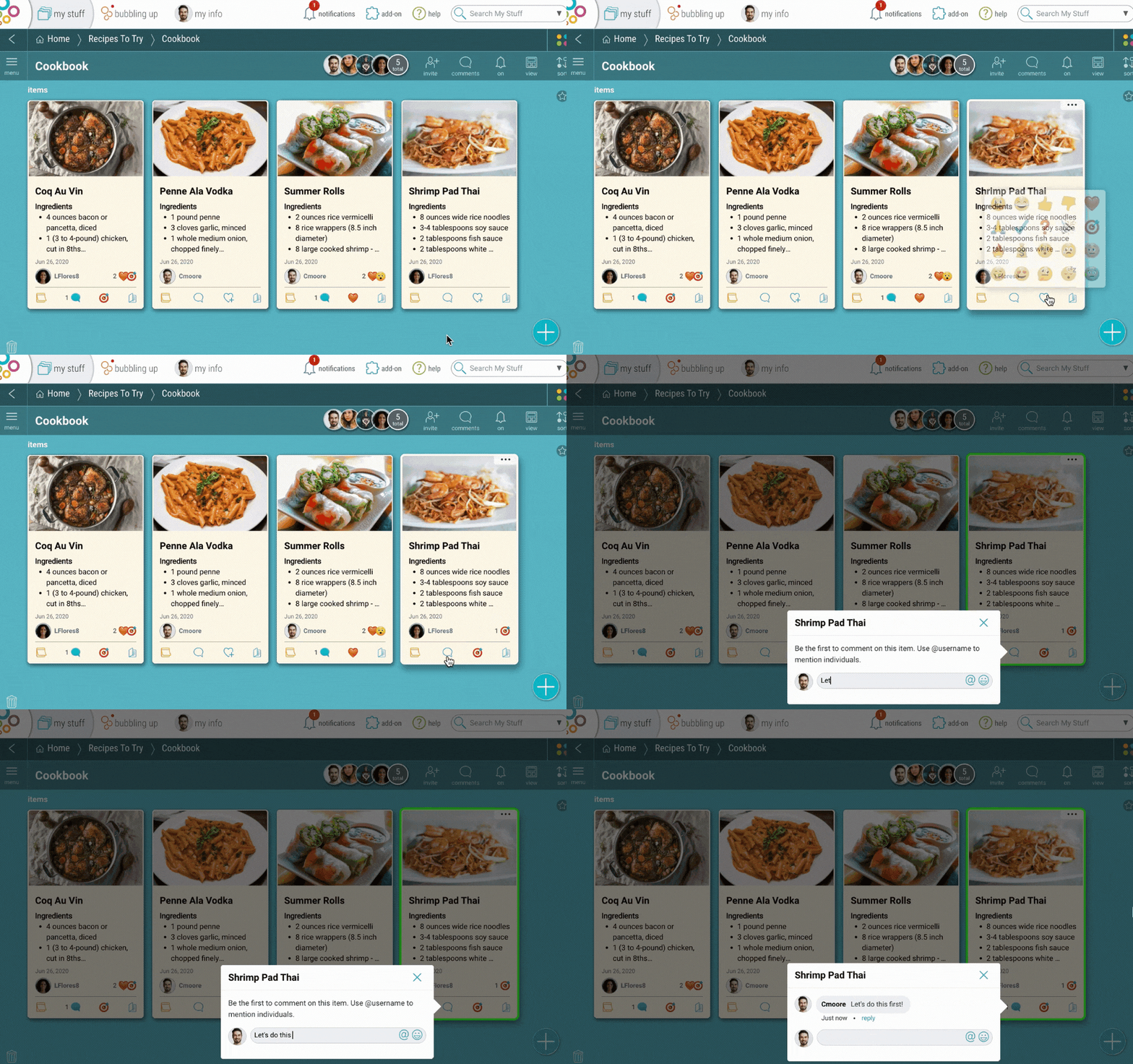
Likes, Comments, and Reactions
Anyone can contribute in a Group Folder. Like what you see? Add a reaction such as a “heart” or a “check mark”, or leave feedback for others to see.
Updated user settings
Want to change who can view or add to a folder? No problem. You can edit permissions and make collaboration as seamless as possible.
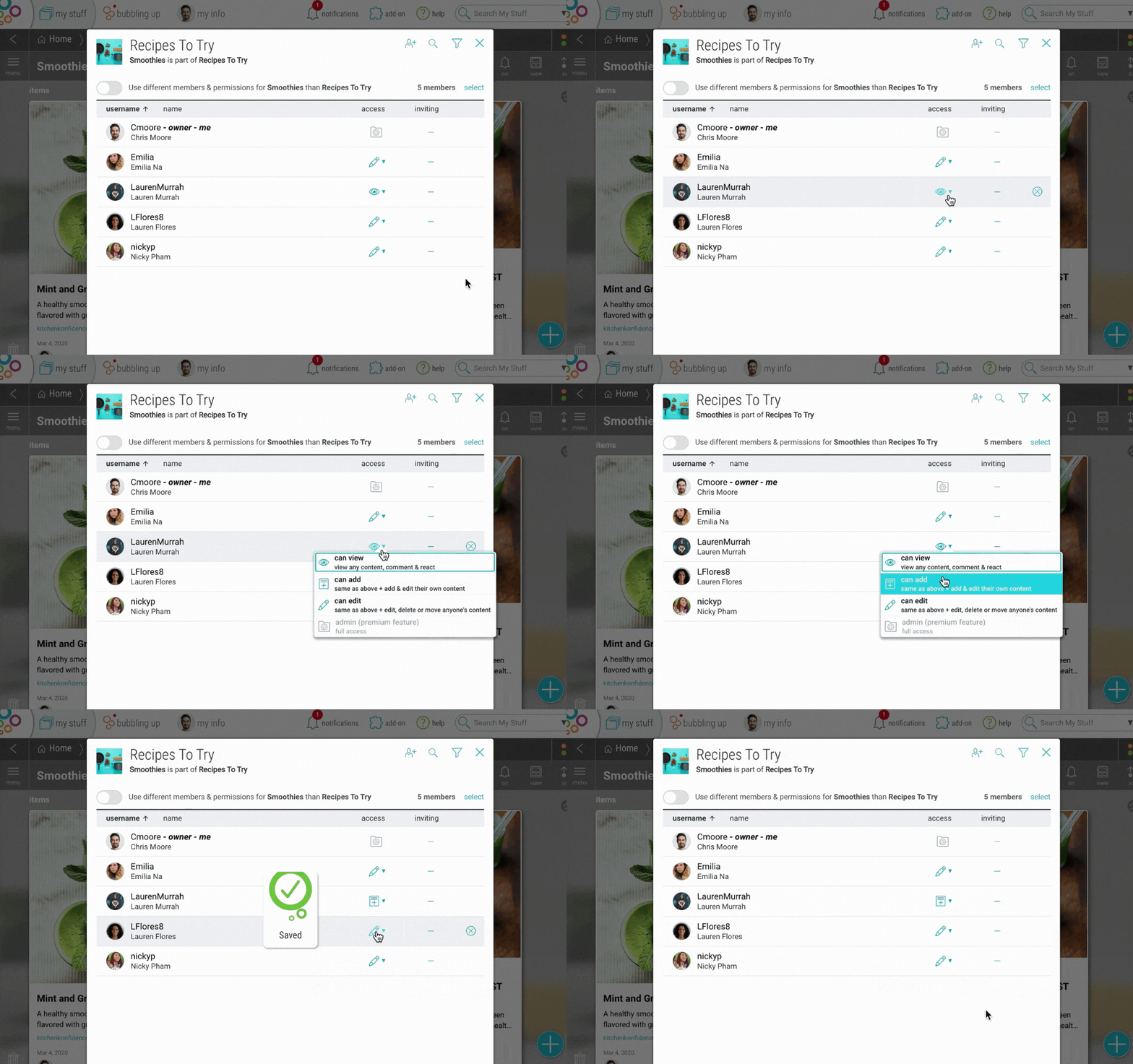
Frequently Asked Questions
How do I invite someone to a Group Folder?
- There are two ways to invite members to a Group Folder:
- While inside your folder, click on the “invite” button in the upper right corner and select “Invite by Username or Email.”
- To invite via link, click on the “invite” button and select “Invite With A Link.”
How do I adjust permissions in a Group Folder?
- If you have edit or admin privileges in a Group Folder, you can adjust another member’s permission to your level.
- For example, if you have “can edit” permissions, then you can change another member’s permissions to your level or any lower permissions, such as “view only (which can also download)”, “can add”, or “can edit”.
- You can also set permissions to new members as they are added, or remove members at any time.
How do I take over ownership of a Group Folder?
Anyone with “admin” permissions can take over ownership of a Group Folder by simply moving the folder to their “My Stuff – Home”. They will automatically become the new owner of the folder.
If it’s not possible, see here for other ways to transfer ownership.